00197714-01_IM_REQUIRED_STEPS_BEFORE_USING_SUPPORT_MEDIA_2.0_EN.pdf - 第17页
Required Steps be fore using Suppor t Media 2.0 12/2014 Edition 17 5 Verify/Change Password Complexity Policy The operating sy stem Passwo rd Complexity Poli cy allow s forcing the user to choose complex passw ords inste…
Required Steps before using Support Media 2.0 12/2014 Edition
16
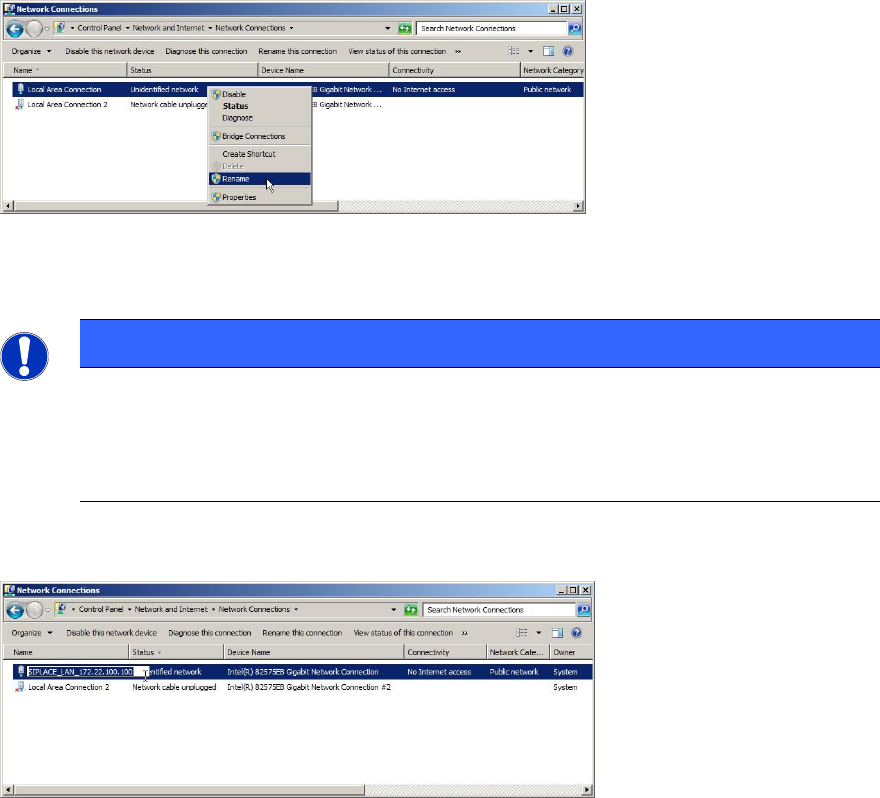
► Click on Change adapter settings to view the network adapters.
Figure 4-3: Renaming Connection step 1
► Select the appropriate adapter entry.
NOTICE
Identifying each Adapter
If you need help in identifying each adapter, you may try only connecting the
network cable to one adapter at once and verifying the status of each adapter to
identify the connected one.
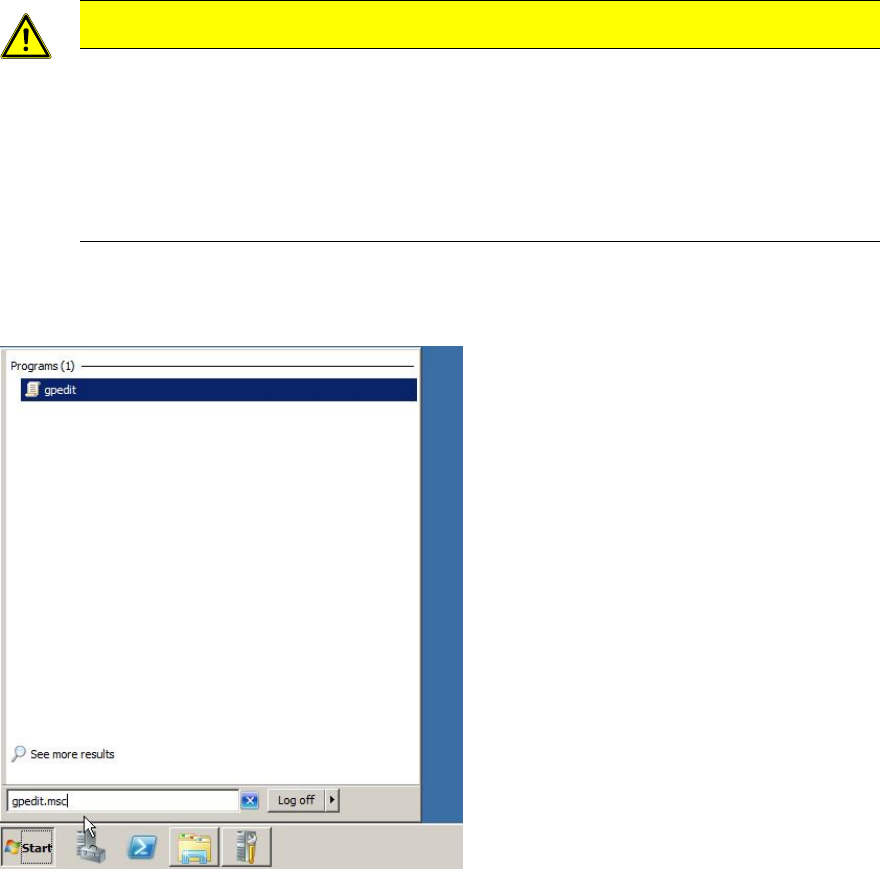
► Right-click the appropriate entry and select Rename.
Figure 4-4: Renaming Connection step 2
► Use an appropriate name for the connection, e.g. SIPLACE_LAN_<IP-Address>.
Required Steps before using Support Media 2.0 12/2014 Edition
17
5 Verify/Change Password Complexity Policy
The operating system Password Complexity Policy allows forcing the user to choose
complex passwords instead of simple, which only contains characters.
First, you should decide whether to use simple or complex passwords in your SIPLACE
environment. The appropriate setting should be applied on all involved computers
ensuring proper communication.
CAUTION
Workgroup requires Accounts with same Passwords
SIPLACE computers working in a workgroup require the same accounts and
passwords to be set on all involved computers for proper authentication.
Therefore you should also enforce uniform setting of password complexity policy.
It is also strongly recommended to change the complexity policy setting before
using Support Media the first time!
To verify/change the password complexity policy of the operating system, the following
steps have to be performed.
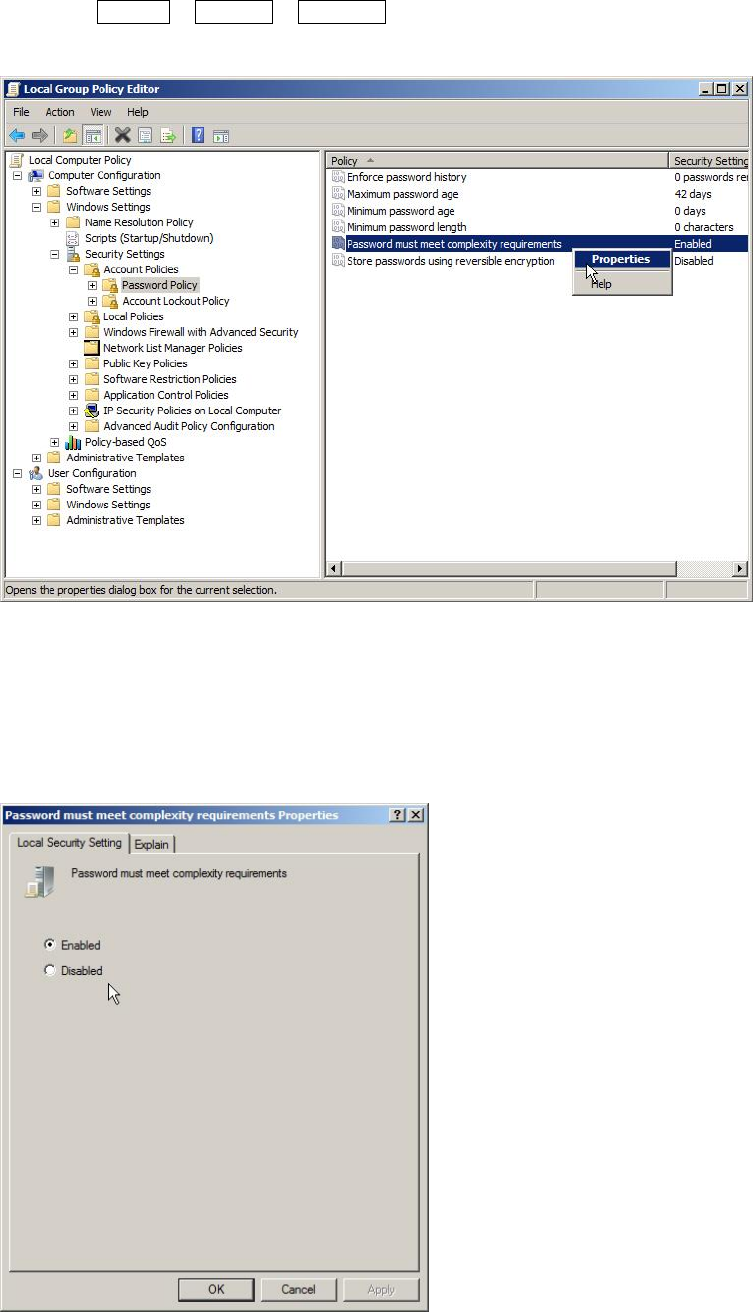
Figure 5-1: Starting gpedit.msc on Windows Server 2008 R2
► Click Start and enter gpedit.msc in the search field.
Required Steps before using Support Media 2.0 12/2014 Edition
18
► Press CTRL + SHIFT + ENTER to execute the command with administrative
permissions.
Figure 5-2: Local Group Policy Editor – Password Complexity Policy
► In the Local Group Policy Editor, navigate to
Local Computer Policy – Computer Configuration – Windows Settings – Security
Settings – Account Policies – Password Policy.
► Select the entry Password must meet complexity requirements, right-click on it and
select Properties.
Figure 5-3: Password Complexity Policy setting
► Now, you can verify/change the setting as needed. Enabled means only complex
passwords being allowed, whereas Disabled also allows simple passwords.
► If you are done, click the OK button.