00197714-01_IM_REQUIRED_STEPS_BEFORE_USING_SUPPORT_MEDIA_2.0_EN.pdf - 第33页
Required Steps be fore using Suppor t Media 2.0 12/2014 Edition 33 Windows should de tect the SIPLAC EAdmin acco unt. ► Click OK to close the w in dow. Figure 8-6 : Gi ving SIPL ACEAdmin chang e permis sions on SIPLAC E …
Required Steps before using Support Media 2.0 12/2014 Edition
32
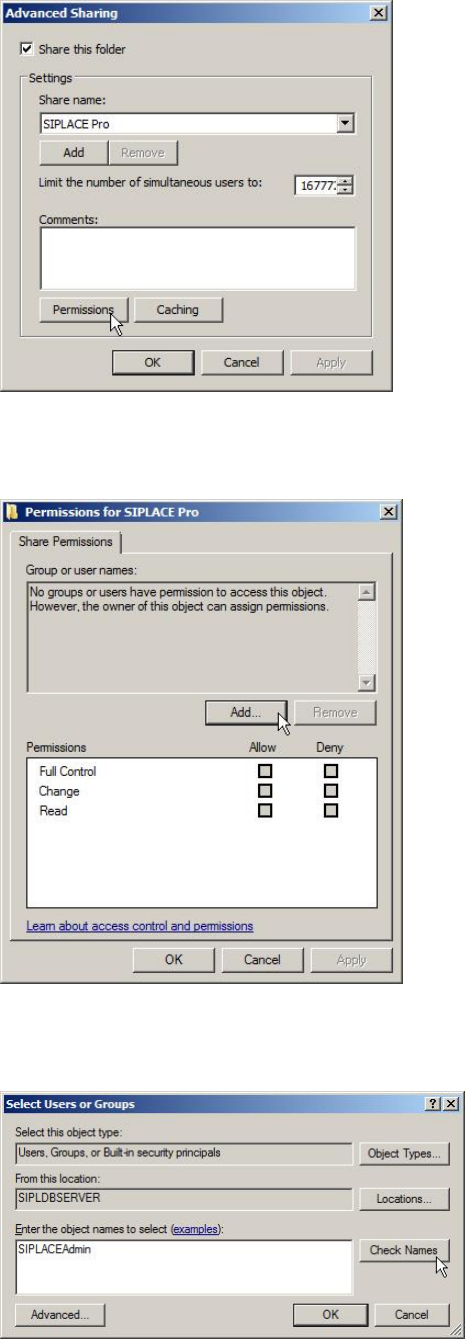
Figure 8-3: Calling SIPLACE Pro Share Permissions
► Click the Permissions button to access share permissions.
Figure 8-4: Adding Share permissions
► Click the Add… button.
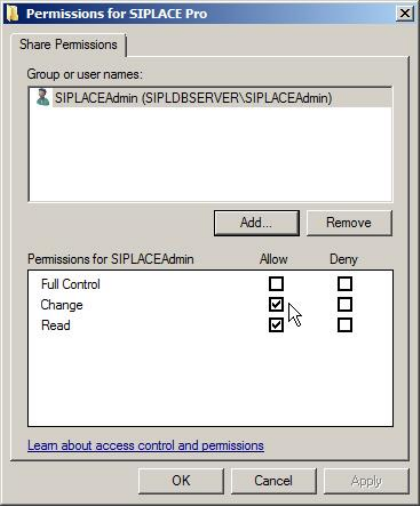
Figure 8-5: Adding SIPLACEAdmin account permissions
► Enter the SIPLACEAdmin account.
► Click on Check Names.
Required Steps before using Support Media 2.0 12/2014 Edition
33
Windows should detect the SIPLACEAdmin account.
► Click OK to close the window.
Figure 8-6: Giving SIPLACEAdmin change permissions on SIPLACE Pro share
► Go back to the previous window, select the SIPLACEAdmin account in the upper part
of the window.
► Check the checkbox besides Change in the Allow column.
► Click the OK button to apply the changes.
You have now prepared your SIPLACE Pro Server installation to be accessed by
SIPLACE Pro Client Setups.
8.2 Network Infrastructure
This chapter includes some hints and troubleshooting information, which you should be
familiar with when integrating computers in a network infrastructure.
8.2.1 Strictly distinguishing Networks
To avoid network identification and communication problems, you should:
– Use different IP subnet ranges for different networks; each network adapter should
access an own, dedicated IP subnet without overlapping.
– Only use the Default Gateway setting, if you have a default gateway.
– Avoid configurations where destination computers can be accessed using multiple
addresses. This means, don’t connect computers together using multiple network
cards and IP subnets – this makes no sense and provokes routing errors. For
example, MSMQ backchannel problems might occur if you do this.
– Use own, unique IP addresses and computer names for all computers in the network
Required Steps before using Support Media 2.0 12/2014 Edition
34
8.2.2 Uniform Time and Date
For authentication and communication, it is very important to ensure all involved
computers having the same
1
date and time.
Additionally some SIPLACE Products (like OIS), requires time zone to be identical.
8.2.3 Order of Network Adapters when using Vision Teach Station
At the SIPLACE Pro Server computer, make sure the network card communicating with
the Vision Teach Station is the first in order. Otherwise the Vision Teach Station cannot
communicate with the SIPLACE Pro Server.
NOTICE
Listed Network Connections are Examples
This chapter describes the general way of changing the order of network
connections. The network connections on your SIPLACE Pro Server computer
may differ from the connections in these screenshots. You have to identify the
appropriate connection which is communicating with Vision Teach Station by
yourself.
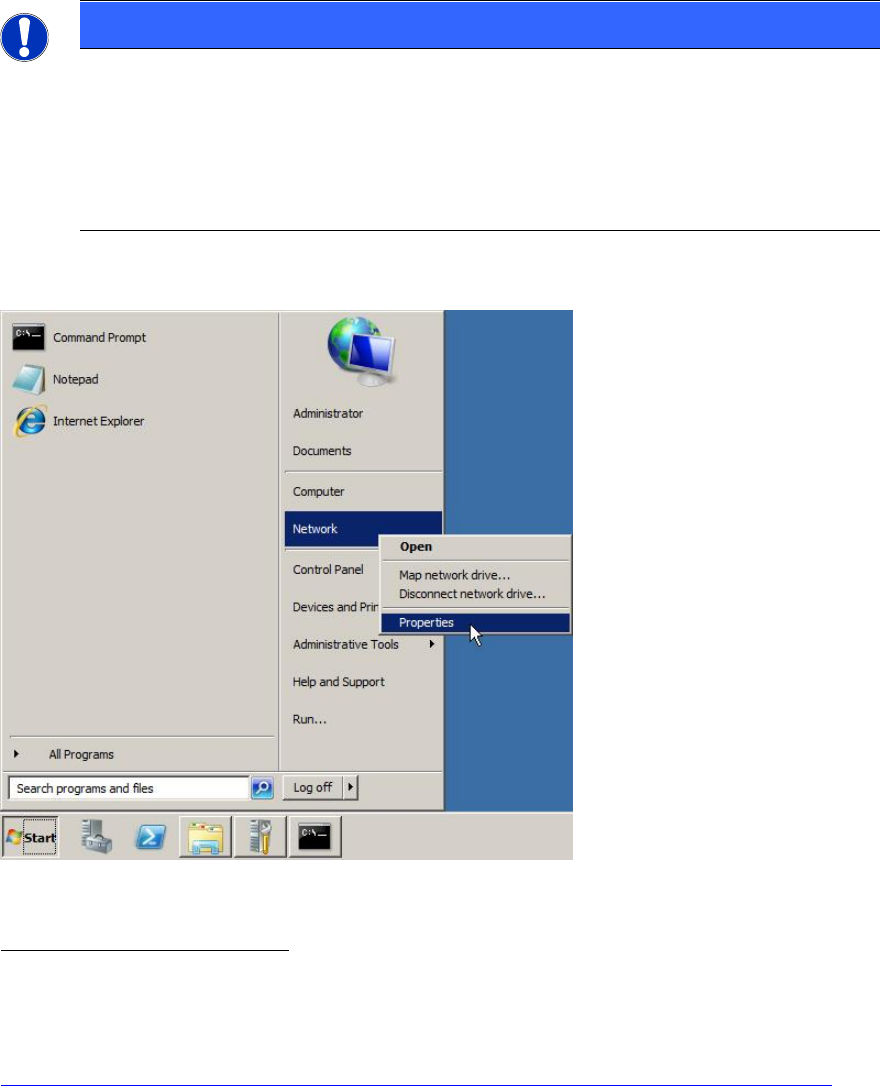
To change the order of network connections:
Figure 8-7: Opening Network Settings
1
For Windows authentication (using NTLMv2) to work correctly, system time must not
differ too much (<36 h) from the client.
For information on NTLMv2:
http://support.microsoft.com/?scid=kb%3Ben-us%3B823659&x=12&y=9