00197714-01_IM_REQUIRED_STEPS_BEFORE_USING_SUPPORT_MEDIA_2.0_EN.pdf - 第23页
Required Steps be fore using Suppor t Media 2.0 12/2014 Edition 23 ► Click on Create . Figure 6-9 : Ne w window for a ccount crea tion ► Close the accou nt creati on wind ow by clicking on Close . Figure 6- 10 : Server M…
Required Steps before using Support Media 2.0 12/2014 Edition
22
The Computer Management / Server Manager window opens.
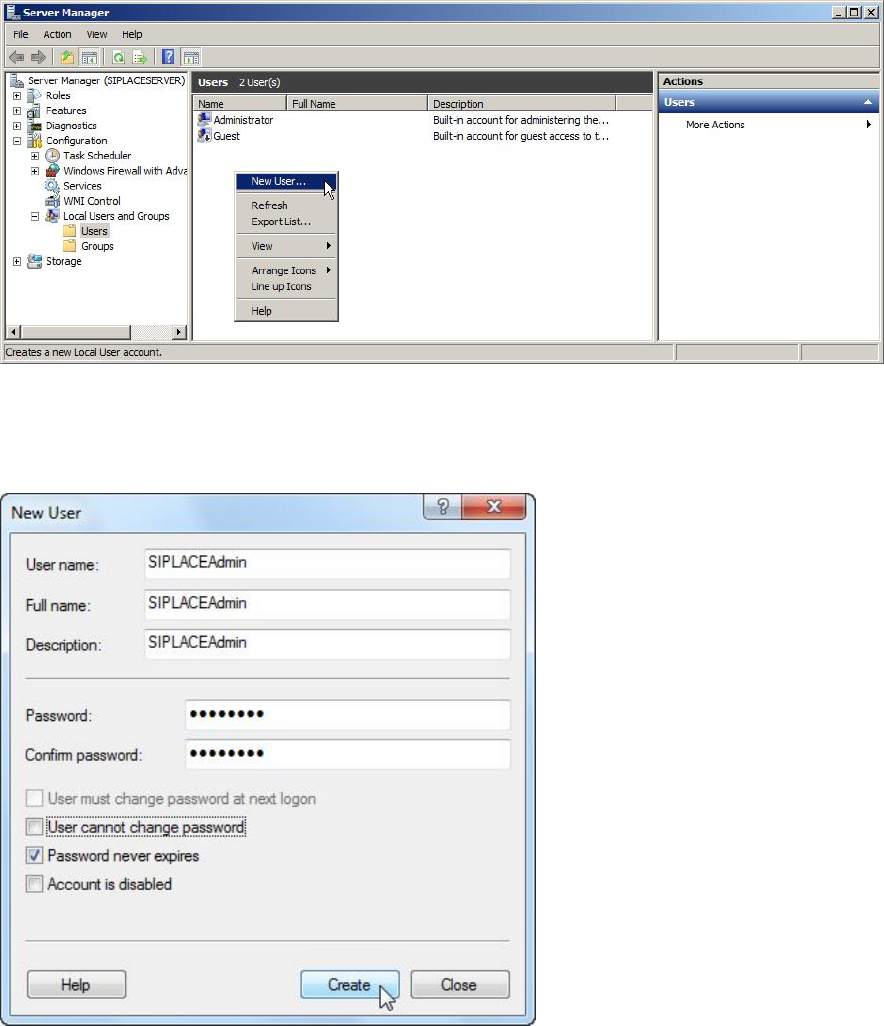
Figure 6-7: Creating SIPLACEAdmin account
► Navigate through Configuration (or System) – Local Users and Groups – Users.
► Right-click on an empty space in the list of accounts and select New User…
Figure 6-8: Creating SIPLACEAdmin account
► Enter SIPLACEAdmin for the User name, Full name and Description.
► Uncheck the checkbox besides User must change password at next logon.
► Ensure that the checkbox besides Password never expires is selected.
► Enter the appropriate password for the account meeting the defined complexity.
Please refer to the technical information TI2008-04V08 for service technicians to
determine the password to be set for the SIPLACEAdmin account.
Required Steps before using Support Media 2.0 12/2014 Edition
23
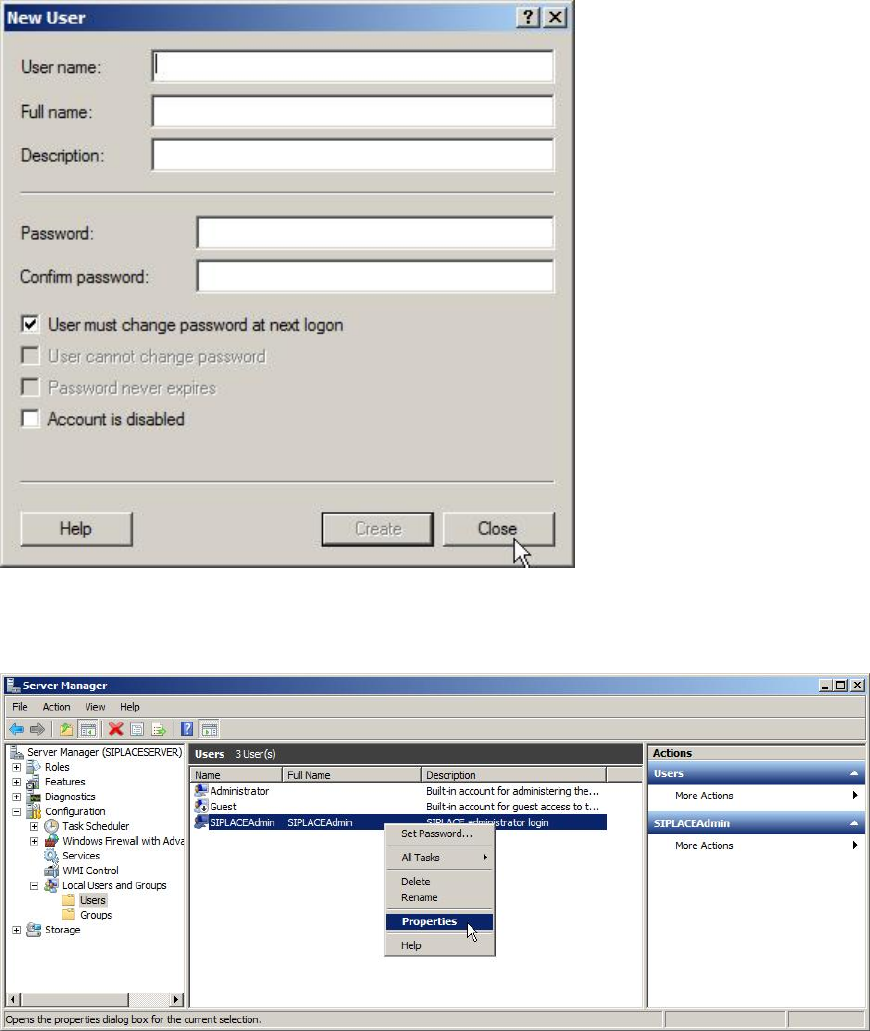
► Click on Create.
Figure 6-9: New window for account creation
► Close the account creation window by clicking on Close.
Figure 6-10: Server Manager – Selecting Properties of SIPLACEAdmin account
► In the Server Manager / Computer Management, select the SIPLACEAdmin
account, right- click on it and select Properties.
Required Steps before using Support Media 2.0 12/2014 Edition
24
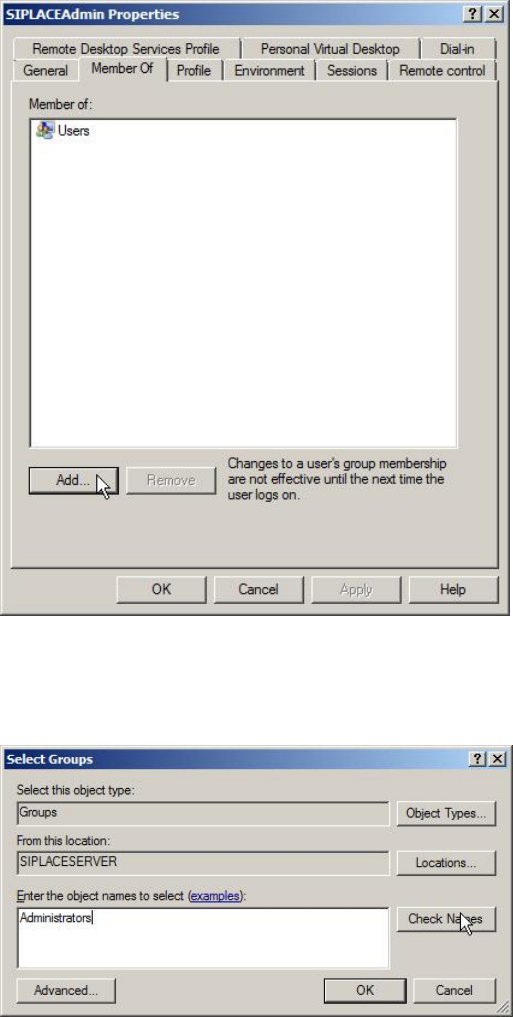
Figure 6-11: SIPLACEAdmin account properties – Member Of tab
► Switch to the Member Of tab.
► Click Add….
Figure 6-12: Adding Administrators group
► In the Select Groups window, enter the name of the Administrators group and click
Check Names.