00197197-01_IM_SetupCenter5.0_EN.pdf - 第21页
Installation Motorola MC70/MC75 1D/2D barcode scanner Hardware Installation Installation Manual SIPLACE Setup Center 5.0 21 4.2.3 Motorola MC70/MC75 1D/2D barc ode scanner 4.2.3.1 System Requirements The following compon…
Installation
Hardware Installation Datalogic Scanner’s Cradle BC-8030
20 Installation Manual SIPLACE Setup Center 5.0
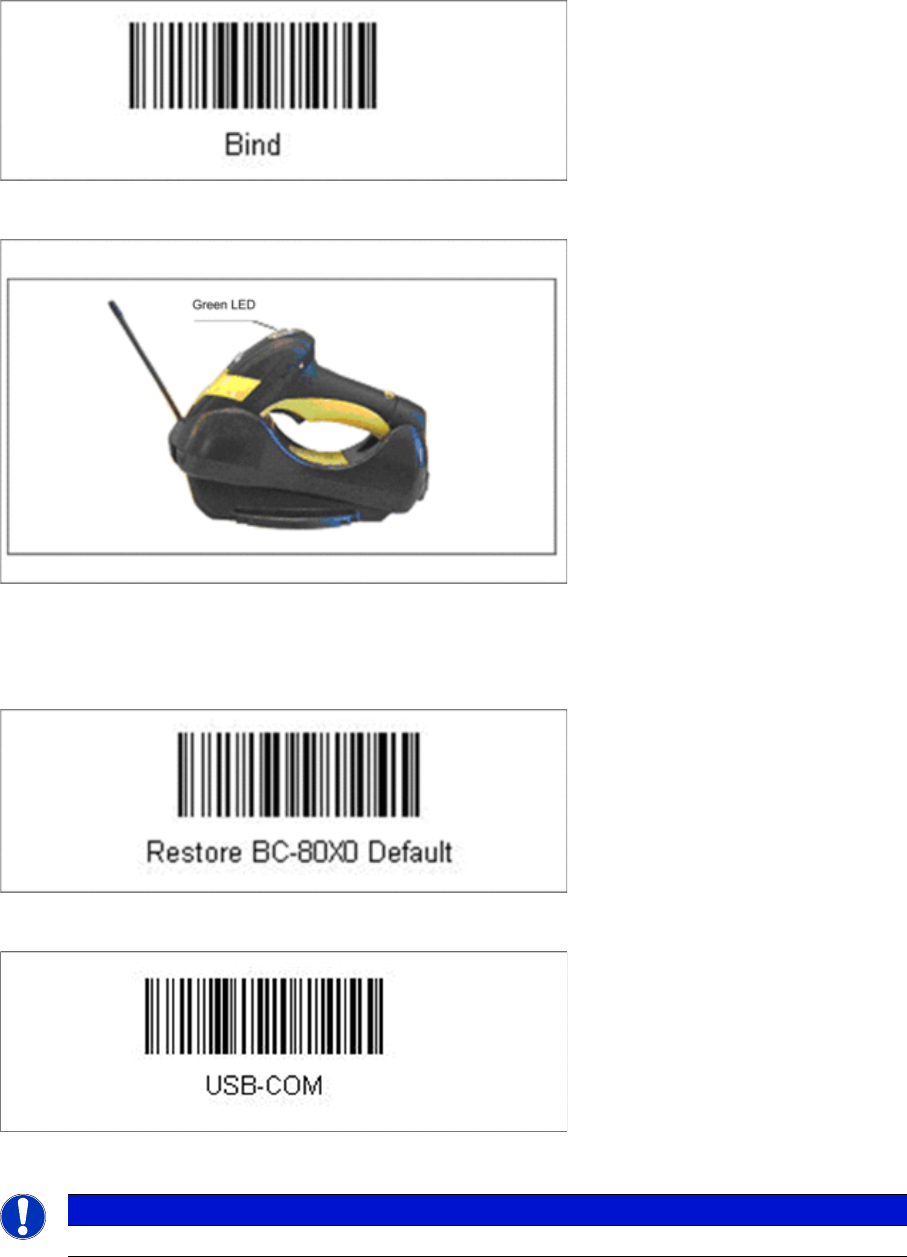
In order to configure the cradle a scanner needs to be bound to the cradle with the barcode "Bind".
► Scan the barcode "Bind" now.
► If the green LED of the scanner blinks, put the scanner into the cradle.
► The green LED is now switched off and the scanner is already registered on the cradle.
The interface of the cradle can be set up now with the following barcodes.
► Scan the barcode "Restore BC-80X0 Default" to restore the standard configuration of the cradle.
► Scan the barcode "USB-COM" to set the interface to USB.
The cradle is now ready for use with Setup Center.
The communication over the USB-COM interface requires at least the firmware version 610001601 for
the scanner cradle.
NOTICE
USB-COM interface
Installation
Motorola MC70/MC75 1D/2D barcode scanner Hardware Installation
Installation Manual SIPLACE Setup Center 5.0 21
4.2.3 Motorola MC70/MC75 1D/2D barcode scanner
4.2.3.1 System Requirements
The following components are required for the operation of the scanner:
▪ WLAN-infrastructure (not included)
▪ MC70 / MC75 scanner integrated in WLAN-infrastructure and accessible with "ping" windows-com-
mand.
▪ Required scanner firmware versions
– MC70: 05.43 or higher
– MC75: 01.23 or higher
4.2.3.2 Configurate WLAN on Scanner
Please configure the barcode scanner for the operation within WLAN network - as described in docu-
ment Installation Manual WLAN Infrastructure for SIPLACE (item no. 00195606-xx).
4.2.3.3 MC70/MC75 Prerequisites installation
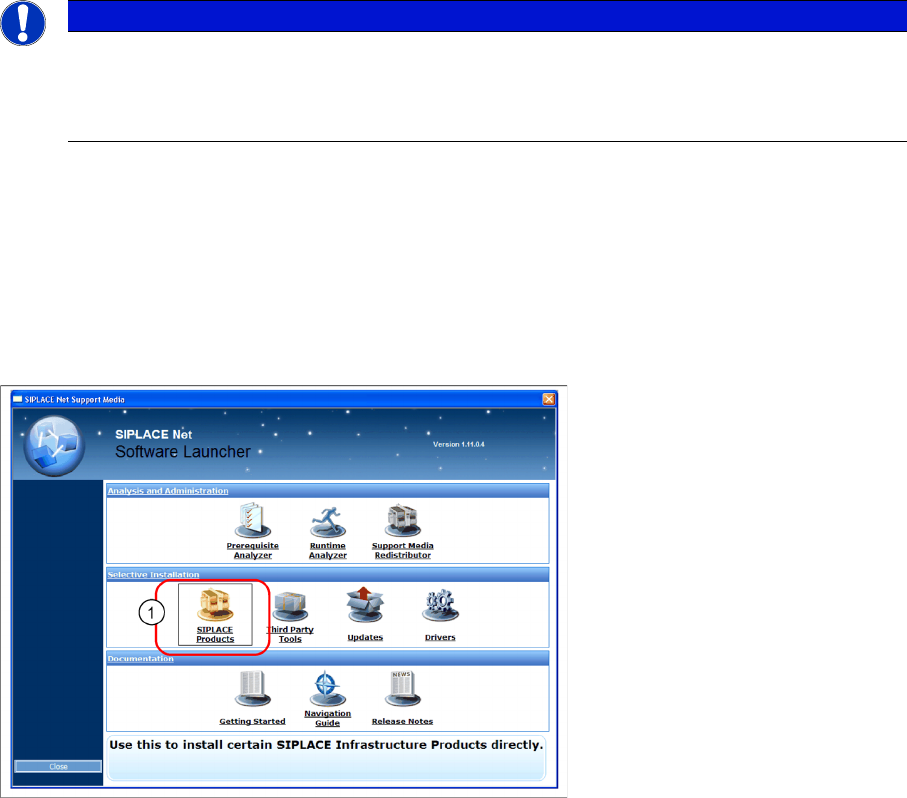
The installation for MC70 Prerequisites is located on the DVD "SIPLACE Support Media DVD1" in the
section SIPLACE Products (1).
NOTICE
The scanner might be delivered with a different firmware version. Please install the firmware
version listed above. It is located on the software DVD "SIPLACE Support Media DVD1” in the
section “SIPLACE Products” (See "4.2.3.3 MC70/MC75 Prerequisites installation" [ ➙ 21]).
Please observe by all means the enclosed documentation.
Installation
Hardware Installation Motorola MC70/MC75 1D/2D barcode scanner
22 Installation Manual SIPLACE Setup Center 5.0
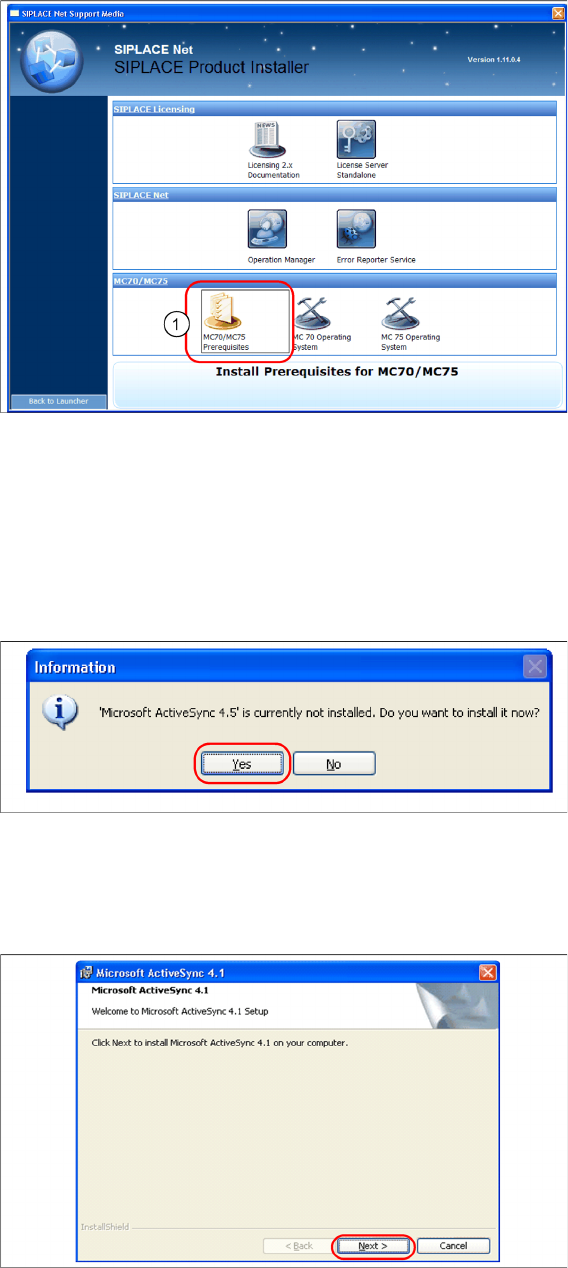
► Execute the MC70 / MC75 Prerequisites (1).
Step 1: ActiveSync / Mobile Device Center
The “MC70 / MC75 Prerequisites” setup tool checks if the necessary communication program (Ac-
tiveSync or Mobile Device Center) is present. If this is not the case, the program can be installed.
Windows XP: ActiveSync
If ActiveSync is not installed on the system, the following message box appears.
► Select Yes to start the installation of Microsoft ActiveSync. Make sure that the scanner is not yet con-
nected to the basic station.
Install ActiveSync
► Click on "Next" to proceed.