00197197-01_IM_SetupCenter5.0_EN.pdf - 第76页
Installation Steps to Perform After Installation Datalogic Scanner Configuration 76 Installation Manual SIPLACE Setup Center 5.0 ► Select " fi rmware upgrad e " from the menu " Tools ". ► Select "…
Installation
Datalogic Scanner Configuration Steps to Perform After Installation
Installation Manual SIPLACE Setup Center 5.0 75
Firmware upgrade
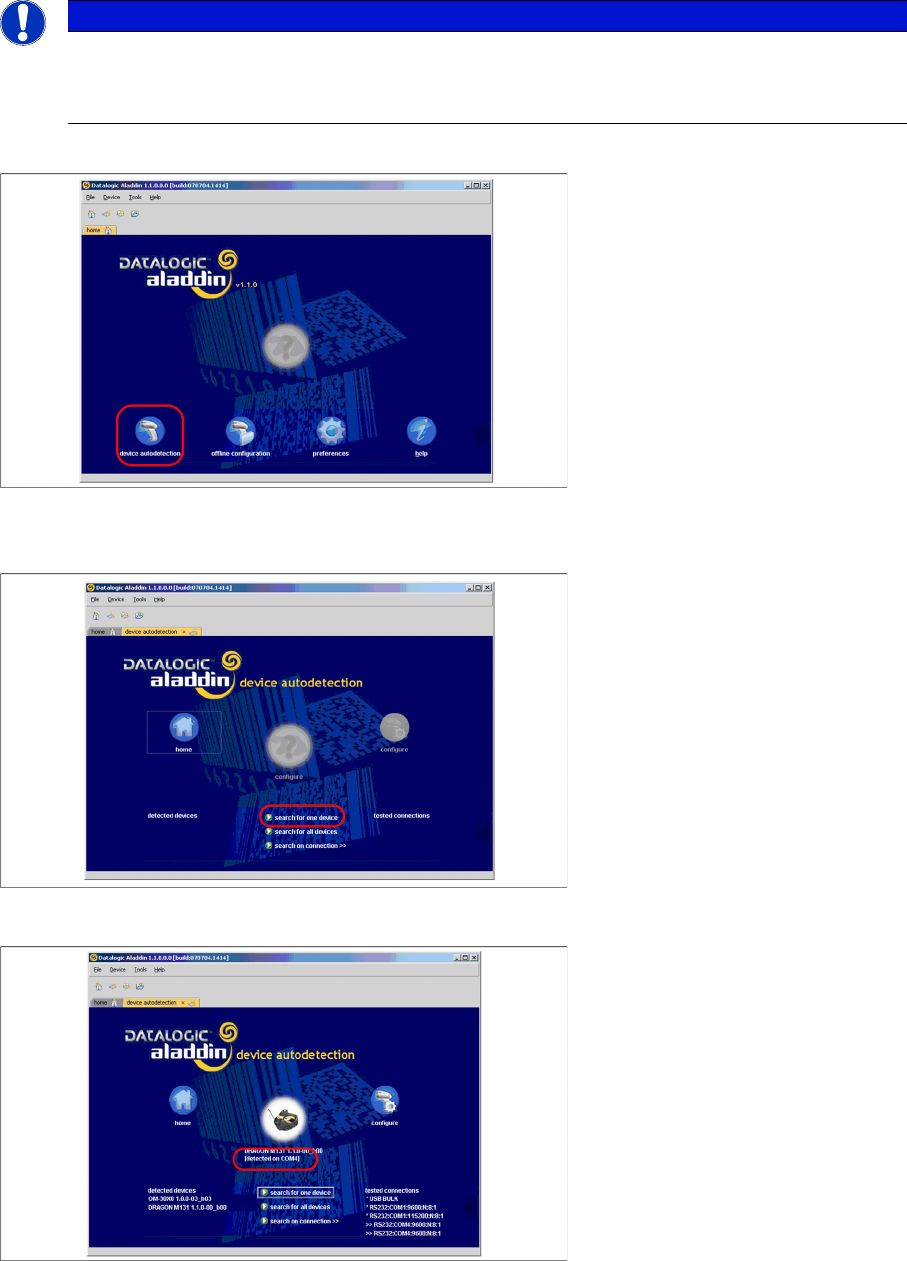
After "Datalogic Aladdin" was started, the following overview will be displayed.
► Select "device autodetection" to find out at which COM port the Datalogic OM30X0 cradle is con-
nected.
► Select "Search for one device" to start the search.
► The cradle is now detected.
NOTICE
Please make sure that no applications such as SIPLACE Setup Center are accessing the serial
communication.
► Exit these applications before you continue.
Installation
Steps to Perform After Installation Datalogic Scanner Configuration
76 Installation Manual SIPLACE Setup Center 5.0
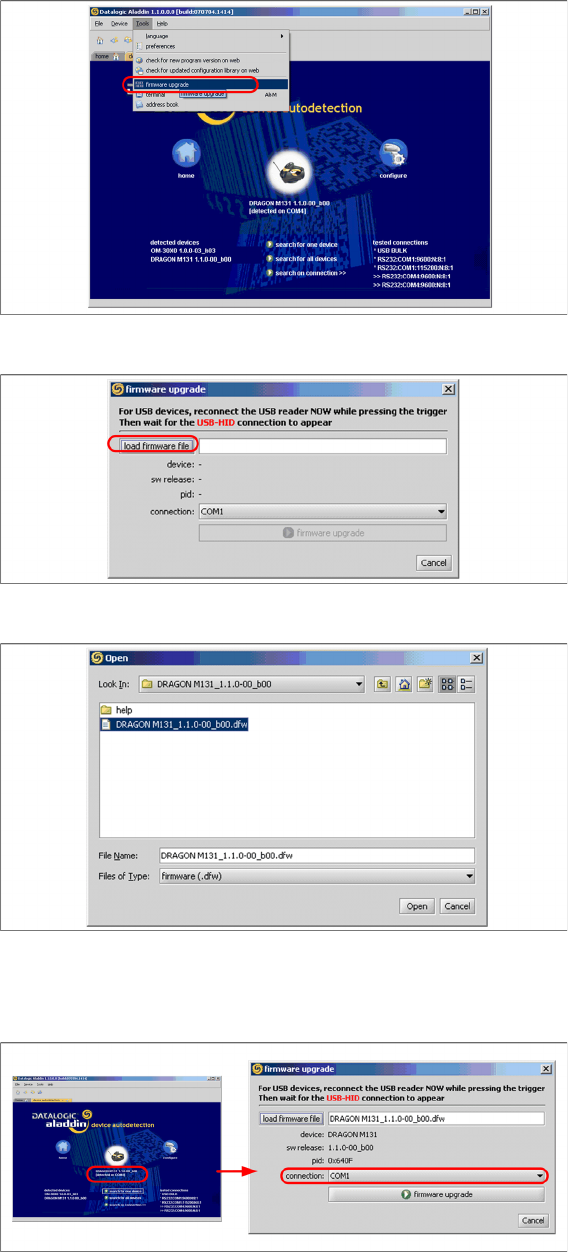
► Select "firmware upgrade" from the menu "Tools".
► Select "load firmware file" in the dialog box.
► Open the folder where the firmware version 1.1.0-00_ b00 for the Datalogic Dragon M131 is stored
(standard path "C:\Program Files\Datalogic\Aladdin\resource\ConfigRepository\DRAGON
M131_1.1.0 00_ b00").
► Choose the right COM port at which the cradle is connected. This was already found out automati-
cally at the beginning.
Installation
Datalogic Scanner Configuration Steps to Perform After Installation
Installation Manual SIPLACE Setup Center 5.0 77
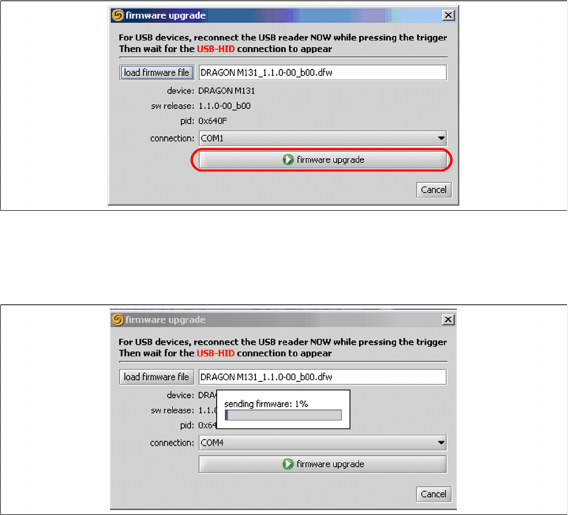
► Activate the scanner by pushing the laser trigger.
► Then select "firmware upgrade" to start the transfer of the new firmware version to the scanner.
► Exit the "Datalogic Aladdin", if the transfer is completed.