00197197-01_IM_SetupCenter5.0_EN.pdf - 第89页
Installation SIPLACE Setup Center Configuration Steps to Perform After Installation Installation Manual SIPLACE Setup Center 5.0 89 ► Right Click on a b arcode to op en the context menu: ⇨ Edit : Further barcod e configu…
Installation
Steps to Perform After Installation Motorola / Symbol MC70/MC75 Scanner Configuration
88 Installation Manual SIPLACE Setup Center 5.0
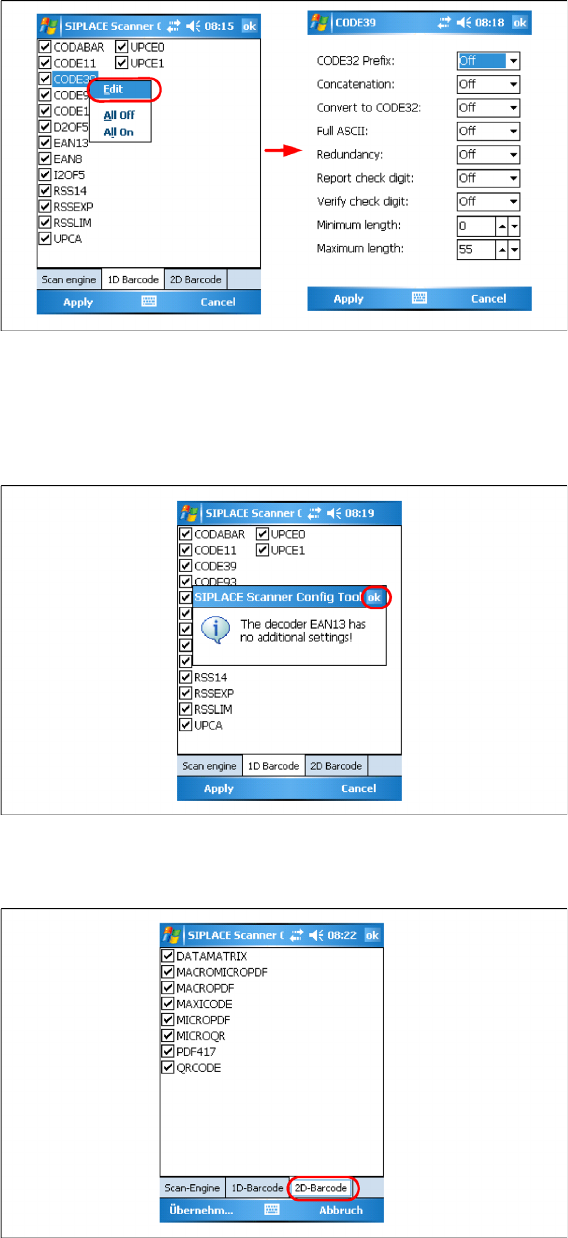
► Right click on a barcode to open the context menu:
⇨ Edit: Additional barcode settings
⇨ All Off: Select none of the barcodes in the list
⇨ All On: Select all the barcodes in the list
► If there is no addional settings for this barcode available, press Ok to close the window.
► Press Ok or Apply to save the settings.
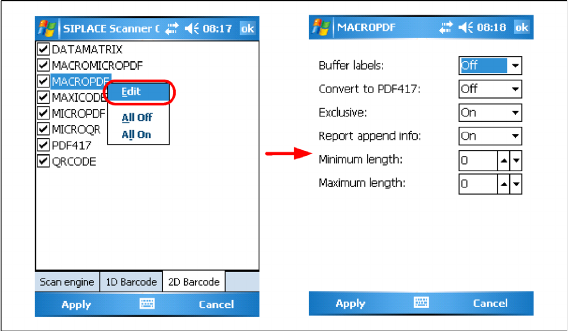
► Choose the allowed 2D barcodes for your MC70 Scanner here.
Installation
SIPLACE Setup Center Configuration Steps to Perform After Installation
Installation Manual SIPLACE Setup Center 5.0 89
► Right Click on a barcode to open the context menu:
⇨ Edit: Further barcode configuration
⇨ All Off: Select all the barcodes in the list
⇨ All On: Select none of the barcodes in the list
► Press Ok or Apply to save the settings.
4.4.5 SIPLACE Setup Center Configuration
Setup Center GUI requires to be configured before it can be used. The configuration can be found via
the main menu Options → Settings. For detailed information, please refer to User Guide SIPLACE Setup
Center 5.0.
4.4.6 Settings on the SIPLACE Pro
In order to use Setup Center you should make settings on the programming system SIPLACE Pro. For
detailed information, please refer to User Guide SIPLACE Setup Center 5.0.
4.4.7 Barcode Label Wizard
The Barcode Label Wizard enables you to print out barcodes needed for the operation of the SIPLACE
Setup Center. For detailed information, please refer to User Guide SIPLACE Setup Center 5.0 .
Installation
Troubleshooting Relevant Files to Analyze Installation Problems
90 Installation Manual SIPLACE Setup Center 5.0
4.5 Troubleshooting
If it is not possible to solve a problem during installation of SIPLACE Setup Center, please send the file
SIPLACESetupCenterSetupLog.html and all similar "log" named files to the SIPLACE Service.
4.5.1 Relevant Files to Analyze Installation Problems
Error description
Whenever problems arise during setup, please inspect the file SIPLACESetupCenterSetupLog.ht-
ml, which is written during each installation.
Cause
Setup problems.
Solution
The log file is found either in C:\ (prior to the "move data phase") or in the selected program folder.
Old versions of the log file are located in the program folder. A timestamp is added to the filename. Dialog
boxes appear during the file copying phase of installation which only contain
► Yes and No options.
Hint
► If you need SIPLACE support regarding installation problems, please provide all installation log files.
4.5.2 Conflicting old SIPLACE Setup Center Installations
Error Description:
InstallShield reports a conflicting old installation of SIPLACE Setup Center.
Cause:
The new SIPLACE Setup Center installation conflicts with old SIPLACE Setup Center installations.
Solution:
If SIPLACE Setup Center setup detects old installations and if you are absolutely sure you have unin-
stalled the old version of SIPLACE Setup Center, please proceed as follow:
Make sure that you have manually removed any remnants of this old installation from the program folder
except for the database.