00197197-01_IM_SetupCenter5.0_EN.pdf - 第84页
Installation Steps to Perform After Installation Motorola / Symbol MC70/MC75 Scanner Configuration 84 Installation Manual SIPLACE Setup Center 5.0 ► Here you can set a password to prevent mod ification on the scan ner co…
Installation
Motorola / Symbol MC70/MC75 Scanner Configuration Steps to Perform After Installation
Installation Manual SIPLACE Setup Center 5.0 83
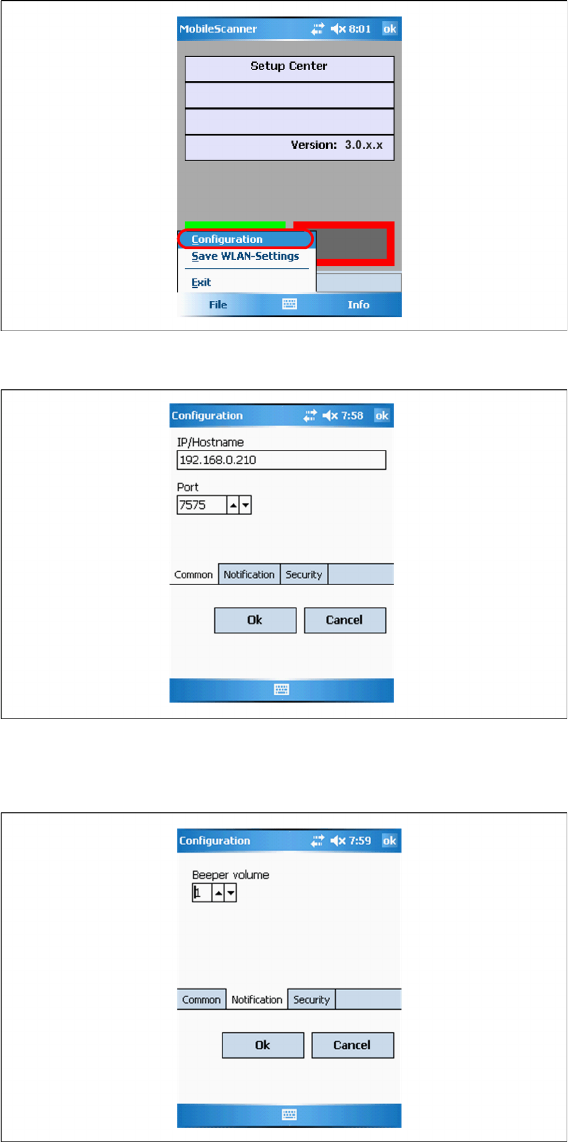
► Open the configuration dialog via File->Settings.
► Type the IP-address/name of the PC where Setup Center is installed.
► Enter the port for which the scanner interface is configurated (default:7575).
► Configurate the volume of the buzzer. The buzzer gives accustical feedback in operation mode of
Setup Center.
Installation
Steps to Perform After Installation Motorola / Symbol MC70/MC75 Scanner Configuration
84 Installation Manual SIPLACE Setup Center 5.0
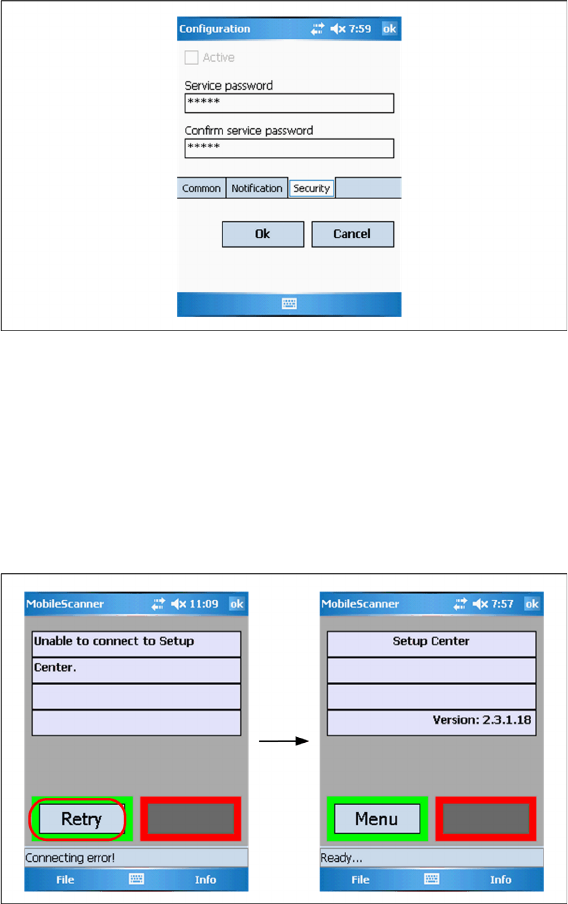
► Here you can set a password to prevent modification on the scanner configuration.
For the first editing of the configuration the password is empty. In this case safety is deactivated. You
can set a password now. By confirmation with "OK" all settings were saved.
4.4.4.3 Establishing Connection
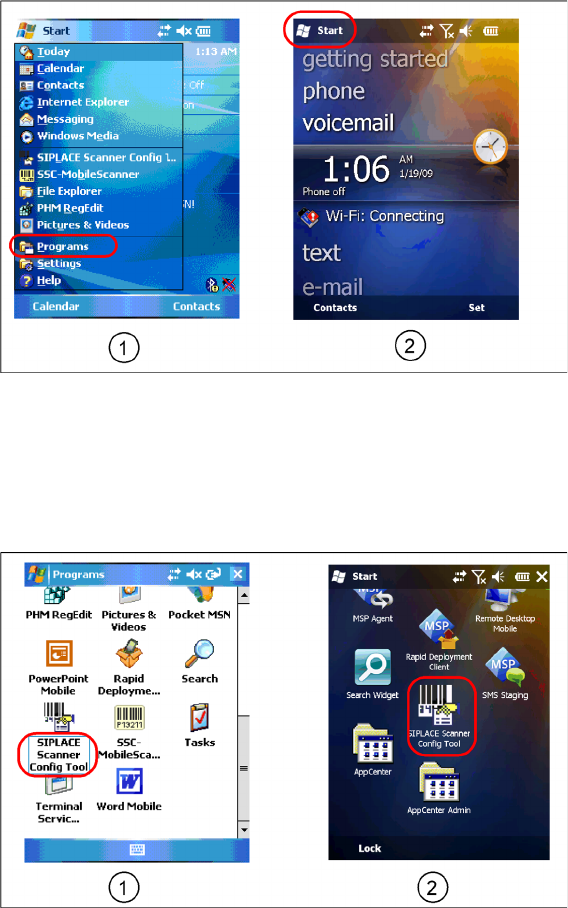
► Start Setup Center.
► Click on "Connect" to establish a connection to Setup Center.
In case the connection fails check the network settings again.
The software is now successfully configured.
Installation
Motorola / Symbol MC70/MC75 Scanner Configuration Steps to Perform After Installation
Installation Manual SIPLACE Setup Center 5.0 85
4.4.4.4 SIPLACE Scanner Config Tool
Scanning problems with 1D barcodes
If the MC70/MC75 is unable to scan most of your 1D barcodes, use the following configuration utility, to
resolve the problems.
► Please exit all running applications on scanner and Symbol AppCenter to continue.
Legend
1. MC 70
2. MC 75
► Select Start->Programs to show present applications on scanner.
Legend
1. MC 70
2. MC 75
► Select SIPLACE Scanner Config Tool to continue.