00197197-01_IM_SetupCenter5.0_EN.pdf - 第23页
Installation Motorola MC70/MC75 1D/2D barcode scanner Hardware Installation Installation Manual SIPLACE Setup Center 5.0 23 ► Accept the licensing ag r eements and sel ect "Next". ► Enter your user information …
Installation
Hardware Installation Motorola MC70/MC75 1D/2D barcode scanner
22 Installation Manual SIPLACE Setup Center 5.0
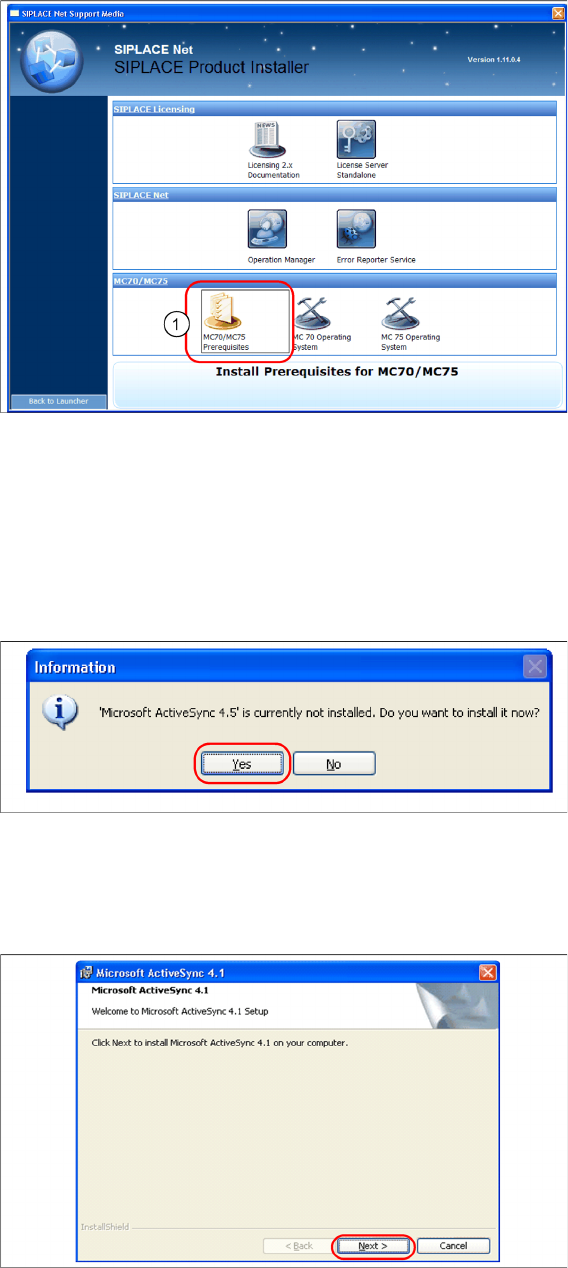
► Execute the MC70 / MC75 Prerequisites (1).
Step 1: ActiveSync / Mobile Device Center
The “MC70 / MC75 Prerequisites” setup tool checks if the necessary communication program (Ac-
tiveSync or Mobile Device Center) is present. If this is not the case, the program can be installed.
Windows XP: ActiveSync
If ActiveSync is not installed on the system, the following message box appears.
► Select Yes to start the installation of Microsoft ActiveSync. Make sure that the scanner is not yet con-
nected to the basic station.
Install ActiveSync
► Click on "Next" to proceed.
Installation
Motorola MC70/MC75 1D/2D barcode scanner Hardware Installation
Installation Manual SIPLACE Setup Center 5.0 23
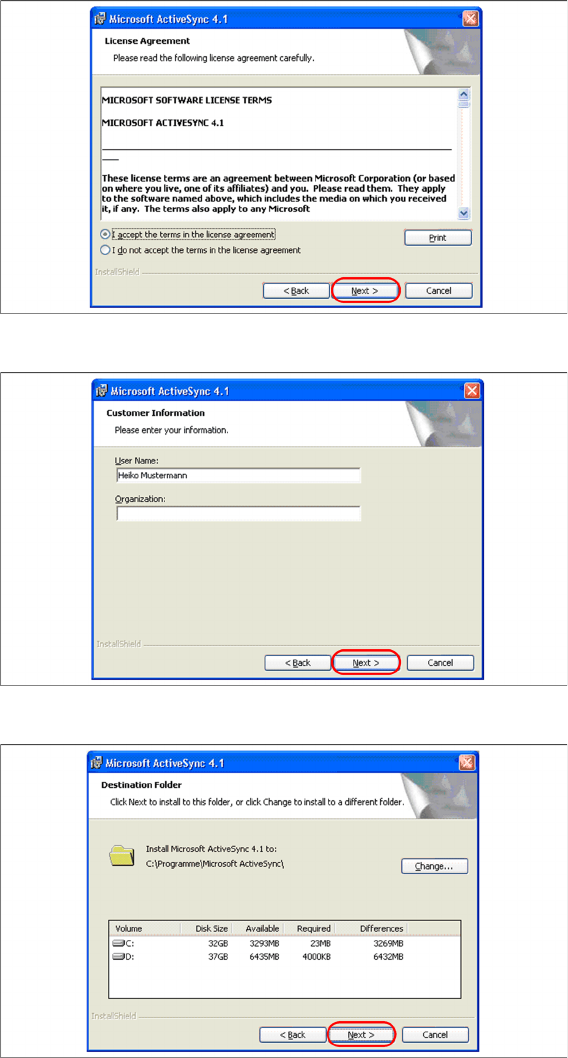
► Accept the licensing agreements and select "Next".
► Enter your user information and select "Next".
► Select the path for copying the installation files and select "Next".
Installation
Hardware Installation Motorola MC70/MC75 1D/2D barcode scanner
24 Installation Manual SIPLACE Setup Center 5.0
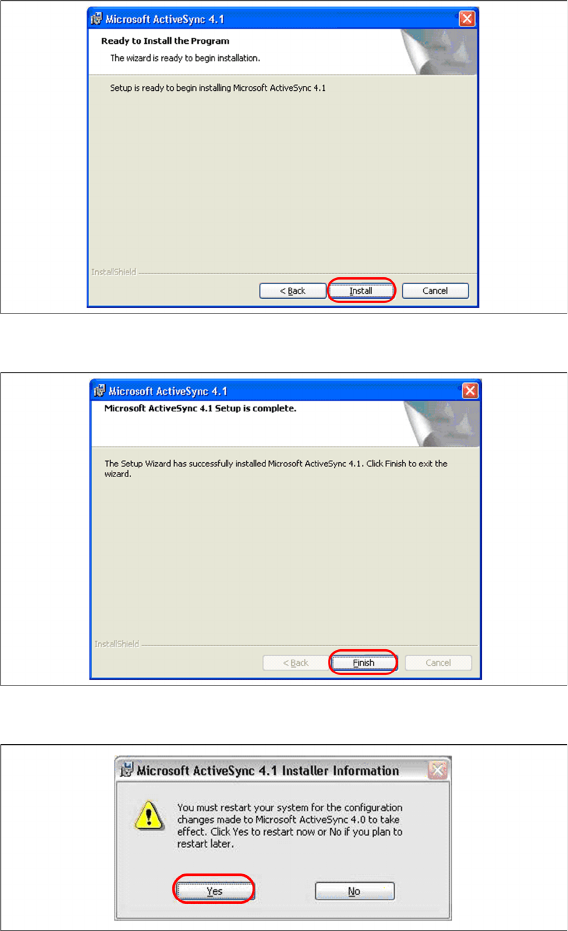
► Select "Install" to start with the installation of Microsoft ActiveSync.
► Click on "Finish" to terminate the Microsoft ActiveSync Installation.
► In case that a restart is necessary please select "Yes".
► Please start MC70 Prerequisite installation from CD after the restart.
See also
4.2.3.3.2 Step 2: AppCenter [ ➙ 26]