00196591-04 UM S-Feeder Test Station EN.pdf - 第11页
Installation MTC 2 System requirements User Manual SIPLACE S-Feeder Test Sta tion 11 3 3 I n s t a lla t io n M T C 2 Installation MTC 2 3.1 3 . 1 S y s t e m r e q u ir e m e n t s System requirements The PC, on w hich …
Hardware Description
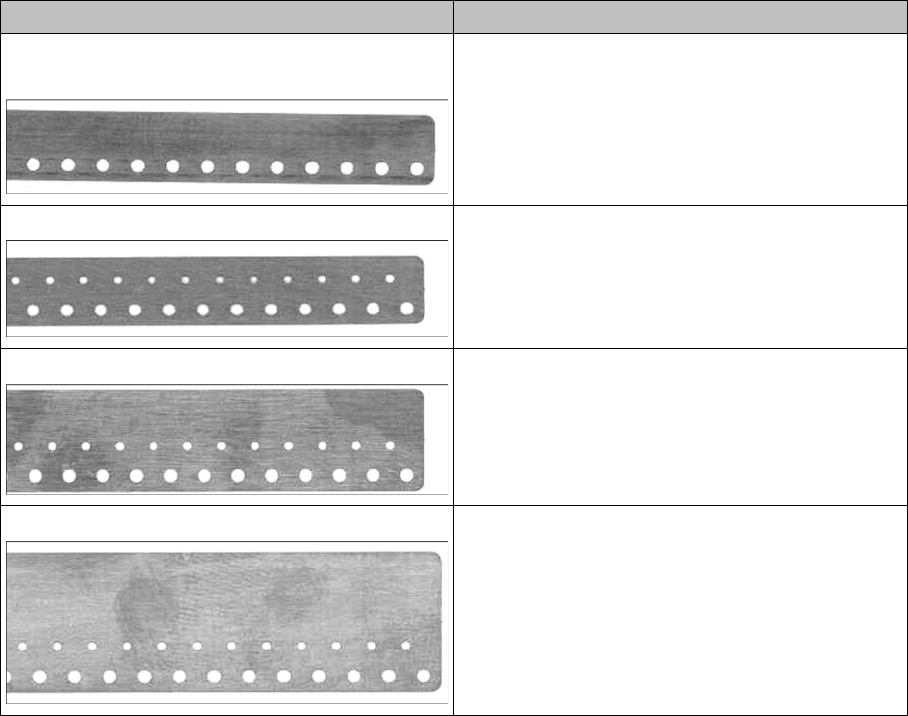
Test Tapes for the Different Feeder Types
10 User Manual SIPLACE S-Feeder Test Station
1. Location surface for feeder modules
2. Calotte for positioning and fixing the feeder modules or the calibration standard
3. Magnets for fixing the feeder modules or the calibration standard
4. Centering pin for positioning the feeder modules or the calibration standard
2.3
2.3 Test Tapes for the Different Feeder Types
Test Tapes for the Different Feeder Types
Taste tape (master tape) For feeder type
Master Tape 8mm Feeder [03079307-xx]
without a second row of holes
3 x 8mm SL (shutterless)
3 x 8mm S 0201 / 0402 BE
Master Tape 8mm Feeder [03071549-xx] 2 x 8 mm S
3 x 8 mm S
3 x 8mm (others)
Master Tape 12mm Feeder [03071708-xx] 12/16mm with setting plate
Master Tape 16mm Feeder [03071725-xx] 12/16mm without setting plate
24/32mm
44mm … 88mm
Installation MTC 2
System requirements
User Manual SIPLACE S-Feeder Test Station 11
3
3 Installation MTC 2
Installation MTC 2
3.1
3.1 System requirements
System requirements
The PC, on which the
S-Feeder test software
is to be installed, must fulfill the following minimum require-
ments.
Operating system
▪ Windows XP SP2/SP3
▪ Windows 7 (32/64Bit)
Hardware requirements
▪ Pentium 4 / Athlon 2 GHz, minimum 750 MB RAM
▪ Graphics card or onboard graphics with minimum of 64 MB graphics memory
▪ 1 serial port (COM port RS232)
▪ 1 USB 2.0 port
▪ CD drive
Required free hard drive memory
▪ For the
S-Feeder test software
max. 380 MB
▪For
Microsoft .NET Framework
(if not yet available) 280 MB
Screen resolution
Minimum monitor resolution 1024x768
3.2
3.2 Installing the Software
Installing the Software
Installation of the S-Feeder test software takes approx. 10 minutes.
► Make sure that you are logged onto the computer as administrator.
► Insert the CD "S-Feeder test station software" into the CD drive of the PC that you use to
to check their feeder, and then close the CD drive.
► Start the
Setup.exe
program form the CD.
NOTICE
System Test
The S-Feeder Test Software has only been tested on SIPLACE Pro computer with the respec-
tive Windows XP version. This computer can be ordered incl. the Windows operating system
by part number 00116366-xx.
WARNING
Installation on a computer where SIPLACE Pro or the Vision Teach station is installed
The
S-Feeder test software
may currently NOT be installed on a PC on which the applications
SIPLACE Pro
or
Vision Teach Station
are already installed, as this could lead to version con-
flicts which cause malfunctions in these applications.
NOTICE
Installation in general
During the installation the USB camera must be unplugged.
Following the installation the SFT must be calibrated. Please ensure to have the calibration
standard available.
Installation MTC 2
Installing the Software
12 User Manual SIPLACE S-Feeder Test Station
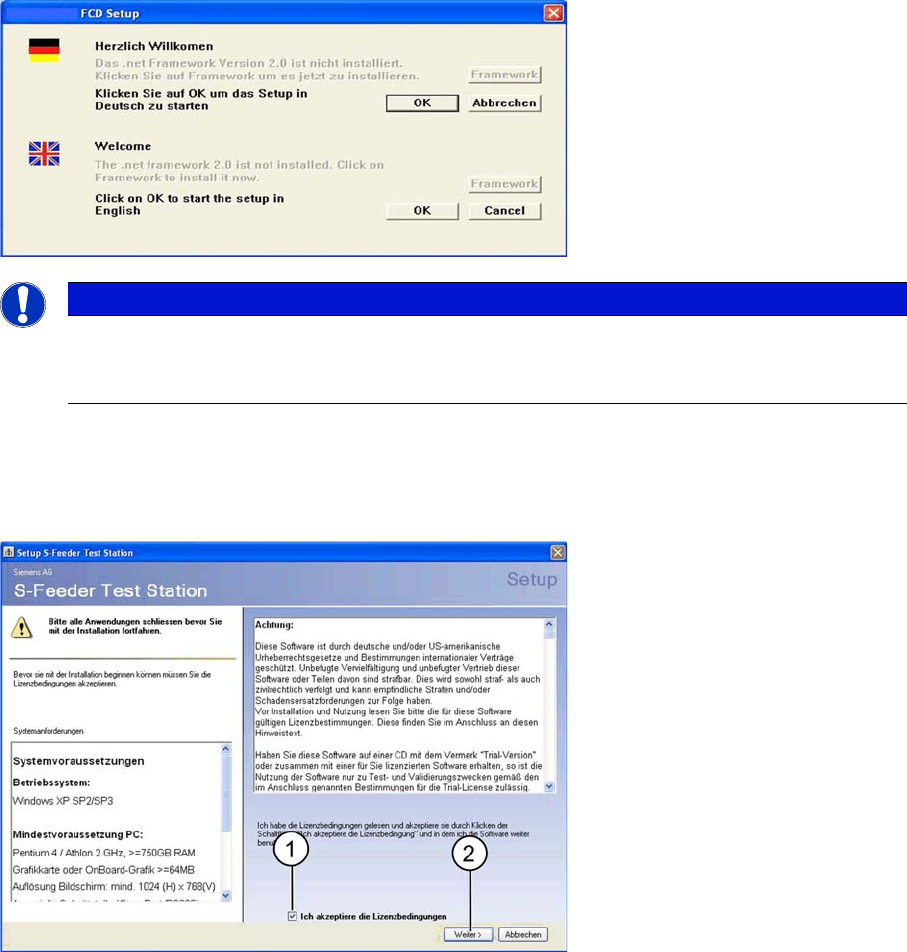
The following dialog box will open.
► Click on the Framework button to install
.
net-Framework on the computer. If
.net-Framework
is al-
ready on the computer, the Framework button will be disabled (grayed out).
► Click on the OK button, to install the
S-Feeder test software
on the computer.
The following dialog box will open.
► (1) Enable the option Licence conditions.
► (2) Click on the Next button.
The following dialog box shows the SW packages to be installed.
NOTICE
Language selection
The language selection applies only to the language of the setup procedure and does not affect
the language of the application.