00196591-04 UM S-Feeder Test Station EN.pdf - 第20页
Installation MTC 2 Software uninstall 3.6.2 Removing the Calibration Standard 20 User Manual SIPLACE S-Feeder Test Station
Installation MTC 2
3.6.2 Removing the Calibration Standard Software uninstall
User Manual SIPLACE S-Feeder Test Station 19
3.8
3.8 Software uninstall
Software uninstall
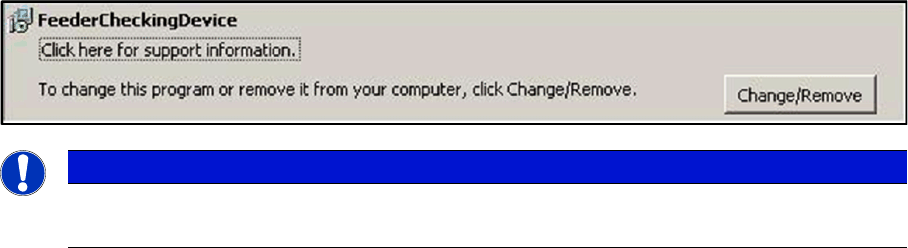
Open the Control Panel in the Start \ Settings \ Control Panal \ ad or remove programs:
Here you can uninstall the software.
NOTICE
Update
While updating to the new software version, the old version is automatically removed.
Installation MTC 2
Software uninstall 3.6.2 Removing the Calibration Standard
20 User Manual SIPLACE S-Feeder Test Station
Software Description
Starting the Program
User Manual SIPLACE S-Feeder Test Station 21
4
4 Software Description
Software Description
4.1
4.1 Starting the Program
Starting the Program
► To start the
S-Feeder test software
, click on the following icon on the desktop of your PC:
The main
S-Feeder test software
window will be shown.
Terminating the S feeder software
To terminate the
S-Feeder test software
, open the File menu and click on Exit.
4.2
4.2 Main Window
Main Window
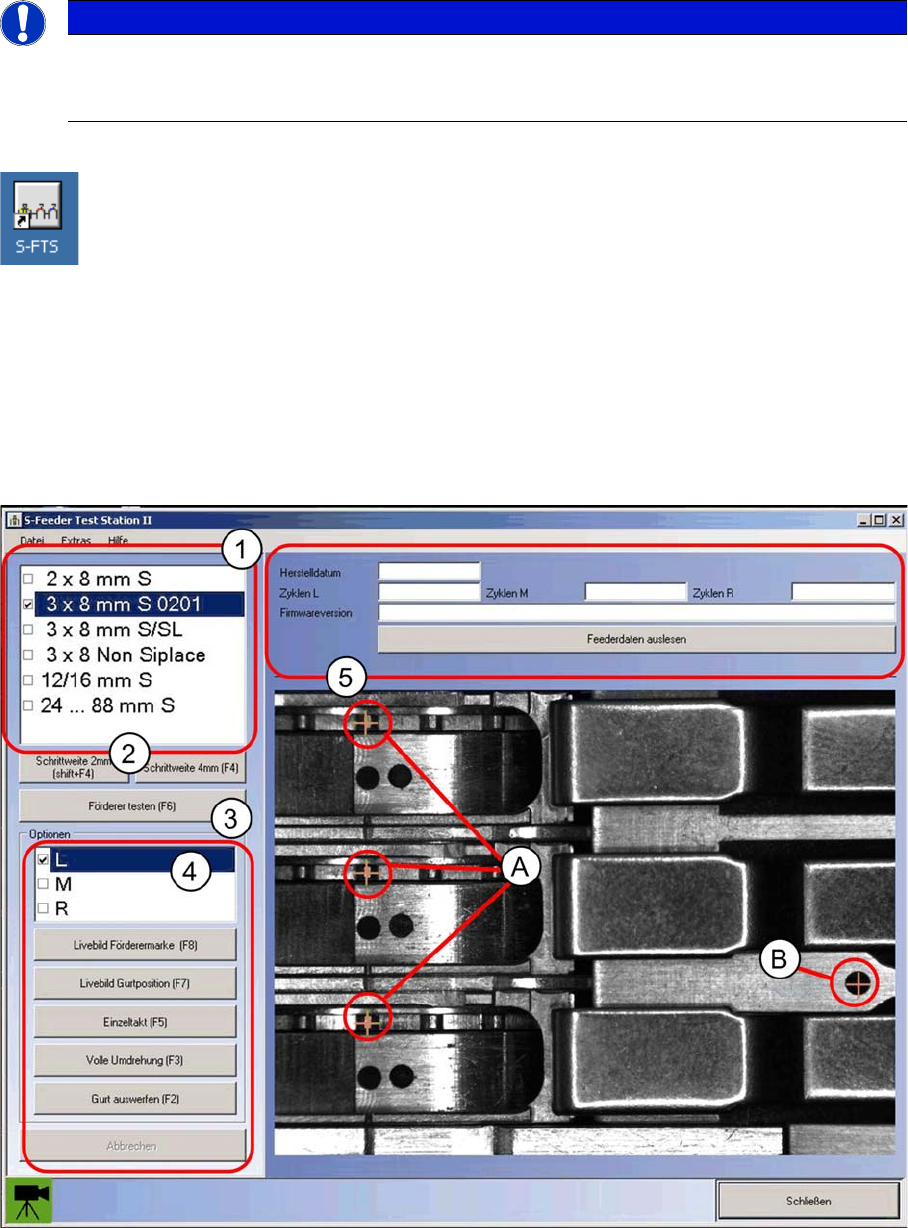
After starting the
S feeder test software
you will see the following dialog box.
On the left side of the dialog box you will see operating controls with which you can set and start the test.
NOTICE
Starting the Software
Before you start the software, make sure that the S-Feeder Checking Device has been com-
pletely connected to your PC and the power supply.