00196591-04 UM S-Feeder Test Station EN.pdf - 第24页
Software Description Help Menu 4.2.1 Live Image View 24 User Manual SIPLACE S-Feeder Test Station This menu has been prepared for the proposed INTERFACE for Feeder Manage r. Please note the de - scription of the current …
Software Description
4.2.1 Live Image View File Menu
User Manual SIPLACE S-Feeder Test Station 23
Exiting the software
To terminate the current session, click on the Close button.
4.2.1
4.2.1 Live Image View
Live Image View
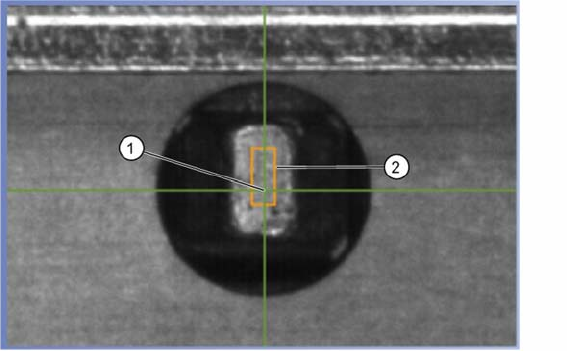
During the live image mode and the automatic test, you will see the image of the selected track and the
following details:
(1) The green cross shows the measured position of the middle of the hole.
If this position is outside the prescribed tolerance area, the cross will be red.
(2) The prescribed tolerance area is shown as an orange rectangle.
4.3
4.3 File Menu
File Menu
Terminating the Program
This command terminates the
S-Feeder test software
.
4.4
4.4 Menu Options
Menu Options
Pitch
This command starts a dialog in which you can set the step size of the feeder module to be tested.
Setting the Language
This command changes the language of the
S-Feeder test software
user interface. German and English
are available.
Select COM-Port
This command is used to select the COM port of your PC to be used for communication with the
S-Feed
-
er Checking Device
.
The preset COM port is COM1.
Function Test
With this command you can access additional test functions on the feeder. The test functions are de-
scribed in the Job Guide "JG S-Feeder Care Test Station".
Test without a feeder brand
This feature is only available for 2x8 mm S feeder. To a conveyor should not brand providing situational
awareness to be evaluated, here you can disable the detection of the brand. These conveyors must not
be used at the station with "conveyor position recognition"!
Feeder Manager Settings
Software Description
Help Menu 4.2.1 Live Image View
24 User Manual SIPLACE S-Feeder Test Station
This menu has been prepared for the proposed INTERFACE for Feeder Manager. Please note the de-
scription of the current Feeder Manager.
4.5
4.5 Help Menu
Help Menu
S Feeder test station
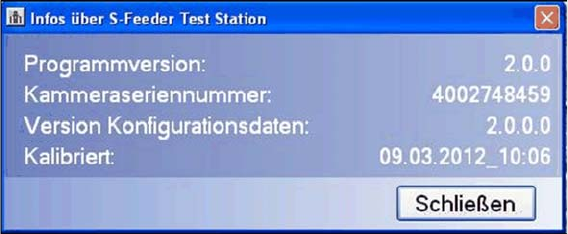
This command opens a dialog box showing information about your
S-Feeder Checking Device
.
To close this view, click on the Close button.
Programm Version Shows the
S-Feeder test software
version.
Device Shows the camera serial number.
Type Date Shows the configuration data version.
calibrated Shows the date on which the
S-Feeder Checking Device
was last calibrated.
Operating the S-Feeder Test Station
5.2.1 Results display Performing the Test
User Manual SIPLACE S-Feeder Test Station 25
5
5 Operating the S-Feeder Test Station
Operating the S-Feeder Test Station
5.1
5.1 Performing the Test
Performing the Test
For a detailed description of how to perform the test, refer to the
S-Feeder Test Station
job guide, item
no. 00196576-01.
When testing the feeder modules, always perform the individual steps in the following order:
1. Position the feeder module onto the location surface of the
S-Feeder Checking Device
and connect
it.
2. Select the feeder module type in the software.
3. If the tooth is not in the correct position, change the pickup position of the feeder module.
4. Set the step size of the track(s) to be tested to 4 mm.
5. Place the test tape in the track(s) to be tested.
6. Test the feeder module.
7. Wait for the test results and save these if required.
8. Start the automatic tape ejection process.
9. Remove the feeder module from the location surface of the
S-Feeder Checking Device
.
5.2
5.2 Evaluating the Test Results
Evaluating the Test Results
5.2.1
5.2.1 Results display
Results display
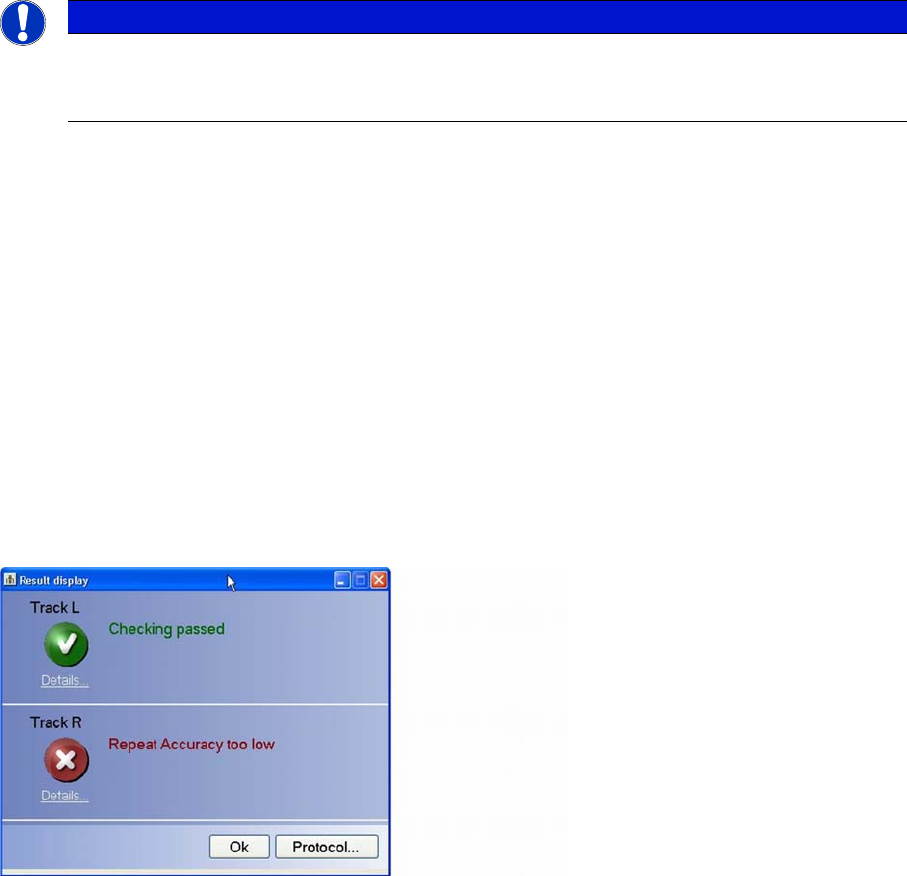
The overall results of the Test feeder function will be shown in a separate dialog box.
Each tested track is assessed separately. If an error has occurred at a particular track, the cause of this
error will be shown to the right of the icon (cross).
Click on Details to view the detailed test results for an individual track.
Click on the Protocol… button to view the whole test result as a PDF file which can then be saved and/
or printed out.
To make sure that you are able to clearly identify or assign the log file later on, enter the serial number
of the tested feeder in the dialog box.
NOTICE
Precondition
Precondition: the computer, power pack and S-Feeder Checking Device are switched on; the
S-Feeder Test Station software has started.