Galaxy EX Squeegee Module.pdf - 第19页
SQUEEG EE MODULE REPLACEMENT PRO CEDURES Ch apte r Issue 4, J un 18 Tech nical R efere nce Ma nual 10. 19 5. F it the Sque egee Moun t Set ting Gaug e to th e re ar s quee gee mou nt. 6. Using a flat-bladed scr ewdriver …
SQUEEGEE MODULE
REPLACEMENT PROCEDURES
10.18 Technical Reference Manual Chapter Issue 4, Jun 18
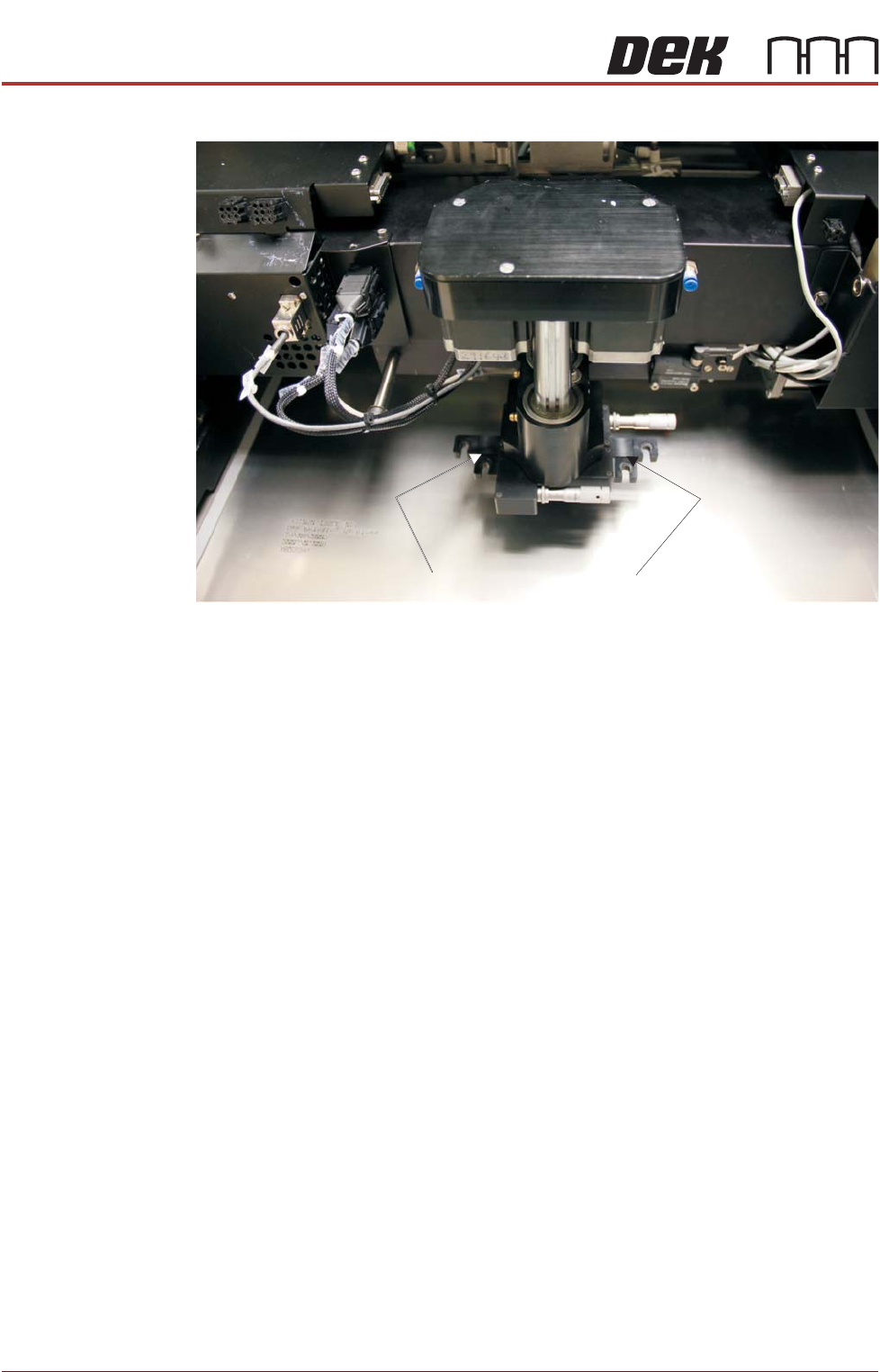
13. Check that a gap exists between the front and rear squeegee mounts.
14. Ensure the alignment procedure below is followed.
Lateral Squeegee
Mount Alignment
NOTE
A Squeegee Mount Setting Gauge is required for this task.
To align the squeegee mount:
1. Load a calibration stencil into the printer, upside down.
2. If powered up, power down the printer and fit the lockout to the mains iso-
lator.
3. Open the printhead front cover.
4. Manually move the print carriage to the front of the printer.
Check for gap between mounts
SQUEEGEE MODULE
REPLACEMENT PROCEDURES
Chapter Issue 4, Jun 18 Technical Reference Manual 10.19
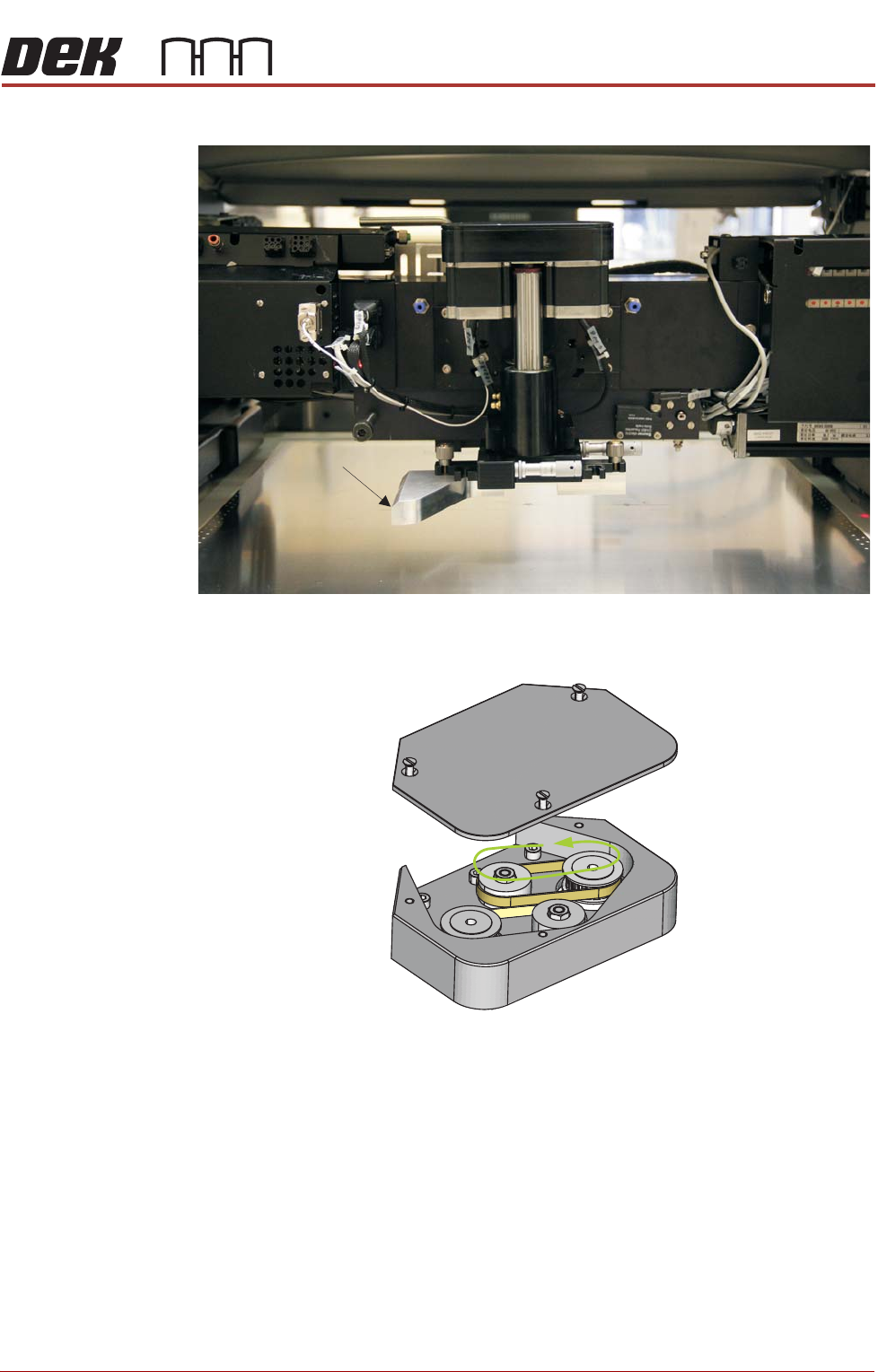
5. Fit the Squeegee Mount Setting Gauge to the rear squeegee mount.
6. Using a flat-bladed screwdriver, remove the squeegee mechanism top
cover.
Setting Gauge
Manually Wind the Rear Squeegee Down Toward the Stencil
SQUEEGEE MODULE
REPLACEMENT PROCEDURES
10.20 Technical Reference Manual Chapter Issue 4, Jun 18
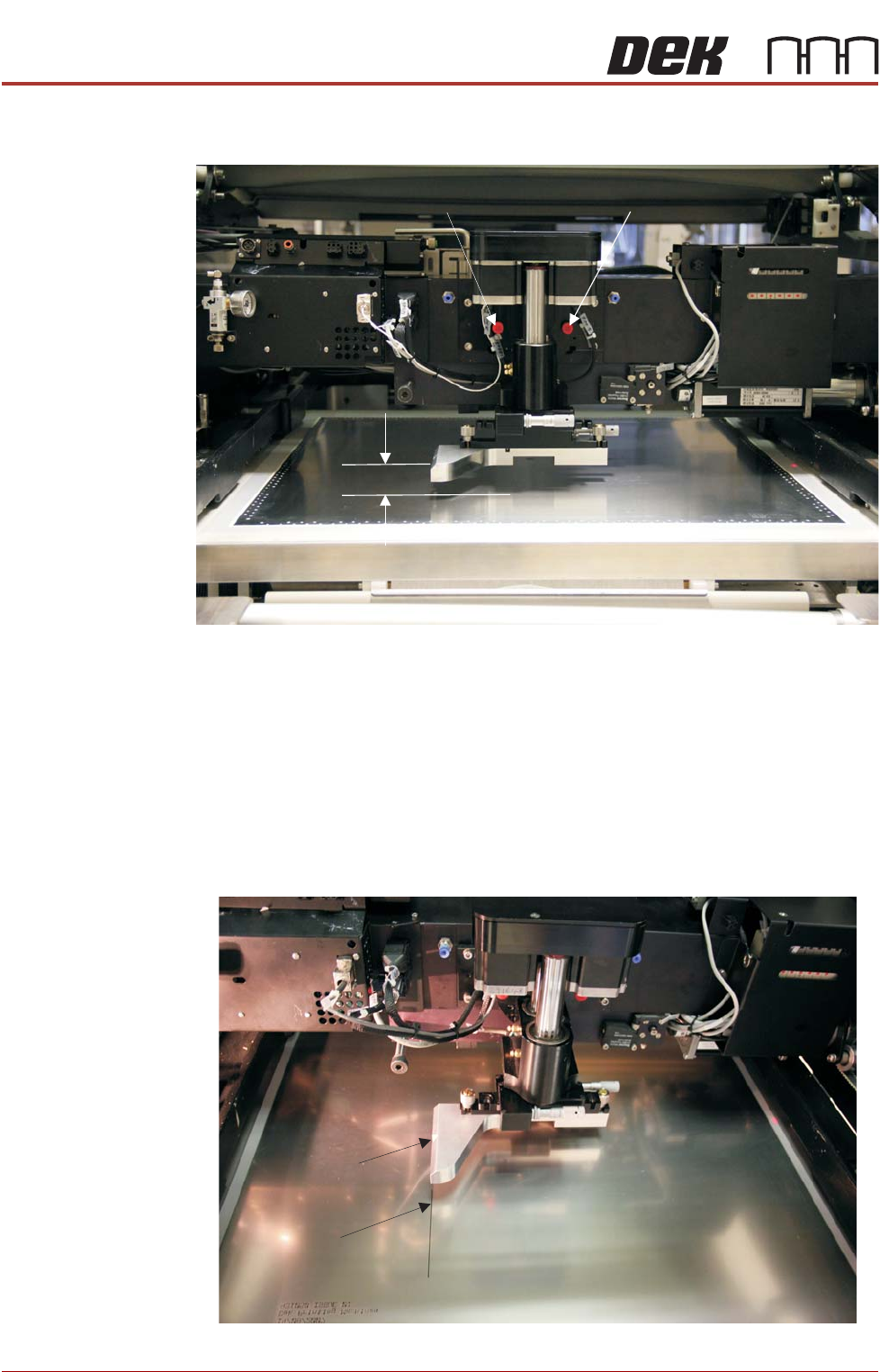
7. Manually wind the rear squeegee down (to approximately 40mm from the
top of the setting gauge to the stencil).
8. Fit two red transit bracket screws (M8x40) into the transit holes of the
squeegee mount; locking it in place, preventing any unwanted roll move-
ment.
9. Using an ultrafine marker pen locate it into the cut-out on the left side of
the gauge.
10. Slowly push the print carriage to the rear keeping the pen in light contact
with the stencil; ensure that the line drawn by the pen is straight and
steady.
11. Draw the line on the stencil for approximately 100mm.
12. Remove the pen.
Transit Bracket Screws
40mm
Fine Line
Pen cut-outPen cut-out