Galaxy EX Squeegee Module.pdf - 第25页
SQUEEG EE MODULE REPLACEMENT PRO CEDURES Ch apte r Issue 4, J un 18 Tech nical R efere nce Ma nual 10. 25 27. C heck tha t the prin t remai ns alig ned an d is not tra cki ng a way from the im ag e. 28. Th e p roce ss mu…
SQUEEGEE MODULE
REPLACEMENT PROCEDURES
10.24 Technical Reference Manual Chapter Issue 4, Jun 18
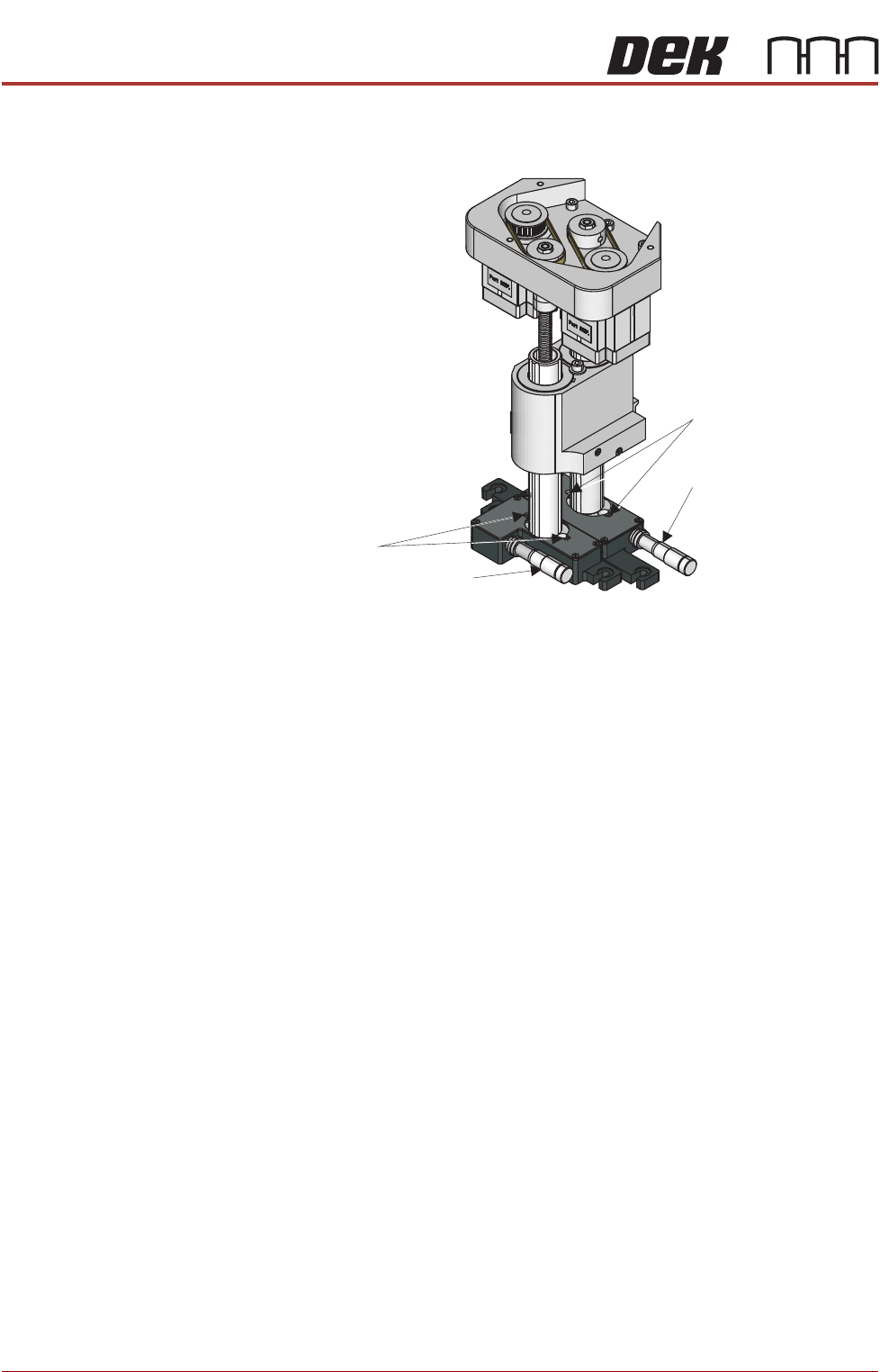
10. Loosen the four locking screws.
Figure 10-6 Squeegee Mechanism (squeegees not shown)
11. Check that the rear lateral adjuster micrometer is set to 11mm.
NOTE
There is 4mm of adjustment either side of the 11mm centre.
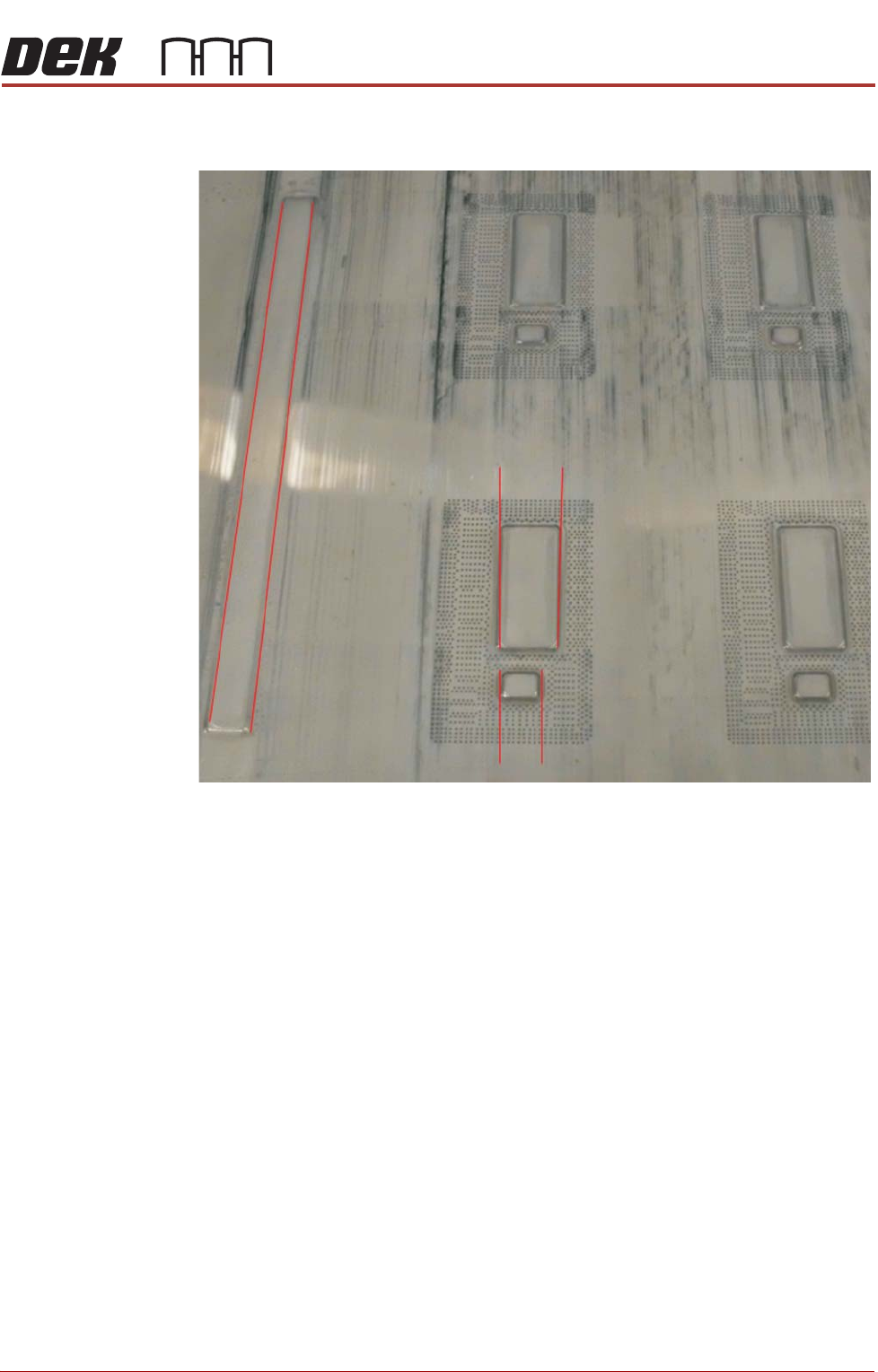
12. Turn the micrometer to align the slits with the step edges.
13. Manually wind the rear squeegee down until it touches the stencil.
14. Depress and release the stencil and check that the slits remain aligned
with the step edges. Adjust as necessary.
15. Tighten the two rear locking screws.
16. Raise the rear squeegee off of the stencil.
17. Repeat steps 9 through 14 for the front squeegee.
18. Tighten the two front locking screws.
19. Raise the front squeegee off of the stencil.
20. Refit the squeegee mechanism top cover.
21. If required, fit the squeegee drip tray.
22. Unlock the mains isolator.
23. Power up the printer.
24. Set up the printer parameters ready to perform a print.
25. Dispense or manually apply paste (open the printhead front cover), off the
image. (If opened close the printhead front cover).
26. Run a test print and check the alignment.
Lateral Adjuster (Front)
Front Locking Screws
Rear Locking Screws
Lateral Adjuster (Rear)
SQUEEGEE MODULE
REPLACEMENT PROCEDURES
Chapter Issue 4, Jun 18 Technical Reference Manual 10.25
27. Check that the print remains aligned and is not tracking away from the
image.
28. The process must be capable of repeatedly positioning the product to be
printed. Any significant variation can lead to continual movement of the
stencil (the open blade edges apply lateral forces to the stencil). In time,
this negates the lateral squeegee adjustment and increases blade and
stencil wear.
29. Run QC Calc during a print cycle over a 30 board print and check the out-
put is as expected.
30. Perform the squeegee calibrations listed in the next section.
31. If adjustment is required repeat steps 2 through 29.
SQUEEGEE MODULE
CALIBRATIONS
10.26 Technical Reference Manual Chapter Issue 4, Jun 18
CALIBRATIONS
Squeegee
Pressure
Calibration
Squeegee pressure calibration is carried out on machines after the following
circumstances:
• The squeegee mechanism is replaced
• The strain gauge bridge in the squeegee mechanism is replaced
• The rising table sensors have been replaced or adjusted
A force meter calibration jig and squeegee pressure plate are required to
perform the squeegee pressure calibration.
NOTE
1. Ensure that the rising table print reference height is set correctly before
commencing, (the calibration relies upon accurate positioning of the table to
make a reference).
2. Ensure that the Pressure Hardware parameter in Maintenance\Machine
Setup\Options is set to FITTED.
Use the following procedure to calibrate the squeegee pressure:
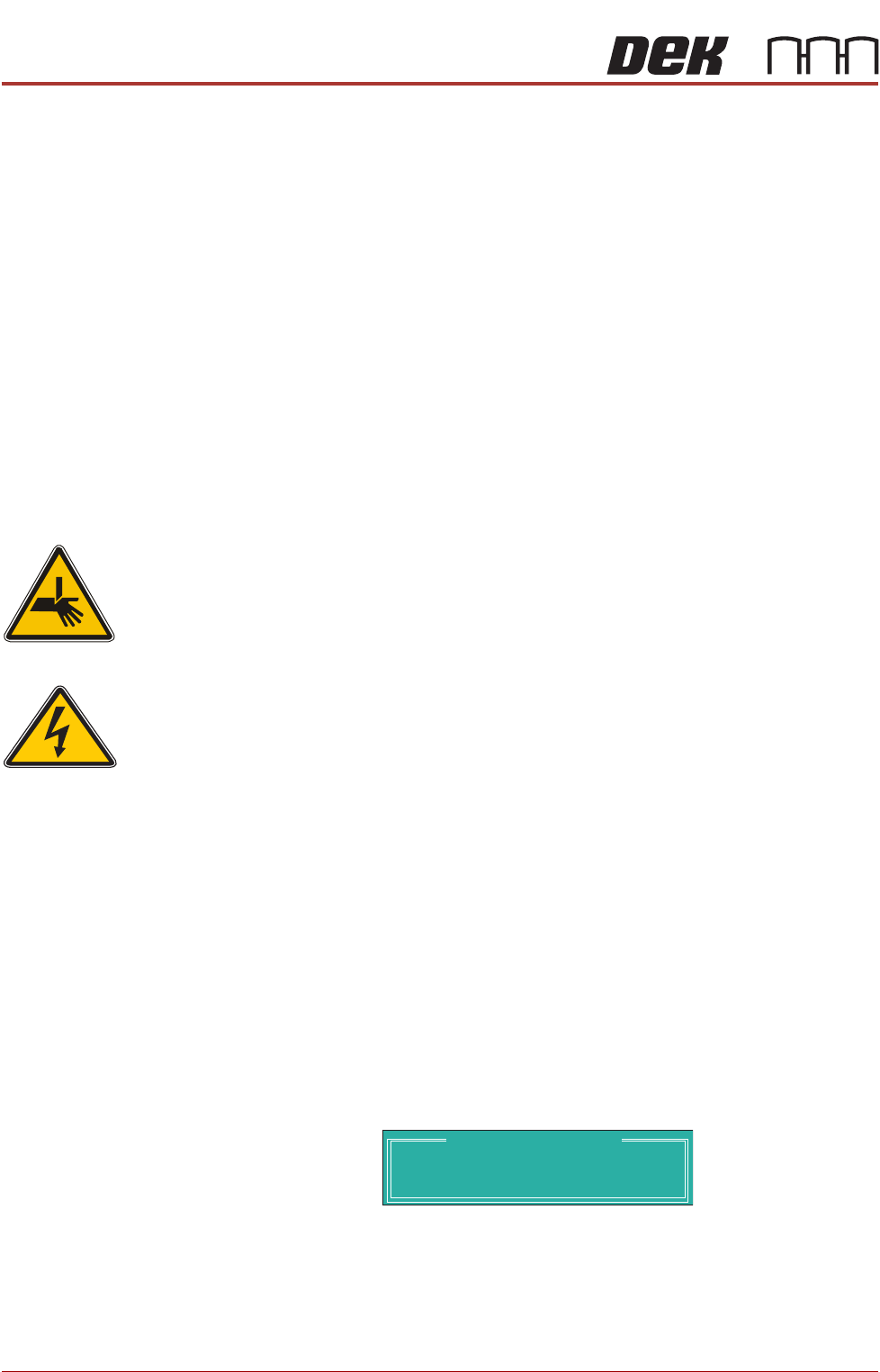
WARNING
BOARD CLAMPS. EXTREME CARE MUST BE EXERCISED WHEN WORKING IN
THE TOOLING AREA OF THE MACHINE TO AVOID INJURY. THE FOILS ON THE
FRONT AND REAR BOARD CLAMPS ARE VERY SHARP.
1. From the Ready page, select Unload Screen.
2. Open the front printhead cover.
3. Remove the screen from the machine.
4. Remove the tooling (if fitted) from the manual tooling plate.
5. Close the front printhead cover.
6. Press the System button.
7. Select Maintenance.
8. Select Calibrations.
9. Select Pressure.
10. Select Calibrat Readings.
11. The rails are checked for the presence of a board, the print carriage
moves to the calibration position, the rear rail moves to home position, the
table homes and the board clamps are closed.
12. The machine cover is unlocked and the message ‘Fit the pressure cali-
bration rig’ is displayed with the following window:
13. Open the front printhead cover.
SEMI 2
CALIBRATION DATA
Gain Factor
1.02