SIPLACE D系列Servicemanual.pdf - 第99页
Service Work White Balance Process for SIPLACE Di gital Vision Camera Placement Heads Servicemanual (internal version) SIPLACE D Series 99 4.2.3 White Balance Process fo r SIPLACE Digit al Vision Camera 4.2.3.1 General E…
Service Work
Placement Heads Replacing the Twin Head Hoses
98 Servicemanual (internal version) SIPLACE D Series
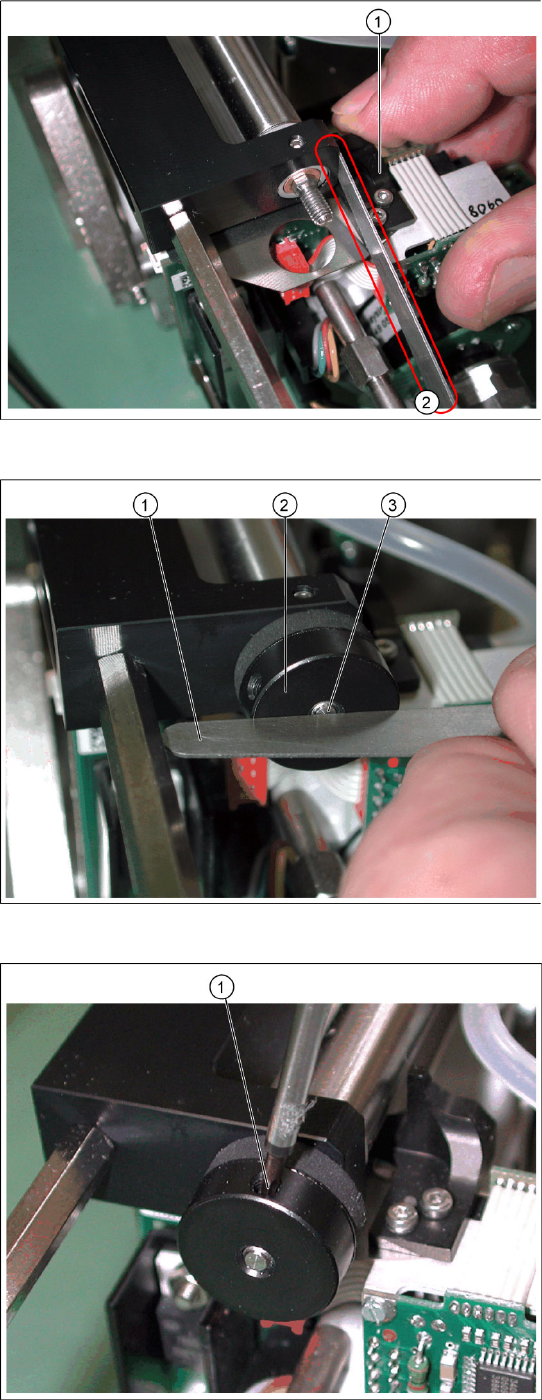
X Move the Z axis upwards.
X Insert the feeler gauge 0.6 mm (2) next to the
stopper (1).
X Tighten the screws fastening the stopper.
X Extract the feeler gauge.
X Screw the bumper (2) in until the underside is
level with the screw (3) (checked with the
feeler gauge (1) on the photo).
X Fix the bumper with the side screw (1).

Service Work
White Balance Process for SIPLACE Digital Vision Camera Placement Heads
Servicemanual (internal version) SIPLACE D Series
99
4.2.3 White Balance Process for SIPLACE Digital Vision Camera
4.2.3.1 General Explanations
In order to compensate for the aging and contamination effects of illumination equipment in SIPLACE
Vision system camera, a white balance process has been planned and developed for this camera
generation.
The illumination factors stored in the camera EPROM have been measured and, where necessary,
adjusted for the individual illumination levels.
A similar balance process existed for the ICOS camera system and was known as the Field Camera
Calibration Service (FCCS) in that case. This abbreviated form was adopted for the SIPLACE Vision
camera system.
4.2.3.2 Cameras and Requirements
The camera white balance process is available from SR/MC 603.01 and is integrated into the SITEST
software. You need a SIEMENS FSE password to access it. The menus for illumination calibration or for
reading out data are available as single steps for the respective individual cameras and as a collective
menu, for all cameras configured at the machine, for complete machine calibration.
4-30: White balance calibration tools
NOTE:
NEVER touch the white balance
calibration tools!
Avoid contamination of any kind!
NOTE:
This needs to be removed on machines
with the third lane conveyor option.
(from SW 702)
Camera type SST White balance tool Placement head with nozzle
PCB camera SST24
(multicolor illumination option)
7x7 mm white to top (1) ---
PCB camera SST34
(standard illumination)
C&P20 component camera SST23 7x7 mm without fiducials (2) C&P20 with 1135 nozzle
C&P12 SST38 option 24x24 mm with fiducials (3) C&P12 with 920 nozzle
C&P12 SST29 option
C&P12 SST28 standard
C&P6 SST29 standard 30x30 mm with fiducials (4) C&P6 with 820 nozzle
TWIN (P&P) SST33 70x70 mm with fiducials (5) TWIN with 519 nozzle
P&P SST36 P&P with 519 nozzle
TWIN (P&P) SST25 option TWIN (P&P) with 519 nozzle
Service Work
Placement Heads White Balance Process for SIPLACE Digital Vision Camera
100 Servicemanual (internal version) SIPLACE D Series
4.2.3.3 Preparing for Calibration
To ensure that customer setups do not need to be changed, a black calibration tool carrier is moved into
PCB conveyor 1, is optically centered and clamped into place, the presence of the white balance
calibration tools is checked and illumination calibration (white balance process) is started.
NOTE:
The XML files for the white balance process are created before beginning measurement. To
view the data for the current calibration in the XML file, perform the balance process (with 603/
604.01) again; without saving the data when you exit SITEST. The files will then be in the folder
C:\SR-Daten\FCCS
.
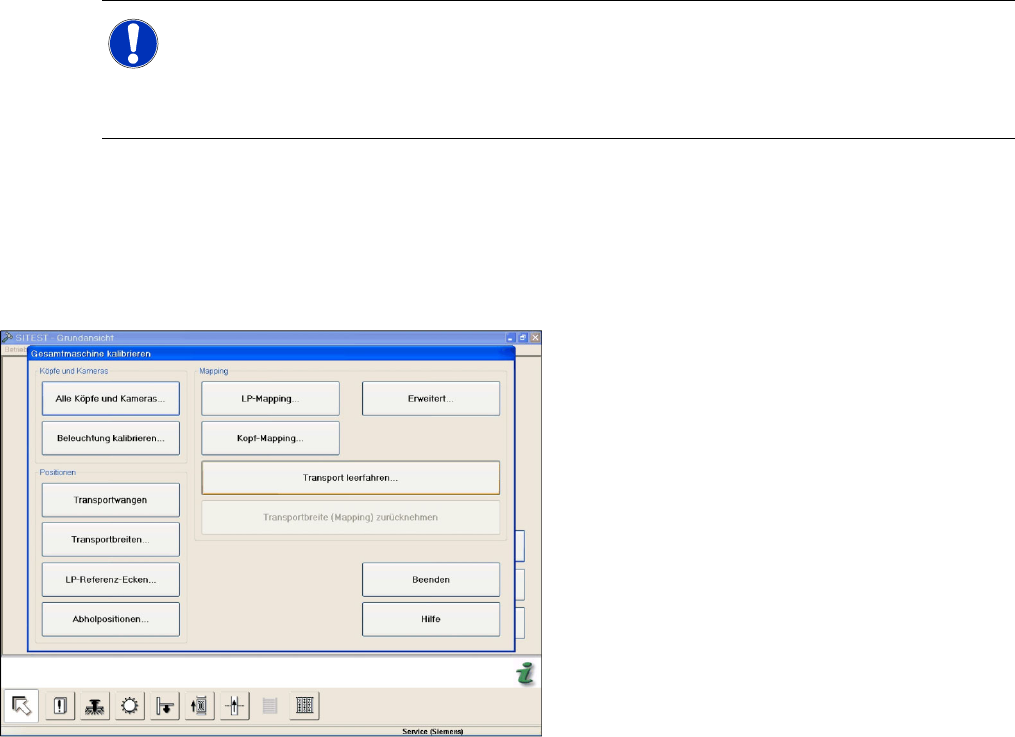
X Go to
Calibrate illumination
in the
Calibrate
Entire Machine
menu.
X In the calibration menu for the entire machine,
you can specify the camera for which the
process is to be conducted (all/placement
area1/placement area2/head).
X The width adjustment will then automatically
set the width of conveyor lane 1 to the width of
the tray.
X The nozzles required for the illumination
calibration will be shown, as will the current
head setup. You may need to terminate the
menu, in order to configure the nozzles at the
head or to pick them up from the nozzle
changer.
X If you have a second placement head at the
gantry, the setup for this will be shown in a
separate window.
X The SITEST software will now request that
you place the calibration tool carrier into the
input conveyor. (Do not push in as far as the
input conveyor sensor!) Confirm each step
with the OK button. In this step, the tray is
moved into the processing area and is
clamped into place.