00198171-02_Technical_Training_FSE_TX-Series_EN.pdf - 第139页
9 Station Software Overviews 9.4 Editing a board with the station software Technical Training FSE SIPLACE TX-Series 01/2018 139 9.4 Editing a board with the station software 1. Select PCB editor to change or check placem…
9 Station Software Overviews
9.3 User management and activity level rights
138 Technical Training FSE SIPLACE TX-Series 01/2018
Machine service
Only for qualified personnel who can change machine configuration or conduct calibrations.
●
The activity levels “Advanced production” and “Machine service” can be password protected
●
The activity levels can only be changed by the Machine service and Advanced production
activity levels. The activity level for a function cannot be changed to a higher level as the cur-
rent login level
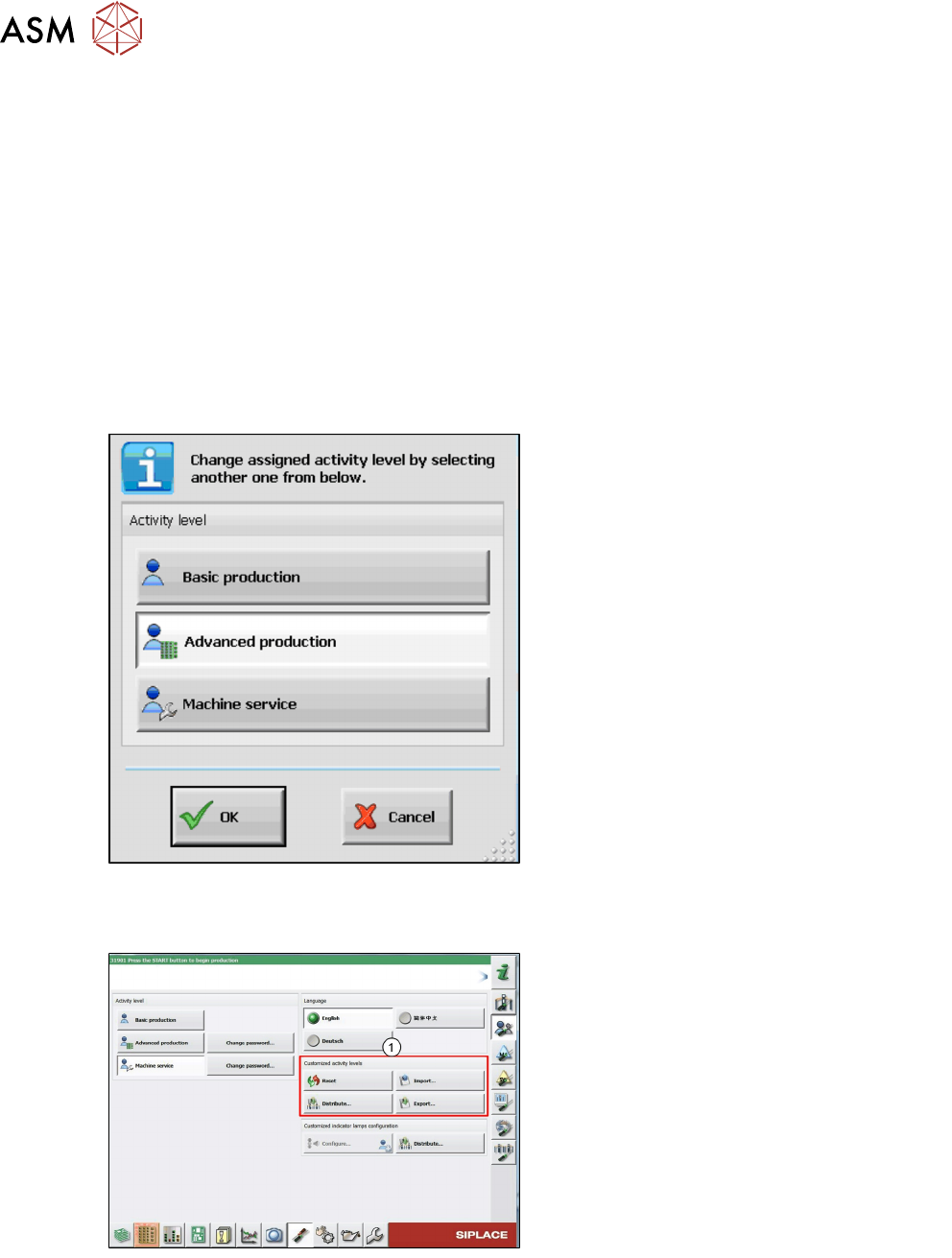
The activity level can be changed as follows:
●
Log in on the suitable activity level
●
Right-click with the mouse on the function for which you wish to change the activity level
The following dialog box is displayed in which the default activity level is highlighted:
●
Select the desired activity level
●
Click on OK
●
The change is immediately activated and
remains activated after a machine reboot
The user configuration file can be copied and imported to other placement machines / lines. This
has to be explicitly performed by the user on the Machine service activity level, as the settings are
not automatically distributed. The imported settings are immediately activated.
1. The changes can be reset, imported and
exported. The import and export functions
contain the passwords for the advanced
production and Machine service activity
levels.
9 Station Software Overviews
9.4 Editing a board with the station software
Technical Training FSE SIPLACE TX-Series 01/2018 139
9.4 Editing a board with the station software
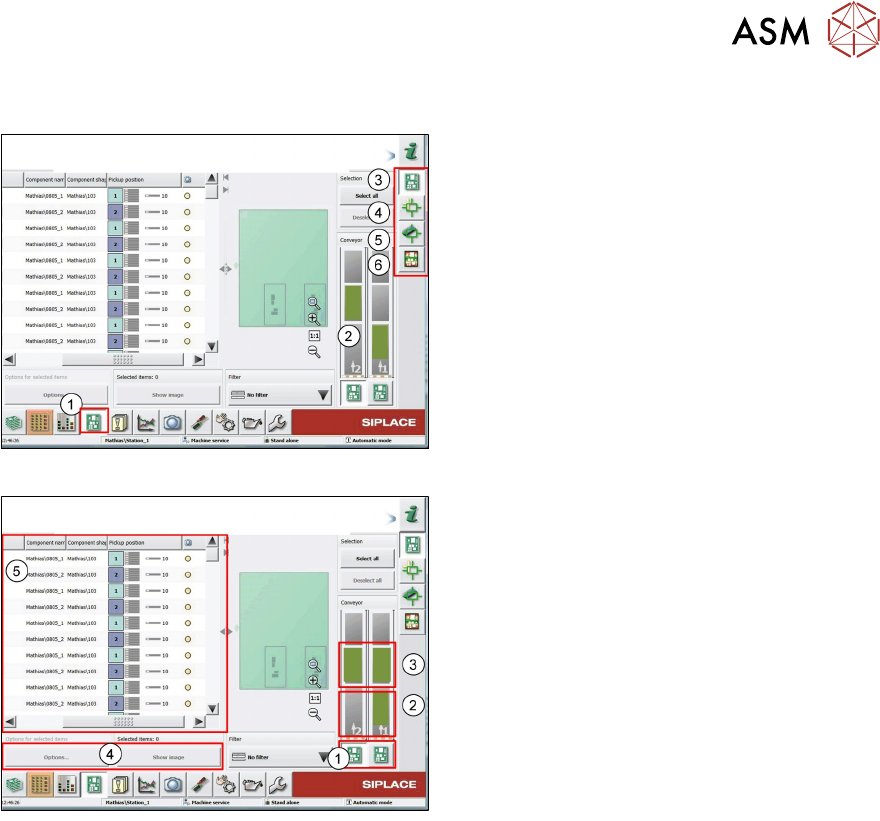
1. Select PCB editor to change or check
placement data
2. Active PCB
3. Display placement List skip components,
4. Check and teach fiducials
5. Check/change placement position and up-
load to SIPLACE pro Server
6. Show Board height after placement
To edit a board click on a Board image.
1. If selected all changes are effective for all
boards
2. If selected all changes are effective only
for current board
3. Setting is effective for selected board and
PCB camera can be move to this position
to check placement
4. Select position in placement list
5. Modify “options” skip or place selected
position and change when to save vision
data
9 Station Software Overviews
9.5 Machine Settings and Options Overview
140 Technical Training FSE SIPLACE TX-Series 01/2018
9.5 Machine Settings and Options Overview
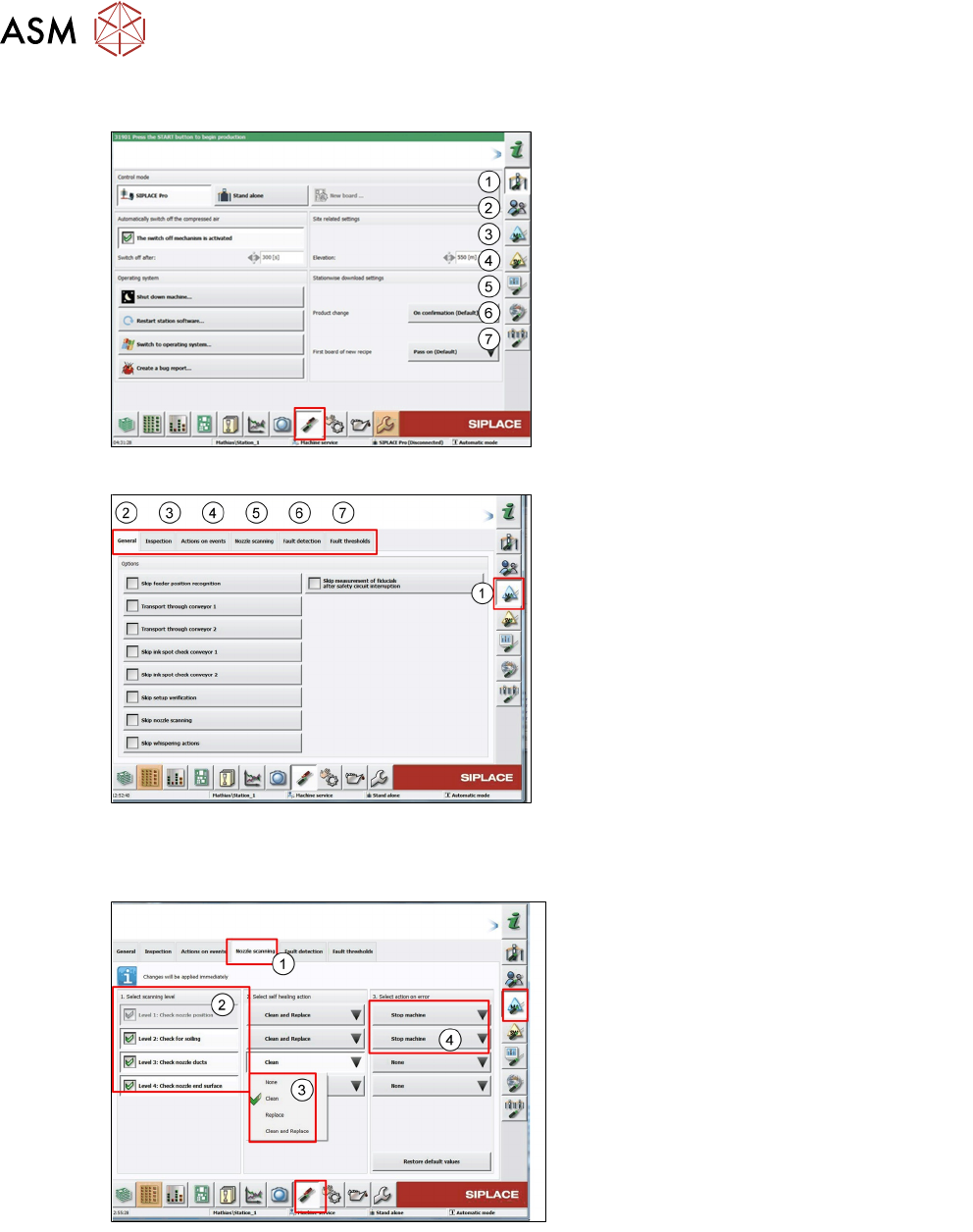
1. Machine settings: control mode, automatic
compressed air control, shut down, bug re-
port
2. User setting/access
3. Machine option setting
4. Software setting
5. GUI setting
6. Summary of connected client
7. Show neighbor machine
1. Here machine behavior for certain events
can be configured.
2. Skip functions can be activated (testing)
3. Activation of PCB inspection after place-
ment depending on machine event
4. Setting for action to be taken for set error
numbers (automatic Bug Report)
5. Configuration of nozzle scanning option
and actions to be taken in the event of a
soiled nozzle
6. Additional check and tolerance after fault
detection(automatic feeder pitch detection)
7. Threshold setting for pickup error and vis-
ion error
Example for configuring nozzle scanning op-
tion.
1. Nozzle scanning tab
2. Nozzle scanning type (level)
3. Self healing action after nozzle scan fault
4. Action after nozzle scanning error (heal-
ing action cannot repair problem)
Option selected depends on nozzle type, fact-
ory environment, production changeover fre-
quency.