00198171-02_Technical_Training_FSE_TX-Series_EN.pdf - 第80页
6 Conveyor System 6.5 Parts Exchange / Settings / Calibration 80 Technical Training FSE SIPLACE TX-Series 01/2018 6.5.3.2 Adjusting the fixed rail: Outer/ Right/ Left Each fixed rail is mechanical fixed in place by 2 scr…
6 Conveyor System
6.5 Parts Exchange / Settings / Calibration
Technical Training FSE SIPLACE TX-Series 01/2018 79
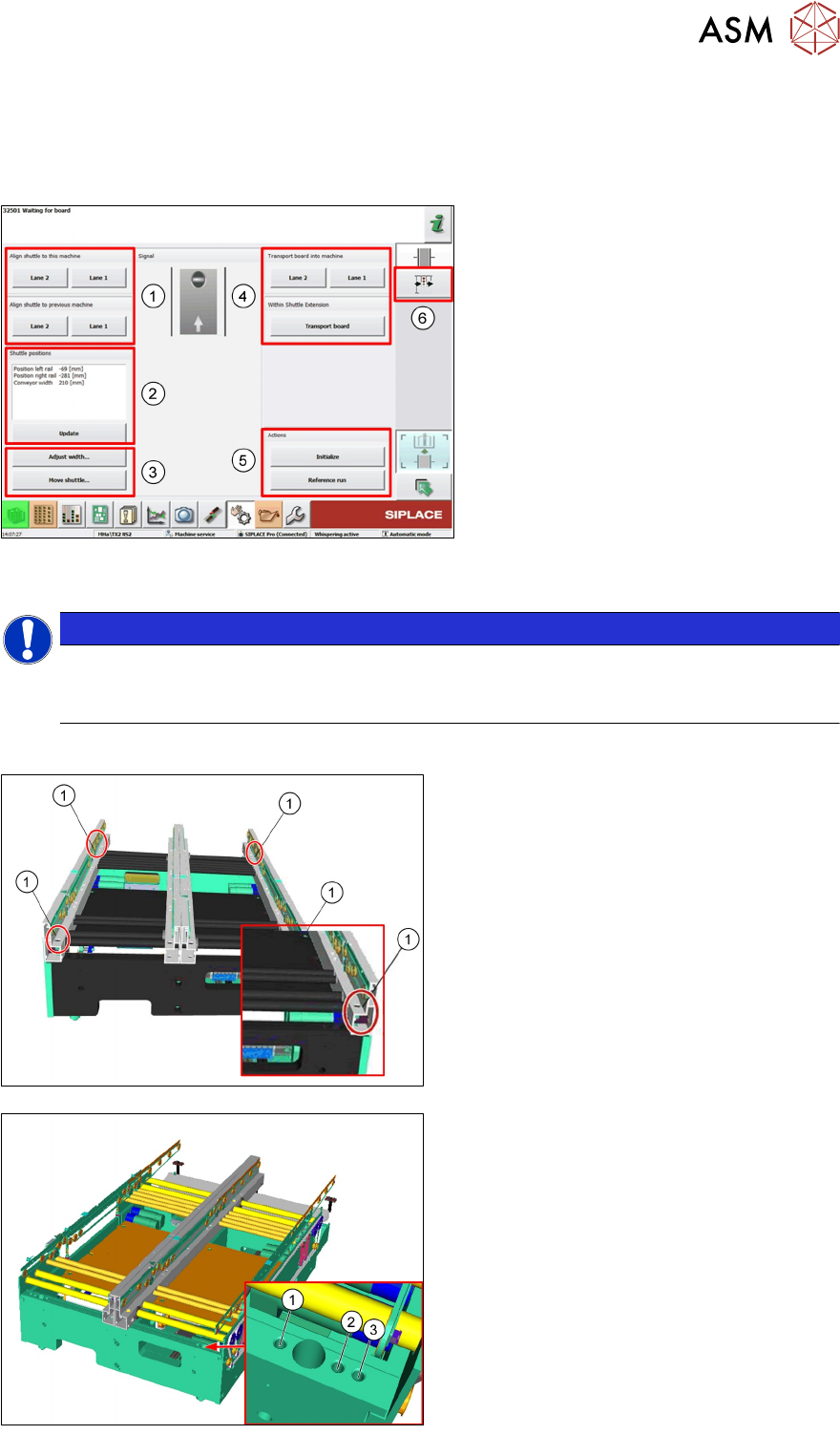
TX shuttle single function and test function menu
► Click on Check Sensors and Functions menu.
► Click on Sensor and Functions of specific Components menu.
► Click on Output shuttle or Input shuttle.
1. Aligment shuttle to the machine
2. Actual shuttle positions
3. Adjust width or move shuttle
4. PCB transportation
5. Actions: Initialize or Reference run
6. Shuttle Input / Output menu
6.5.3 Changing the Conveyor Configuration
NOTICE
Not for micron machines
Micron machines fixed rails are always outer, so it is not possible to reconfigure micron ma-
chines.
6.5.3.1 Changing the fixed conveyor rail width positions
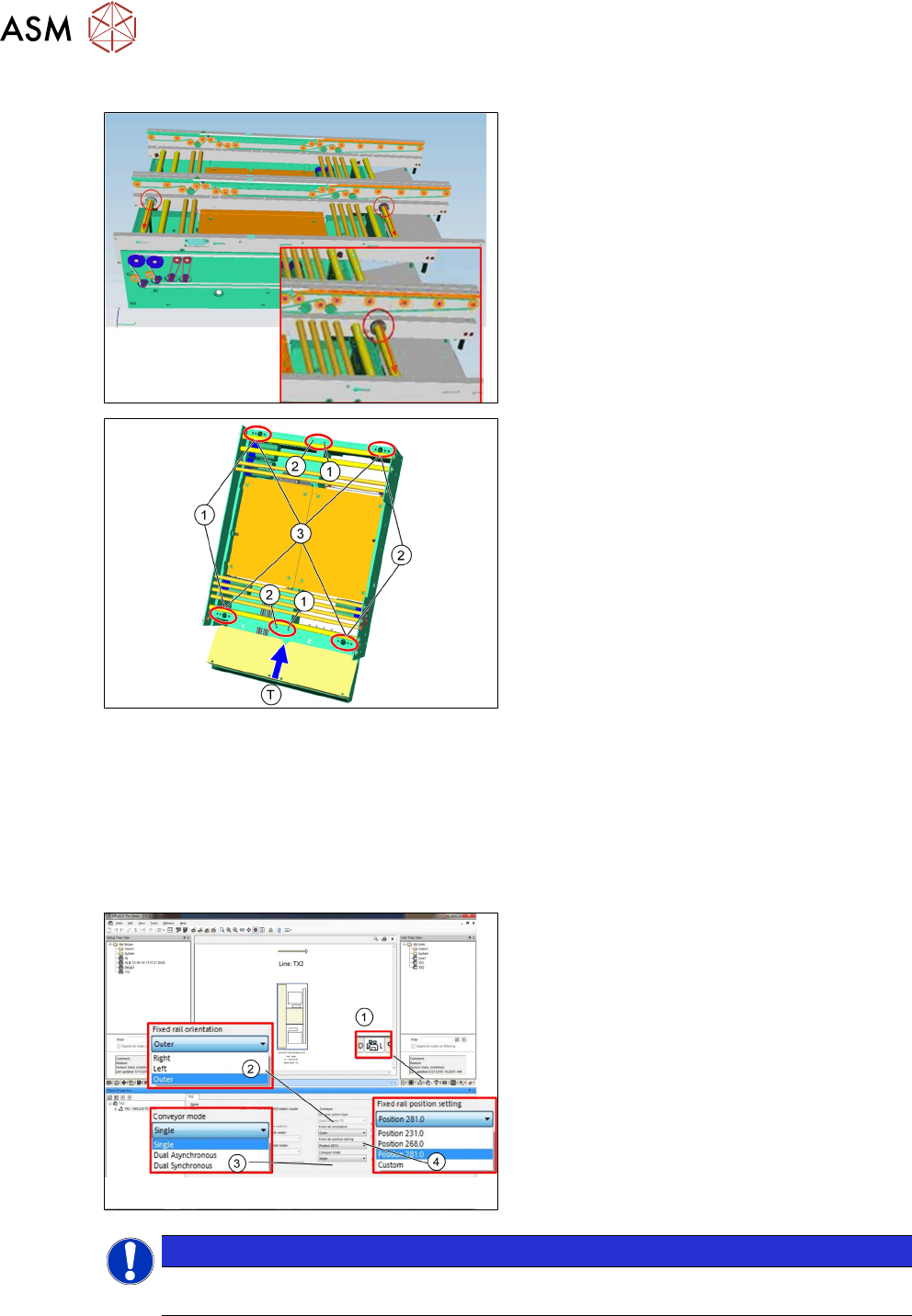
Each fixed rail is mechanical fixed in place by
2 screws.
Fixed rail position change is done by re posi-
tioning of the screws (1).
Move fixed rail to position required.
There are 3 fixed positions:
1. 281mm
2. 268mm
3. 231mm
Tighten the 4 fixing screws.
Modify setting in SIPLACE Pro and GUI.
6 Conveyor System
6.5 Parts Exchange / Settings / Calibration
80 Technical Training FSE SIPLACE TX-Series 01/2018
6.5.3.2 Adjusting the fixed rail: Outer/ Right/ Left
Each fixed rail is mechanical fixed in place by 2
screws.
To change the fixed rail loosen the two fixing
screws at the current fixed rail and move them
to the rail which is to be changed to the flexible
conveyor rail.
T - Transport direction
There are 3 fixed possibilities:
1. Left fixed
2. Right fixed
3. Outer fixed
Move the rails to the fixed positions required and fix the screws.
Modify setting in SIPLACE Pro or GUI.
To use the dual conveyor as single conveyor:
●
Adjust fixed rail as outer
●
Modify “Conveyor mode” in SIPLACE Pro or GUI
6.5.3.3 Conveyor Settings in SIPLACE Pro and GUI
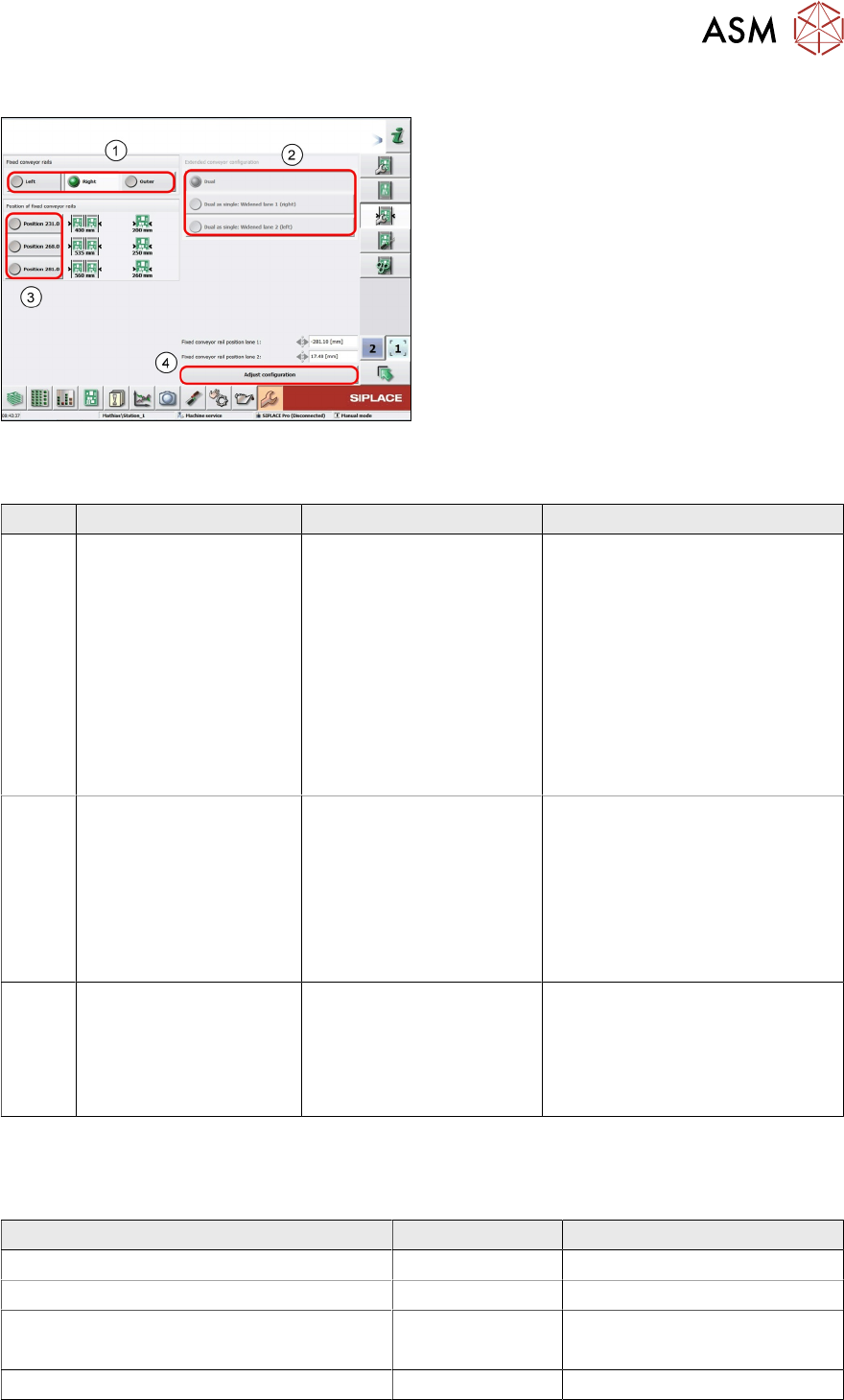
1. Open lines from Line to select:
2. Fixed rail orientation
3. Conveyor mode
4. Fixed rail position setting
NOTICE
After modify the parameters in SIPLACE Pro, the setting becomes effective in the Station
after program download. GUI setting in TX is not necessary.
6 Conveyor System
6.6 Analysis - Common Error List
Technical Training FSE SIPLACE TX-Series 01/2018 81
Station Software Setting
1. Select fixed conveyor rail
2. Select single mode and fixed rail
3. Select fixed conveyor rail
4. Accept and adjust configuration
6.6 Analysis - Common Error List
Code Error description Possible cause Action
40005 PCB jamming
●
Incorrect Transport
width
●
Wrong PCB size
●
Remove PCB, check PCB
and feed it again
●
Check width of conveyor,
adjust width if necessary
●
Remove PCB by hand, PCB
status always show present
in conveyor GUI
●
Refresh PCB status in GUI
●
Reset / teach board sensor
in I/O of conveyor GUI
4004
4006
35200
During placement, fidu-
cial cannot be found
●
Teach fiducial by GUI
●
Check / adjust width of con-
veyor
●
Remove and check PCB,
feed PCB again
●
Check program from
SIPLACE Pro
40035 During reference run
conveyor edge not found
Width adjust manually
after machine switch off
●
Check and record conveyor
width from GUI
●
Adjust conveyor width manu-
ally to recorded width
●
Calibrate width
6.7 Maintenance
Maintenance item for Conveyor system. For detailed information refer to the maintenance Job card.
Maintenance content Interval Requirement
Vacuum complete conveyor area All Workflows Cleaning wipe/vacuum cleaner
Recirculating ball screws and round shaft Workflow 3 Cleaning wipe, KM-wipe
Preserve the linear guidances Workflow 3
●
SIPLACE cleaning-tissue
●
Protective gloves latex
Clean the guide shafts Workflow 3 Cleaning wipe, KM-wipe