AOI_RS_v85_en.pdf - 第35页
Chapter 2 Repair Station Main Progr am AOI Repair Station 31 6 CONFIRM W ork 6.1 Main PROG After login, double click on [MA I N PROG] item at the left side of the window . On the to p left is the [Model Map] , on the…
Chapter 2 Repair Station Main Program
AOI Repair Station
30
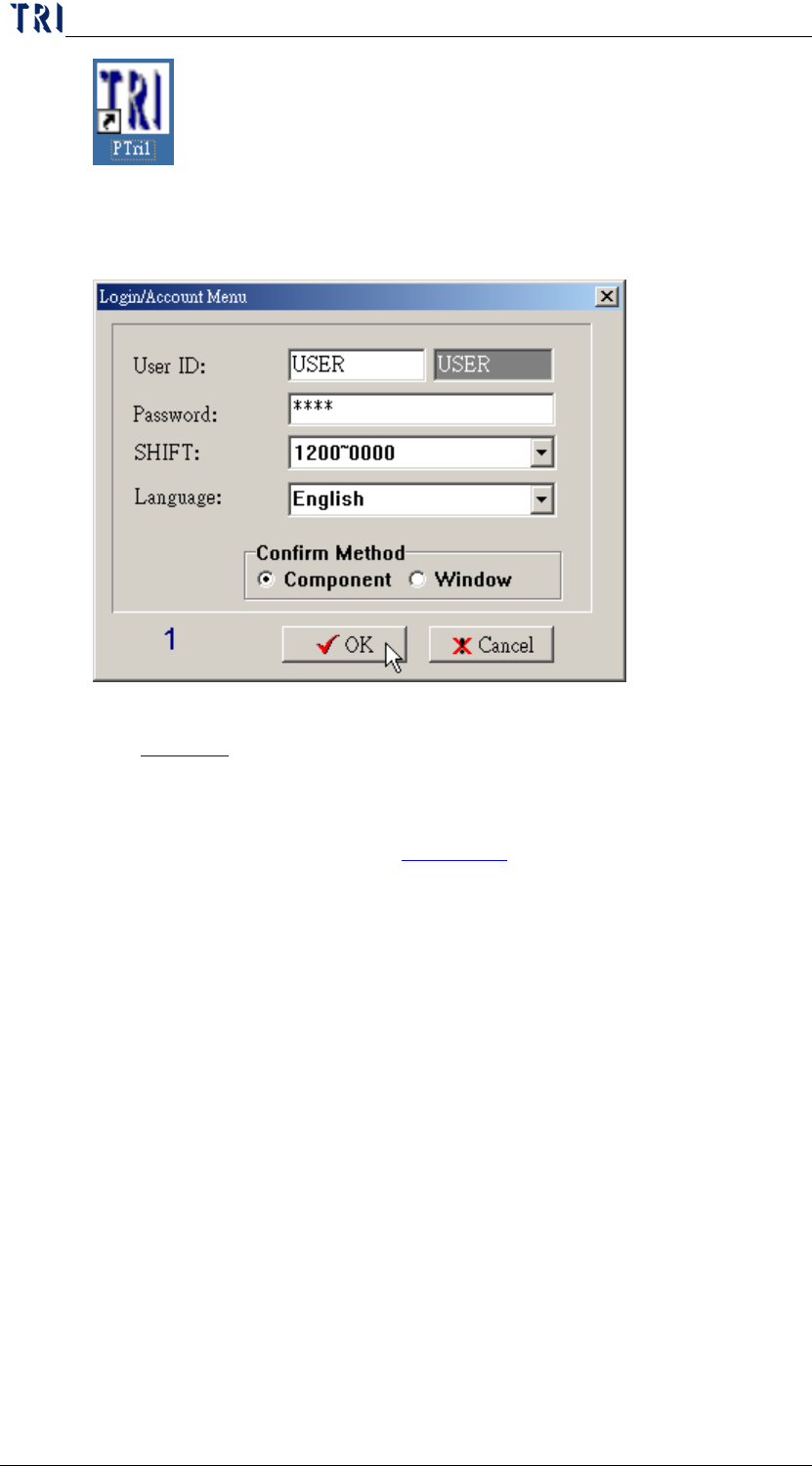
The following window is appeared. You have to fill [User ID], [Password]
and other items and press [OK] to enter the program.
User ID-Input the user name. You also can create a new user; see
Section 8.
Password-Input the password corresponding to the user. The default
user is [USER] and default password is [1234].
SHIFT-Select a shift. See
Section 7.3 to set shift or schedule.
Language-Select a language. The language can be defined by you at
[C:\rsinstall\Language\english.txt] or [C:\rsinstall\Language\big5.txt].
Confirm Method-Select you want to confirm the failed images by
[Component] or [Window].
Chapter 2 Repair Station Main Program
AOI Repair Station
31
6 CONFIRM Work
6.1 Main PROG
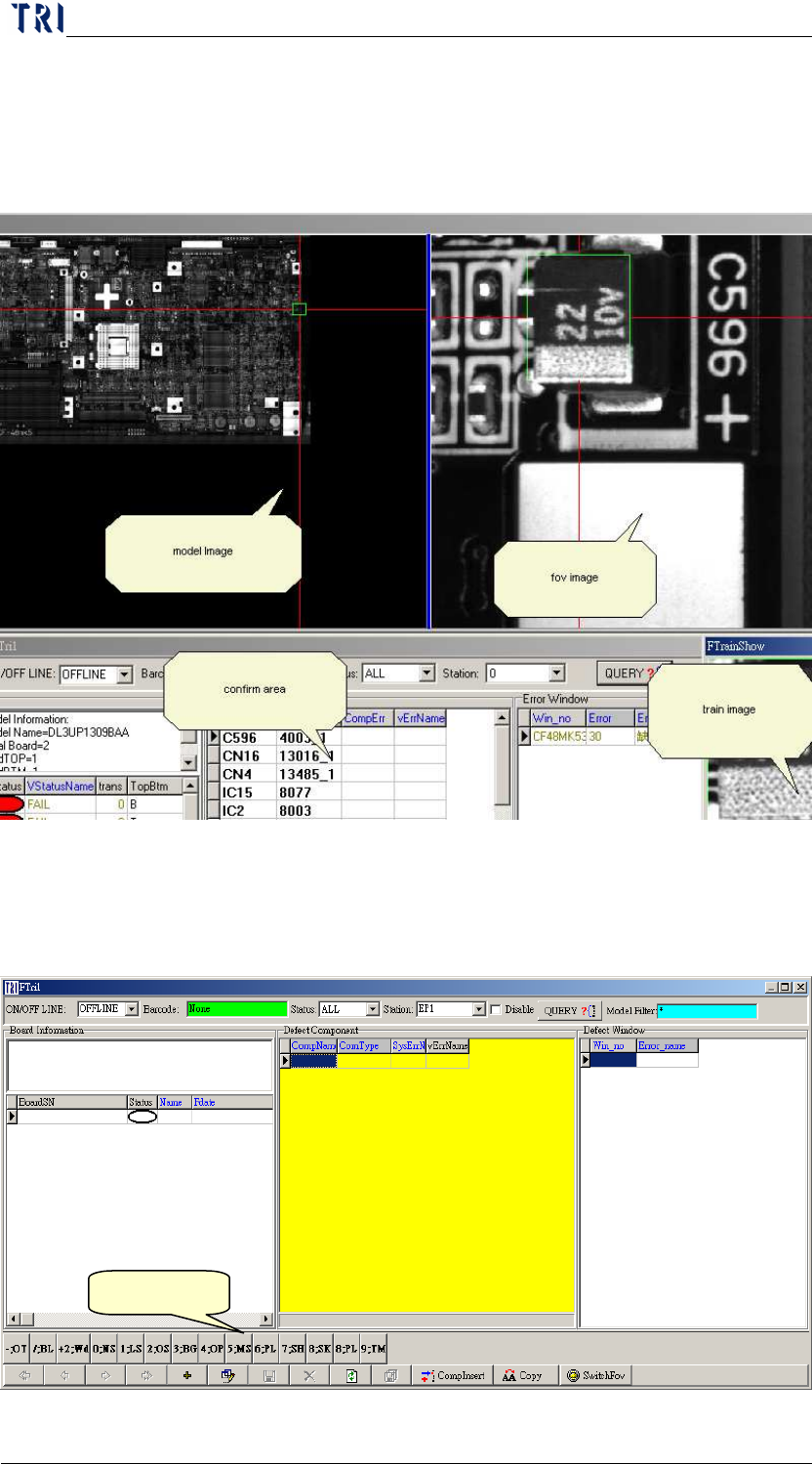
After login, double click on [MAIN PROG] item at the left side of the
window.
On the top left is the [Model Map], on the top right is the [FOV Image],
on the bottom right is the [Train Image], and on the bottom left is the
main working area for the program confirmation.
6.2 Confirm Procedure
Defect Area

Chapter 2 Repair Station Main Program
AOI Repair Station
32
Step1. Select [ON LINE] or [OFF LINE]
ON LINE-PLEASE double click on [Model] (YELLOW
BOX), select a model name.
OFF LINE-Scan a barcode to identify a PCB.
Step2. During [OFF LINE], [ALL] is the default setting for [STATUS],
but the users may decide the board status, decide to look for a
particular status while searching the data by using barcode.
The [STATUS] of the board:
FAIL-A condition has not been confirmed by user
while [DEFECT] has been detected by AOI.
PASS-AOI detected as [Pass].
REPAIR-The board has been detected as failed by
AOI, and also confirmed as a defect board by the
operator.
UNTEST-MARK POINT has been shifted
SKIP-Disregard the board, or been confirmed by the
operator that the board is not being calculated.
RPASS-The board has been detected as failed by AOI,
but confirmed as a pass board by the operator.
ALL-All Condition
Step3. Select [AOI STATION]. (The station will NOT be under search
condition if the [Disable] is being checked on the figure).
Step4. Press [QUERY] to search, and there are 2 different ways to confirm
data, using keyboard or using mouse
Using the Keyboard
Step5. The [DEFECT COMPONENT (the yellow area)] or the [DEFECT
WINDOWS], (The program will decide where to land the yellow
area when you select [Confirm Kind] during the log in. The yellow
area will fall onto [Defect Component] when [Component] is
selected. The yellow area will fall onto [Defect Windows] when
[Window] is selected); this is to confirm the problem component.
(The way to confirm a failed component is to press the number key
that represents a kind of a defect.)
There is no need to enter [Defect Type] for false detection.
Only need to confirm the problem component. Press down
arrow key when finished checking a problem till the last one
and press [ENTER] to show the next data. The [Defect