AOI_RS_v85_en.pdf - 第93页
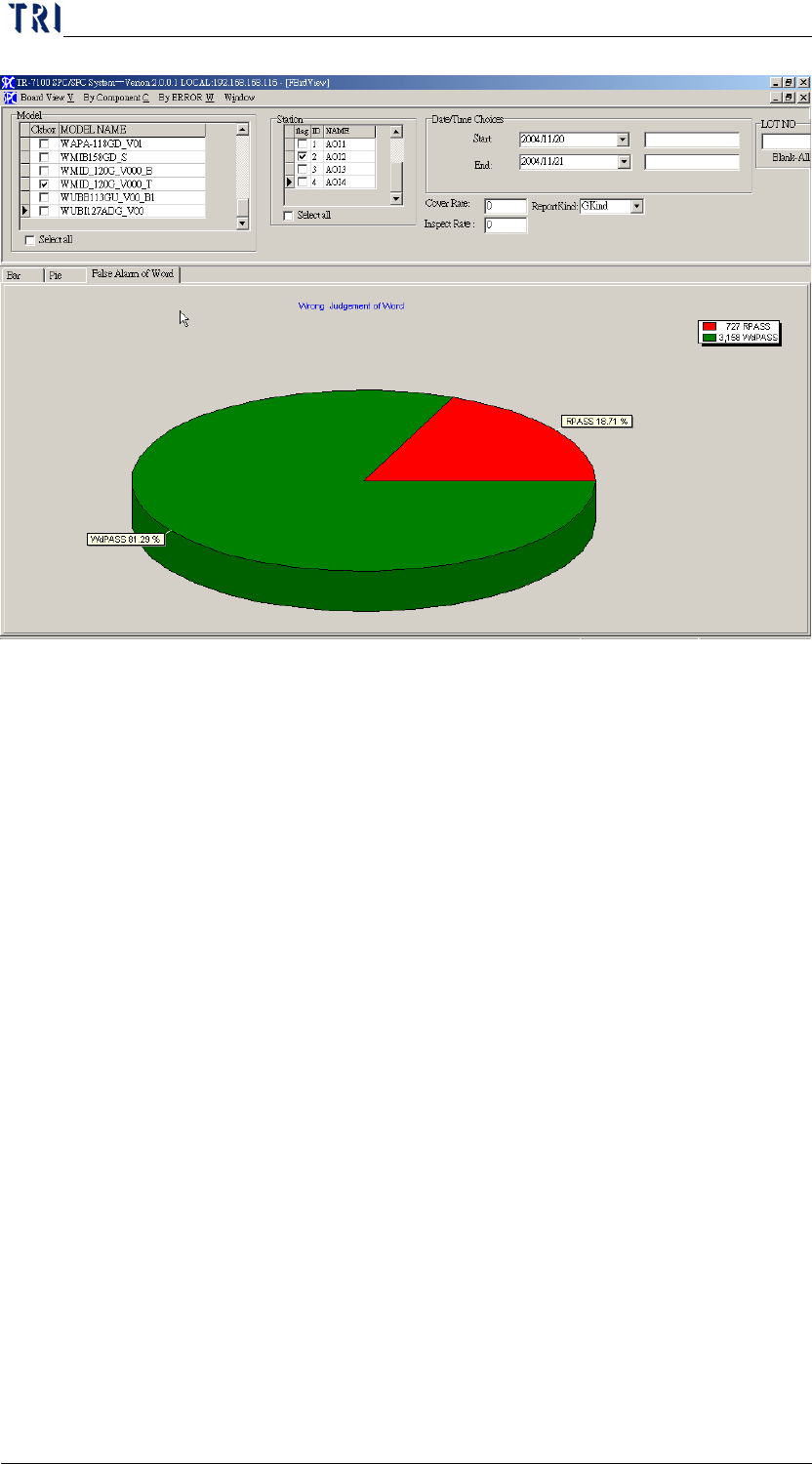
Chap ter3 SPC User Ma nual AOI Repair Station 89 as WDFail. It’ s eas y for user to calculate the defect rate ex cluding the WDF ail and user could get a better defect rate. PassRate=Pass/AllBoard*100 Y ieldRate=(Pas…
Chapter3 SPC User Manual
AOI Repair Station
88
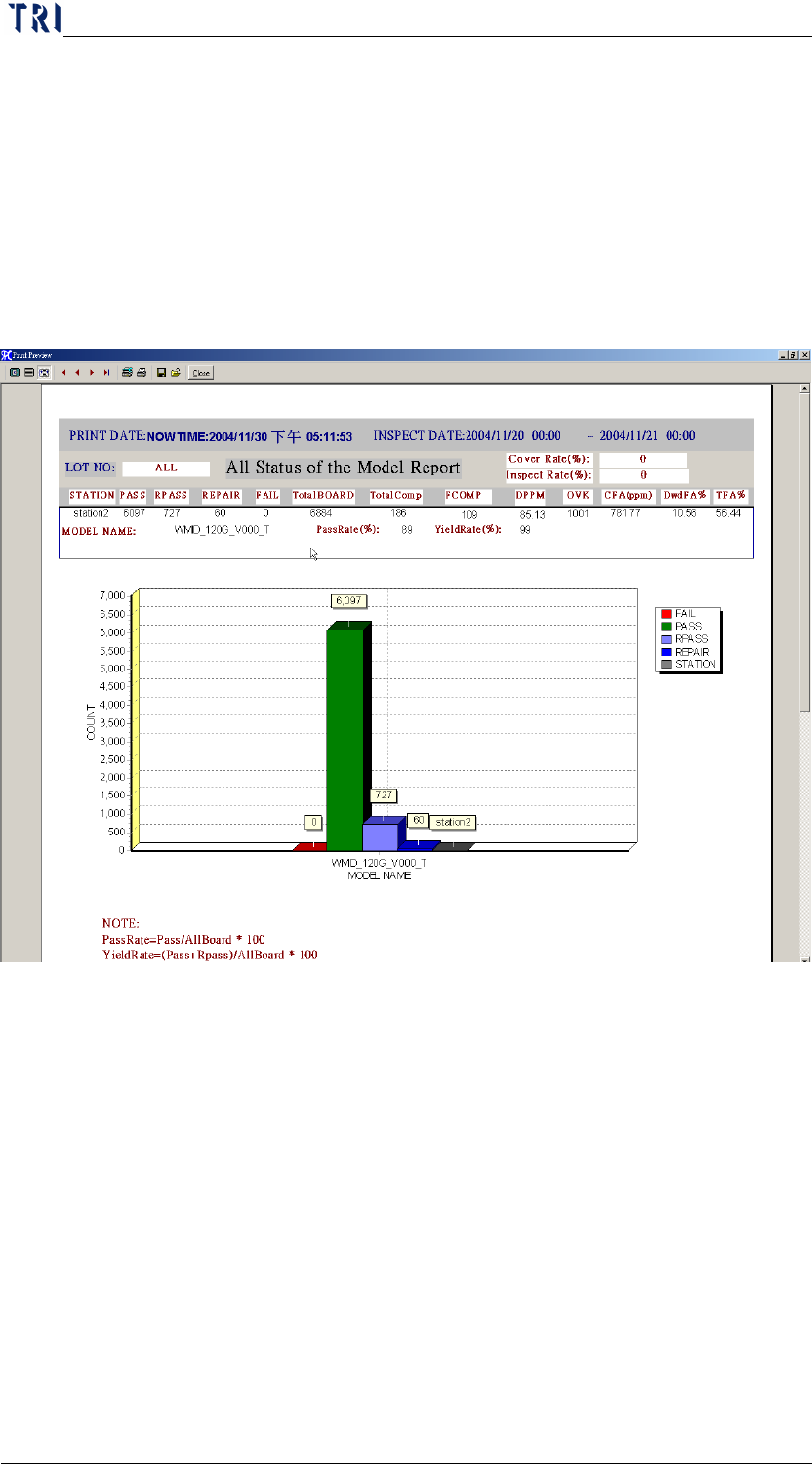
Step6. Press [PRINT QUICK] will generate reports:
MODEL-MODEL NAME
STAION-STATION NAME
PASS-PASS
REPAIR-REPAIR
SKIPS-SKIPS (Make sure [FKIND] is selected under [REPORT
KIND] setting before [PRINT] is pressed.)
FAIL-FAIL
UNTEST-UNTEST (Make sure [FKIND] is selected under
[REPORT KIND] setting before [PRINT] is pressed.)
DEFECTREATE-Defect Rate. (Make sure [FKIND] is selected
under [REPORT KIND] setting before [PRINT] is pressed.)
ALLBOARD-Total number of board have been tested
TOTALCOMP-Total number of COMPONENT on this MODEL.
FCOMP-Total number of COMPONENT have been repaired by the
repair staff.
DPPM-FCOMP / TOTALCOMP * ALLBOARD*1000000
OVK-Total number of false alarm components.
WDPASS(Word PASS)-It means the defect of characters on
component. When there is a Missing defect, user could confirm it
Chapter3 SPC User Manual
AOI Repair Station
89
as WDFail. It’s easy for user to calculate the defect rate excluding
the WDFail and user could get a better defect rate.
PassRate=Pass/AllBoard*100
YieldRate=(Pass+Rpass)/AllBoard*100
DPPM=FCOMP/(ALLBOARD * TOTALCOMP) *1000000
CFA(PPM)=OVK / (ALLBOARD* TOTALCOMP)*1000000
DwdFA=RPASS/ALLBOARD *100
TFA=(RPASS+WdPass) / ALLBOARD *100
Step7. When press [SAVETOBMP], the graph will be saved under
[C:\SPC1.BMP]
Step8. When press [EXCEL], it will generate EXCEL report
3 Board Defect Data
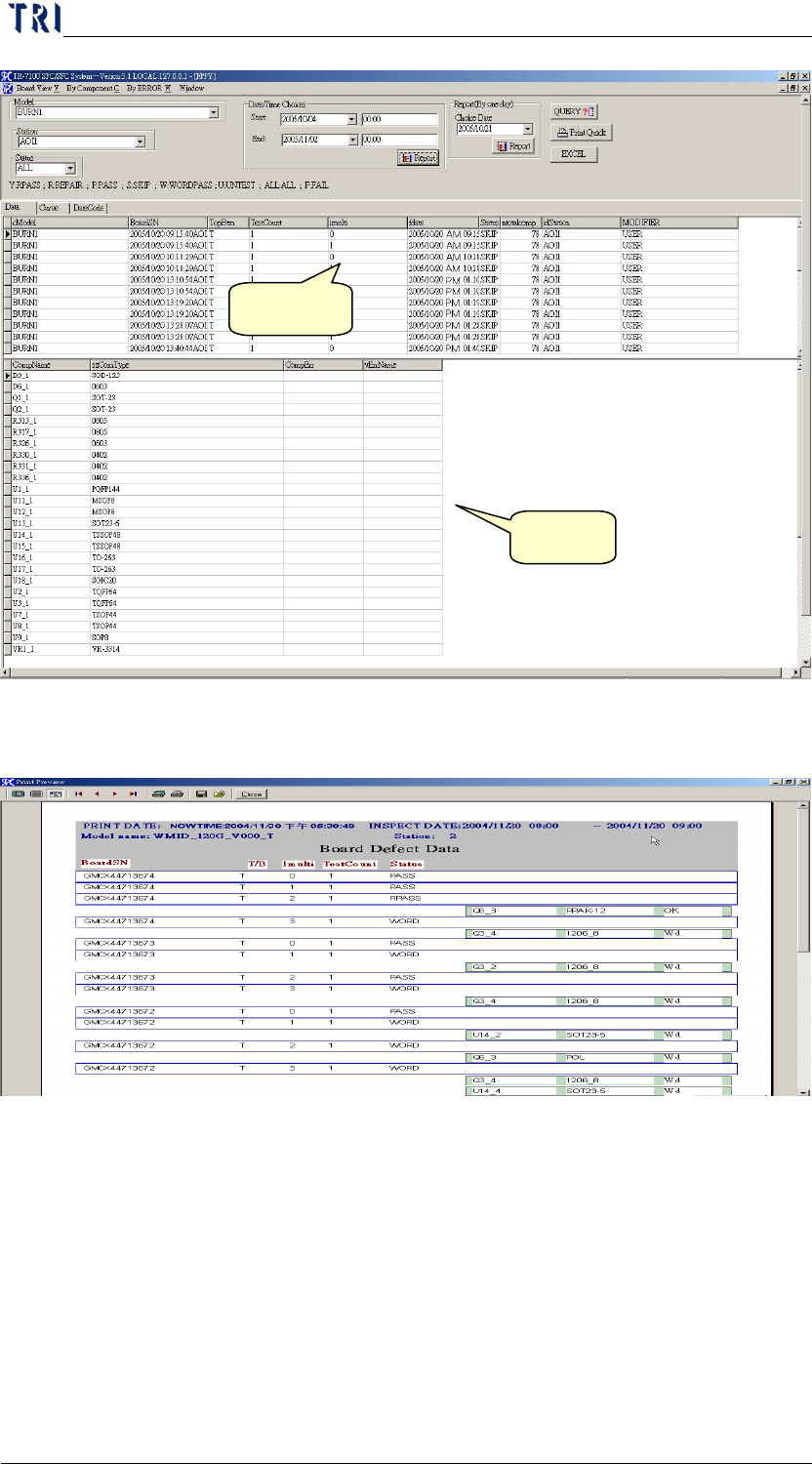
Check for the testing data of tested boards and each line graph condition
For search conditions key in [MODEL], [STATION], [STATUS],
[DATETIME], press [QUERY] will displays information of board in
AREA1, and the details of each board’s DEFECTS in AREA2
Chapter3 SPC User Manual
AOI Repair Station
90
Press [EXCEL] will generate EXCEL report
Press [PRINT QUICK] will generate the following report:
Export Excel file according to the specified date and time–Press the
[Report] button that is in [Date/Time Choices] field, then there will be
an Excel file created under [C:\]. The content of the report is as the
following. You also can specify the number of components you want to
display after clicking on the [Report] button.
Area 1
Area 2