AOI_RS_v85_en.pdf - 第43页
Chapter 2 Repair Station Main Progr am AOI Repair Station 39 6.4.12 Barcode Link - Link with the customer s y stem to capture barcode data. 6.4.13 Key in defect cause - When the function is enabled, there will be a new f…
Chapter 2 Repair Station Main Program
AOI Repair Station
38
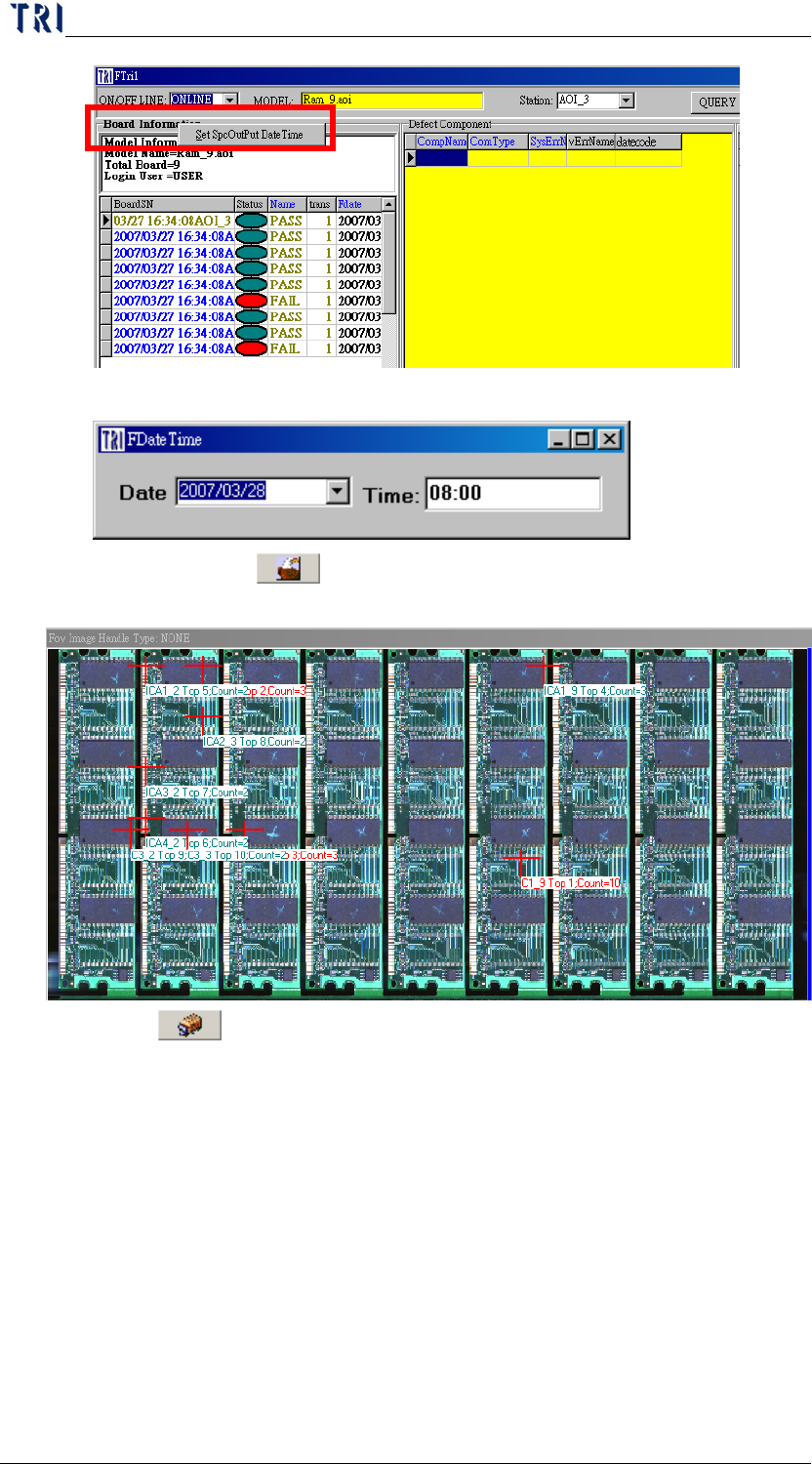
(3) Set the initial time.
(4) Press [
Show Top 10 Component], then system will show
the top 10 defect components.
6.4.11
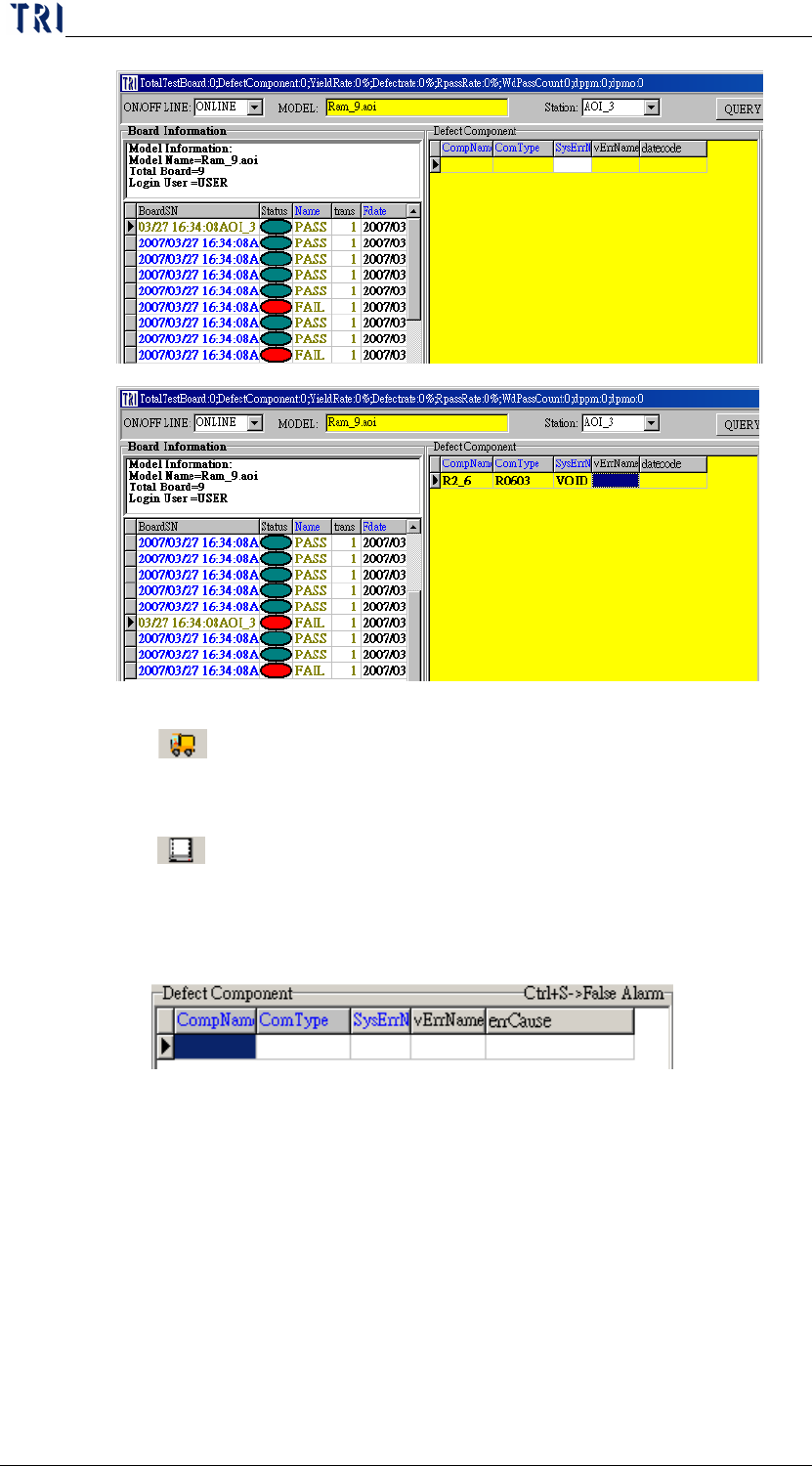
Pass Board Auto Scroll-Under multi-board situation, when
the function is enabled, user only has to press [↓] button once to
skip the PASS boards and stop on the next FAIL board. If it is not
enabled, every FAIL boards have to be review by press [↓] once.
Chapter 2 Repair Station Main Program
AOI Repair Station
39
6.4.12
Barcode Link-Link with the customer system to capture
barcode data.
6.4.13 Key in defect cause-When the function is enabled, there will
be a new field named “errCause” for user to key in the error cause.
After user confirms a board as “Repair”, a defect cause window will
pop up to be choose a defect cause.
Chapter 2 Repair Station Main Program
AOI Repair Station
40
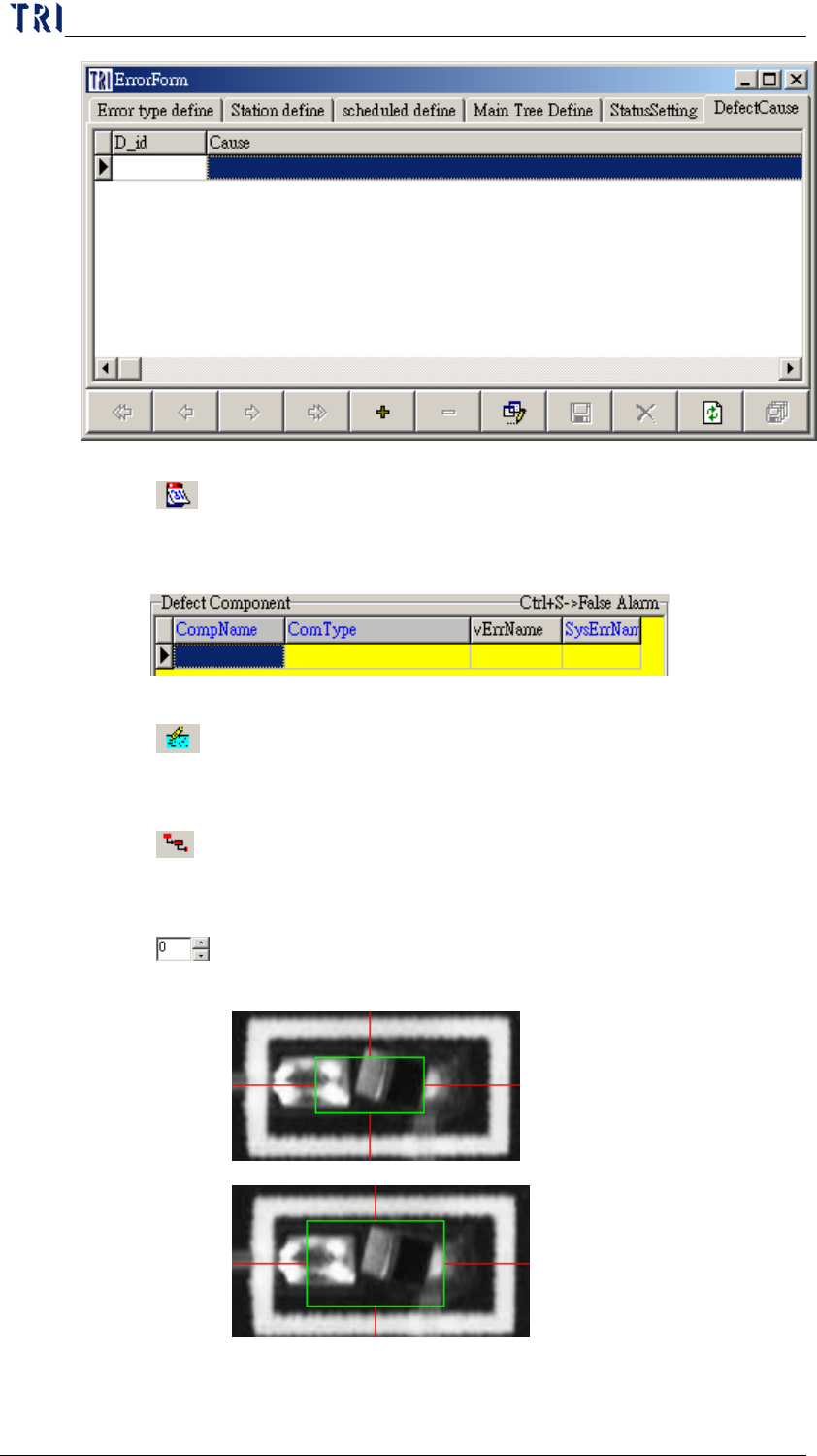
6.4.14 Save Grid Size-After user adjusts the fields manually, press
this button to save the setting. When user starts the program next
time, the fields will display as the settings.
6.4.15
Window Sort by Priority-The sequence in [Defect Window]
will follow the [Priority] field in [Define Error].
6.4.16 Only Show Last Records (Offline)-For a board that is tested for
several times, use this function to only display the last data.
6.4.17 FOV Frame Resize-Enlarge the green box that is to mark the
position of the component. The unit is pixel.
0
10
6.4.18 Unconfirmed number-When you select online mode, system shows