AOI_RS_v85_en.pdf - 第55页
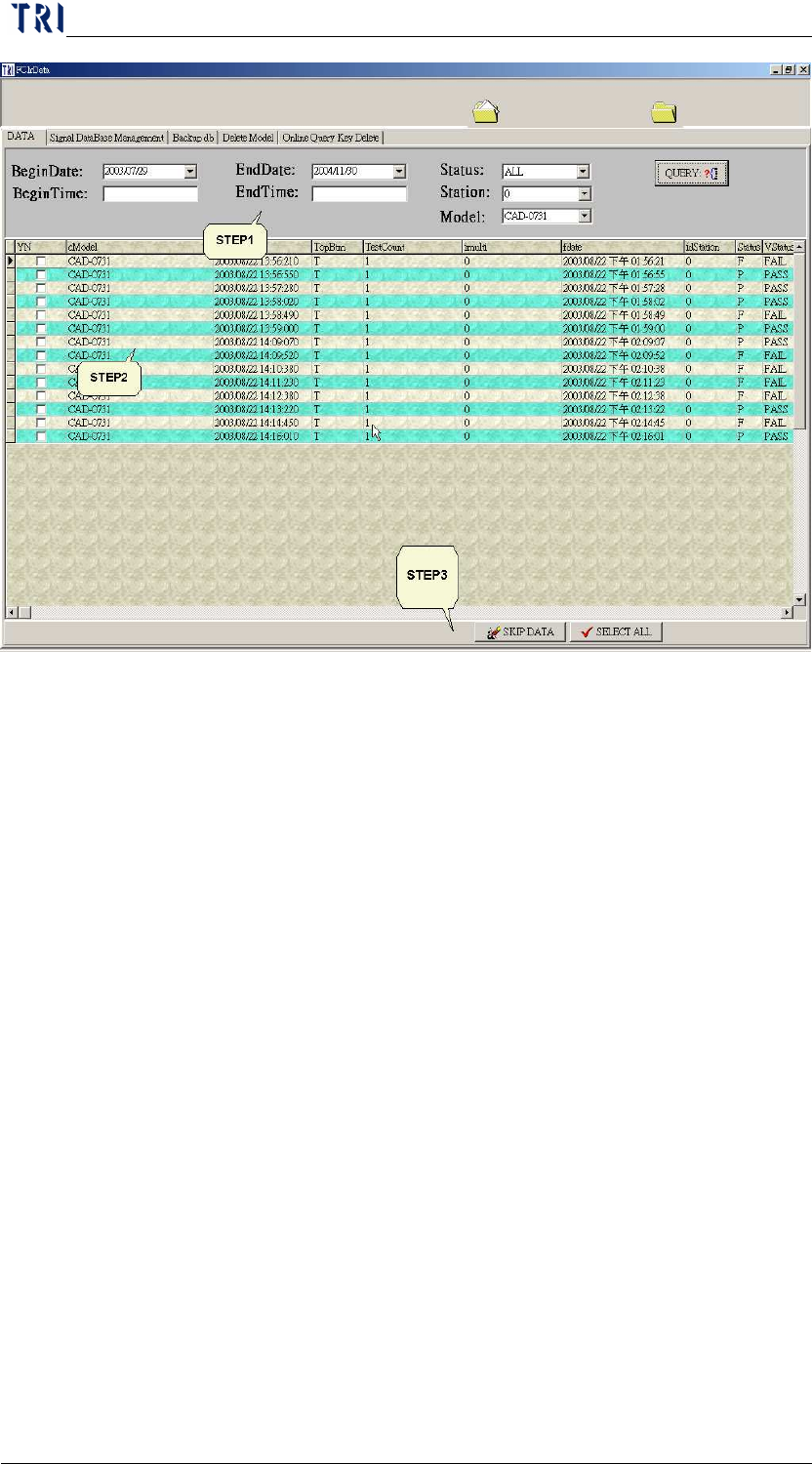
Chapter 2 Repair Station Main Progr am AOI Repair Station 51 9.2 Signal Data Base Management ShinkDB - Only compresses data base Empty DB - Clear all data base DB ReIndex - Reorganizes data base in order 9.3 Backup…
Chapter 2 Repair Station Main Program
AOI Repair Station
50
Chapter 2 Repair Station Main Program
AOI Repair Station
51
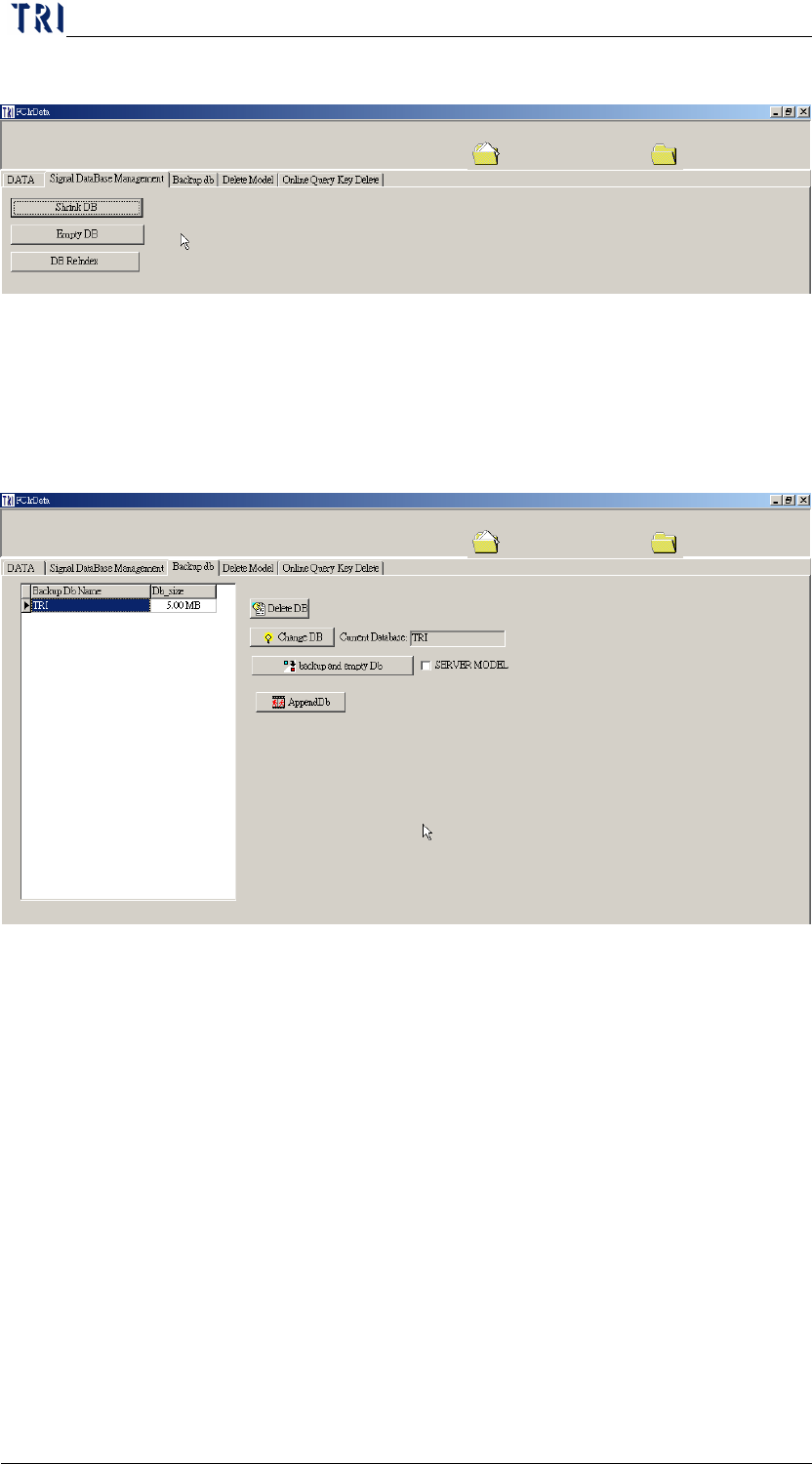
9.2 Signal Data Base Management
ShinkDB-Only compresses data base
Empty DB-Clear all data base
DB ReIndex-Reorganizes data base in order
9.3 Backup DB
Delete DB-Deletes database that are already backed up, DO NOT
delete the DB that is named [TRI].
Change DB-Changes all current database, the default setting in [TRI]
database, if the setting changes to a different database other than [TRI]
database, it goes into a backup search mode, at this point the
[INSERTDATA.EXE] won’t do anything, only switch DB back to [TRI]
DB to activate the [INSERTDATA.EXE].
BACKIP and EMPTY DB-Mainly to backup [TRI] DB to a form of
year, month, day, hour, minute, and second DB, and clear up all [TRI]
database. The backup files will be saved in [C:\Aoidata_bk].
To use [APPEND DB]:
The function is to link the database system with database file that
is copied from other computers. Repair Station only can review
Chapter 2 Repair Station Main Program
AOI Repair Station
52
the data that is linked with the database system.
There must be a pair of [*.LDF] and [*.MDF] files. The file has
to be named 2 in the beginning.
Step1. Click on [Append DB], select [mdf], you may see the DB of
[20031112] on the screen after finished
Step2. Use the check mark on [SERVER MODE] for the use of
[APPEND DB] of server version.
9.4 Delete Model
Deletes panel map files in DB, this is only the image file not the
database file. Click on [–] for selected MODEL, then press the [SAVE]
key to finish.
9.5 Online Query Key Delete
Delete stacked up unconfirmed files during the [ONLINE] mode, SKIP
may be performed by selecting TIME, MODEL, AND STATION on
this page
10 Main Toolbar
10.1 Option
ALL SHOW-Display the all menu of the tree diagram at the left side
of the window.
FONT-You can define the font to display.
10.2 RE-SIGN
Use the other user name to sign in the program.
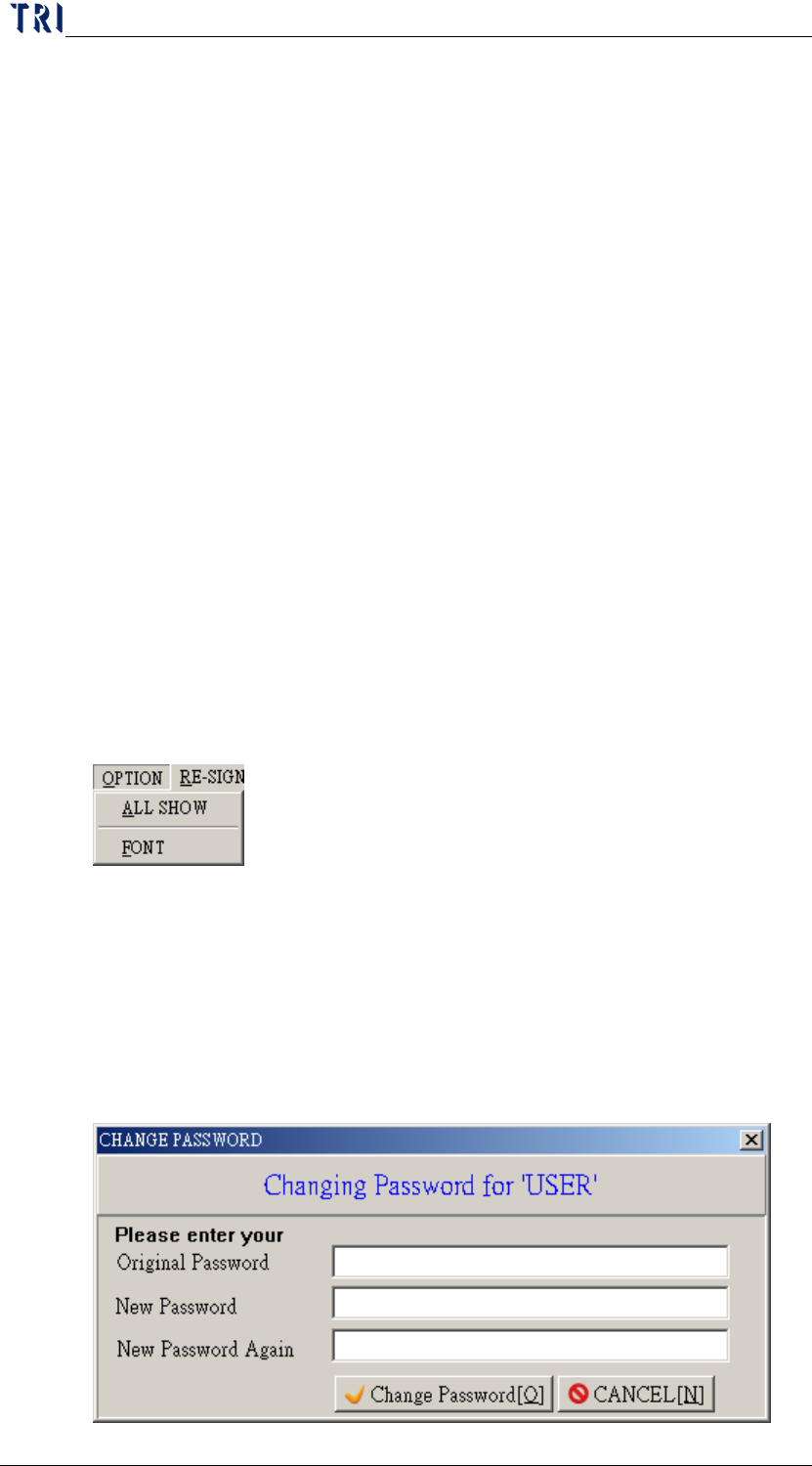
10.3 CHANGE PASSWORD
Press this to change the password of the current user.