AOI_RS_v85_en.pdf - 第46页
Chapter 2 Repair Station Main Progr am AOI Repair Station 42 6.4.21 Checking the history of database - When online or offline, you may see 4 previous data by switching the y ellow working area to SN area and then press t…
Chapter 2 Repair Station Main Program
AOI Repair Station
41
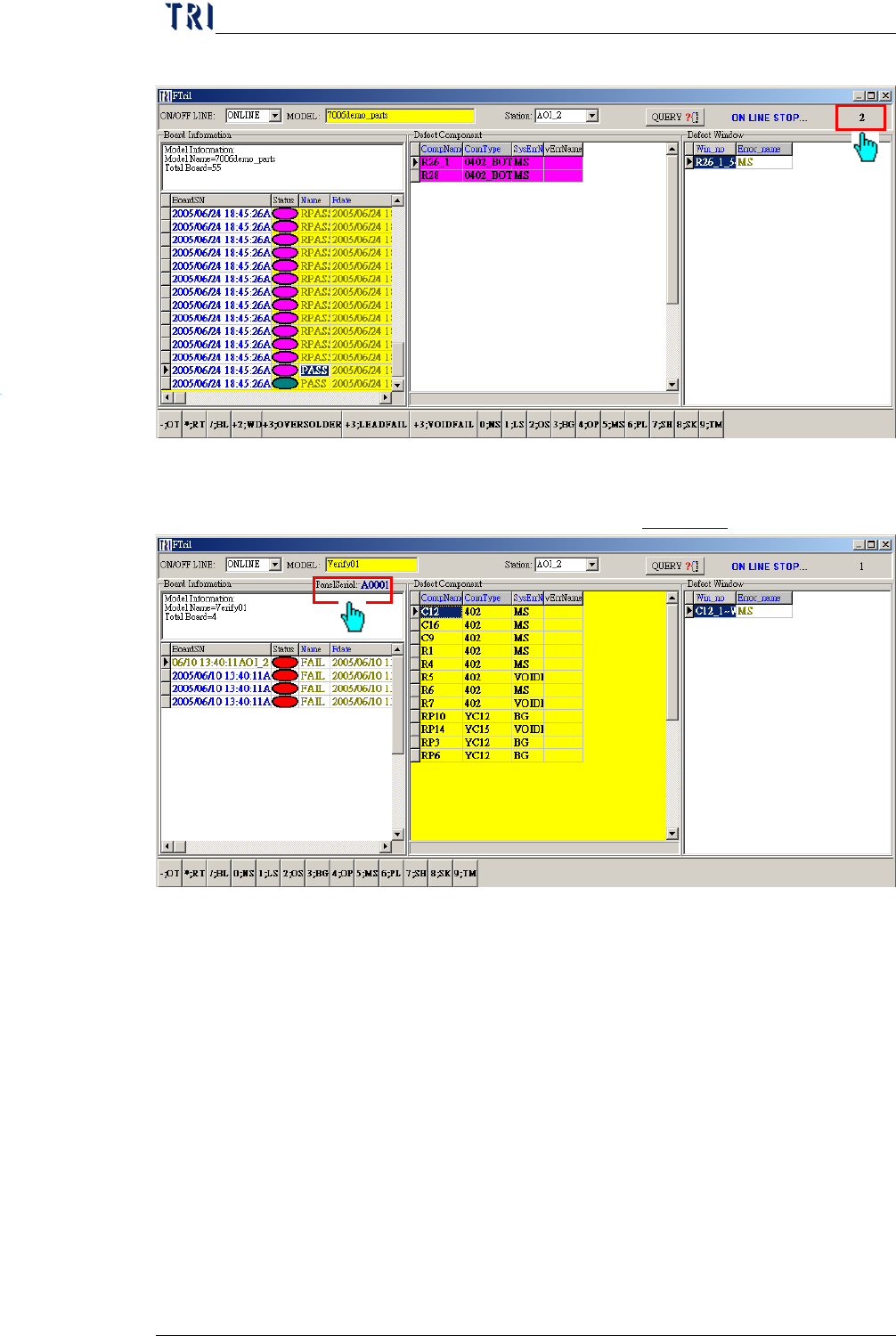
the number of data that have not been confirmed yet
6.4.19 PanelSerial-This information only shows when [PanelSerialShow]
function is enabled. See more details in
10.6.6.19.
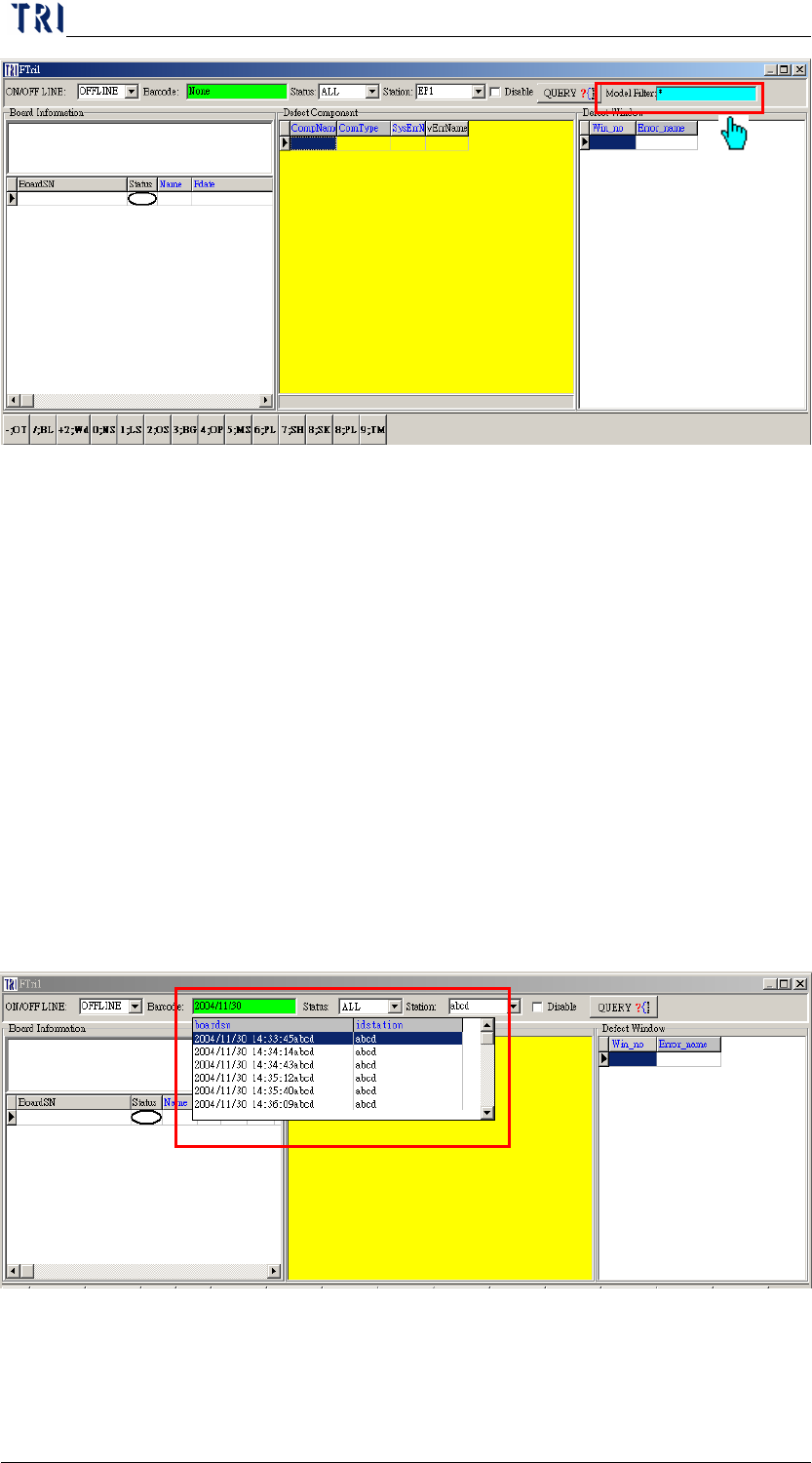
6.4.20 Model Filter-The field only shows when you select offline mode.
You can input a model name to be a condition to query or input [*] to
not use this function.
Chapter 2 Repair Station Main Program
AOI Repair Station
42
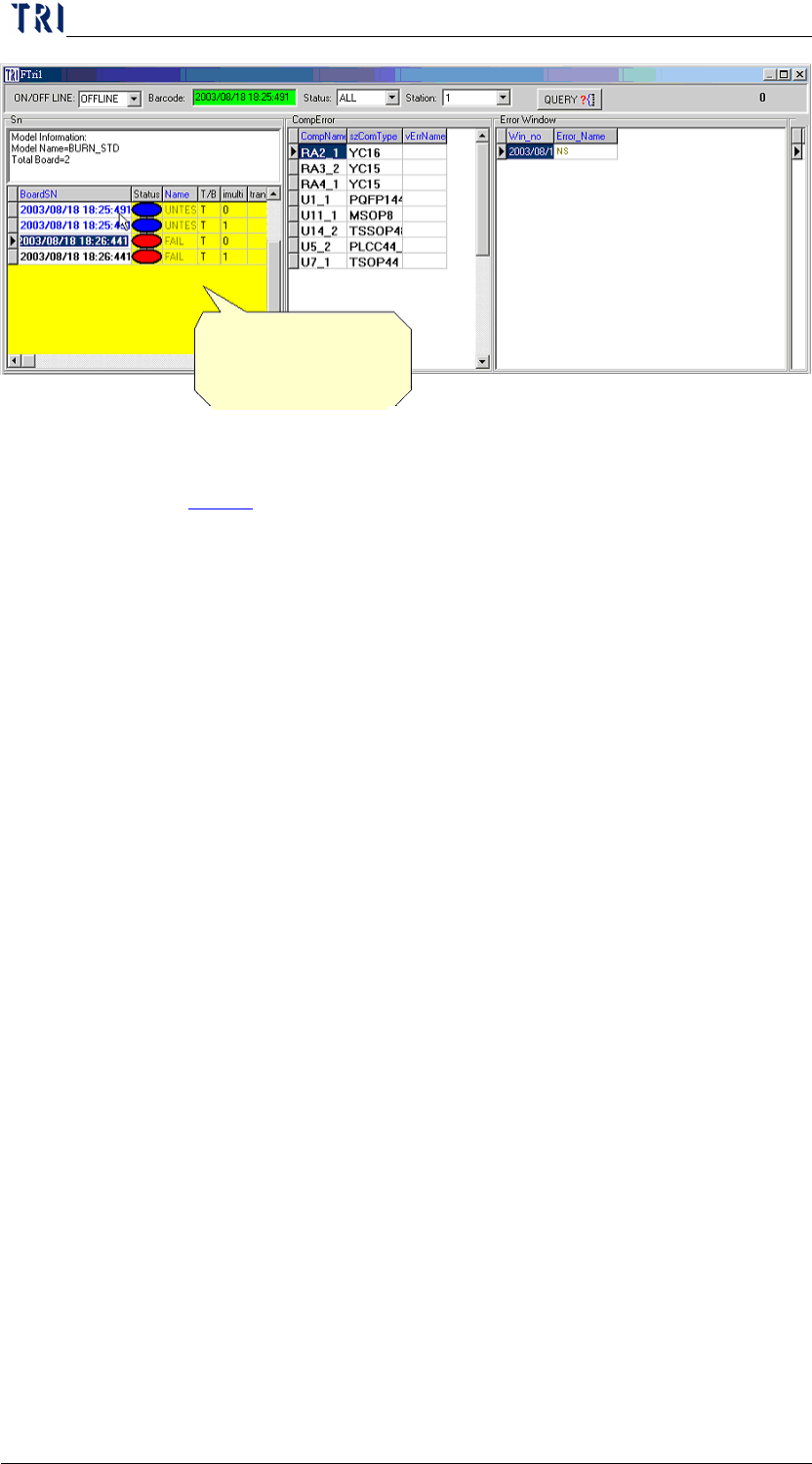
6.4.21 Checking the history of database-When online or offline, you may
see 4 previous data by switching the yellow working area to SN area
and then press the upper arrow key
Step1. Switch to [Offline]
Step2. Enter the barcode data that need to be searched in the
[Barcode] column.
Enter the current date if there is no barcode. The date
format will be like 2004/01/09 13:10:56x, where x is
the station id.
For instance: 2003/08/18 17 has been entered in
barcode. By double click on the green area (Barcode),
all information of 2003/08/18 17 will be listed. Then
select any desired list and click on the [QUERY] icon
for detail like the figure below:
Step3. You may search data by switching the working area to
[BoardSN], and press the down arrow key.
Chapter 2 Repair Station Main Program
AOI Repair Station
43
6.4.22 You can select the column you want to display on [BoardSN] area;
see
10.6.3.
7 DEFINE ERROR
Go to REPAIR STATION Main Program and double click [DEFINE
ERROR].
Click here and press
down arrow key