AOI_RS_v85_en.pdf - 第74页
Chapter 2 Repair Station Main Progr am AOI Repair Station 70 10.6.7 Defect W arnin g 10.6.7.1 Missing W arning 、 Kind 、 String( parse b y ';') Emphasize the [missing] mistake with different colors If you wa…
Chapter 2 Repair Station Main Program
AOI Repair Station
69
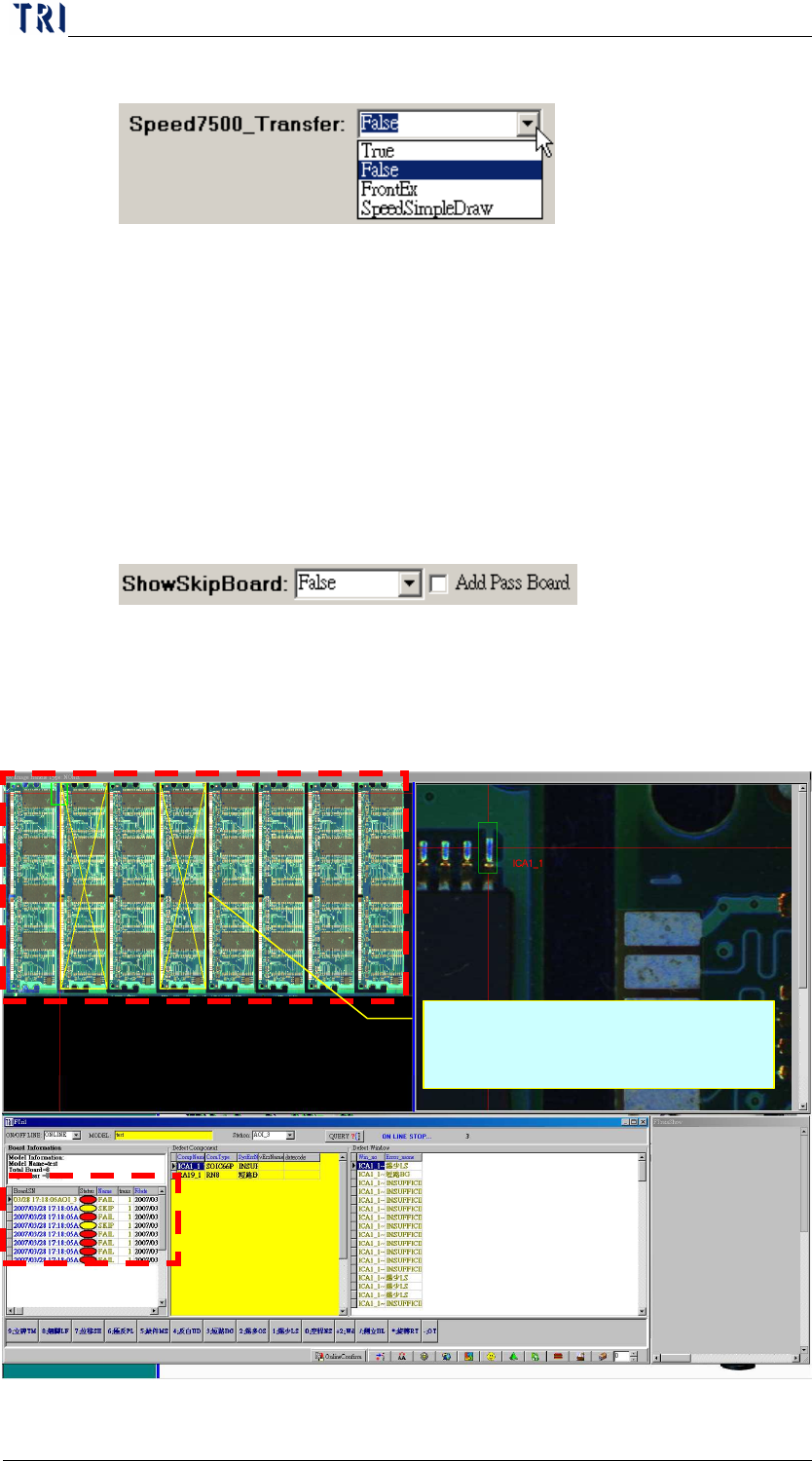
10.6.6.27 Speed7500_Transfer
When it’s [True], AOI machine will do the image processing.
When it’s [False], [InsertData.exe] will do the image processing.
When it’s [FrontEx], the image will be dealt with [Ptri1.exe]. For
all the situations mentioned before, system will display the image
after image processed. When it’s [SpeedSimpleDraw], the Repair
Station will not modify the image and display it directly; and we
will see an image with lower quality.
10.6.6.28 Show Skip Board
When it is [True], system will mark the SKIP boards with yellow
frame and cross line.
When [Add Pass Board] is checked, the PASS board also will be
marked on the panel map.
Mark the SKIP boards with
yellow frame and cross line.
Chapter 2 Repair Station Main Program
AOI Repair Station
70
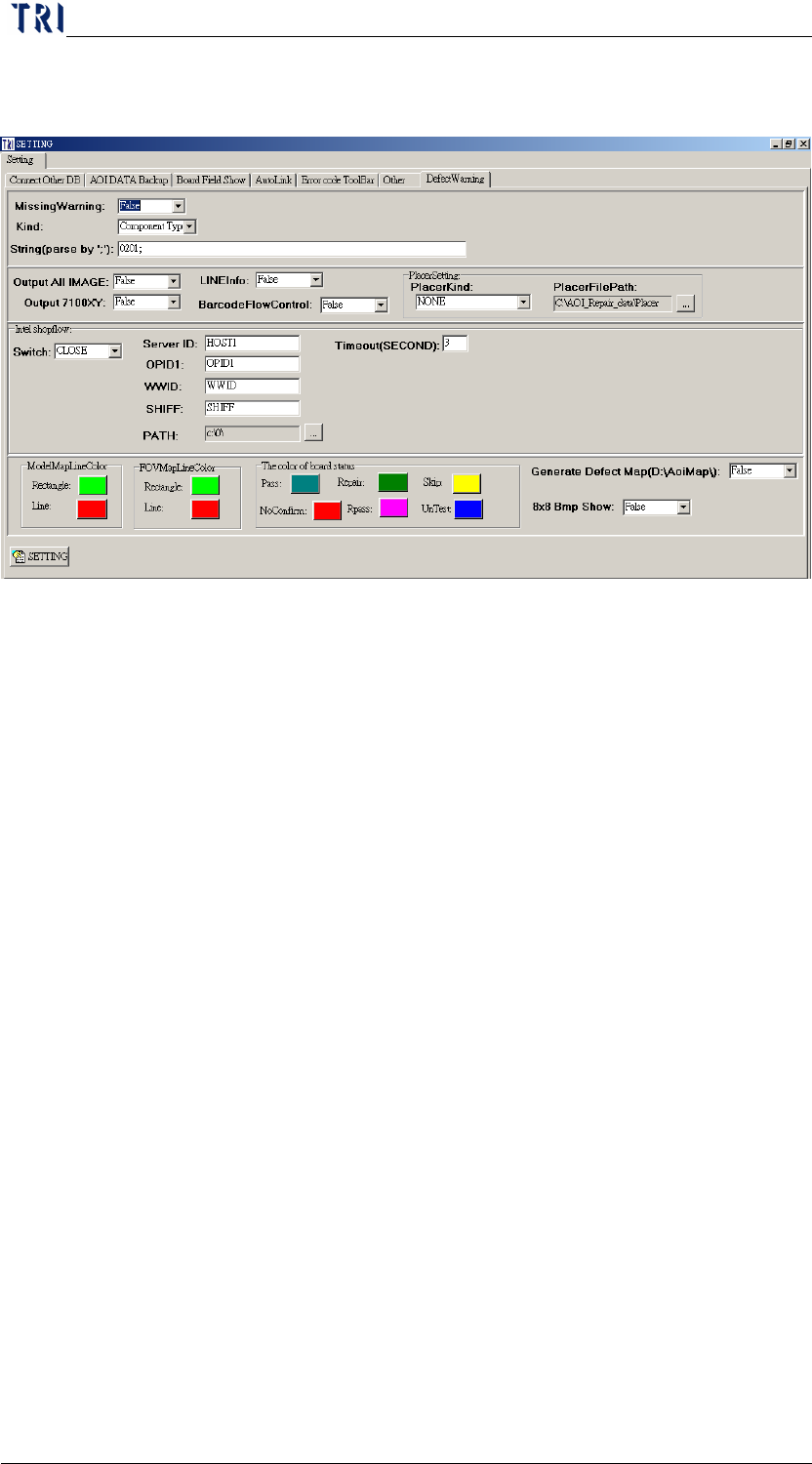
10.6.7 Defect Warning
10.6.7.1 Missing Warning、Kind、String(parse by ';')
Emphasize the [missing] mistake with different colors
If you want to highlight the [missing] fail for all components, you
should set [Missing Warning] as [True] and [Kind] as [All].
If you want to highlight the [missing] fail for only several
components, you should set [Missing Warning] as [True] and [Kind]
as [Component]. And input the specified component name
(separated by “;”) at [String(parse by ';')] field. For example,
[R1_1;C2_2;U2_1;].
If you want to highlight the [missing] fail for specific component
types, you should set [Missing Warning] as [True] and [Kind] as
[Component Type]. And input the specified component type
(separated by “;”) at [String(parse by ';')] field. For example,
[0201;0402;].
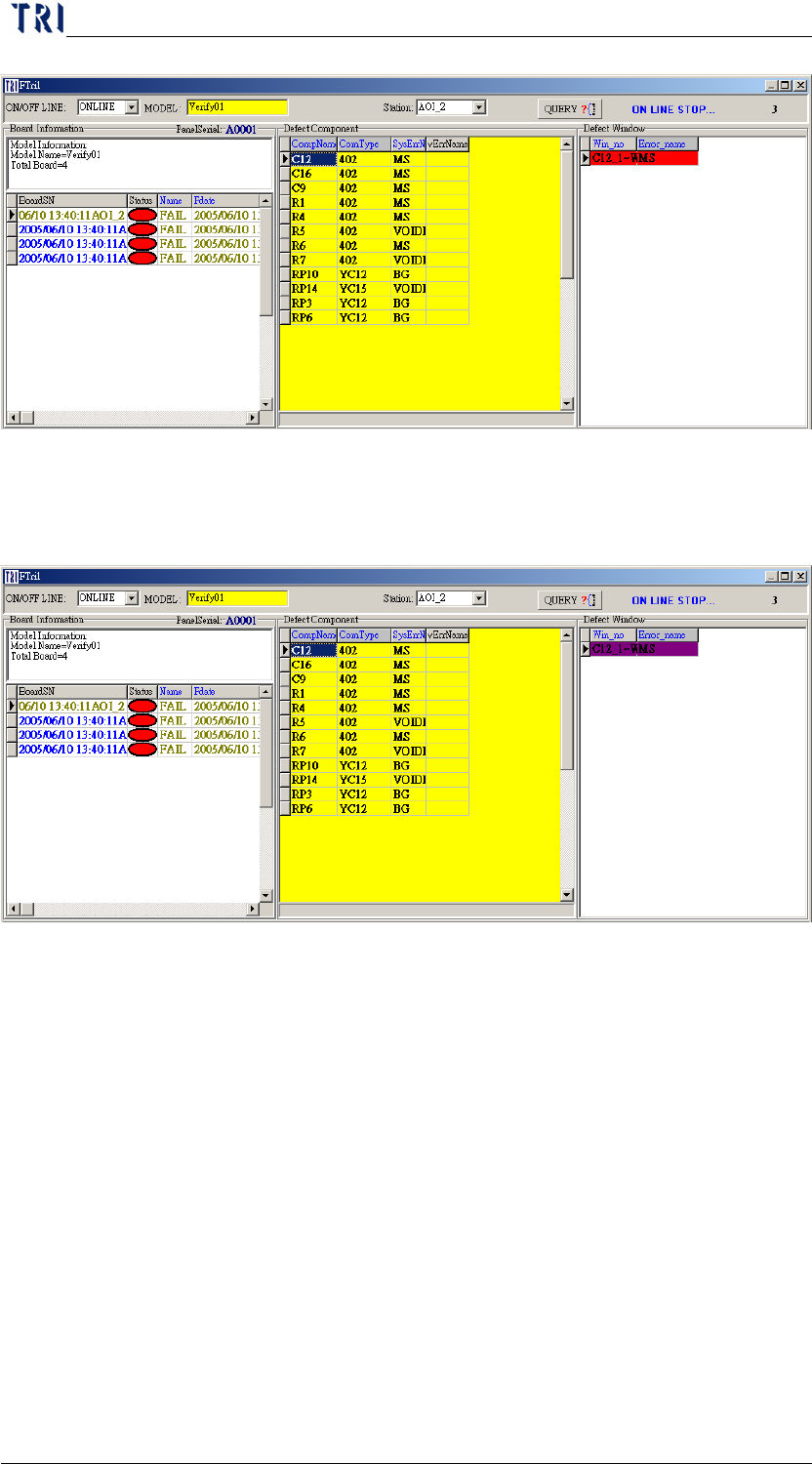
When you set [All] in [Kind] field, the system mark the fail with
the red.
Chapter 2 Repair Station Main Program
AOI Repair Station
71
When you set [Component Type] or [Component] in [Kind] field,
the system mark the fail with the purple.
10.6.7.2 Output All Image-If user wants to co-operate with the [Defect
Image] function in YMS, set it as [True].
10.6.7.3 LineInfo-If user wants to co-operate with YMS, set it as
[True].
10.6.7.4 Output 7100XY-When user wants to use [X-barR chart]
function or to get shift X, Shift Y and Theta information, he has
to set it as [True].
10.6.7.5 Barcode Flow Control-Only for YMS Barcode Check.
10.6.7.6 Placer Kind
PANA: This is to link to Panasonic Placer. See more explanation
in YMS Manual.
YAMA: This is to link to YAMAHA Placer.