AOI_RS_v85_en.pdf - 第71页
Chapter 2 Repair Station Main Progr am AOI Repair Station 67 Interpolation - Y ou can select [T rue] and the image enlarges with interpolation method. The e nlarged image is looked smoother . When you select [BMP], s…
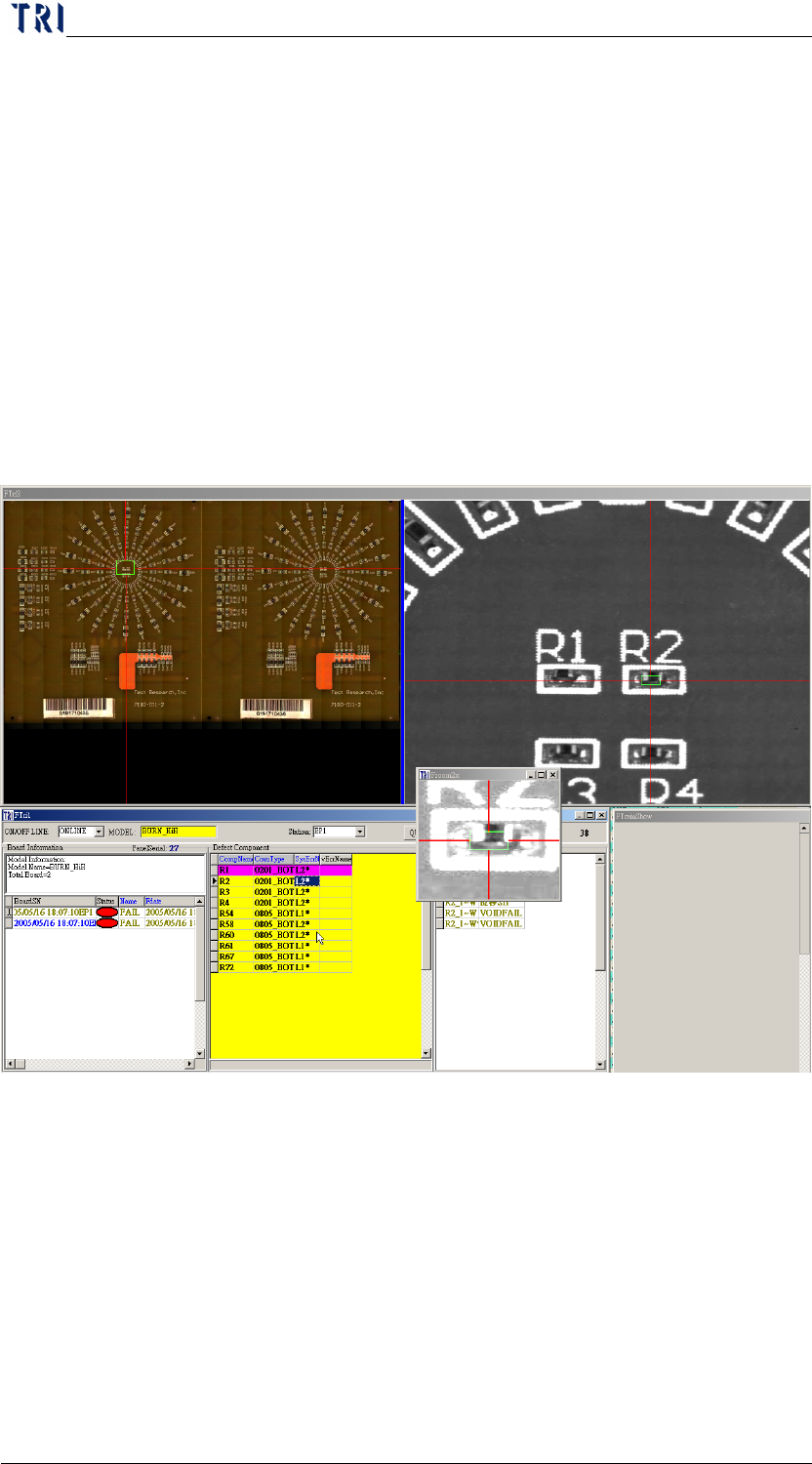
Chapter 2 Repair Station Main Program
AOI Repair Station
66
Component Type-Input the type that you want to show the
enlarged image. You can input [ALL] to show all kinds of
components. If you input [0201] the system checks whether the last
4 characters are [0201] before confirming. When the result is [true]
the system shows the enlarged image. If you input [01] the system
checks whether the last 2 characters are [01] before confirming.
When the result is [true] the system shows the enlarged image.
ZOOMXX-You can input the multiple that you want to enlarged.
The range is 2~5 times.
AutoZoomsizeLight-When you select [True] the system increase
the brightness of enlarged image automatically. You also can press
[F3] key to keep increasing the brightness.
Only Show Long Red Line and Hide Green Rectangle in Missing-
Selecting [True] means that if it’s a [missing] failed the system will
only reserve the red line that is parallel orientating in direction of
the electrode and remove the green frame and red line that is
vertical orientating in direction of the component.
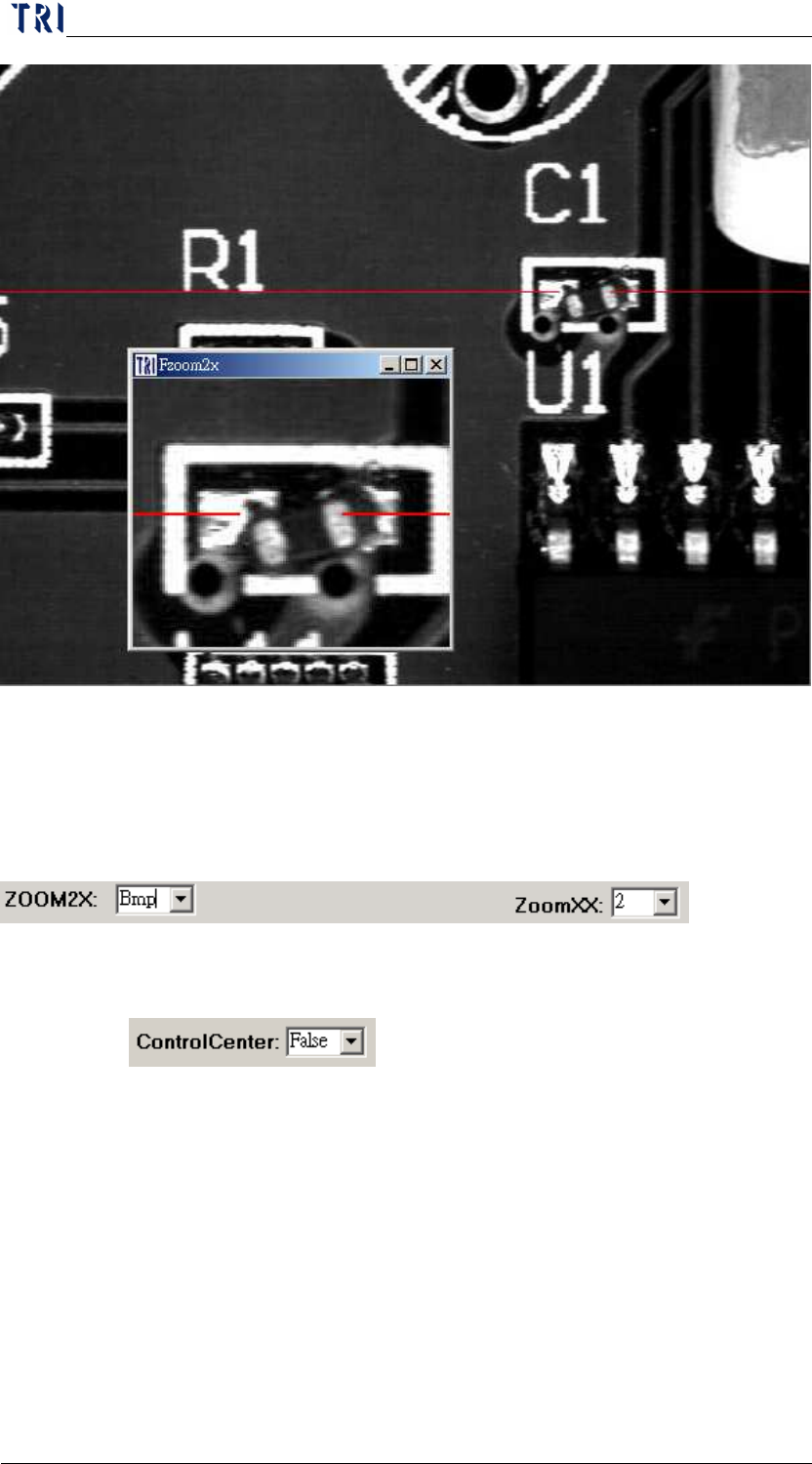
Chapter 2 Repair Station Main Program
AOI Repair Station
67
Interpolation-You can select [True] and the image enlarges with
interpolation method. The enlarged image is looked smoother.
When you select [BMP], system displays an additional BMP image.
The function has to cooperate with AOI machine to indicate the
specific component that you want to output BMP images.
10.6.6.25 Control Center
When this is set as [True], under [Online] mode, system will
display the unconfirmed data automatically and user doesn’t has to
key in the model name and Station ID.
When this is set as [OneByOne], the system will inspect the next
board till the former board has been confirmed.
Chapter 2 Repair Station Main Program
AOI Repair Station
68
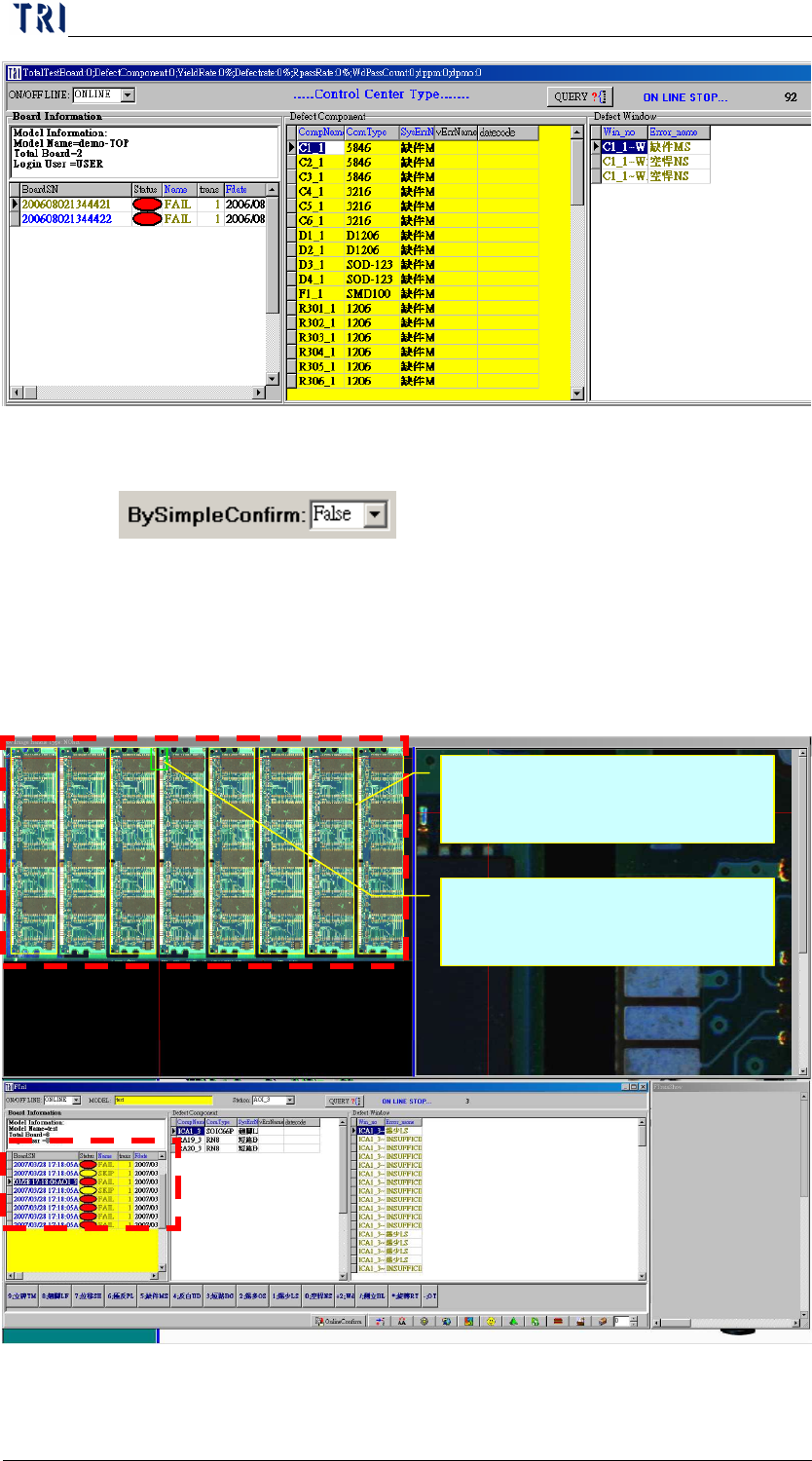
10.6.6.26 By Simple Confirm
The function is especially used for a great quantity of multi-boards.
When it’s set as [True], system will mark the defects on the panel
map directly. User only has to review the defects and press [Enter]
to confirm the panel. But the data confirmed this way will not be
calculated in SPC program.
Mark the fail board by yellow
frame.
Mark the defect location by
green frame and red line.