YesAX V3.1.2 - Software User Manual.pdf - 第207页
SPC Data Logg ing 15 -3 Nordson YESTECH provides a sample MS Access file, SPCReportSample.mdb, to illustrate the type of information AXI users can extract from the data generated by the AX I machines. You can use the sam…
15-2 SPC Data Logging
All the inspection recipes, from all the AXI machines in the facility, report to a single SPC_Data
table. One record represents one defect. A board with 5 defects on 3 parts will have 5 records
with identical SystemID, Inspector, Recipe, WO and IDate fields. A board with no defects will
still have one record with the RefID and DefectCode fields blank. The fields which hold 0 or 1
are summed to make up the final reports. A board that has 5 failures will have one record with
BrdCount equal to 1 and the rest with BrdCount equal to 0. This way the 5 failures will only be
accredited to one board.
The SN field records the serial number of the board. In the case of a panelized recipe, if the user
chooses to have one serial number per panel (Block Skip Enabled but Block SN disabled), then
the SN would be a concatenation of the panel serial number and the Block ID. For example, the
serial number is Board-001, the SN for the master block would be Board-001-0, the SN for the
second block would be Board-001-2, etc. If each block has a unique barcode (and Block SN is
enabled) then the SN field will contain the serial number (Barcode) for each block.
By default the software creates the database files in MS Access 2000 format in the name of
YesDB.mdb, in the folder C:\AOI_Data\SPC_DataLog\. When there is more than one station
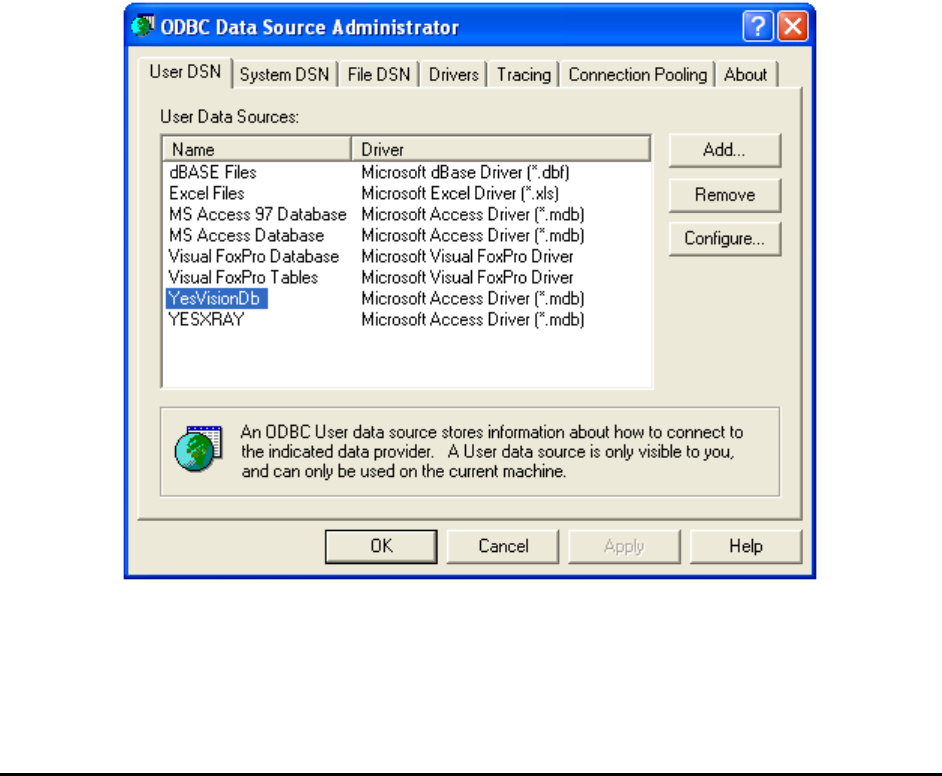
generating SPC data, have all stations send data to a single database. Use the ODBC data source
administrator to set up the database. The ODBC data source administrator is accessed via
Control Panel\Administrative Tools\Data Source (ODBC).

SPC Data Logging 15-3
Nordson YESTECH provides a sample MS Access file, SPCReportSample.mdb, to illustrate
the type of information AXI users can extract from the data generated by the AXI machines. You
can use the sample database as the starting point to develop your own custom reporting system.
The sample database carries no copyright and is distributed in open source form. The Sample
database plus a write-up describing its usage can be found on the Installation CD in the
document folder under the name SPCReportSample2.zip.
In addition to logging data into a MS Access database, you can also write the SPC data to an
ASCII text file/files. To turn on the feature, edit the YesAX.ini file and change:
[ODBC_Report]
..
TextOut=1
TextFolder=C:\Aoi_Data\SPC_DataLog ;folder for the text files
..
The software put the exact content of the SPC_Data table into one file called SPC_Data.txt.
15.2 Using MS SQL Server
MS SQL Server can be used instead of MS Access for database management. There are some
parameter changes needed in the YesAX.ini file, [ODBC_Report] section.
..
UseSQLServer=1
Server=
Address=
UID=
PWD=
WinNTMode=
UseNamedPipe=
..
UseSQLServer is set to 1 to enable software to write data to SQL Server instead of MS Access.
Before dumping data to SQL server, set up SQL Server either locally or on a remote machine.
SQL database name (default)
YesDb
SQL Server name
Server
SQL Server local server, default value
(local)
SQL Server computer name
Address
SQL Server User ID
UID
SQL Server Current Password
PWD
If software cannot connect to the specified SQL Server “YesDb”, it will automatically switch
back to Access database.
Server/Address: set to the name of computer or IP address of computer that has SQL Server
installed. If the server is stored locally, then it should be set to “(local)”.
UID: set to the user ID of the SQL Server.

15-4 SPC Data Logging
PWD: set to the password of the SQL Server.
WinNTMode: set to 1 when use windows authentication mode for login validation. Under this
mode the user don’t need to set the value of UID and PWD. If set WinNTMode to 0, connection
will use SQL Server mode, then the user needs to set up both UID and PWD.
UseNamedPipe: set to 1 when using Win32 named pipes(i.e. computer name for “Server =”
and/or “Address=”); set to 0 when using Win32 Winsock TCP/IP (i.e. actual IP address of the
Server and/or Address).
With the parameters set, starting the YesAX software will cause the creation of YesDb database
in the MS SQL server folder. (By default the full path is: C:\Program Files\Microsoft SQL
Server\MSSQL\Data). It is important to let the software create the YesDb database
automatically. Do NOT try to manually create the database or try to import the database using
the YesDb.mdb file created by the MS Access software. Doing so could prevent the YesAX
software from connecting to the SQL server.
The SQL Server main computer and all computers connecting to the SQL database can be within
the same workgroup (domain) or at different workgroup. For a remote connection, use the IP
address on both the Address and Server fields. If you have problems connecting to the remote
SQL database, try turning off the firewall on the remote machine. YesAX connects to the default
instance (SQL Server 2000 and later support multiple installations of SQL Server on a single
computer) of SQL Server, which is the first installation of SQL Server.
Below is an example of SQL Server connection settings:
..
UseSQLServer=1
Server=SQLServer1
Address=192.168.1.1
UID=sa
PWD=yestech
WinNTMode=0
UseNamedPipe=0
Sometimes when the user connects to SQL server for the first time, the following error message
“Cannot connect to SQL Server master database” may show up. In this case, the YesAX
software was not able to connect to master database thus it cannot create the YesDb database for
data logging. To solve the issue, it is possible for the user to attach the YesDb database (created
by YesAX software in early case) to SQL database and then the YesAX software should be able
to connect to this YesDb database. To do this, the user needs to go to YesTech ftp site and get
the yesdb.mdf and yesdb_log.ldf file first and then copy these two files to the SQL server
computer. After that the database administrator can use his preferred SQL database tools to do
the attach job.
15.3 Using MySQL Database
MySQL database can be used instead of MS Access or MS SQL Server for database
management. There are some parameter changes needed in the YesAX.ini file, [ODBC_Report]
section. These parameters look similar to SQL Server database settings but are not exactly the
same.
..