YesAX V3.1.2 - Software User Manual.pdf - 第266页
25 -6 Calibration and Verificat ion Press the Set Load button to launch the Set Loading Positions dialog. The Set Loading Positions dialog allows you to verify and set the loading positions. The Set button sets the curre…
Calibration and Verification 25-5
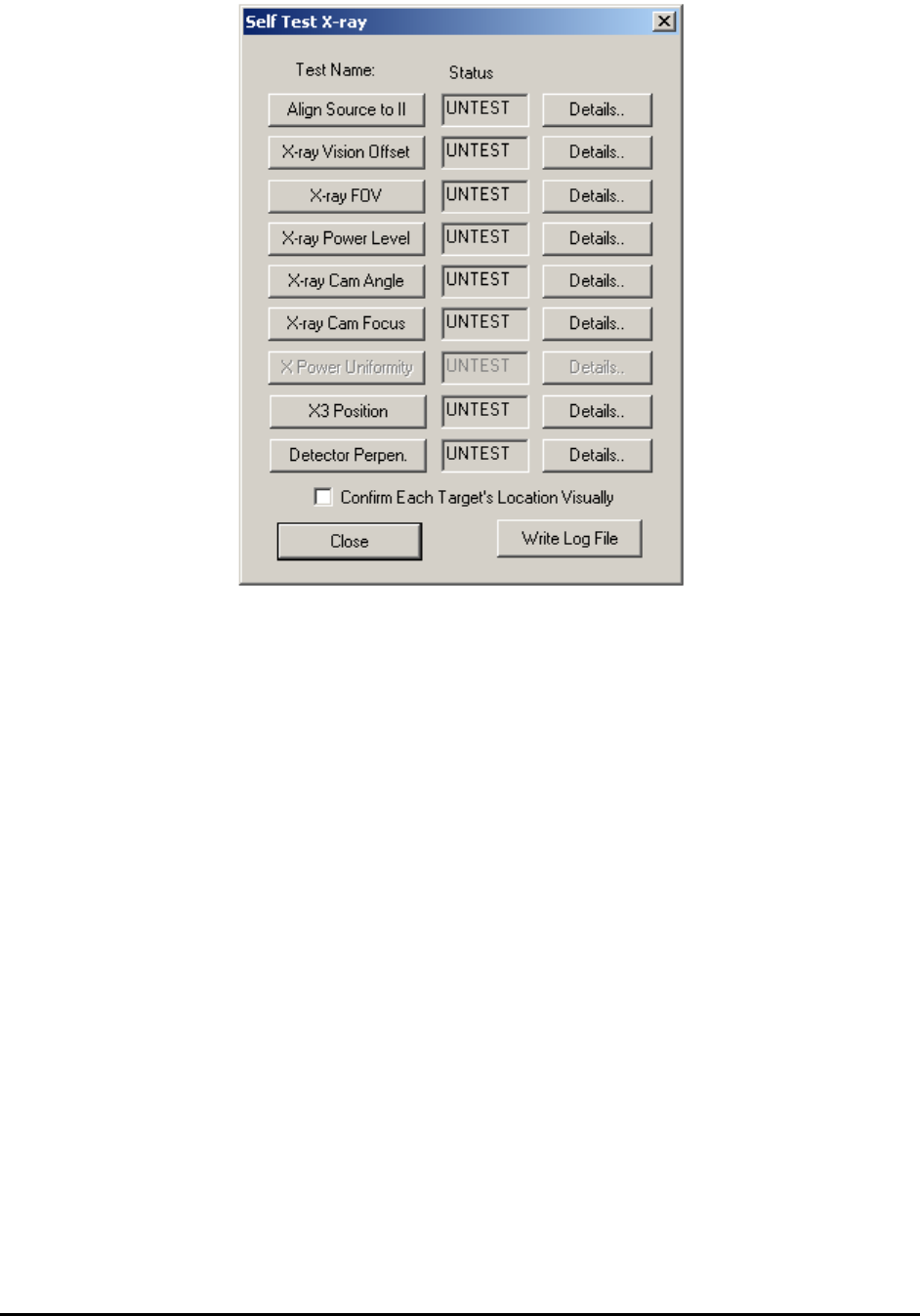
The Self Test X-ray dialog of X2 AXI system lists a total of 9 tests. On the left is the action
button for the test. Clicking it starts the automated test procedure. The middle box shows the
status of the test. It can be UNTEST, PASS or FAIL. The right buttons, when clicked, launch
detailed dialogs that list the test results. In many cases, they also allow you to tweak the
parameters to bring them back within specification. For X3 AXI system, Self-Test X-ray dialog
is actually a little bit different from that of X2 AXI system.
25.9.5 Align Conveyor Loading Positions
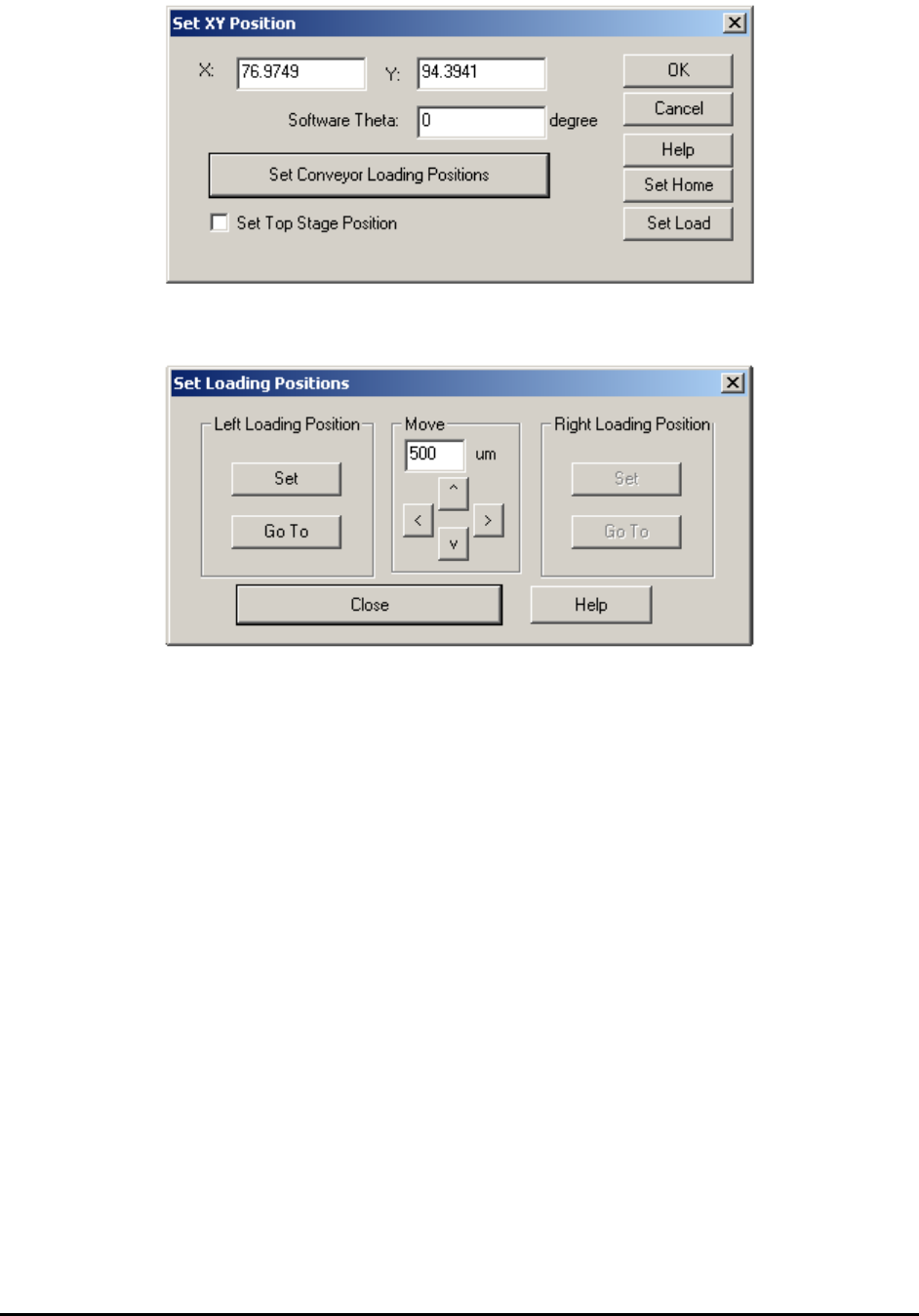
The X2/X3 AXI system has the conveyor carried by the XY stage. Set the left and right loading
position for the conveyor to match the position of the shutter doors and the position of the
incoming and outgoing conveyors. Select Set Position from the Test menu to launch the Set XY
Position dialog. Press the Set Conveyor Loading Positions button. The X3 AXI system also has
the X-ray detector carried by the top XY stage. To set top XY stage position, enable the Set Top
Stage Position checkbox. If the Set Top Stage Position option is unchecked, this dialog will
work for the conveyor XT stage only.
25-6 Calibration and Verification
Press the Set Load button to launch the Set Loading Positions dialog. The Set Loading Positions
dialog allows you to verify and set the loading positions.
The Set button sets the current position as the corresponding loading position. The arrow buttons
in the middle jog the XY stage in small increments to facilitate fine adjustments.
Design for Manufacturing 26-1
26 - Design for Manufacturing
Nordson YESTECH AXI machines have been designed with ease of manufacturing and
maintenance in mind. The software contributes to this goal by providing low-level control
functions. These functions allow machine builders or maintenance personnel to exercise
particular hardware modules so that any problem can quickly be isolated.
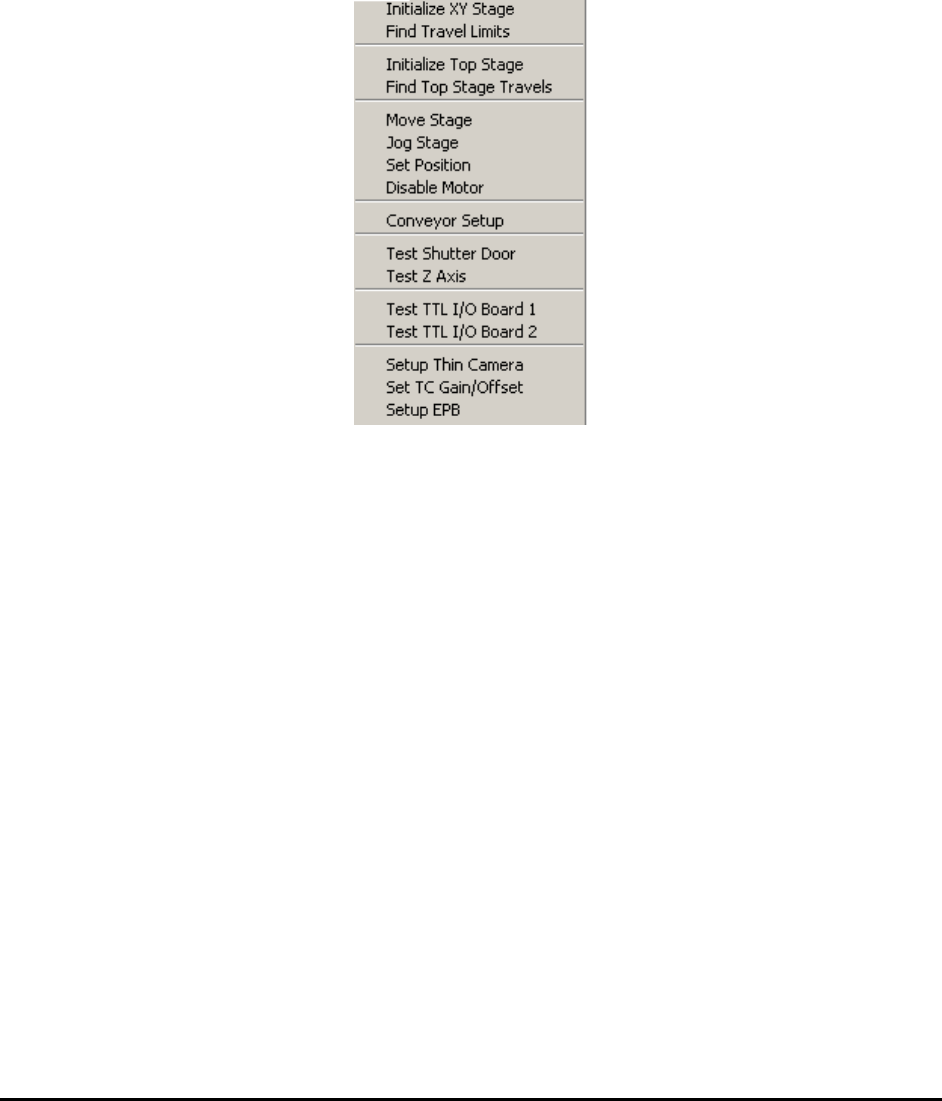
The low-level test functions can be found in the Test menu in builder mode.
26.1 Initialize XY Stage
The XY stage will initialize (or home) if the software is being started for the first time since the
servo controller was powered on. During initialization, the stage first travels to the back right
position, then travels to the front left position and then returns to the middle of the track. When
launching from the menu, the initialize XY stage will move the stage to the back right position
then back to the middle of the track without going to the front left position. This menu selection
forces the software to start the initialization routine regardless of the servo control status. It is
useful when adjusting the back and right limit switch positions.
26.2 Find Travel Limits
In addition to having hard stop bumpers and limit switches at the ends of the stage travel, the
software also has so called “Soft Limits”. With the soft limits properly set up, the software
truncates any out of bound moves. The Find Travel Limits feature finds the travel limit for the
soft limit function to work. It also tests the front and left limit switches and hard stop positions.