YesAX V3.1.2 - Software User Manual.pdf - 第228页
18 -2 Defect and Board Document ation Here are some sample part image s: H1419FC_U27_Top.jpg H1419FC_U27_X1.jpg
Defect and Board Documentation 18-1
18 - Defect and Board Documentation
18.1 Screen Image
In addition to use inline inspection for defect detection, the AXI machine is also a wonderful tool
for manual inspection. Use the AXI machine to capture pictures of defects and sample boards
and then create rework documents. Several software features are designed for such applications.
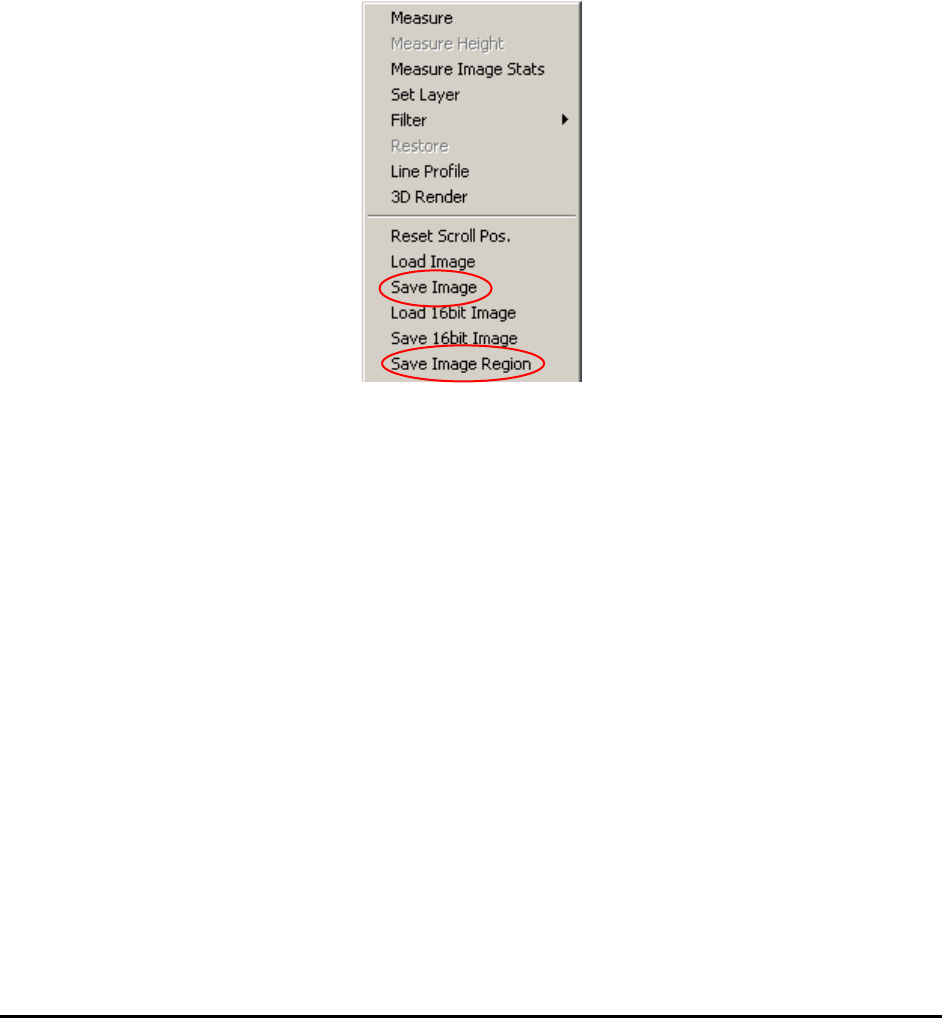
Save Image and Save Image Region, from the Video View menu, saves the image or image
region to a file in a user selectable format (bitmap, tiff, JPEG, etc.) to a user-defined file
path/name.
For X3 AXI system, since the X-Ray detector has 16-bit capability it is also possible to save and
load 16bit images for your applications.
One of the very powerful but often forgotten features in Windows XP is the Print-Screen
function. This is a handy tool for documentation. To use the feature just press the PrtScn key
combination (Shift- PrtScn or Fn- PrtScn) on the key board, launch the Microsoft Paint
program and select Edit, Paste. You can use MS Paint do all sorts of editing for the screen
image before saving it to file. In fact, most of the software images in this manual are created by
using this method.
18.2 Part Image
For PCBs used in products that require total traceability (medical products, safety devices),
YesAX software can capture images of specified parts. The part images are stored in the
PartImage sub-folder under the Recipe folder. It is saved in JPEG format. Part Images are
stitched from inspection images. If the part is inspected in multiple views, there will be multiple
images for that part. The part image file name is composed of the board’s serial board, the part’s
reference ID and the view that captured the image: BoardSN_RefID_View.jpg.
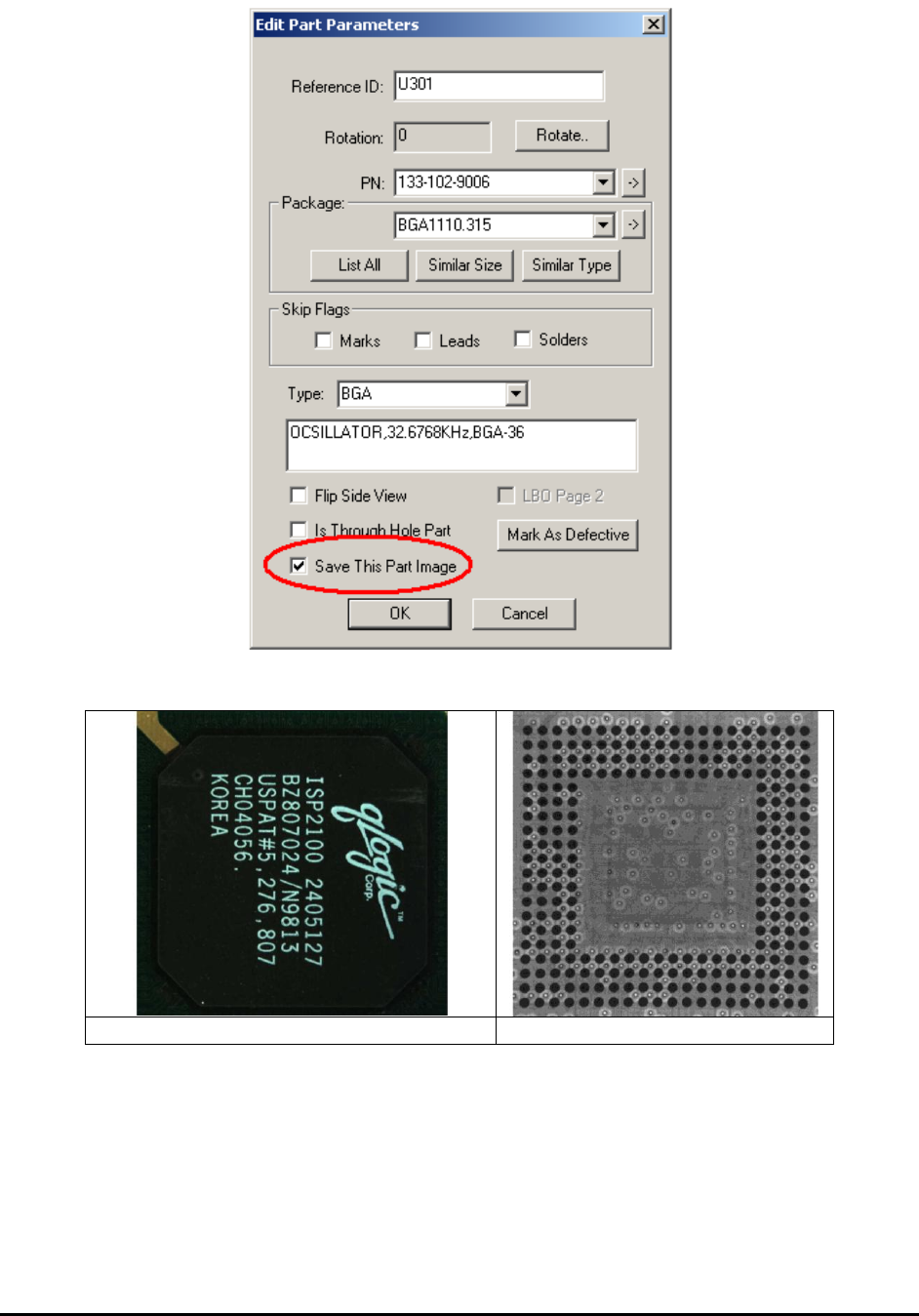
To specify a part for part image save, check the Save This Part Image checkbox in its Edit Part
Parameters dialog.
18-2 Defect and Board Documentation
Here are some sample part images:
H1419FC_U27_Top.jpg
H1419FC_U27_X1.jpg
Defect and Board Documentation 18-3
18.3 Board Image
The Stitch Board Image option creates a complete board image by stitching up the individual
frames from an Image Set captured by the top camera. Users can select the size and the format of
this board image, as well as the destination file name.
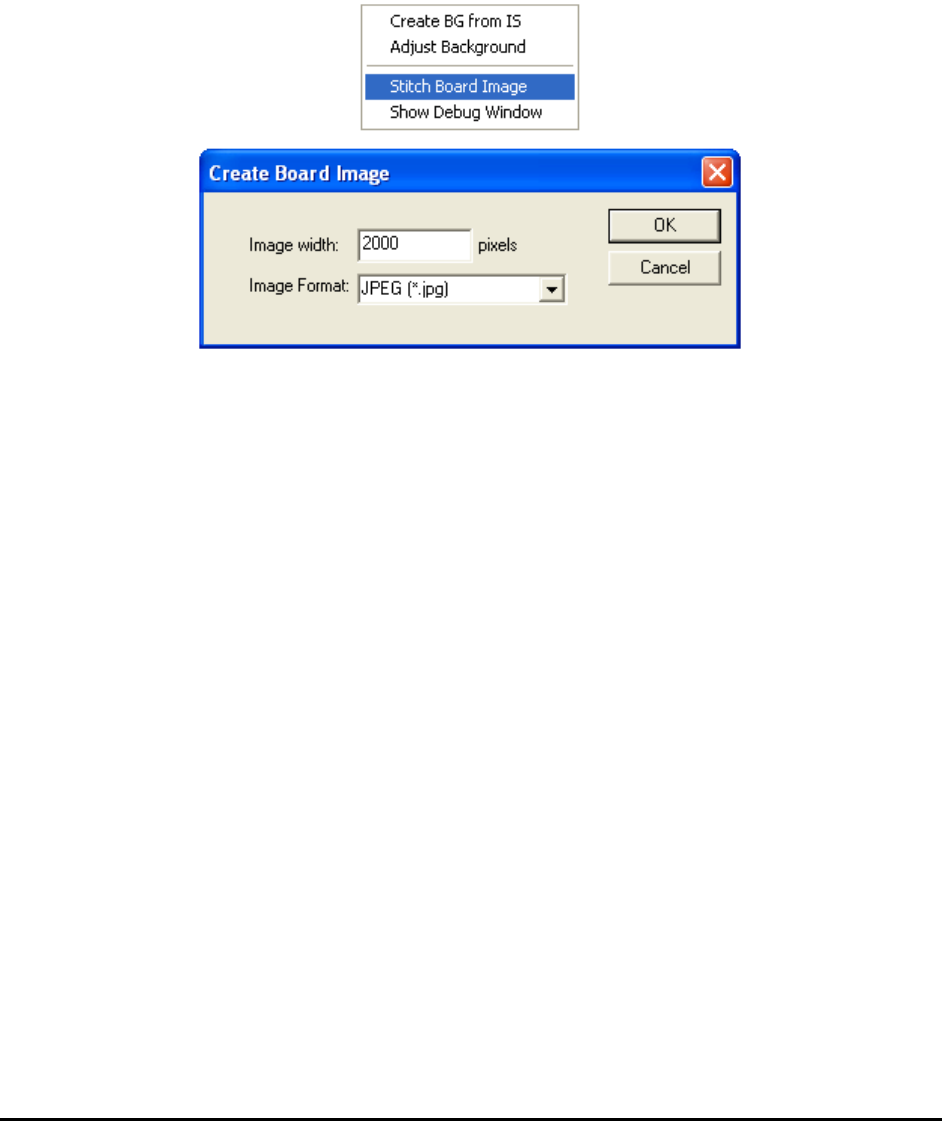
To create the board image, open the Map View menu and select Stitch Board Image. The
Create Board Image dialog opens. Specify the image width in the Image width field. Select the
image format from the Image Format drop-down list. Select OK.
The X2/X3 AXI system can also stitch together a complete X-ray image of the board from an X-
ray Image Set in Grid format.
To create an x-ray image of the board, load the Image Set, then switch the camera to X-ray view,
then select Stitch Board Image from the Map View.