00193790-01.pdf - 第81页
Installation and Getting Started with CACCIA 2 English Issue 07/2004 2.5 Lice nse Conditions 15 → The Project Opt ions di alog b ox will o pen: Sele ct the Licen se Inf ormation ta b. Fig. 2 - 8 Project Options - License…
2 English Installation and Getting StartedwithCACCIA
2.5 License Conditions Issue 07/2004
14
2.5 License Conditions
To useall CACCIAfunctions,youwillneed alicense. Withouta license, you can only usethebasic
functions. For example, you will be able to use all download functions but will not be able to send
data or commands to the machine.
You need a license to edit machine data. Individual CACCIA licenses are awarded for each
computer and each user. After applying for a license, your CACCIA version will be activated and
the full function spectrum made available.
WARNING
Licenses CACCIA versions may only be used by authorized and specially trained personnel
(CACCIA training).
Inappropriate use of CACCIA will cause severe damage to the machine and put the operating
personnel at risk.
2.5.1 Requesting and Activating the License
In order to apply for a license, the computer on which your CACCIA version is installed must have
an e-mail client. You must be able to send and receive e-mail from this computer.
→ Start CACCIA. Open the Windows Start menu and select Program Files → CACCIA →
CACCIA or use the icon on your desktop.
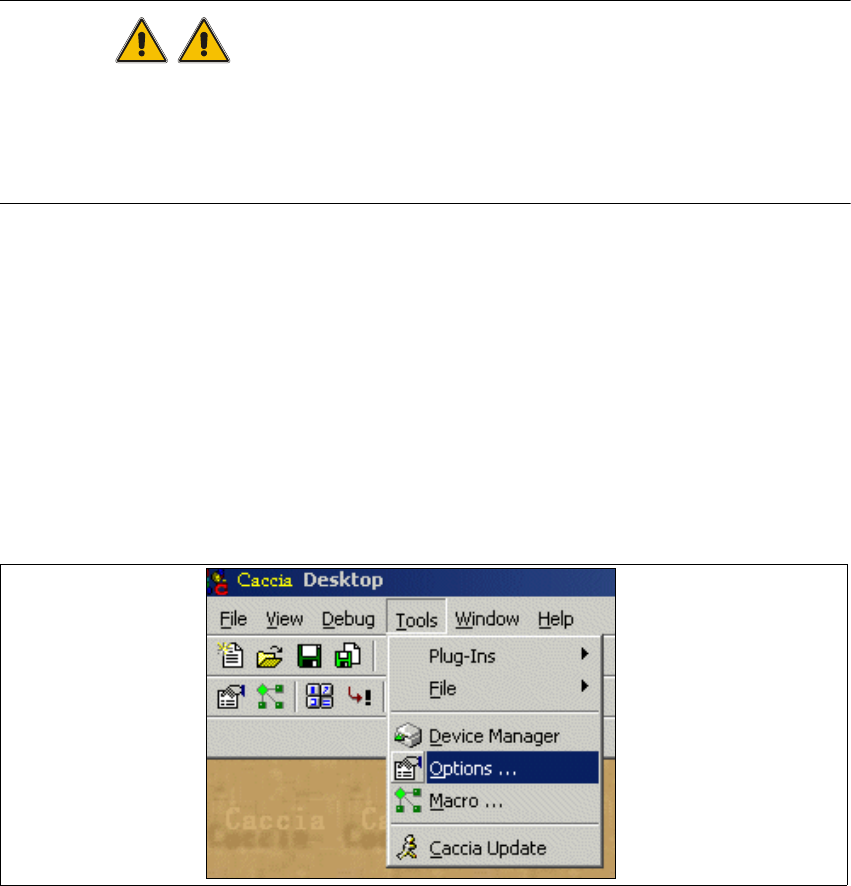
→ Select the menu Tools → Options.
Fig. 2 - 7 License
Installation and Getting Started with CACCIA 2 English
Issue 07/2004 2.5 License Conditions
15
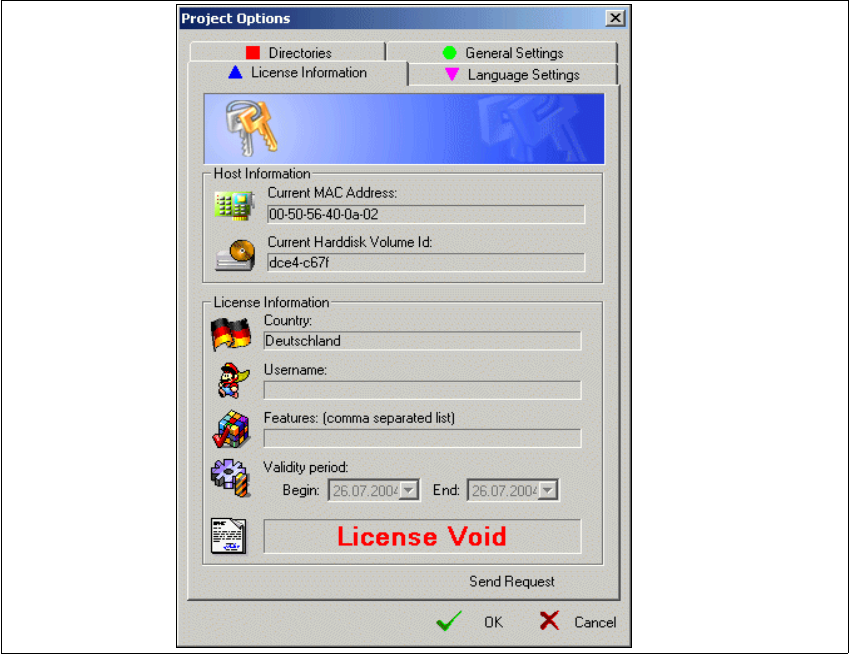
→ The Project Options dialog box will open: Select the License Information tab.
Fig. 2 - 8 Project Options - License Information
→ Click on the Send Request button. An e-mail will automatically open with the following recipi-
ent specified: siplace.hotline@siemens.com. This e-mail contains the following information:
– MAC address
– Hardware ID
This information can also be found in the Host Information field.
→ Send this mail. The SIPLACE hotline will process your request and send you a license per e-
mail. You will receive a license file.
→ This file needs to be imported into CACCIA. To do this, proceed to the Project Options →
License Information dialog box and click on the Import License File button.
→ Confirm your entry with OK.
→ You now need to close and restart CACCIA to activate the license and enable the full program
function spectrum.
2 English Installation and Getting StartedwithCACCIA
2.5 License Conditions Issue 07/2004
16
2.5.2 Accessing the License Information for Your System
→ Start CACCIA. Open the Windows Start menu and select Program Files → CACCIA →
CACCIA or use the icon on your desktop.
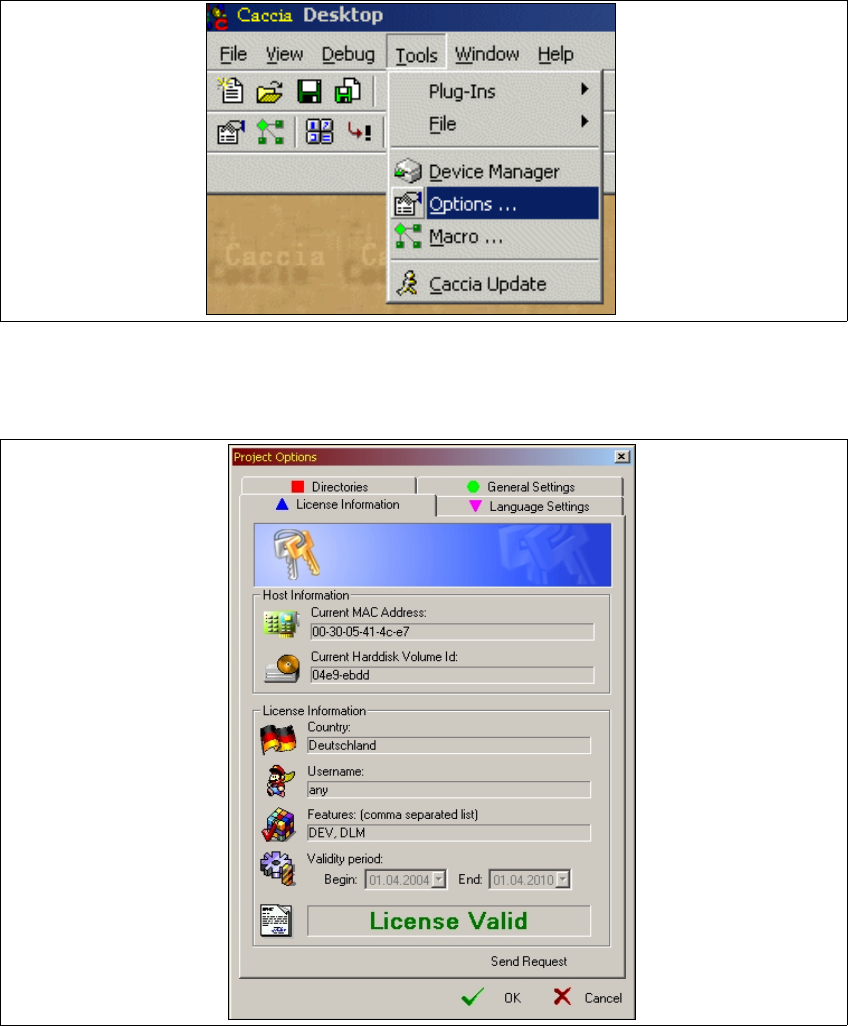
→ Select the menu Tools → Options.
Fig. 2 - 9 License file
→ The Project Options dialog box will open: Select the License Information tab.
Fig. 2 - 10 Project Options - License Information