00193790-01.pdf - 第83页
Installation and Getting Started with CACCIA 2 English Issue 07/2004 2.5 Lice nse Conditions 17 → The License In formation fiel ds contain a ll rele vant l icense info rmation. → If t he Username field s hows the entr y …
2 English Installation and Getting StartedwithCACCIA
2.5 License Conditions Issue 07/2004
16
2.5.2 Accessing the License Information for Your System
→ Start CACCIA. Open the Windows Start menu and select Program Files → CACCIA →
CACCIA or use the icon on your desktop.
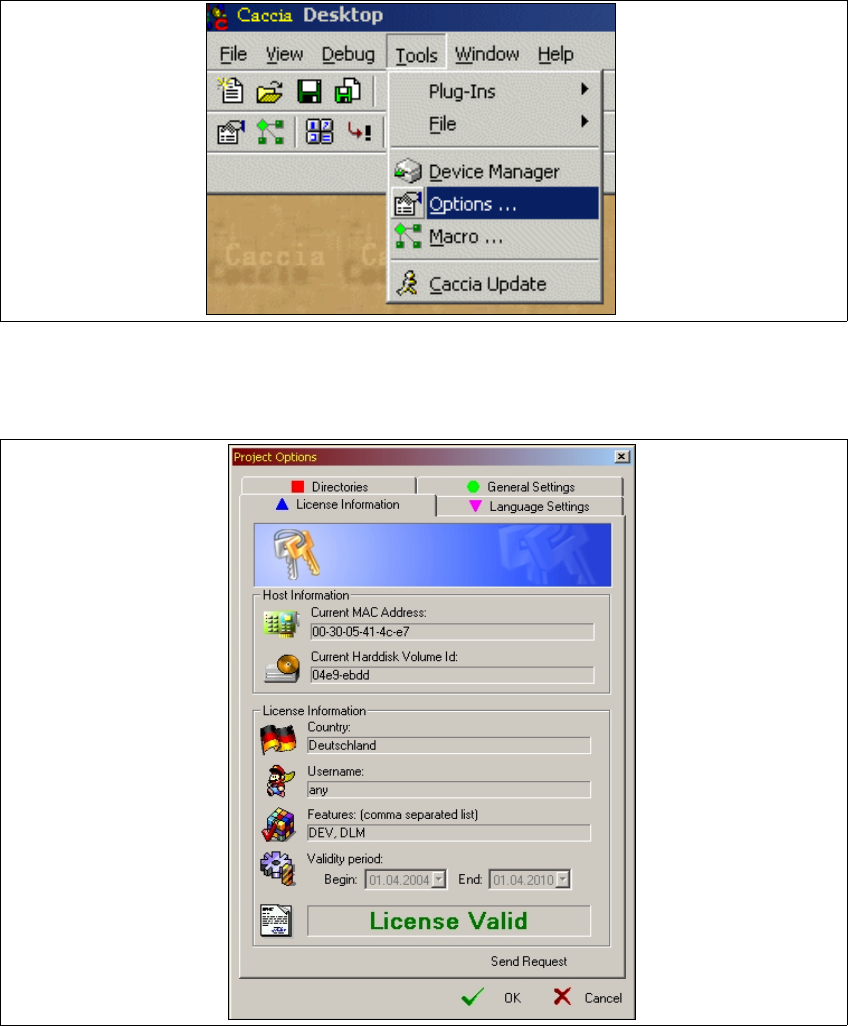
→ Select the menu Tools → Options.
Fig. 2 - 9 License file
→ The Project Options dialog box will open: Select the License Information tab.
Fig. 2 - 10 Project Options - License Information
Installation and Getting Started with CACCIA 2 English
Issue 07/2004 2.5 License Conditions
17
→ The License Information fields contain all relevant license information.
→ If the Username field shows the entry any, all users with access to this computer can use
CACCIA without restrictions.
2 English Installation and Getting StartedwithCACCIA
2.6 CACCIA Installation Issue 07/2004
18
2.6 CACCIA Installation
2.6.1 Preconditions and Preparation for Installation
CAUTION
You will need Windows administration rights for all computers on which CACCIA is to be
installed. These need to be set up in advance. Refer to the Windows manuals for details.
CAUTION
Ensure that all Windows applications are closed before installing the setup program.
2.6.1.1 Requirements for Initial Installation of CACCIA
Before you install CACCIA on your computer for the first time, make sure that the following
software components have been installed:
– Microsoft Installer
If you have Windows NT installed on your computer, you will need to obtain and install
Microsoft Installer. You will find a suitable installation version at the following directory on
the installation CD:
Toolbox / Common / Redistributable
Windows 2000 and Windows XP already have Microsoft Installer installed.
– Microsoft Internet Explorer 5.5
Make sure that Microsoft Internet Explorer 5.5 or higher is installed on your computer.
CACCIA will not run with Microsoft Internet Explorer versions lower than 5.5. You will find
a suitable installation version at the following directory on the installation CD:
Toolbox / Common / Redistributable
– Microsoft Script Debugger
In order to use the CACCIA scripts, you must have Microsoft Script Debugger installed on
your computer. You will find a suitable installation version at the following directory on the
installation CD:
Toolbox / Common / Programs