00193790-01.pdf - 第85页
Installation and Getting Started with CACCIA 2 English Issue 07/2004 2.6 CACCIA Installation 19 2.6.2 Insta llation and Configura tion of CACCIA → Se lect th e "Cacci a.msi " file fro m the CACCIA direct ory on…
2 English Installation and Getting StartedwithCACCIA
2.6 CACCIA Installation Issue 07/2004
18
2.6 CACCIA Installation
2.6.1 Preconditions and Preparation for Installation
CAUTION
You will need Windows administration rights for all computers on which CACCIA is to be
installed. These need to be set up in advance. Refer to the Windows manuals for details.
CAUTION
Ensure that all Windows applications are closed before installing the setup program.
2.6.1.1 Requirements for Initial Installation of CACCIA
Before you install CACCIA on your computer for the first time, make sure that the following
software components have been installed:
– Microsoft Installer
If you have Windows NT installed on your computer, you will need to obtain and install
Microsoft Installer. You will find a suitable installation version at the following directory on
the installation CD:
Toolbox / Common / Redistributable
Windows 2000 and Windows XP already have Microsoft Installer installed.
– Microsoft Internet Explorer 5.5
Make sure that Microsoft Internet Explorer 5.5 or higher is installed on your computer.
CACCIA will not run with Microsoft Internet Explorer versions lower than 5.5. You will find
a suitable installation version at the following directory on the installation CD:
Toolbox / Common / Redistributable
– Microsoft Script Debugger
In order to use the CACCIA scripts, you must have Microsoft Script Debugger installed on
your computer. You will find a suitable installation version at the following directory on the
installation CD:
Toolbox / Common / Programs
Installation and Getting Started with CACCIA 2 English
Issue 07/2004 2.6 CACCIA Installation
19
2.6.2 Installation and Configuration of CACCIA
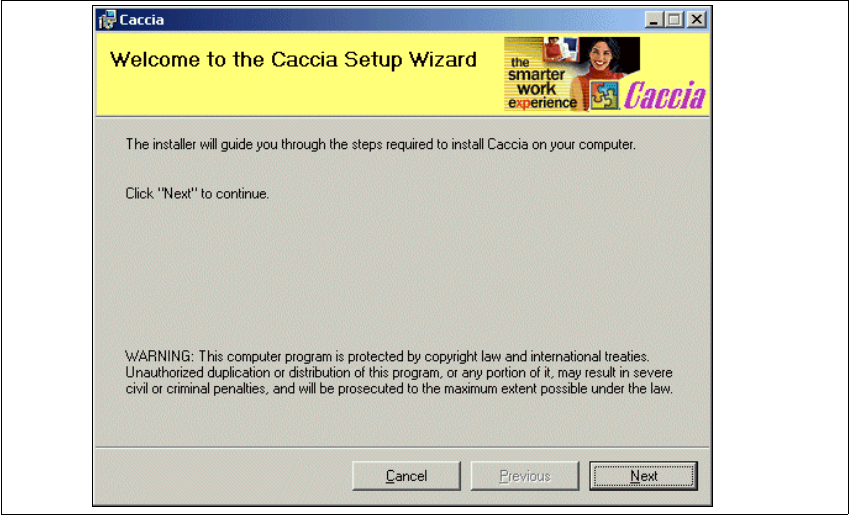
→ Select the "Caccia.msi" file from the CACCIA directory on the installation CD and doubleclick
to open. The installation process will be set up and the CACCIA Setup Wizard will open.
Fig. 2 - 11 Installing CACCIA - CACCIA Setup Wizard
→ Close all other programs and click on Next to continue. A dialog box with the license agree-
ment will open.
2 English Installation and Getting StartedwithCACCIA
2.6 CACCIA Installation Issue 07/2004
20
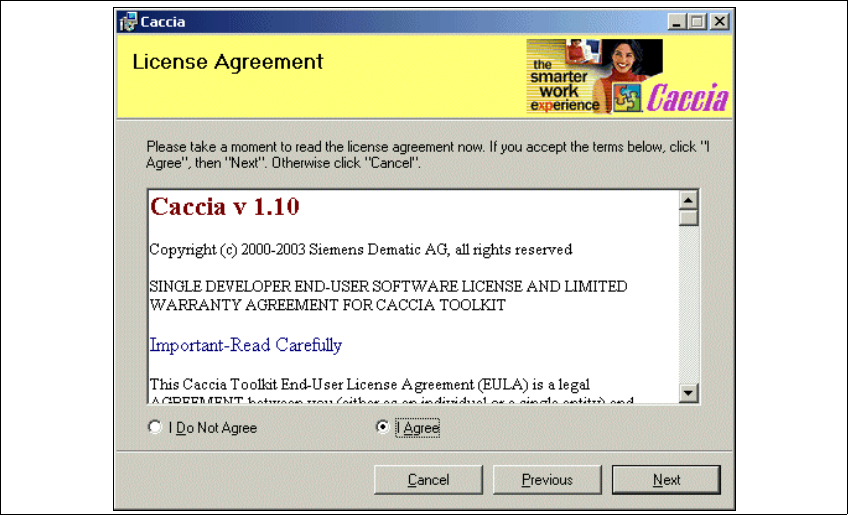
Fig. 2 - 12 Installing CACCIA - License Agreement
→ Read the license conditions through carefully. If you agree, activate the option IAgreeand
click on Next to continue. A dialog box for selection of the program folder will open.