00197186-01_IM_Celsius_W380_Recovery_Image_EN.pdf - 第14页
SIPLACE Recovery Installation on Celsius W380 10/2011 Edition Figure 3-11: SIPLACE Network Configuration screen ► Verify and enter the correct IP configurati on for your SIPLACE LAN connected network ca rd. ► Click OK . …
SIPLACE Recovery Installation on Celsius W380 10/2011 Edition
► Choose the appropriate time zone.
► Ensure that the date and time are correct.
► Click the Next button to continue.
CAUTION
Server and Client must be uniform
For proper Windows authentication, date and time of all involved computers must not
differ too much! Additionally, some SIPLACE products like OIS require the time zone to
be identical on all computers!
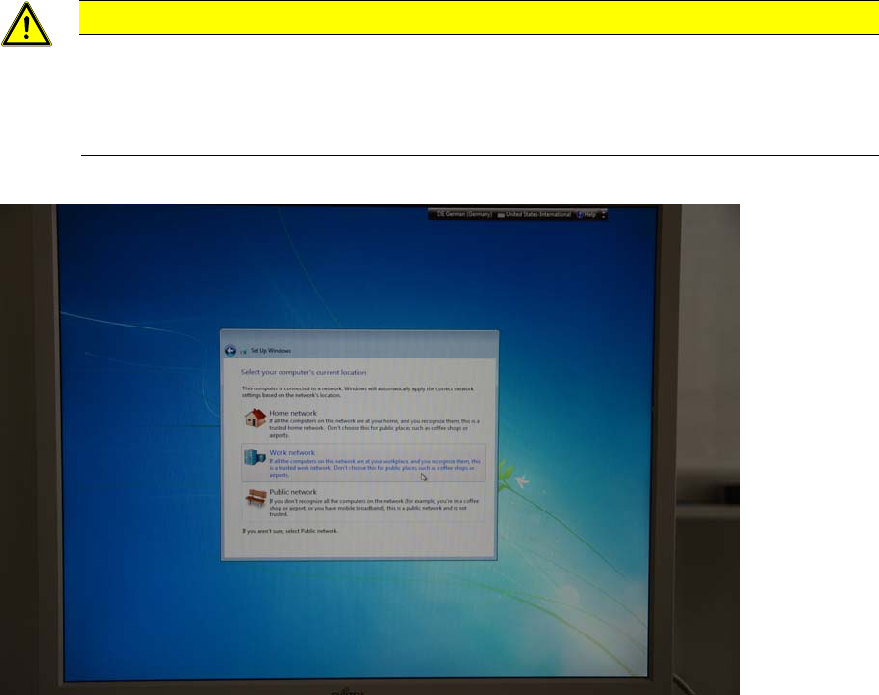
Figure 3-10: Location choice
► Click the Work network location.
13
SIPLACE Recovery Installation on Celsius W380 10/2011 Edition
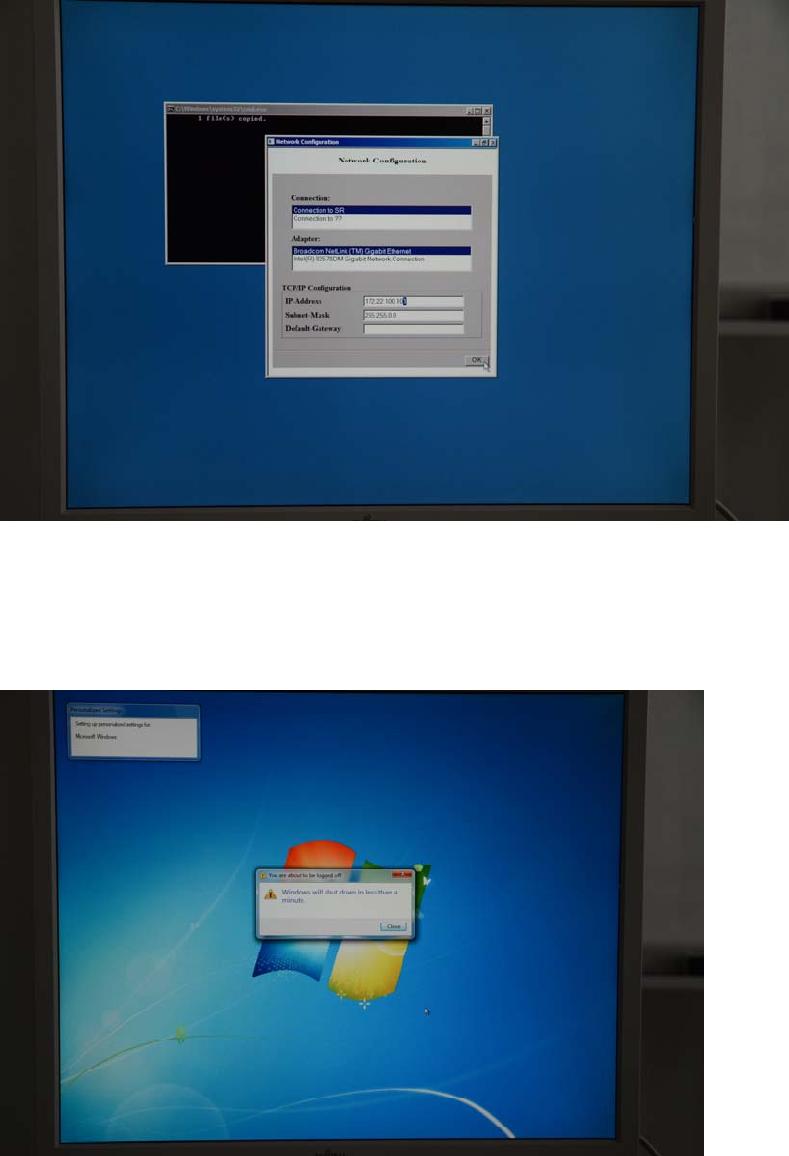
Figure 3-11: SIPLACE Network Configuration screen
► Verify and enter the correct IP configuration for your SIPLACE LAN connected network card.
► Click OK.
Figure 3-12: System reboot message
► Wait until your system is rebooted.
14
SIPLACE Recovery Installation on Celsius W380 10/2011 Edition
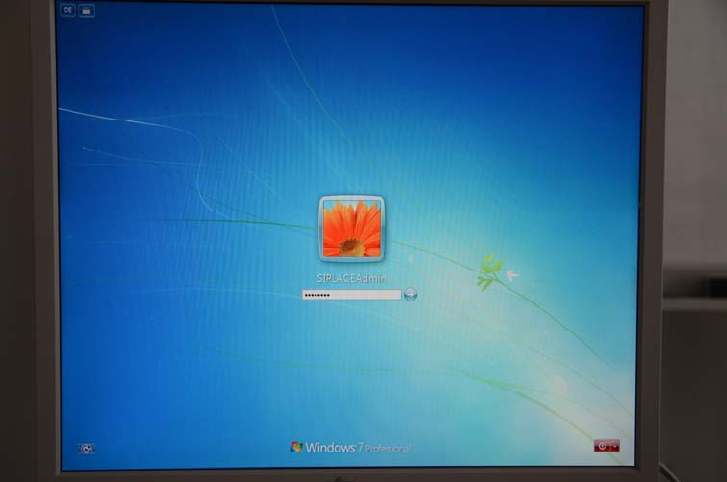
Figure 3-13: First Login after Installation
► Login with the SIPLACEAdmin account and the password you specified.
► Before you continue preparing the system with Support Media, ensure you check the
configuration as described in the document "Required Steps before using Support Media",
item no. 00197185-xx.
15