00197186-01_IM_Celsius_W380_Recovery_Image_EN.pdf - 第6页
SIPLACE Recovery Installation on Celsius W380 10/2011 Edition 2 Delivery SIPLACE Recovery Media for Cel sius W380 consist of 3 DVDs: – SIPLACE Recovery Media with Windows 7 x86 (3 2 Bit Edition) – SIPLACE Recovery Media …
SIPLACE Recovery Installation on Celsius W380 10/2011 Edition
1 Purpose
This documentation describes the installation of SIPLACE Recovery Media on Celsius W380.
5
SIPLACE Recovery Installation on Celsius W380 10/2011 Edition
2 Delivery
SIPLACE Recovery Media for Celsius W380 consist of 3 DVDs:
– SIPLACE Recovery Media with Windows 7 x86 (32 Bit Edition)
– SIPLACE Recovery Media with Windows 7 x64 (64 Bit Edition)
– SIPLACE Recovery Media with Windows XP SP3 x86
6
SIPLACE Recovery Installation on Celsius W380 10/2011 Edition
3 Installation of Windows 7 x86/x64 Recovery Media
The following chapter describes the installation of SIPLACE Windows 7 Recovery Media on
Celsius W380.
The screenshots in this chapter are based on the 32 bit (x86) version, but the installation steps are
the same on 64 bit.
Therefore, we don’t distinguish between the x86 and x64 versions in the following descriptions.
► First, connect the external PCI Network adapter with your SIPLACE network and leave the
other (onboard) network adapter disconnected.
NOTICE
Network Adapter Identification
For simple identification of the appropriate SIPLACE LAN network adapter later after
installation, it is strongly recommended to disconnect all other adapters.
► Power up the computer and insert the SIPLACE Windows 7 Recovery DVD into the drive.
The message Press any key to boot from CD or DVD appears if you already have an
Operating System installed.
If this happens, ensure that you have backed up all necessary data, and then press any key to boot
from the DVD.
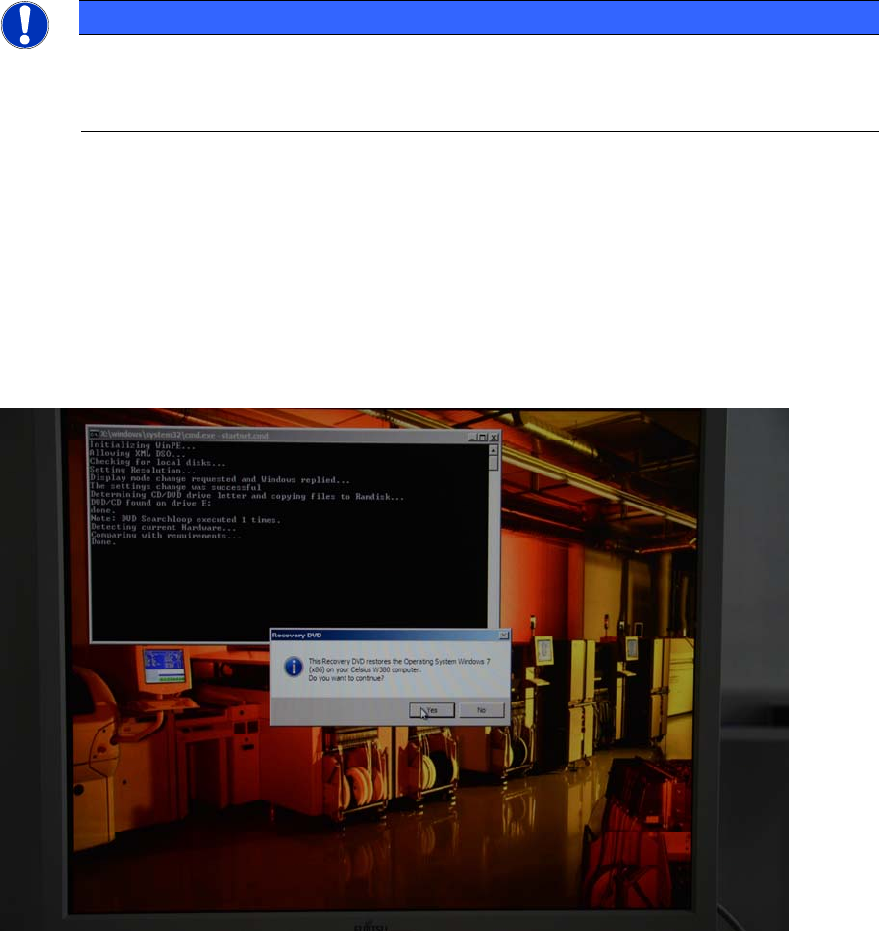
After booting from the DVD, the following screen should be visible (architecture may differ).
Figure 3-1: SIPLACE Windows 7 Recovery DVD first question
► Press Yes to continue with installation.
7