00197186-01_IM_Celsius_W380_Recovery_Image_EN.pdf - 第18页
SIPLACE Recovery Installation on Celsius W380 10/2011 Edition After success, you will s ee the following screen. Figure 4-3: After Installation – Initial Screen ► Click the Next button to continue. Figure 4-4: Language a…
SIPLACE Recovery Installation on Celsius W380 10/2011 Edition
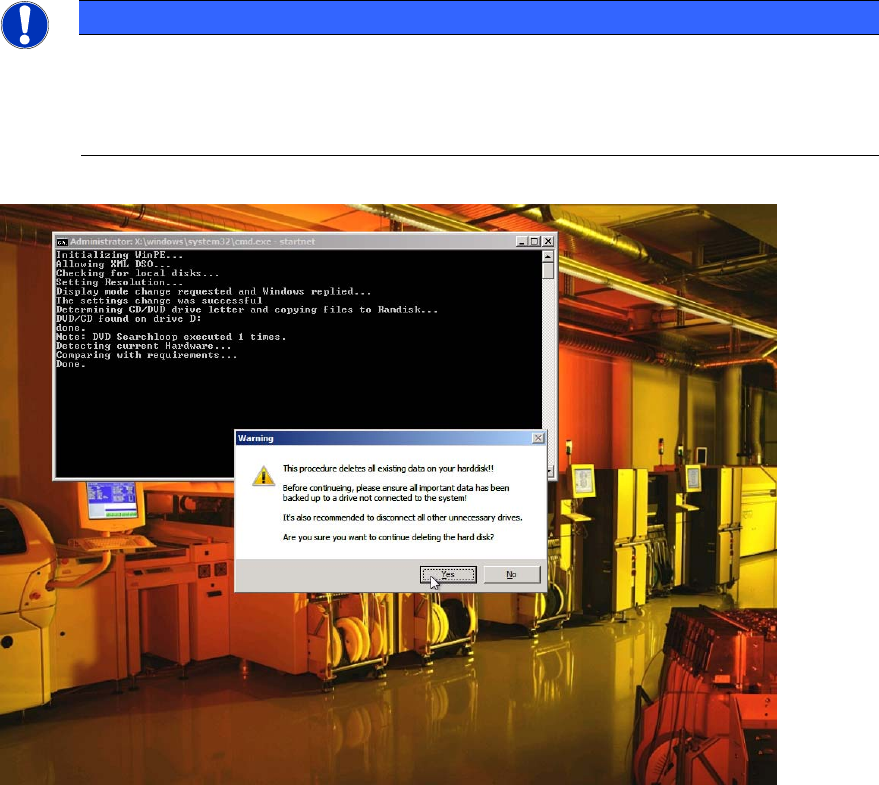
NOTICE
Ensure booted from DVD
If you don’t see this screen, it might happen that you accidentally booted from hard disk!
Don’t mix up any welcome message from already installed Operating Systems with the
SIPLACE Recovery Installation!
Figure 4-2: Existing Data deleted Warning
► After you’ve ensured all necessary data being backed up, click the Yes button to start the
Operating System Recovery.
The installation procedure may take some time.
17
SIPLACE Recovery Installation on Celsius W380 10/2011 Edition
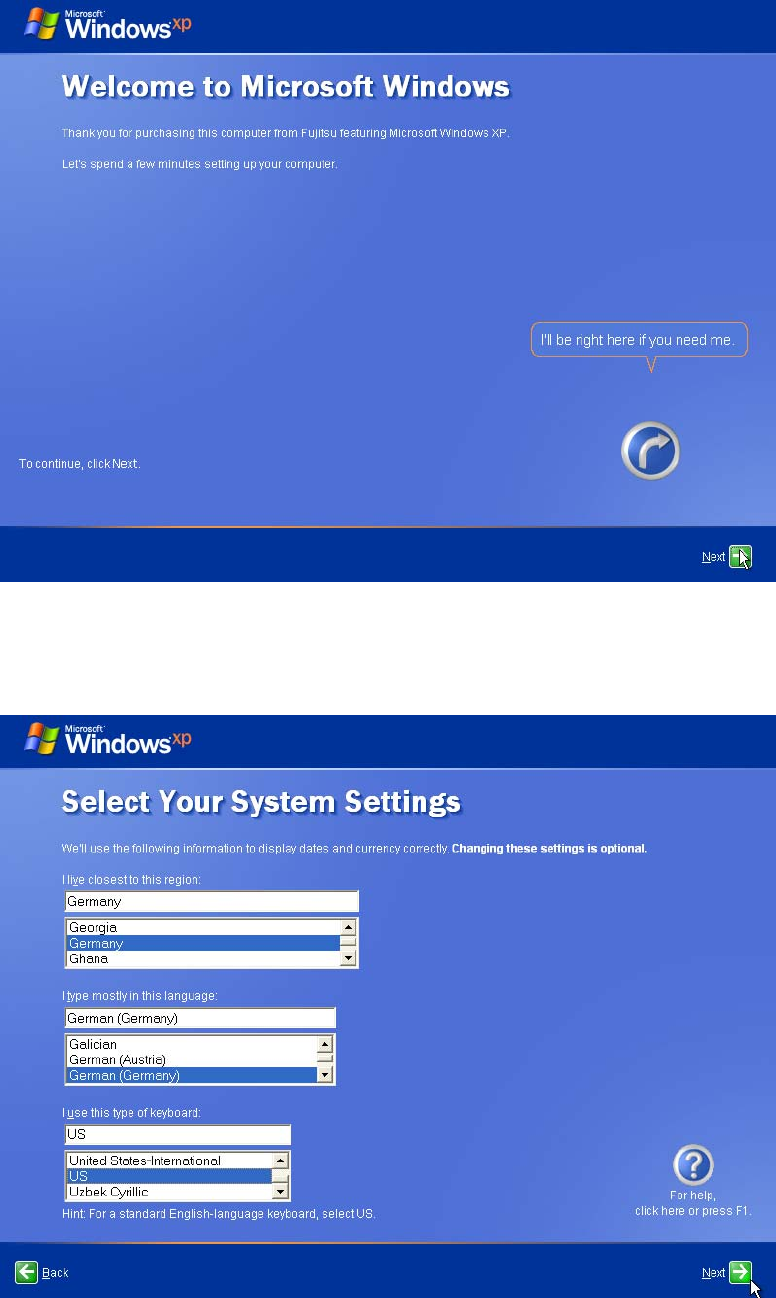
After success, you will see the following screen.
Figure 4-3: After Installation – Initial Screen
► Click the Next button to continue.
Figure 4-4: Language and region
18
SIPLACE Recovery Installation on Celsius W380 10/2011 Edition
► Select the appropriate region.
► Select the appropriate language.
► Select the appropriate keyboard layout. For SIPLACE Line Computers, the default is US.
► Click the Next button to continue.
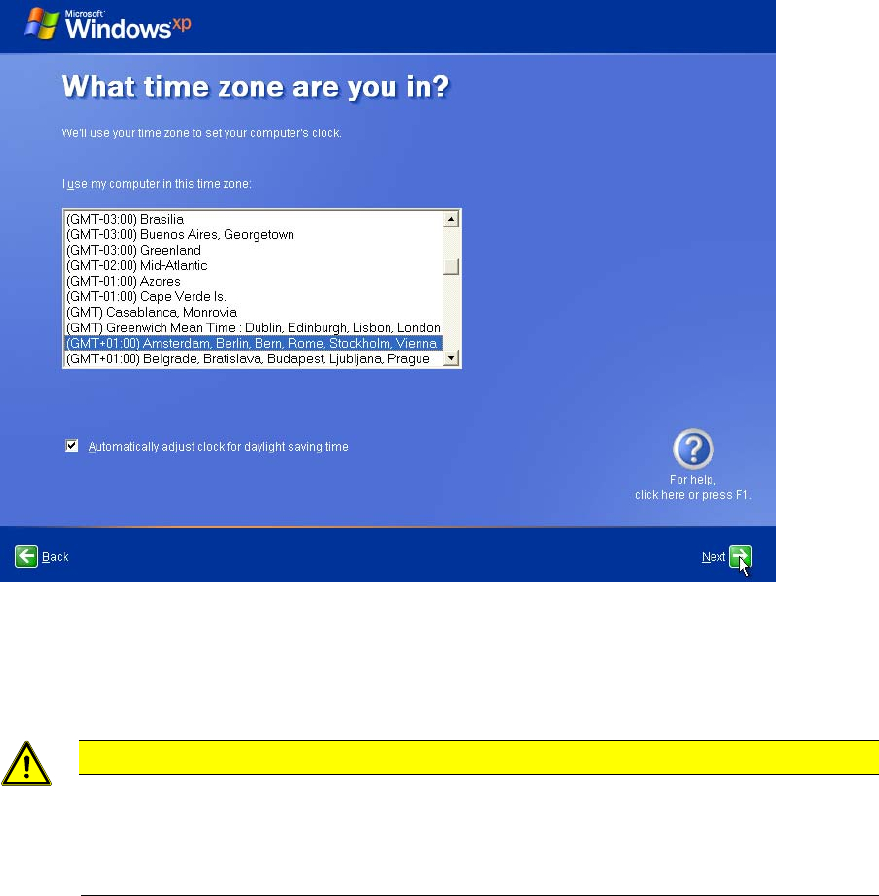
Figure 4-5: Time Zone Settings
► Choose the appropriate time zone.
► Click the Next button to continue.
CAUTION
Server and Client must be uniform
For proper Windows authentication, date and time of all involved computers must not
differ too much! Additionally, some SIPLACE products like OIS require the time zone to
be identical on all computers!
19