00197186-01_IM_Celsius_W380_Recovery_Image_EN.pdf - 第30页
SIPLACE Recovery Installation on Celsius W380 10/2011 Edition 4.1 Problems with Graphics Driver in XP Recovery Image On some Celsius W380 computers, we f ound a problem of slow gra phics processing. This is caused by the…
SIPLACE Recovery Installation on Celsius W380 10/2011 Edition
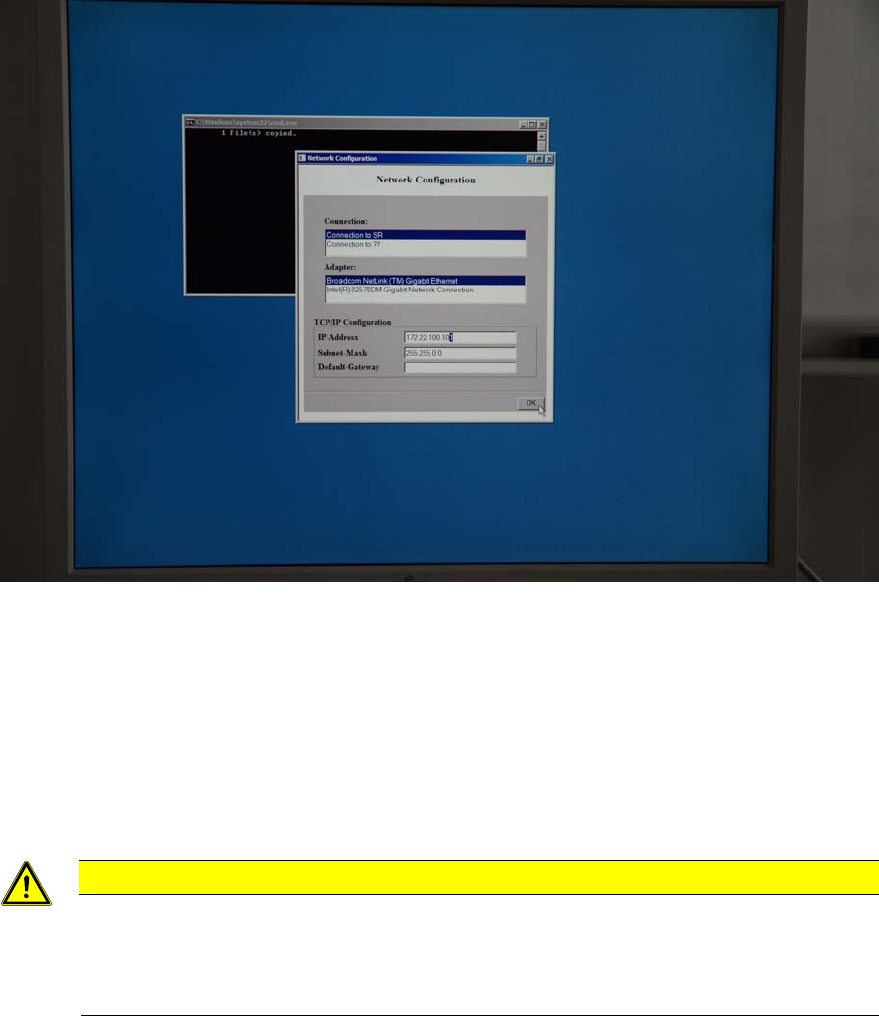
After a while, a message similar to the following picture will be shown.
Figure 4-18: SIPLACE Network Configuration screen
► Verify and enter the correct IP configuration for your SIPLACE LAN connected network card
(Connection to SR)
► Click the OK button.
After a while the system will initiate a reboot and log you in automatically. You’ve completed the
main steps for installation.
CAUTION
Before you continue
Before you continue preparing the system with Support Media, ensure that you check the
configuration as described in the document “Required Steps before using Support
Media”, item no. 00197185-xx.
29
SIPLACE Recovery Installation on Celsius W380 10/2011 Edition
4.1 Problems with Graphics Driver in XP Recovery Image
On some Celsius W380 computers, we found a problem of slow graphics processing. This is
caused by the disabled graphics driver in the device manager. You have to enable it again for best
performance.
► Login with administrative permissions.
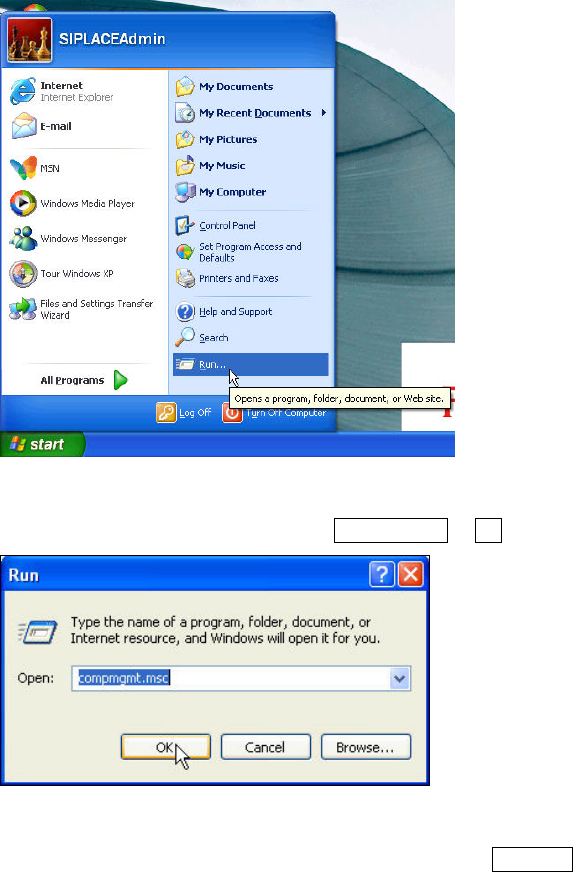
Figure 4-19: Clicking on Start - Run
► Click on Start – Run or press the WINDOWS + R keys.
Figure 4-20: Entering Computer Management
► Enter the compmgmt.msc command and press the ENTER key.
30
SIPLACE Recovery Installation on Celsius W380 10/2011 Edition
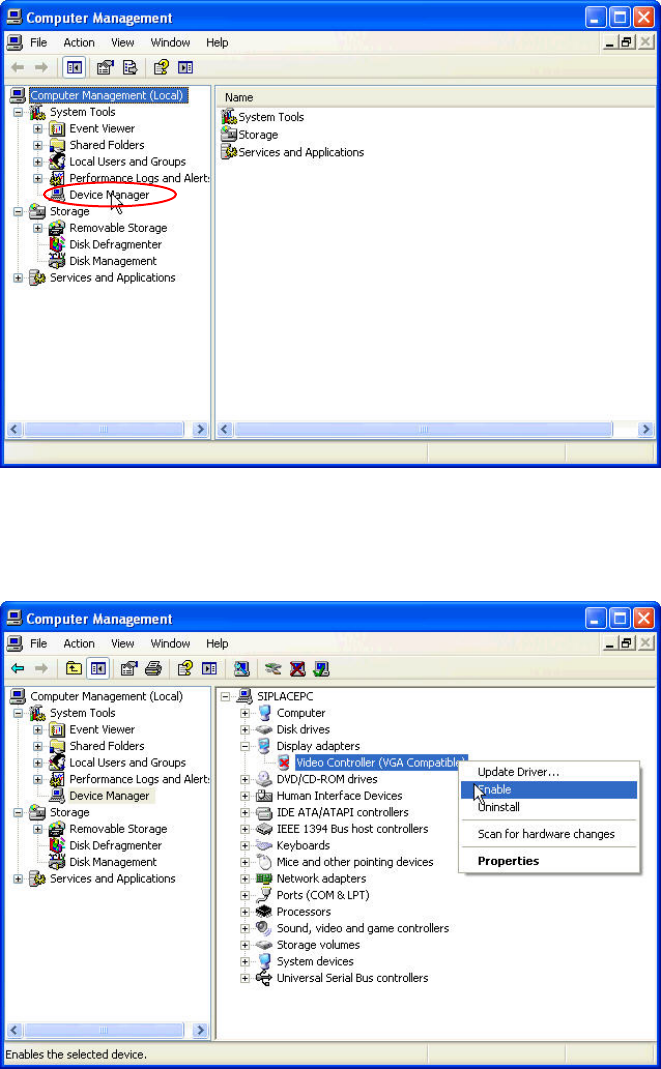
The Computer Management window opens.
Figure 4-21: Computer Management window
► Select Device Manager on the left side.
The device manager is shown in the right area.
Figure 4-22: Enabling Video Controller device
► Select the Video Controller (VGA Compatible) entry (in <ComputerName>\ “Display adapters”)
on the right side.
► Right-click on it and select Enable.
31