00197186-01_IM_Celsius_W380_Recovery_Image_EN.pdf - 第35页
SIPLACE Recovery Installation on Celsius W380 10/2011 Edition The following window appe ars. Figure 4-29: Reboot computer – Step 2 ► Click the Restart button and wait until the computer has resta rted. You’ve completed t…
SIPLACE Recovery Installation on Celsius W380 10/2011 Edition
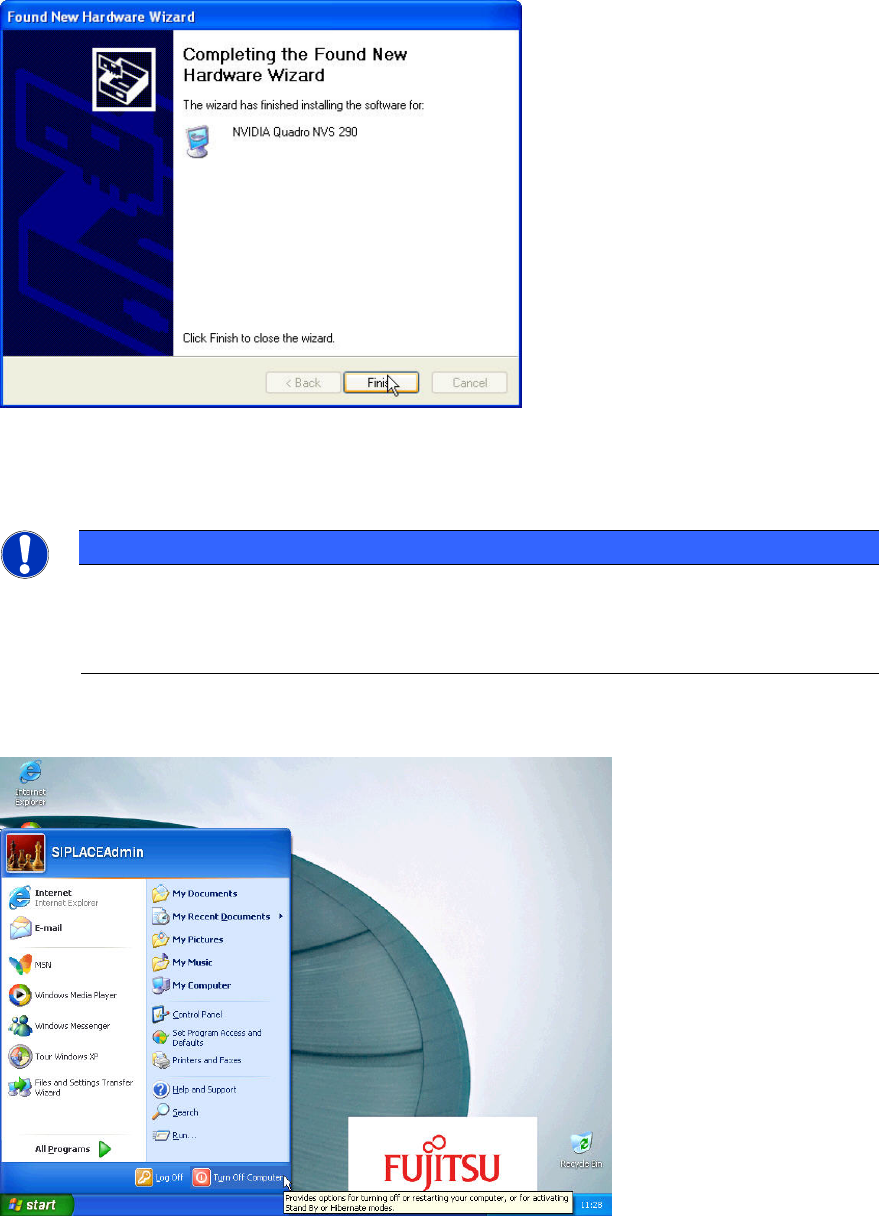
Figure 4-27: New Hardware Wizard – Step 4
► Click the Finish button to complete.
NOTICE
"File not found" messages on some computers
On some computers, a file not found message appears during installation.
► Please ignore this message.
You now have to reboot your computer to complete the driver installation.
Figure 4-28: Reboot computer – Step 1
► Click on Start – Turn Off Computer.
34
SIPLACE Recovery Installation on Celsius W380 10/2011 Edition
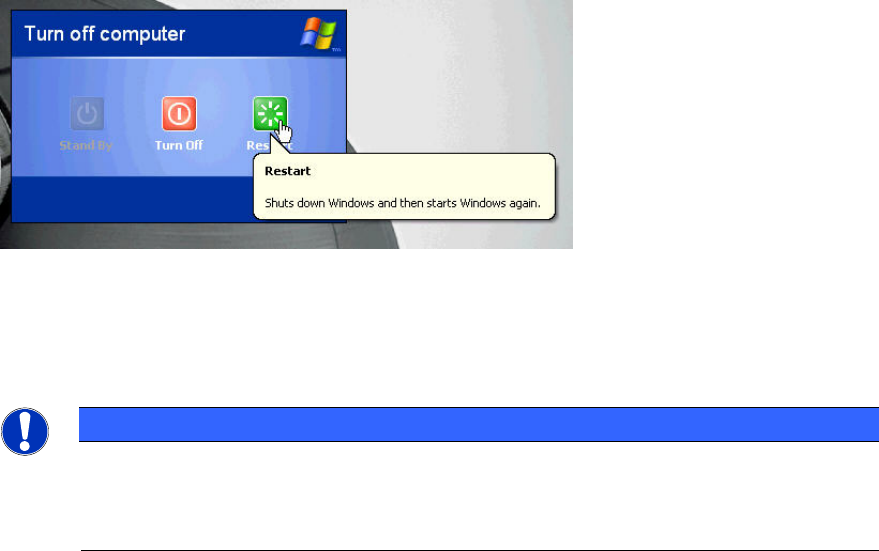
The following window appears.
Figure 4-29: Reboot computer – Step 2
► Click the Restart button and wait until the computer has restarted.
You’ve completed the graphics driver installation.
NOTICE
Display auto-detected Resolution
In most cases, the display resolution will be detected automatically after the reboot.
If this is not the case, you have to manually set the resolution.
35
SIPLACE Recovery Installation on Celsius W380 10/2011 Edition
5 Splitting Partition
By default, SIPLACE Recovery Media only creates one partition using the whole disk. If you want
to split the partition into two (for example, for being able to backup system data to the second
partition), you have to use a partitioning tool.
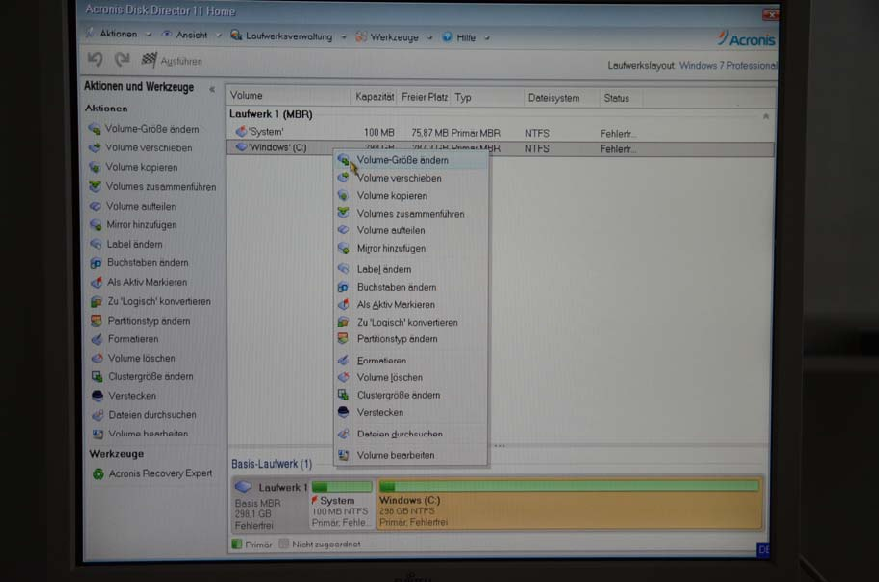
In this chapter, we use Acronis Disk Director 11, German for some sample screenshots.
Figure 5-1: Disk Director – changing size of single partition – step 1
36