00197186-01_IM_Celsius_W380_Recovery_Image_EN.pdf - 第31页
SIPLACE Recovery Installation on Celsius W380 10/2011 Edition The Computer Management windo w opens. Figure 4-21: Computer Manage ment window ► Select Device Manager on the left side. The device manager is sh own in the …
SIPLACE Recovery Installation on Celsius W380 10/2011 Edition
4.1 Problems with Graphics Driver in XP Recovery Image
On some Celsius W380 computers, we found a problem of slow graphics processing. This is
caused by the disabled graphics driver in the device manager. You have to enable it again for best
performance.
► Login with administrative permissions.
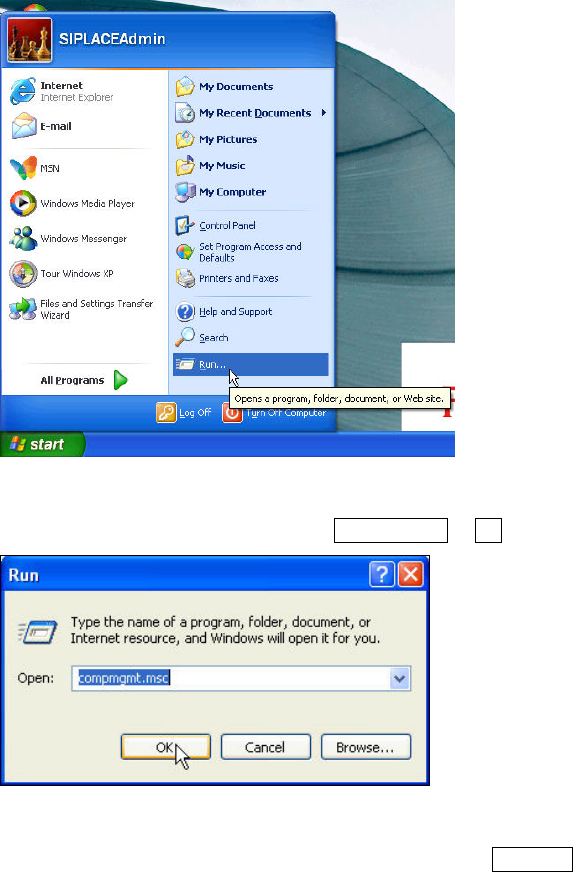
Figure 4-19: Clicking on Start - Run
► Click on Start – Run or press the WINDOWS + R keys.
Figure 4-20: Entering Computer Management
► Enter the compmgmt.msc command and press the ENTER key.
30
SIPLACE Recovery Installation on Celsius W380 10/2011 Edition
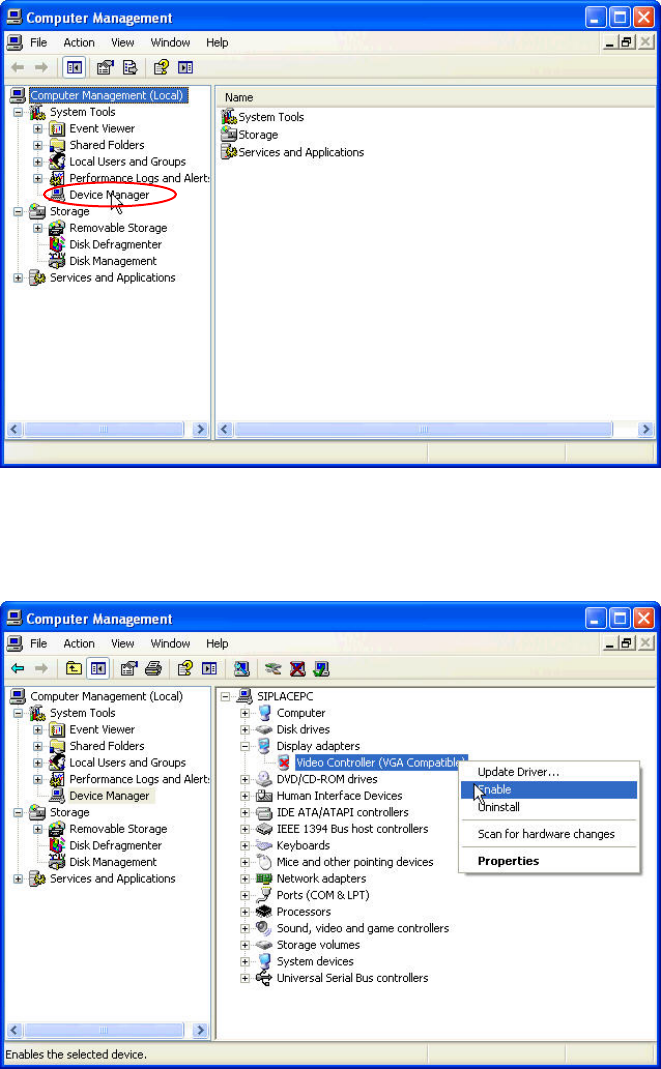
The Computer Management window opens.
Figure 4-21: Computer Management window
► Select Device Manager on the left side.
The device manager is shown in the right area.
Figure 4-22: Enabling Video Controller device
► Select the Video Controller (VGA Compatible) entry (in <ComputerName>\ “Display adapters”)
on the right side.
► Right-click on it and select Enable.
31
SIPLACE Recovery Installation on Celsius W380 10/2011 Edition
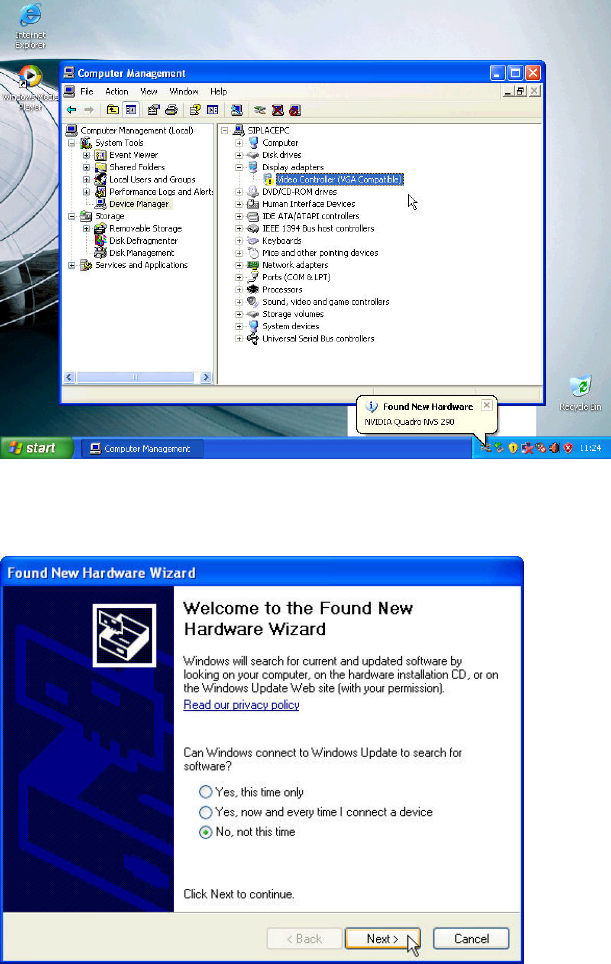
Windows will try to detect your device as shown in the following picture.
Figure 4-23: Windows detecting the VGA Adapter
After a couple of seconds, the New Hardware Wizard opens.
Figure 4-24: New Hardware Wizard – Step 1
► Select the radio button besides No, not this time.
► Click the Next > button
32