00197186-01_IM_Celsius_W380_Recovery_Image_EN.pdf - 第20页
SIPLACE Recovery Installation on Celsius W380 10/2011 Edition Figure 4-6: License Agreement ► After reading the license a greement, click the radio b utton besides Ye s, I accept to accept the license ► Click the Next bu…
SIPLACE Recovery Installation on Celsius W380 10/2011 Edition
► Select the appropriate region.
► Select the appropriate language.
► Select the appropriate keyboard layout. For SIPLACE Line Computers, the default is US.
► Click the Next button to continue.
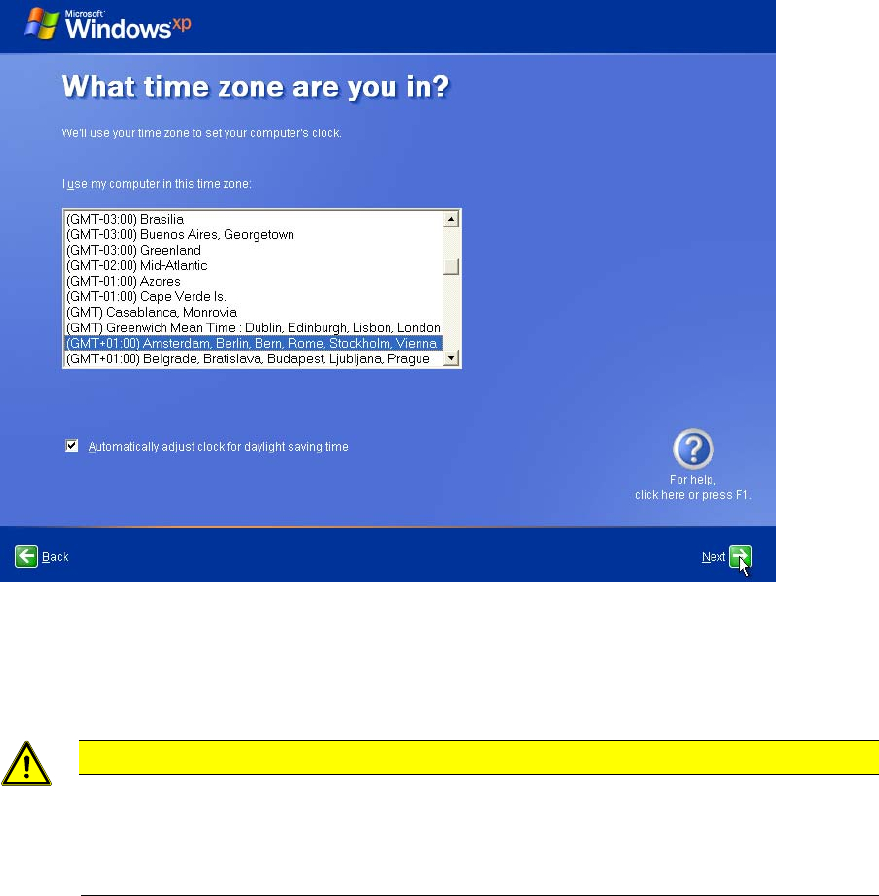
Figure 4-5: Time Zone Settings
► Choose the appropriate time zone.
► Click the Next button to continue.
CAUTION
Server and Client must be uniform
For proper Windows authentication, date and time of all involved computers must not
differ too much! Additionally, some SIPLACE products like OIS require the time zone to
be identical on all computers!
19
SIPLACE Recovery Installation on Celsius W380 10/2011 Edition
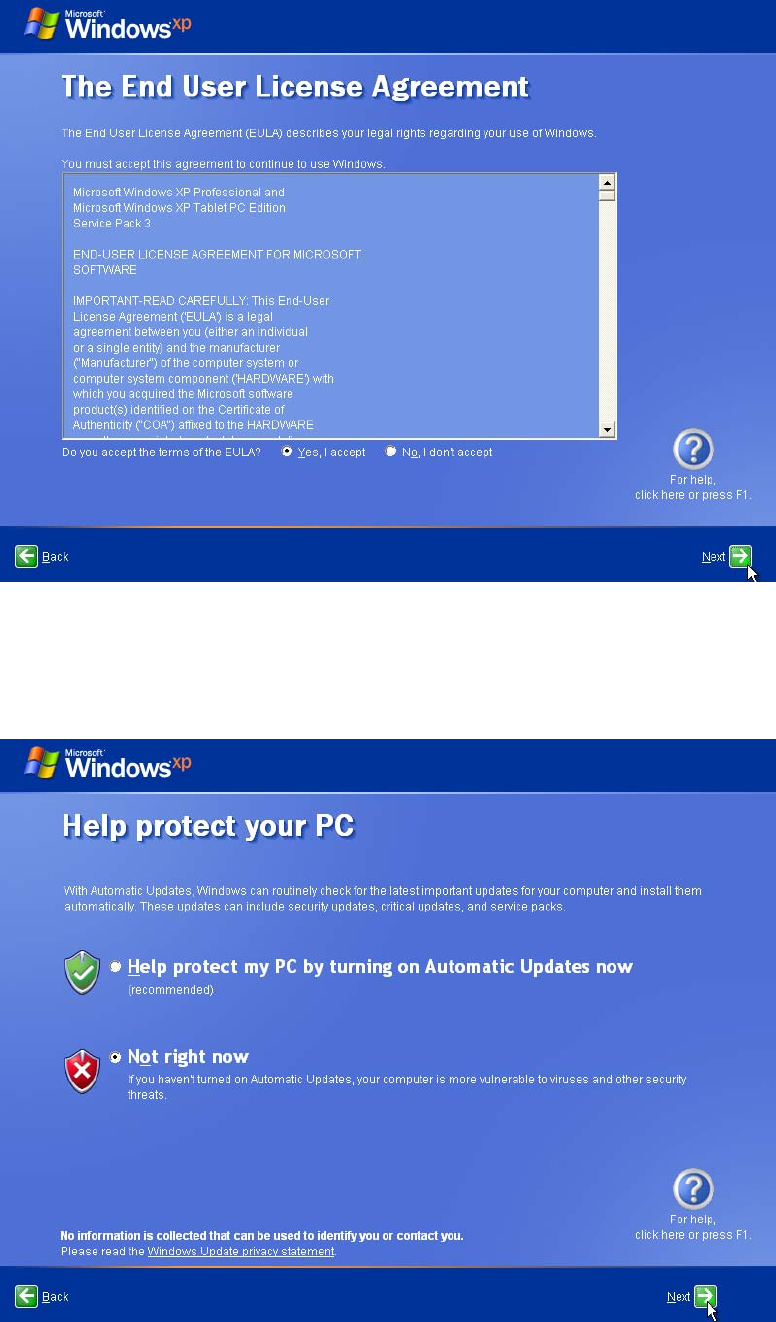
Figure 4-6: License Agreement
► After reading the license agreement, click the radio button besides Yes, I accept to accept the
license
► Click the Next button to continue.
Figure 4-7: Windows Update Settings
► Since we don’t use the automatic update feature in our SIPLACE workgroup environment,
select the Not right now option and click the Next button.
20
SIPLACE Recovery Installation on Celsius W380 10/2011 Edition
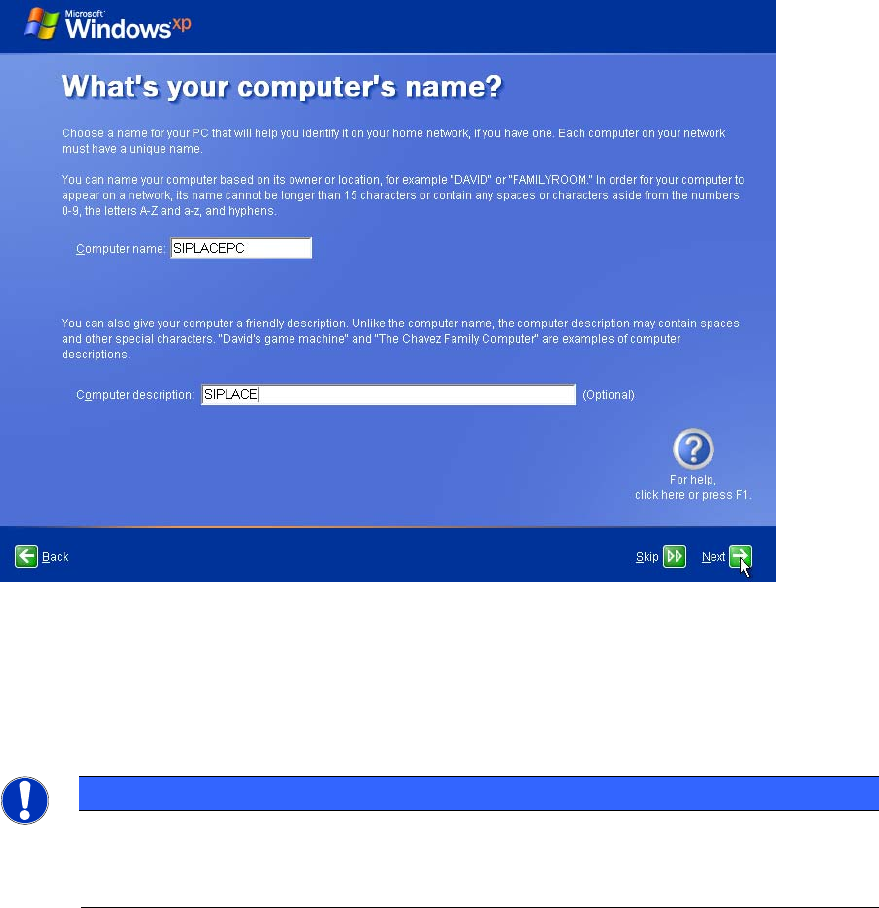
Figure 4-8: Computer name and description
► Enter the name for the computer.
► Enter an appropriate description.
► Click the Next button to continue.
NOTICE
Ensure valid Computer Name
Please choose the computer name carefully. Some products, like SQL Server strongly
depend on the computer name and may stop working when you change it afterwards!
21