00197186-01_IM_Celsius_W380_Recovery_Image_EN.pdf - 第34页
SIPLACE Recovery Installation on Celsius W380 10/2011 Edition Figure 4-27: New Hardware Wi zard – Step 4 ► Click the Finish button to complete. NOTICE "File not found" messages on some computers On some compute…
SIPLACE Recovery Installation on Celsius W380 10/2011 Edition
The following window appears.
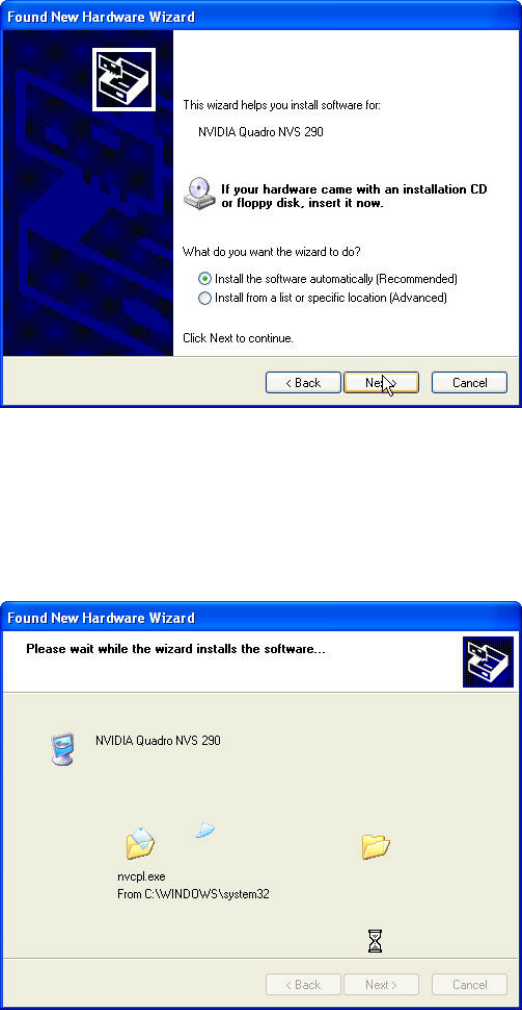
Figure 4-25: New Hardware Wizard – Step 2
► Ensure that the radio button besides Install the software automatically (Recommended) is
selected.
► Click the Next > button.
The following window appears.
Figure 4-26: New Hardware Wizard – Step 3
► Wait until the wizard completes installation.
33
SIPLACE Recovery Installation on Celsius W380 10/2011 Edition
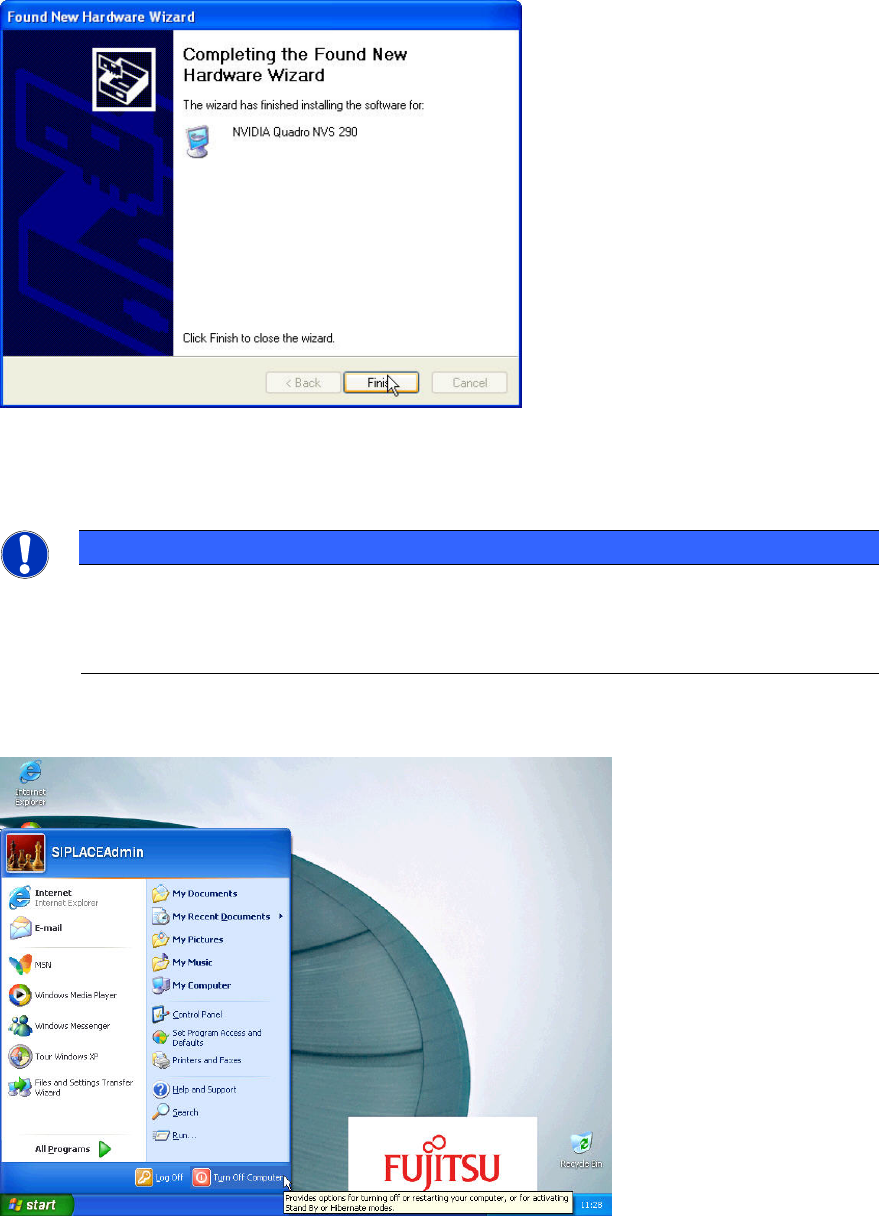
Figure 4-27: New Hardware Wizard – Step 4
► Click the Finish button to complete.
NOTICE
"File not found" messages on some computers
On some computers, a file not found message appears during installation.
► Please ignore this message.
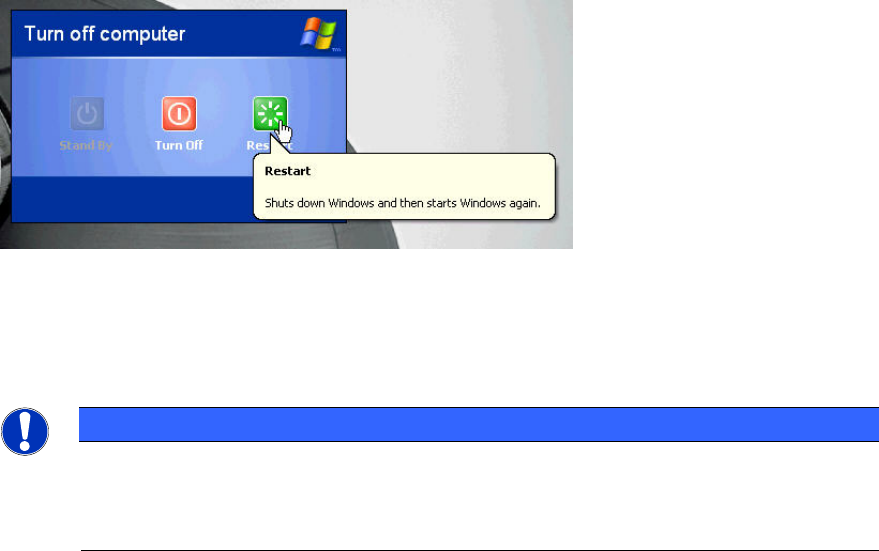
You now have to reboot your computer to complete the driver installation.
Figure 4-28: Reboot computer – Step 1
► Click on Start – Turn Off Computer.
34
SIPLACE Recovery Installation on Celsius W380 10/2011 Edition
The following window appears.
Figure 4-29: Reboot computer – Step 2
► Click the Restart button and wait until the computer has restarted.
You’ve completed the graphics driver installation.
NOTICE
Display auto-detected Resolution
In most cases, the display resolution will be detected automatically after the reboot.
If this is not the case, you have to manually set the resolution.
35