52339001系统-2.pdf - 第15页
Page 13 Installing eComStation fr om a Disk Image 52339001 Rev . C This document supports eComStation 2.x and higher and IM-UPS 6.0 and higher. c. Place an X in Minimized in the right-hand pane. d. Select tftpd in the li…

Page 12
52339001 Rev. C Installing eComStation from a Disk Image
This document supports eComStation 2.x and higher and IM-UPS 6.0 and higher.
15. Configure TCP/IP Settings
The next task is to set up TCP/IP.
1. Select the eCS button in the lower left of the screen.
2. Navigate to the TCP/IP Configuration menu item. The TCP/IP
Configuration Notebook will now be displayed, with LAN interface 0
pre-selected.
3. Ensure there is an X mark in the Enable Interface check box.
4. Place an X mark in the Use previous DHCP Configuration on
reboot check box.
5. Select LAN interface 1 in the list at the left.
a. Place an X mark in the Enable Interface check box.
b. Ensure the option Manually, Using is selected.
c. Select the IP Address field, and type 192.168.0.2.
d. Select the Subnet Mask field, and type 255.255.255.0.
6. Select the Advanced 1 tab (at the bottom).
7. Select the Broadcast Address field, and type 192.168.0.2.
8. Select the Host Names tab (at the top). The left-hand list will show
<NO ENTRIES>.
a. Select Add below the left-hand list.
b. Type 159.48.128.1 in the pop-up that displays, and select
OK.
c. Select Add below the left-hand list again.
d. Type 159.48.128.2 in the pop-up that displays, and select
OK.
9. After performing the preceding steps, verify that the left-hand list
displays the following:
159.48.128.1
159.48.128.2
10. Select the Autostart tab (at the top).
a. Select ftpd in the list at the left.
b. Place an X in Autostart Service in the right-hand pane.

Page 13
Installing eComStation from a Disk Image 52339001 Rev. C
This document supports eComStation 2.x and higher and IM-UPS 6.0 and higher.
c. Place an X in Minimized in the right-hand pane.
d. Select tftpd in the list at the left.
e. Place an X in Autostart Service in the right-hand pane.
f. Place an X in Minimized in the right-hand pane.
11. Select the Security tab (at the top). The left-hand list will show <NO
ENTRIES>.
a. Select Add below the left-hand list.
b. Type anonymous (all lower case) in the User Name field in
the pop-up that displays.
c. Select OK.
12. Verify that the user name “anonymous” (all lower case) is shown in the
left-hand list, then select the Configure button in the FTP section at
the upper right.
13. In the FTP Configuration dialog, do the following:
a. Place an X in Enable FTP access for this user.
b. Type C:\ (capital “C”) in the Directory Access for Read field.
c. Type C:\ (capital “C”) in the Directory Access for Write field.
d. Select OK. The main TCP/IP dialog displays.
14. Select OK at the lower left.
15. Select OK again in the pop-up that displays.
An additional message displays, indicating that the system needs to
reboot to finish the configuration changes that were just made.
16. Select OK.
17. Reboot the system manually: select the eButton and select Shut
down.
18. Select Standard reboot.
19. Select OK, and allow the system to reboot itself back to the desktop.
Page 14
52339001 Rev. C Installing eComStation from a Disk Image
This document supports eComStation 2.x and higher and IM-UPS 6.0 and higher.
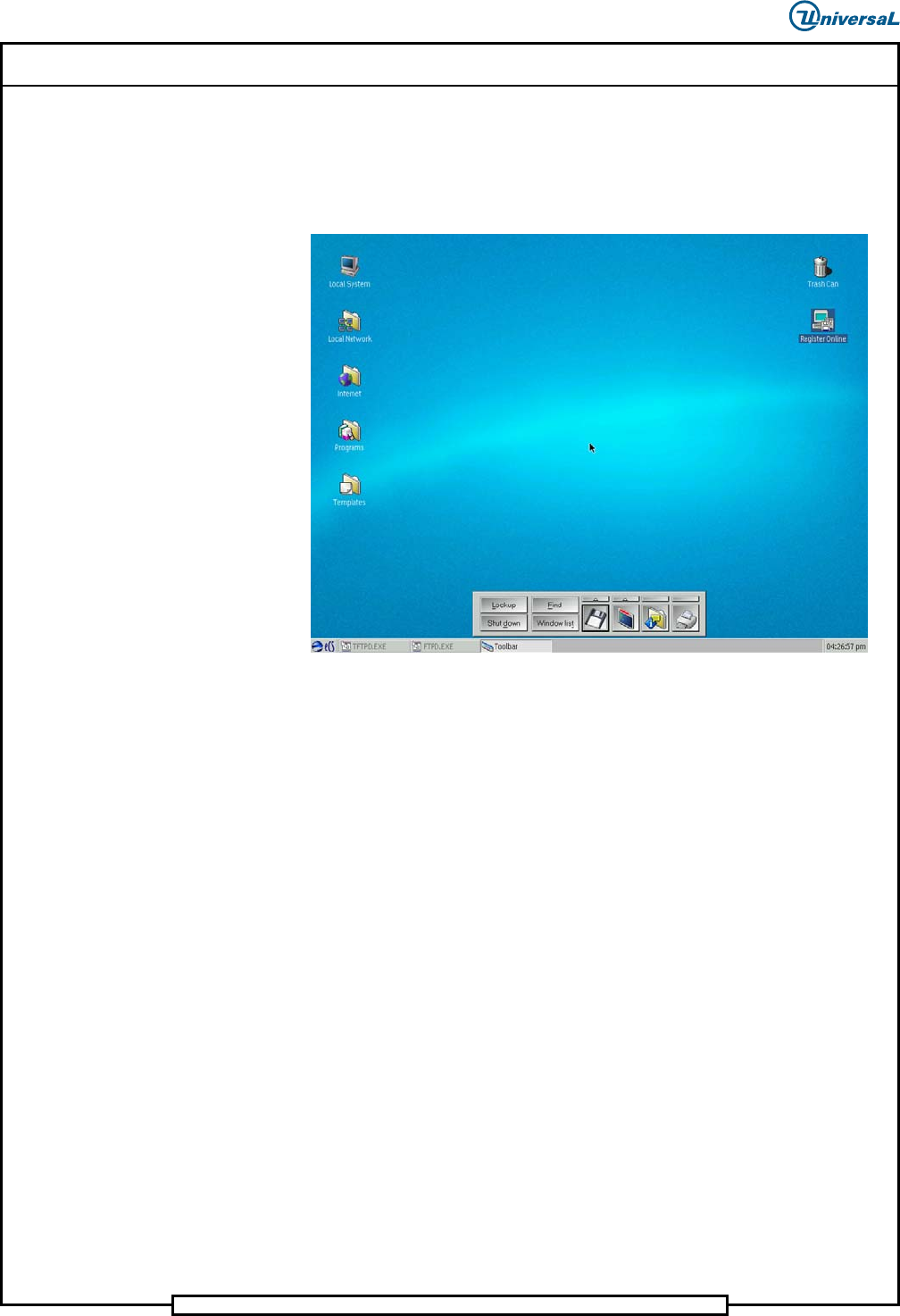
20. After the system reboots, the desktop should display as follows.
Note that the Toolbar is displayed, and that three items are listed in the
task bar (TFTPD.EXE, FTPD.EXE, and Toolbar). The screen will also
be operating in 1024x768 resolution.
16. Set Up Shortcut for DVD/CD Toys
It might be convenient to create a desktop shortcut to the DVD/CD Toys
(which allow burning of CDs); this item is located within Programs >
Installed Software.
To create a shortcut:
1. Find the item of interest, and select it.
2. Press and hold the right mouse button and the Ctrl key.
3. Drag the item icon onto the desktop.
4. Release the right mouse button and Ctrl key.
5. Close the Programs and Installed Software windows.
17. Final Shutdown Configuration
The final task is to perform another reboot of the system. This will allow the
shutdown defaults to be set for FTPD.EXE and TFTPD.EXE, and will
confirm that all settings are stored correctly.