52339001系统-2.pdf - 第24页
Page 22 52339001 Rev . C Installing eComStation fr om a Disk Image This document supports eComStation 2.x and higher and IM-UPS 6.0 and higher. 3. Select OK to continue. The following warning alert displays. 4. Select Ye…
Page 21
Installing eComStation from a Disk Image 52339001 Rev. C
This document supports eComStation 2.x and higher and IM-UPS 6.0 and higher.
4. Delete Pre-Existing Partitions
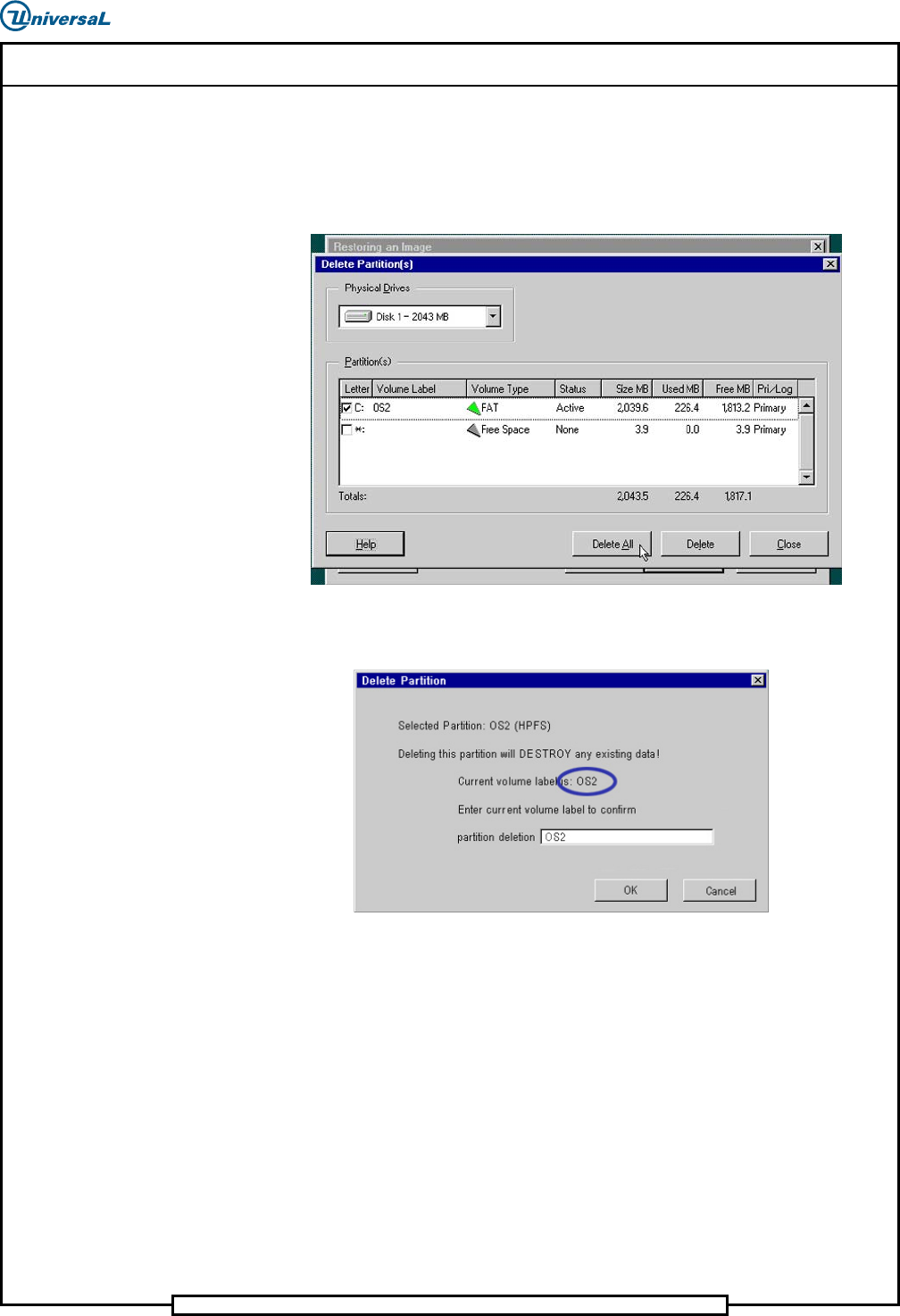
To delete partitions, do the following:
1. Select on the partition to select it, then select Delete All.
Depending on the current state of the hard drive, the following warning
might display.
2. If this dialog displays, enter the volume label to confirm the deletion.
The Volume Label is case sensitive, and must be entered exactly as
shown on the screen.
Page 22
52339001 Rev. C Installing eComStation from a Disk Image
This document supports eComStation 2.x and higher and IM-UPS 6.0 and higher.
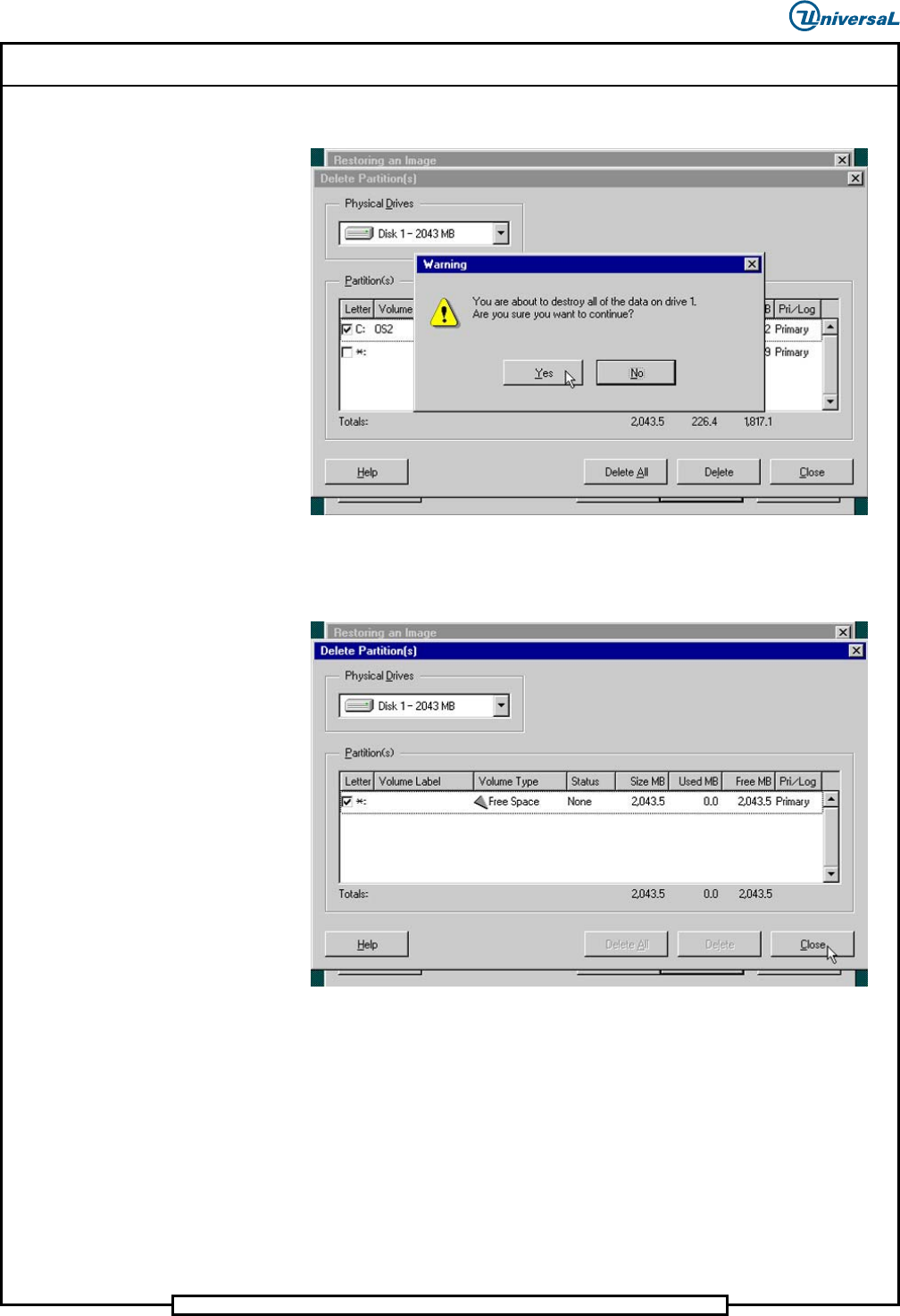
3. Select OK to continue. The following warning alert displays.
4. Select Yes to continue. The partition will be permanently deleted, and
the Delete Partition(s) screen displays. Note that the Volume Type
is now listed as Free Space and the Status is listed as None.
Page 23
Installing eComStation from a Disk Image 52339001 Rev. C
This document supports eComStation 2.x and higher and IM-UPS 6.0 and higher.
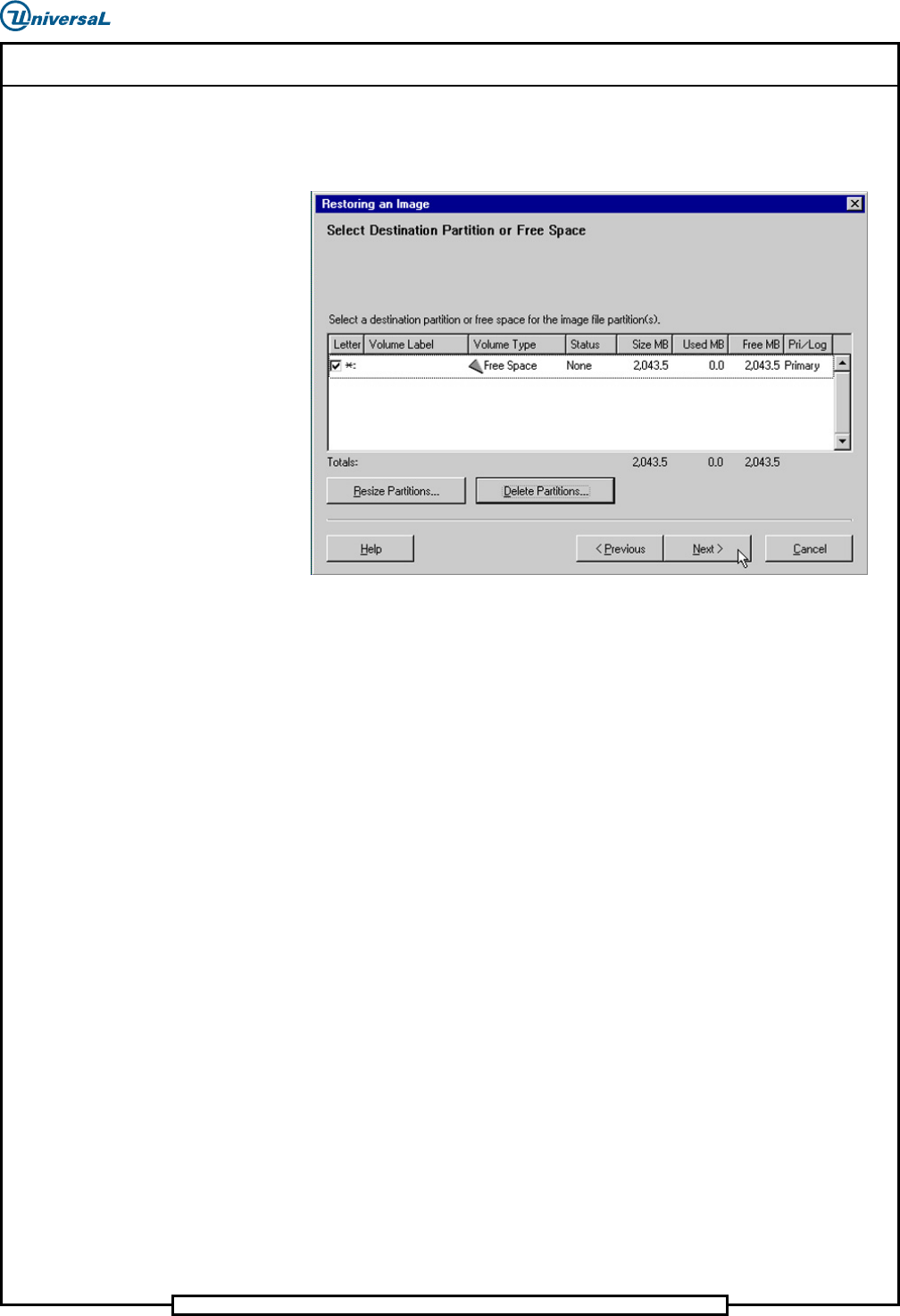
5. Select Close to exit the Delete Partition(s) screen. The Select
Destination Partition or Free Space screen displays, with the
Volume Type listed as Free Space.
5. Resize the Partition
To resize the partition, do the following:
1. Select Next.
2. Do one of the following:
a. If the Resize Options dialog box does NOT display next, go to
Step 6
b. Otherwise, continue with the next step.