52339001系统-2.pdf - 第28页
Page 26 52339001 Rev . C Installing eComStation fr om a Disk Image This document supports eComStation 2.x and higher and IM-UPS 6.0 and higher. d. Select OK , then select Accept . The Restoring an Image screen displays s…
Page 25
Installing eComStation from a Disk Image 52339001 Rev. C
This document supports eComStation 2.x and higher and IM-UPS 6.0 and higher.
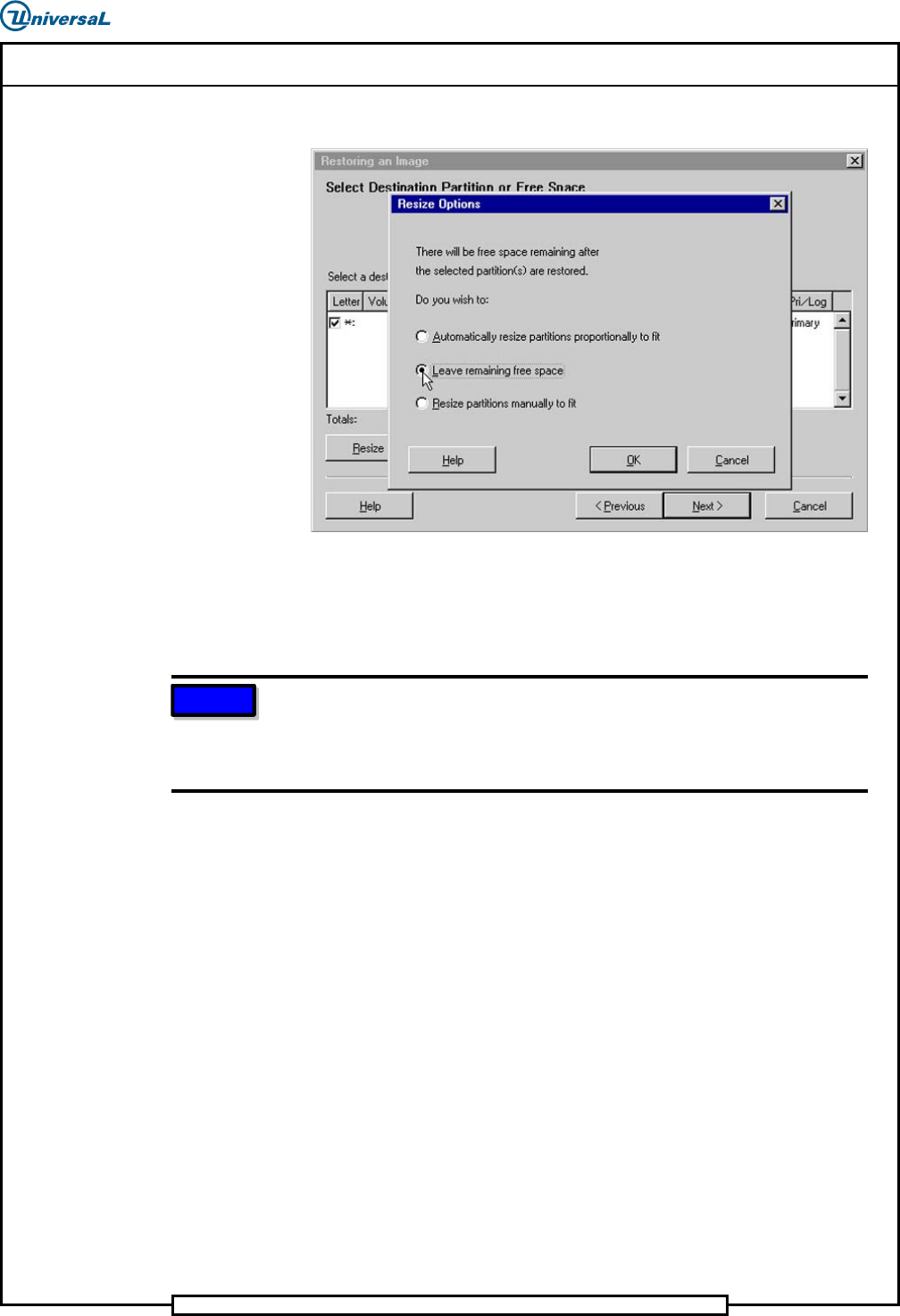
c. Continue with Step 6.
5. Alternate Option: Resize Partitions manually to fit
This option will allow setting the partition size manually. Use this option
if a problem occurs with the Leave remaining free space option.
NOTE
There have been situations where after restoring the Simplified Chinese
image on a drive larger than 20GB, the drive was not bootable. In this
case, reinstall the image and select the Leave remaining free space option
to enable a bootable drive.
a. Select Resize Partitions manually to fit, and select OK.
b. In the Resize Partitions window, select Resize.
c. In the Resize Partition dialog box, specify the size (in MB):
For eComStation, enter a maximum of 40000.
Page 26
52339001 Rev. C Installing eComStation from a Disk Image
This document supports eComStation 2.x and higher and IM-UPS 6.0 and higher.
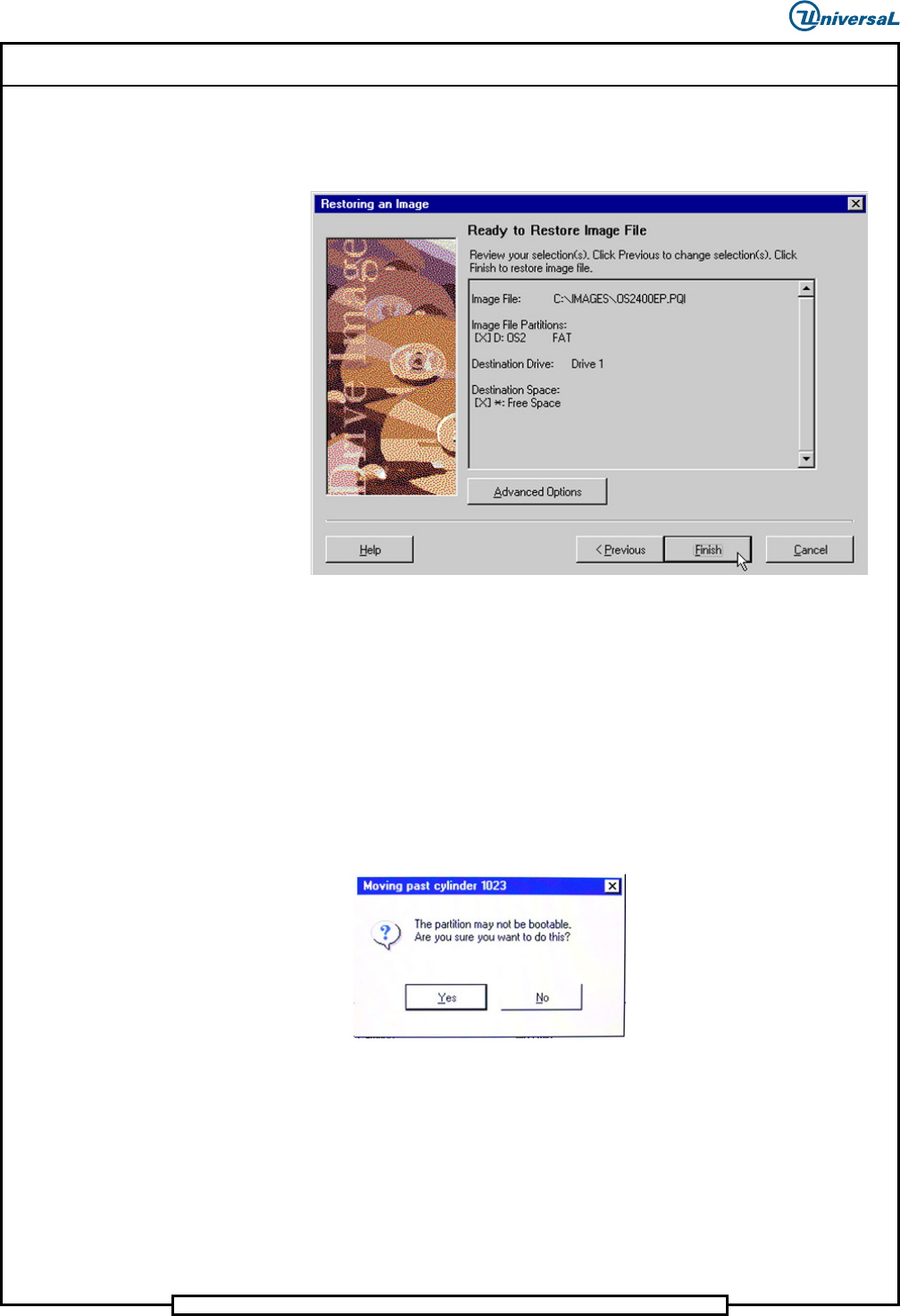
d. Select OK, then select Accept. The Restoring an Image
screen displays showing some details about the selected
configuration.
6. Select Finish to perform the restore.
6. Restore the Image
To restore the image, do the following:
1. When an image is being restored, the following warning alert displays.
The problem will be corrected after the image has been restored.
Select Yes to proceed.
Page 27
Installing eComStation from a Disk Image 52339001 Rev. C
This document supports eComStation 2.x and higher and IM-UPS 6.0 and higher.
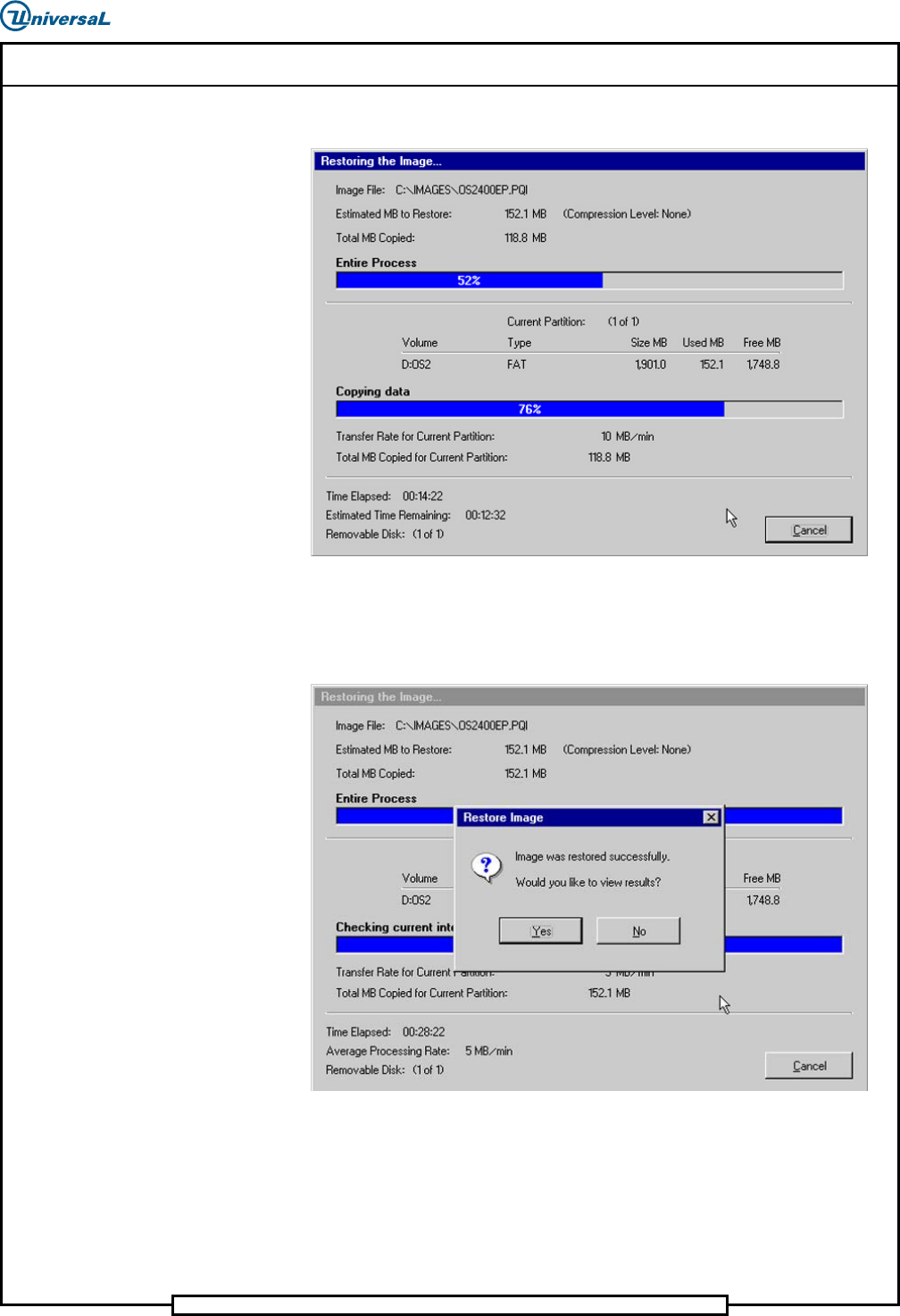
The following screen containing 2 progress bars displays.
2. Wait as the restoration process is performed. This will take several
minutes, but eventually both bars will reach 100%.
Once the image has been restored the following alert displays.