52339001系统-2.pdf - 第30页
Page 28 52339001 Rev . C Installing eComStation fr om a Disk Image This document supports eComStation 2.x and higher and IM-UPS 6.0 and higher. 3. Make a selection. a. If No is selected, go to Step 4. b. If Yes is select…
Page 27
Installing eComStation from a Disk Image 52339001 Rev. C
This document supports eComStation 2.x and higher and IM-UPS 6.0 and higher.
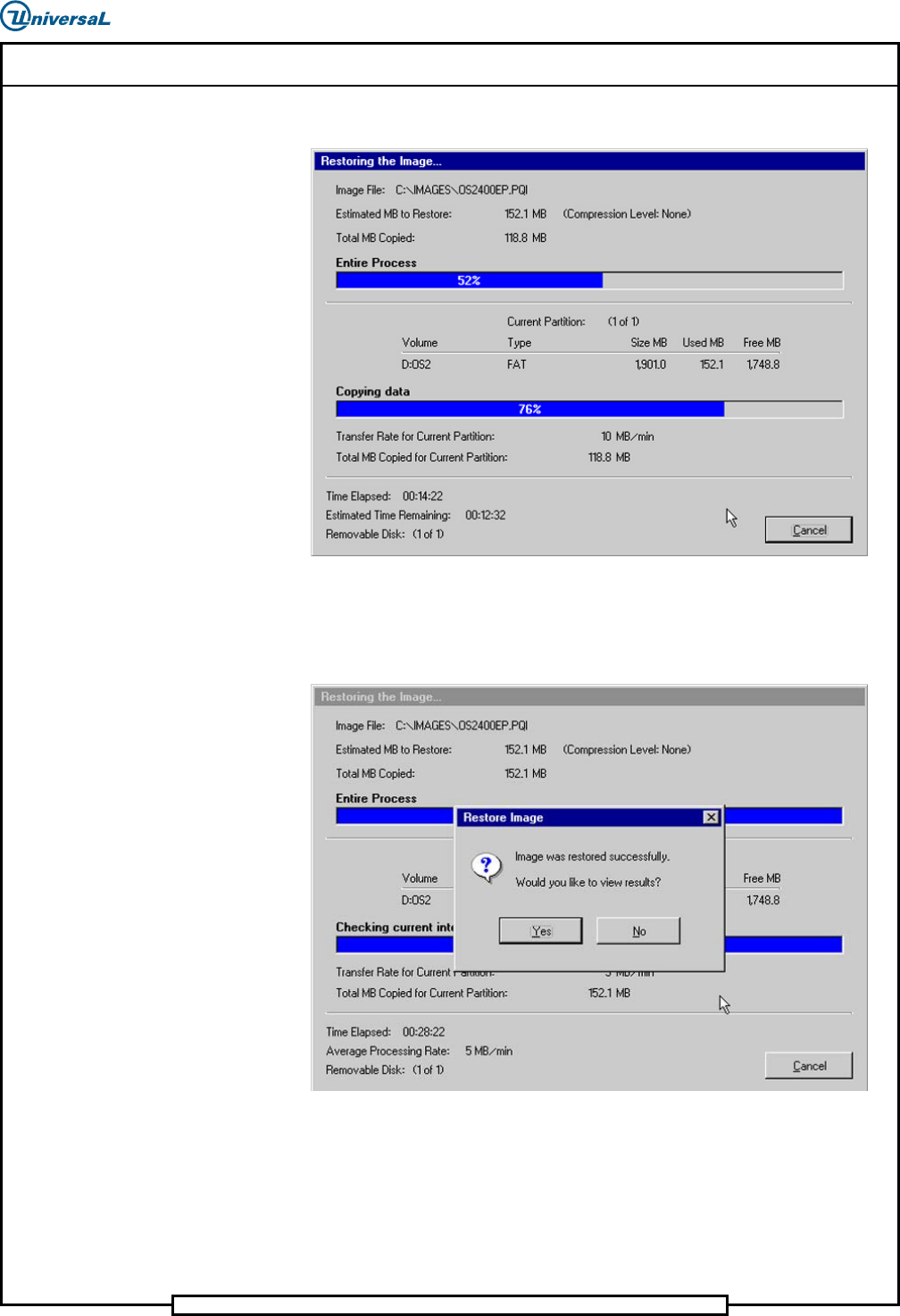
The following screen containing 2 progress bars displays.
2. Wait as the restoration process is performed. This will take several
minutes, but eventually both bars will reach 100%.
Once the image has been restored the following alert displays.
Page 28
52339001 Rev. C Installing eComStation from a Disk Image
This document supports eComStation 2.x and higher and IM-UPS 6.0 and higher.
3. Make a selection.
a. If No is selected, go to Step 4.
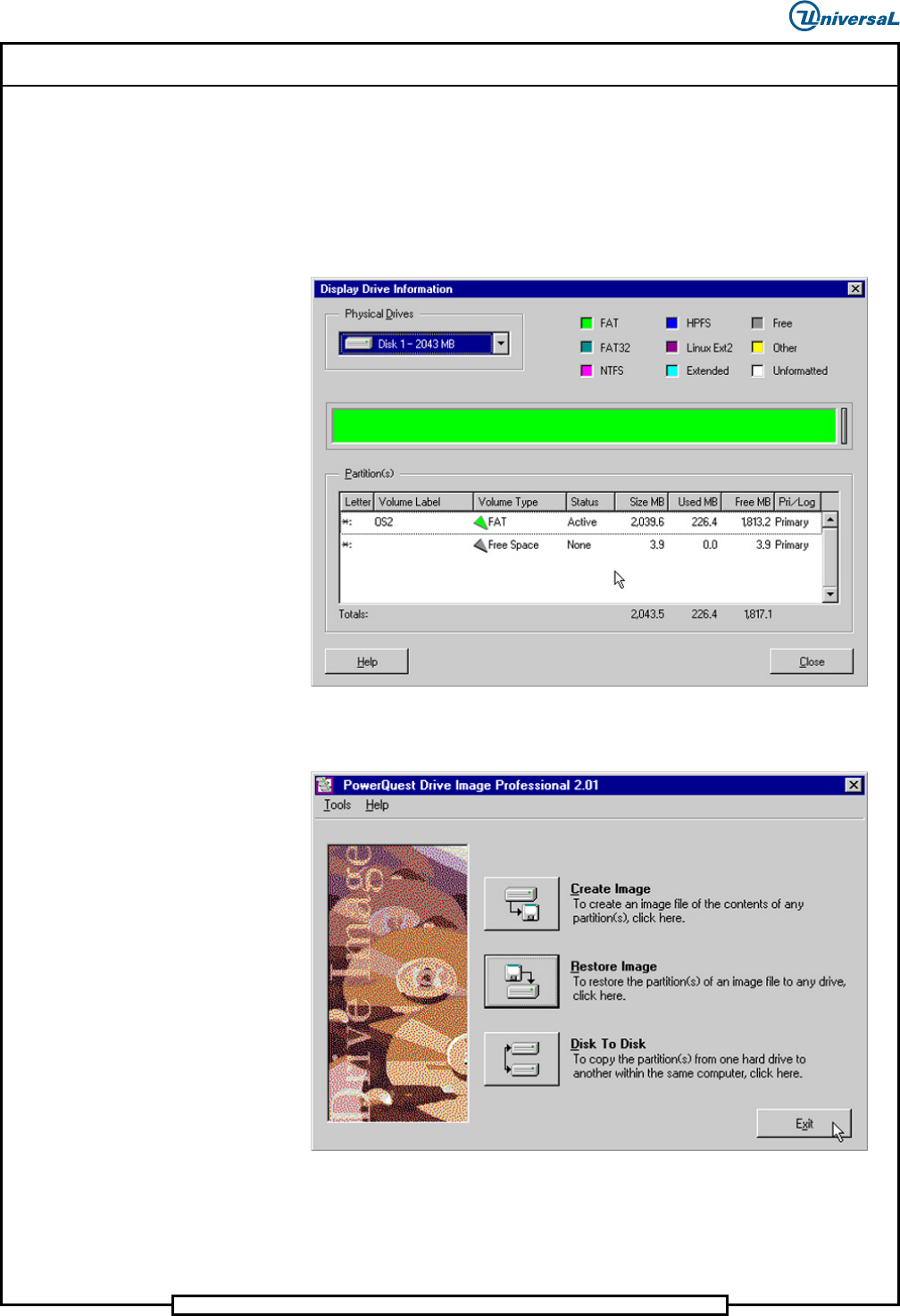
b. If Yes is selected, the Display Drive Information window
displays. The Display Drive Information window shows the
current state of the hard drive after the image has been installed.
4. Select Close. The following screen displays. The image has now been
restored.
5. Select Exit to return to the command prompt.

Page 29
Installing eComStation from a Disk Image 52339001 Rev. C
This document supports eComStation 2.x and higher and IM-UPS 6.0 and higher.
7. Remove the CD and Reboot the Machine
To remove the CD and reboot, do the following:
1. Remove the CD, and put it away.
2. Reboot the VME chassis, and eComStation will boot, fully configured
as needed to run IM-UPS.
If a “cannot boot to harddrive” message displays (usually only on new
harddrives), then do the following:
a. Insert the eComStation x.x Simplified Chinese Boot/Installation
CD.
b. Power cycle the machine, and boot up using that boot CD. An
eComStation screen displays, then a message displays when the
machine finishes booting that says to press Ctrl+Alt+Del to
reboot.
c. Remove the CD.
d. Press Ctrl+Alt+Del. The machine reboots.
8. Post Requisites
Complete the following post requisites:
1. Load IM-UPS. See the IM-UPS Software Installation manual for
instructions.
2. Restore any previously saved machine data if appropriate. See the
System Setup manual for instructions.
NOTE
If upgrading from eComStation 2.0 RC6 to eComStation 2.0 GA, do not
select “Operating System” when restoring data.
3. If installing to a network, see the following manuals:
• Wide Area Network (WAN) Installation
• Creating a User Account in eComStation