52339001系统-2.pdf - 第21页
Page 19 Installing eComStation fr om a Disk Image 52339001 Rev . C This document supports eComStation 2.x and higher and IM-UPS 6.0 and higher. 6. Select Next to continue. The Select Image File Partition(s) screen displa…
Page 18
52339001 Rev. C Installing eComStation from a Disk Image
This document supports eComStation 2.x and higher and IM-UPS 6.0 and higher.
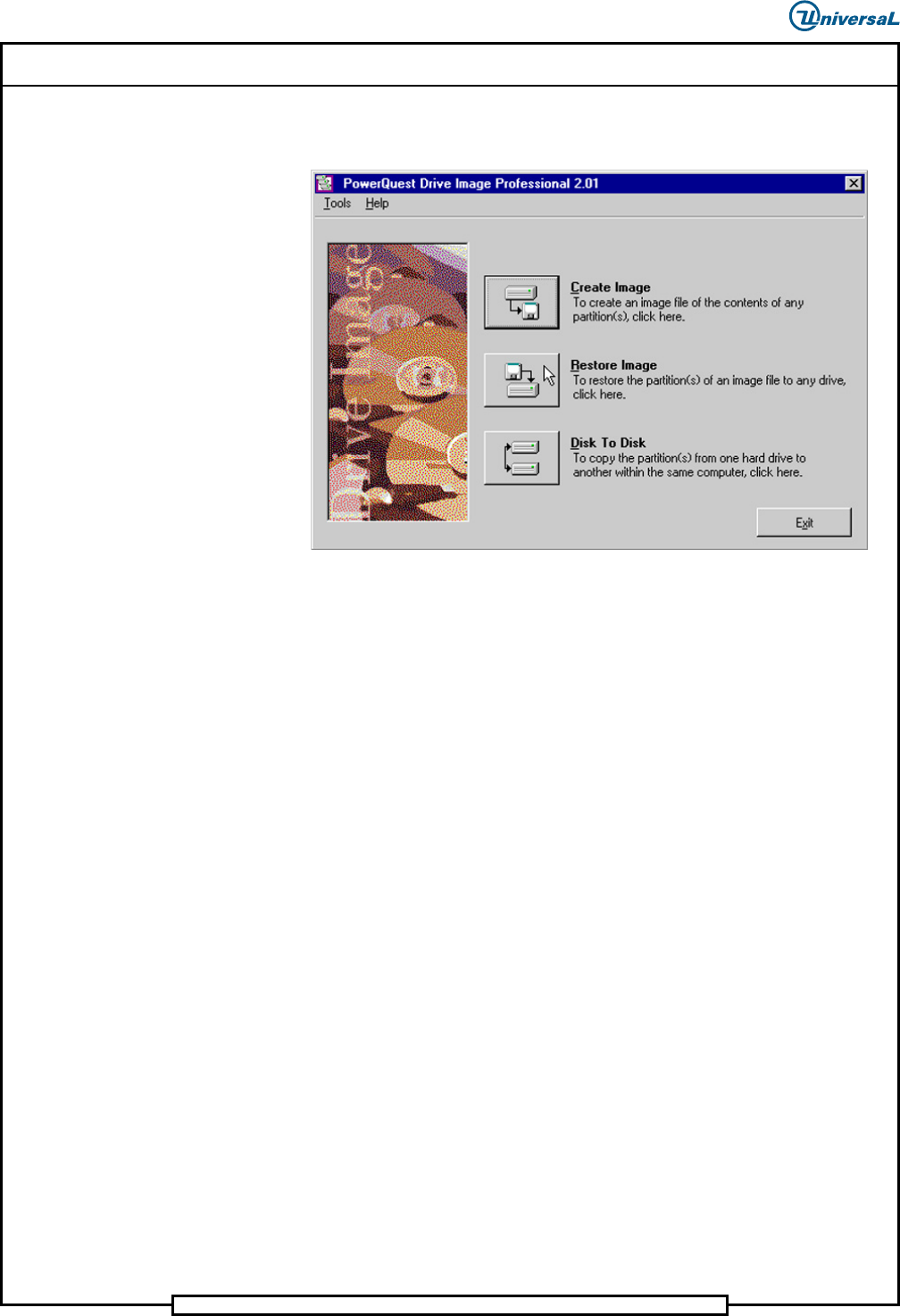
Result: A few seconds later, the PowerQuest Drive Image
Professional 2.01 screen should display.
2. Select the Image File
To select the image file, do the following:
1. Select Restore Image. The Select Image File screen displays.
2. Select Browse. The Open Image File dialog box displays.
3. In the Drives window, select the CD-ROM drive in which the image
disk was inserted. The CD file structure will be shown in the Folders
column.
4. Double-select the Images folder to open it. A list of the image files on
the CD displays in the File Name column.
Note: Each image CD contains 2 image files. These are the English
and Simplified Chinese images of the version of eComStation
appropriate to the machine.
Note: The Image File Comments section at the bottom of the
screen might provide additional details about the selected image.
5. Select the appropriate image file, and select OK. The Select Image
File screen displays, showing the path to the selected image.
Page 19
Installing eComStation from a Disk Image 52339001 Rev. C
This document supports eComStation 2.x and higher and IM-UPS 6.0 and higher.
6. Select Next to continue. The Select Image File Partition(s) screen
displays.
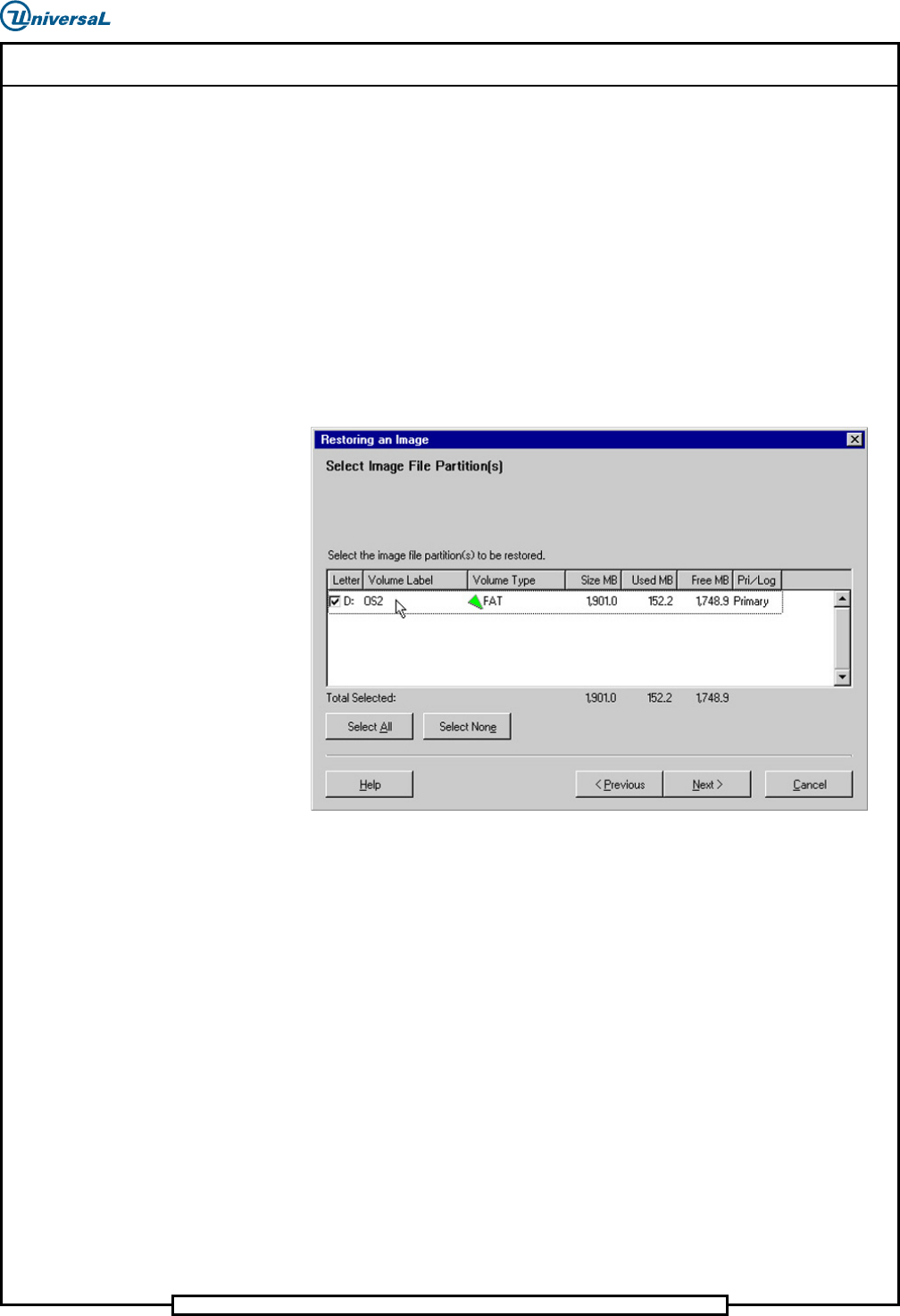
This screen shows the partitions that were defined on the drive image
and offers a way to select the partition to be restored. The images
provided by Universal will each have 1 partition.
3. Select the Image File Partitions
To select the image file partitions, do the following:
1. Select the partition (checked) as shown in the following screen.
2. Select Next. The Select Destination File Partition or Free
Space screen displays.
Page 20
52339001 Rev. C Installing eComStation from a Disk Image
This document supports eComStation 2.x and higher and IM-UPS 6.0 and higher.
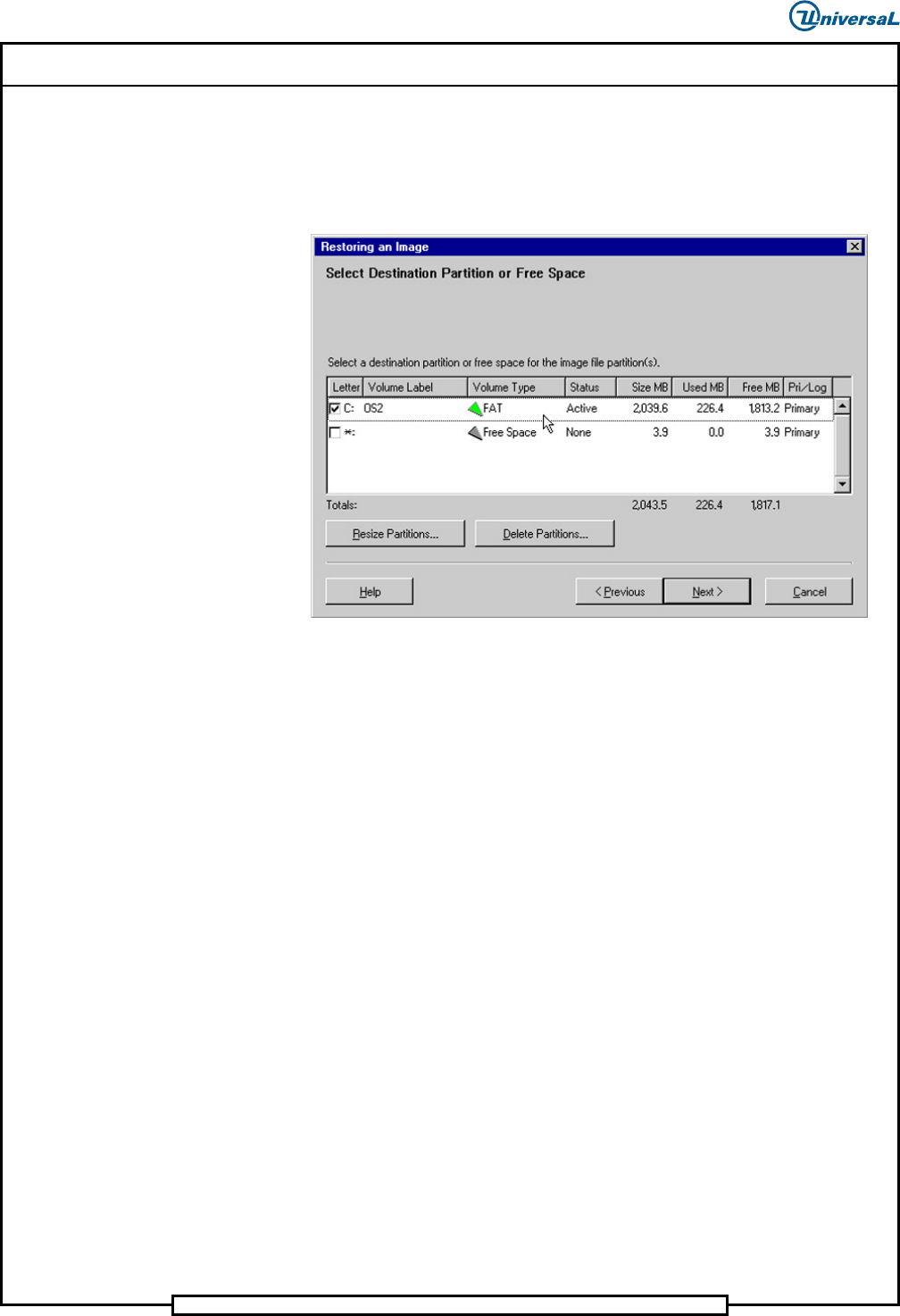
This screen shows any partitions that might already exist on the hard
drive and provides a way to remove partitions before the image is
restored. This example screen shows one active eComStation partition.
The drive also contains some Free Space that is not part of the
partition.
3. Do one of the following:
a. If the list contains only one entry with a Volume Type of Free
Space and a Status of None, there are no partitions to delete.
Go directly to the procedure, “Resize the Partition”.
b. If the list contains a partition as shown in the above example,
select Delete Partitions. The Delete Partition(s) screen
displays.