52339001系统-2.pdf - 第29页
Page 27 Installing eComStation fr om a Disk Image 52339001 Rev . C This document supports eComStation 2.x and higher and IM-UPS 6.0 and higher. The following screen containing 2 progress bars displays. 2. Wait as the res…
Page 26
52339001 Rev. C Installing eComStation from a Disk Image
This document supports eComStation 2.x and higher and IM-UPS 6.0 and higher.
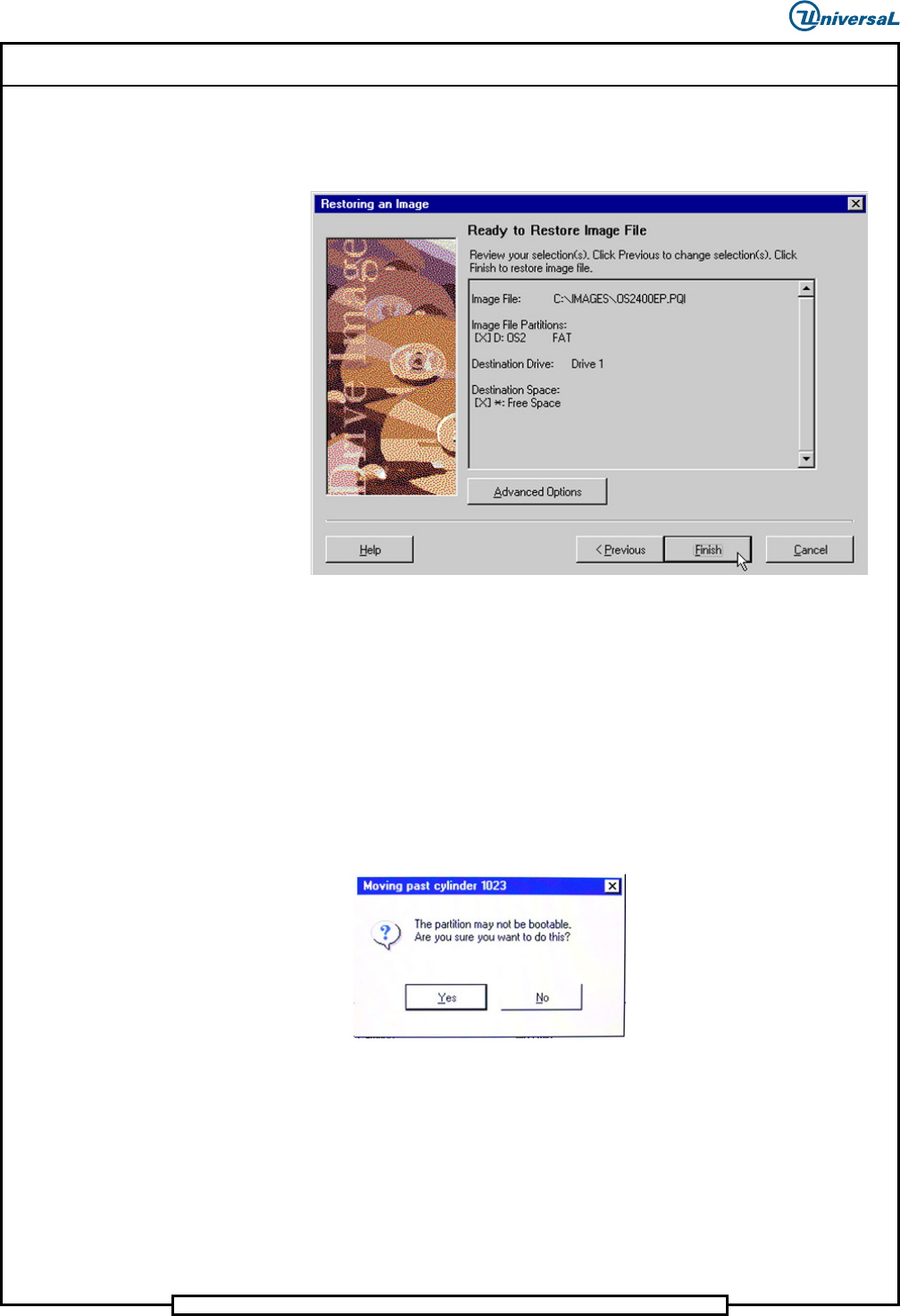
d. Select OK, then select Accept. The Restoring an Image
screen displays showing some details about the selected
configuration.
6. Select Finish to perform the restore.
6. Restore the Image
To restore the image, do the following:
1. When an image is being restored, the following warning alert displays.
The problem will be corrected after the image has been restored.
Select Yes to proceed.
Page 27
Installing eComStation from a Disk Image 52339001 Rev. C
This document supports eComStation 2.x and higher and IM-UPS 6.0 and higher.
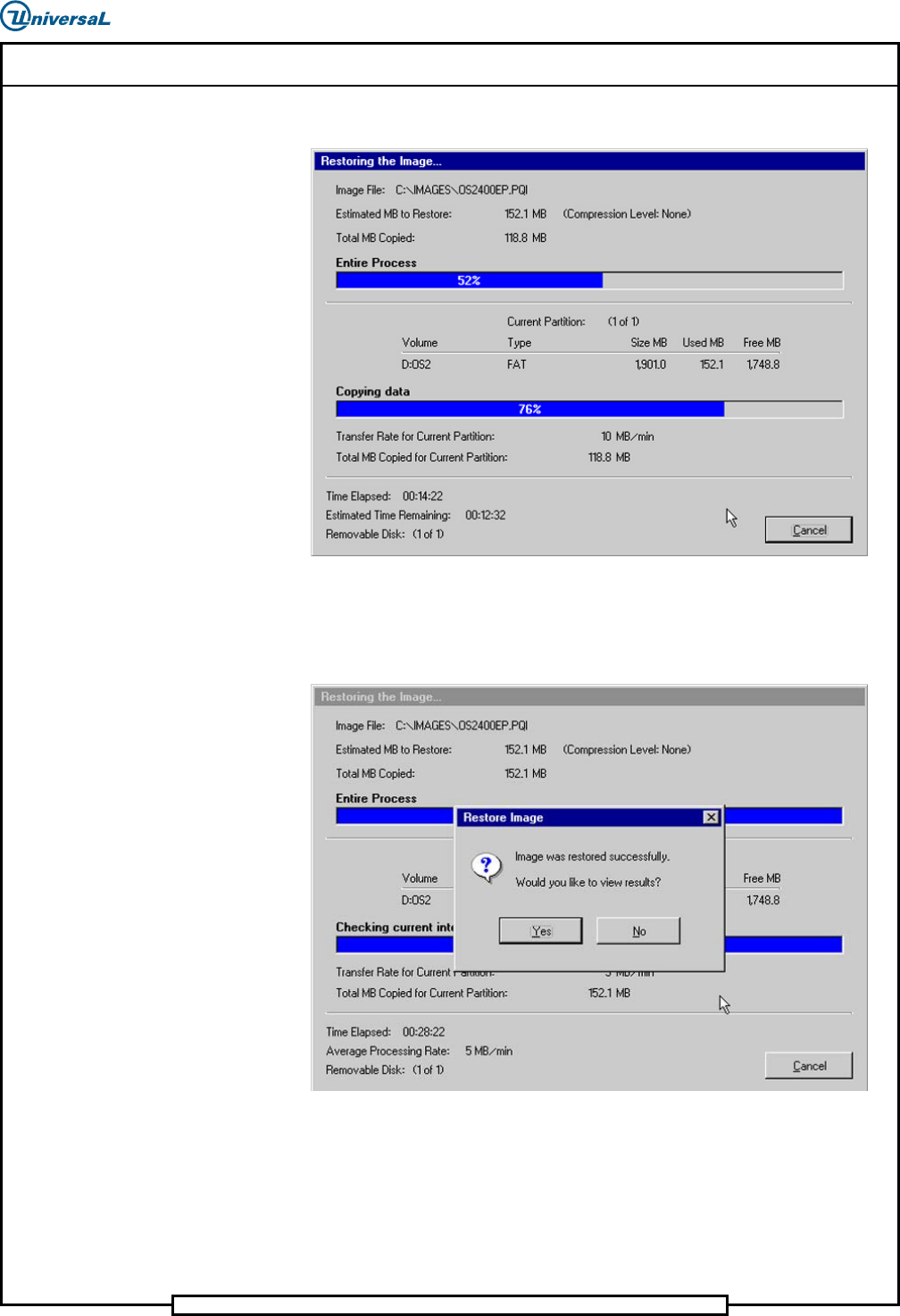
The following screen containing 2 progress bars displays.
2. Wait as the restoration process is performed. This will take several
minutes, but eventually both bars will reach 100%.
Once the image has been restored the following alert displays.
Page 28
52339001 Rev. C Installing eComStation from a Disk Image
This document supports eComStation 2.x and higher and IM-UPS 6.0 and higher.
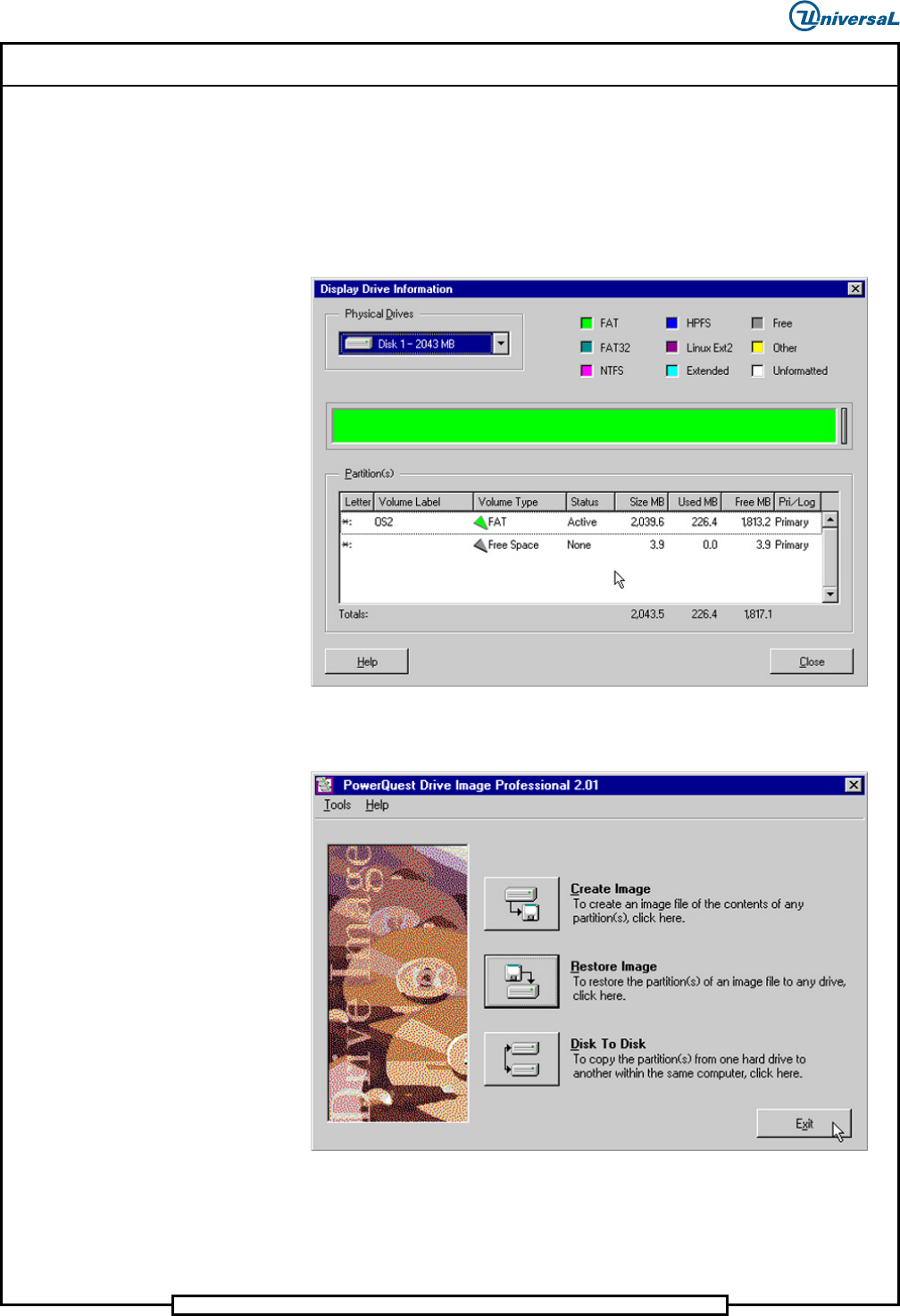
3. Make a selection.
a. If No is selected, go to Step 4.
b. If Yes is selected, the Display Drive Information window
displays. The Display Drive Information window shows the
current state of the hard drive after the image has been installed.
4. Select Close. The following screen displays. The image has now been
restored.
5. Select Exit to return to the command prompt.