52339001系统-2.pdf - 第25页
Page 23 Installing eComStation fr om a Disk Image 52339001 Rev . C This document supports eComStation 2.x and higher and IM-UPS 6.0 and higher. 5. Select Close to exit the Delete Partition(s) screen. The Select Destinati…
Page 22
52339001 Rev. C Installing eComStation from a Disk Image
This document supports eComStation 2.x and higher and IM-UPS 6.0 and higher.
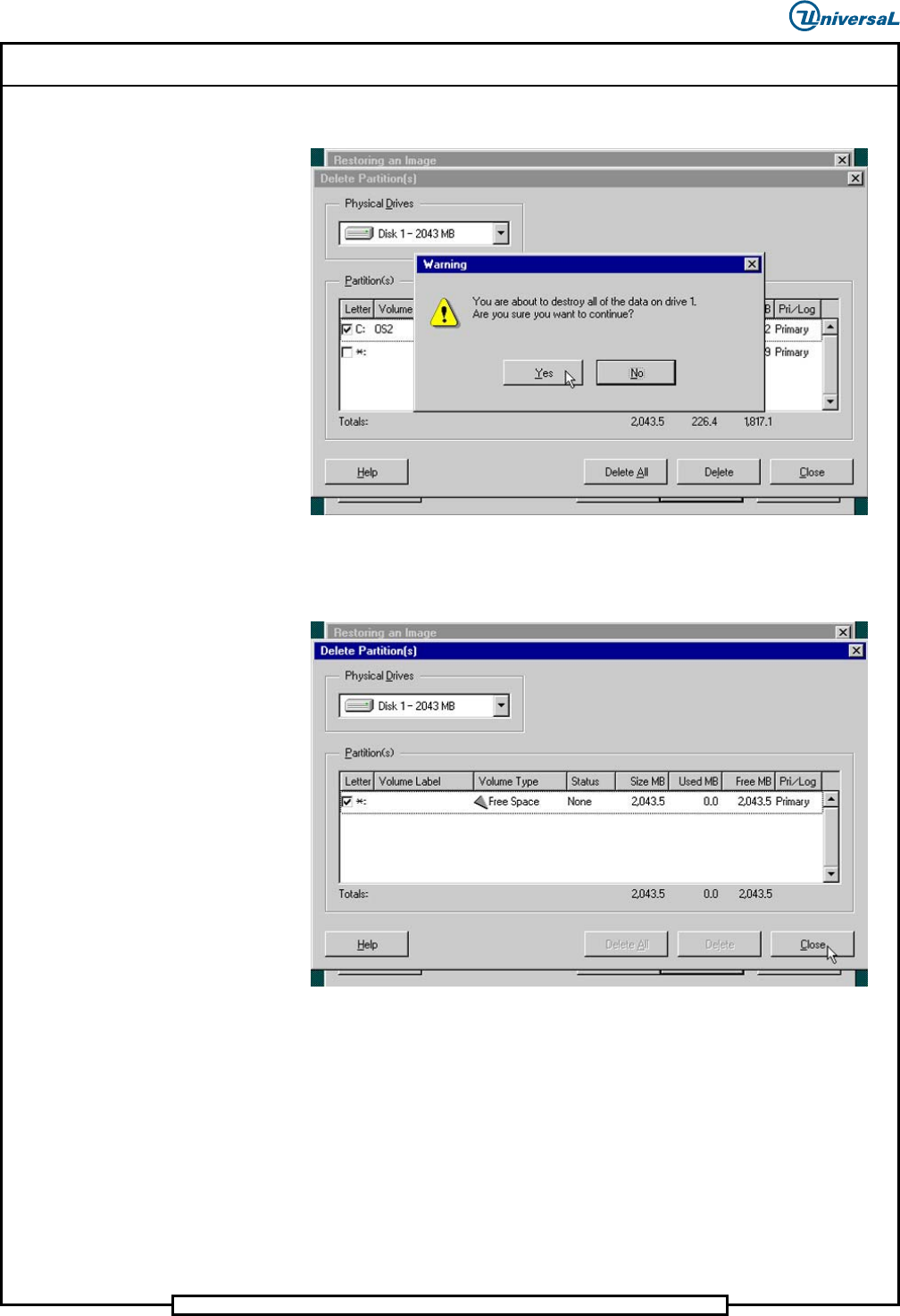
3. Select OK to continue. The following warning alert displays.
4. Select Yes to continue. The partition will be permanently deleted, and
the Delete Partition(s) screen displays. Note that the Volume Type
is now listed as Free Space and the Status is listed as None.
Page 23
Installing eComStation from a Disk Image 52339001 Rev. C
This document supports eComStation 2.x and higher and IM-UPS 6.0 and higher.
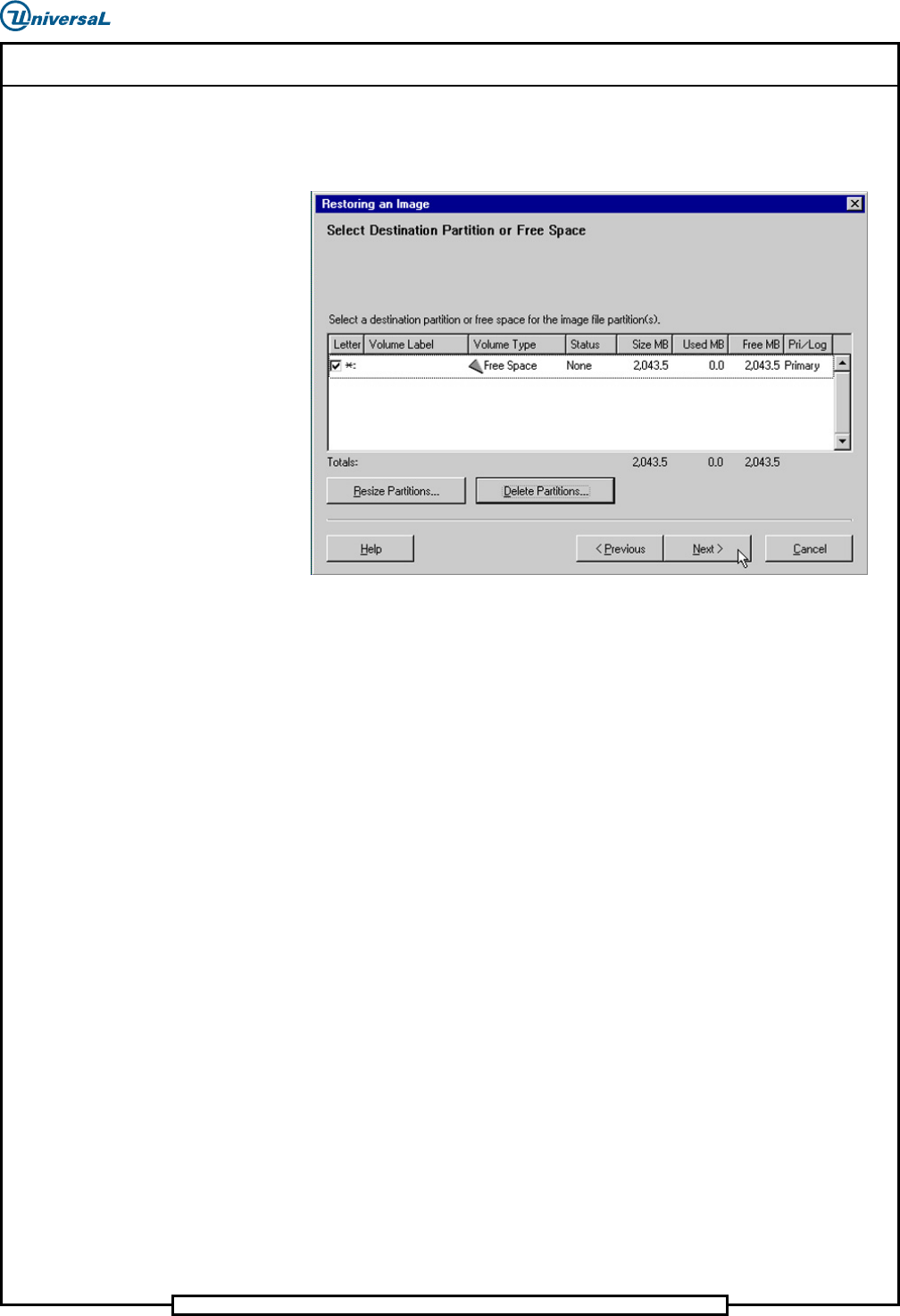
5. Select Close to exit the Delete Partition(s) screen. The Select
Destination Partition or Free Space screen displays, with the
Volume Type listed as Free Space.
5. Resize the Partition
To resize the partition, do the following:
1. Select Next.
2. Do one of the following:
a. If the Resize Options dialog box does NOT display next, go to
Step 6
b. Otherwise, continue with the next step.
Page 24
52339001 Rev. C Installing eComStation from a Disk Image
This document supports eComStation 2.x and higher and IM-UPS 6.0 and higher.
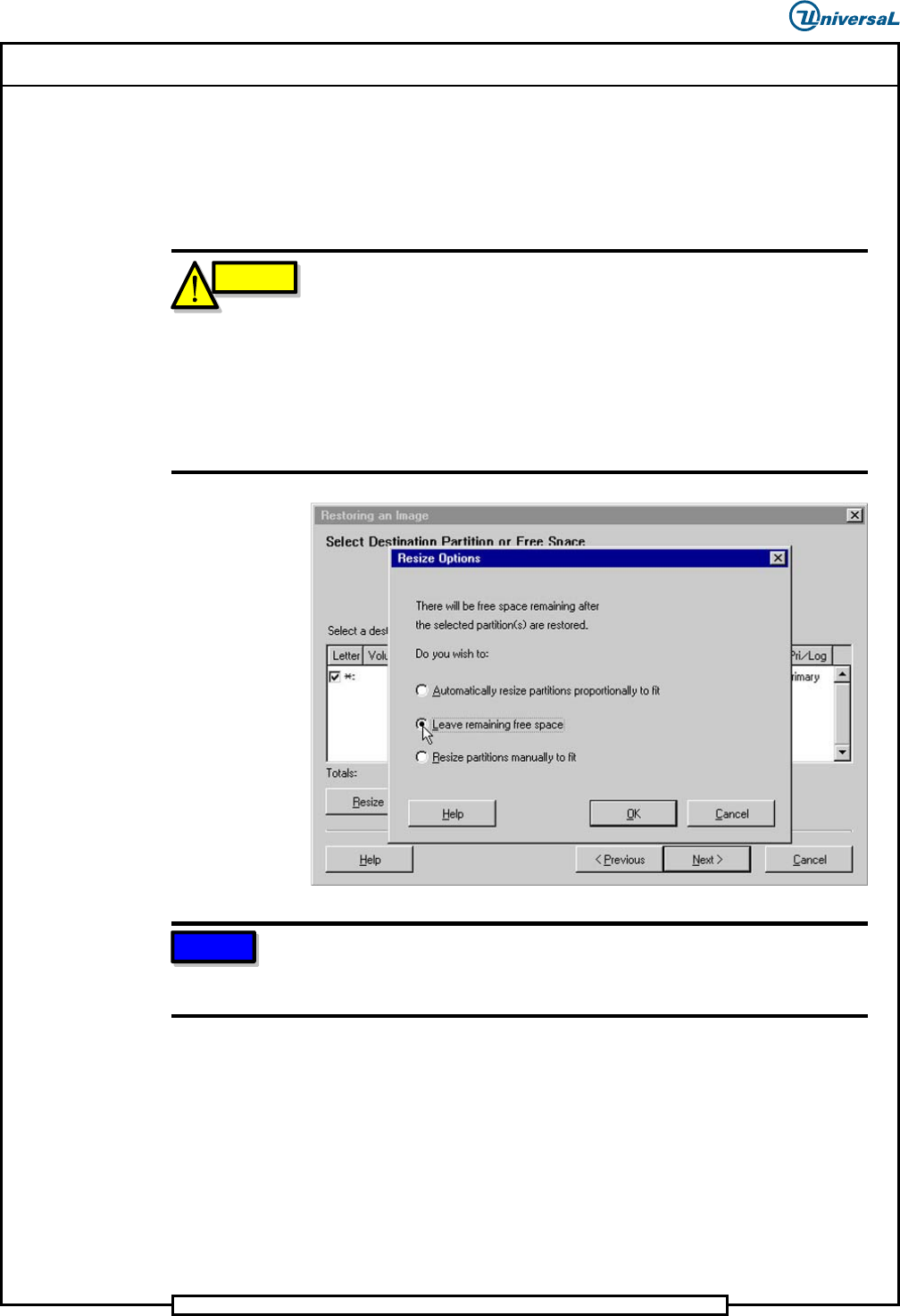
3. Read the following caution and note before proceeding. The image file
might have been created from a drive that was smaller than the drive
the image will be restored to. In this case, the Resize Options dialog
box displays offering 3 options for handling the extra space on the
drive.
CAUTION
DO NOT USE the Automatically resize partitions proportionally to fit option
because of the limitations described here. That option adjusts the
partition to fit the size of the drive as defined in the BIOS configuration.
eComStation uses the HPFS file system, which has a maximum
volume size of approximately 64GB. If the hard drive is larger than
40GB, the partition created might not be bootable. Regardless of the
actual physical size of the hard drive, Universal Instruments
recommends the maximum partition size of 40GB for eComStation.
NOTE
Leave remaining free space is the simplest and safest selection. Using
this option will avoid problems that can occur when using the other
options.
4. Recommended Option: Leave remaining free space
This option will create a partition the exact same size as the master
drive the image was created from. It will leave any remaining space on
the drive unused. This option will work with any image on any drive
(provided the drive is larger than the image), but leaves the remaining
space unusable. In most applications the space created by the image
will be more than adequate and the unused space will not be missed.
a. Select Leave remaining free space
b. Select OK.