[Superset] Chapter5_SPC Plus_ENG_20100827TW.pdf - 第19页
Programmer's Manual | 19 Select more than 2 PCBs in ListV iew and click the DefectV iew icon. The following screen will appear: Figure 3-4. DefectVie w Screen Part I D T op 5 Displa…

Programmer's Manual | 18
Proceedwiththefollowingtousethisfunction:
1. Click the PCBView icon.
2. Select the Area category on the lower left side of the PCBView screen.
3. Click the <View> button.
Note:TheOffsetandCentervaluescanbedisplayedon2DImagewhentheROIcategoryisselected.
3.3. Defect View
DefectView is the menu that can analyze the defect quantities occurring on the selected PCB in
detail.Itcanperformthefollowing:
ReviewsthecausesoftheconfiguredPCBwithdefects
Checksthemostfrequentlyoccurringdefecttypes
Checksthecomponentswithfrequentproblems
Programmer's Manual | 19
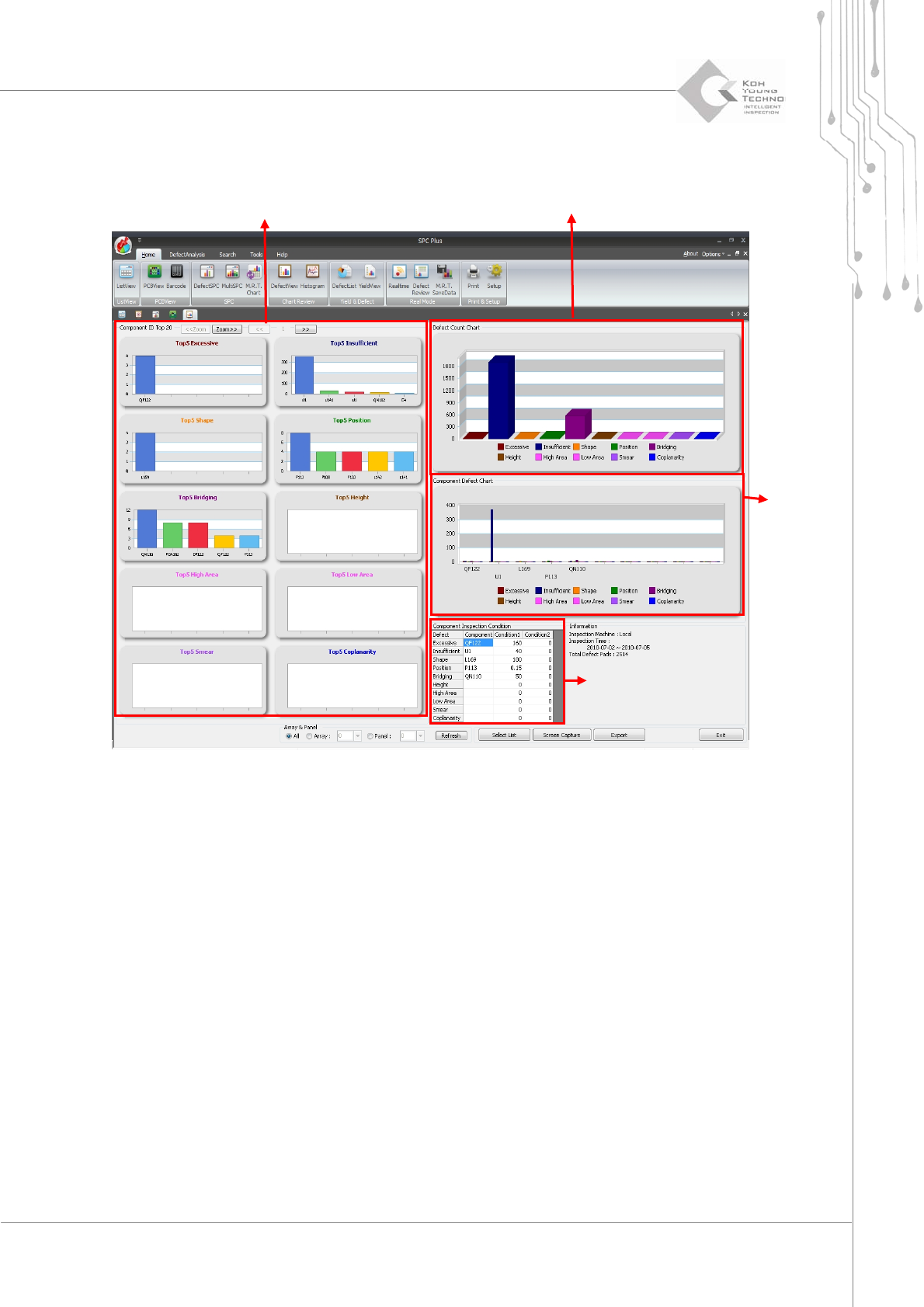
Selectmorethan2PCBsinListViewandclicktheDefectViewicon.Thefollowingscreenwillappear:
Figure 3-4. DefectView Screen
Part ID Top 5
Display quantities of types with defect occurring
Defect part chart
Parts inspecting
Programmer's Manual | 20
Seethefollowingforthedescriptionsofthefigureabove:
PartIDTop5:Displaystherankof eachpartIDhavingdefect sforeachdefect
Display quantities of defect types: Displays the quantities of respective defects on all the
selectedPCBs
Defectpartchart: Defectchartof
eachpart
Parts‐inspectingcondition:SearchconditionofthePar t IDTop5correspondingparts
Category Description
All, Array, Panel - All: Defect quantity of the selected PCB
- Array: Defect quantity of the selected array
- Panel: Defect quantity of the selected panel
Selection list Lists the PCB that is not indicated by limitation in Defect Limit in Setup and
indicated PCB as a list
Save screen Saves the current screen in picture file format
Close Closes the current work
Note: When processing inspection, more detailed information can be obtained by entering
ComponentIDintheJOBfile.
Note:ThefilesavepathofSaveScreenfromthecategoryabovecanbeconfiguredinSetup.