00196841-01_IM_TX300S6_Win2008R2_SP1_EN.pdf - 第10页
Installing Primergy TX300S6 with Wind ows Server 2 008R2 SP 1 07/2011 Edition 3 Installation of Windows Server 2008 R2 SP 1 The following chapter describe s the whole insta llation process of Windo ws Server 2008 R2 SP1 …
Installing Primergy TX300S6 with Windows Server 2008R2 SP 1 07/2011 Edition
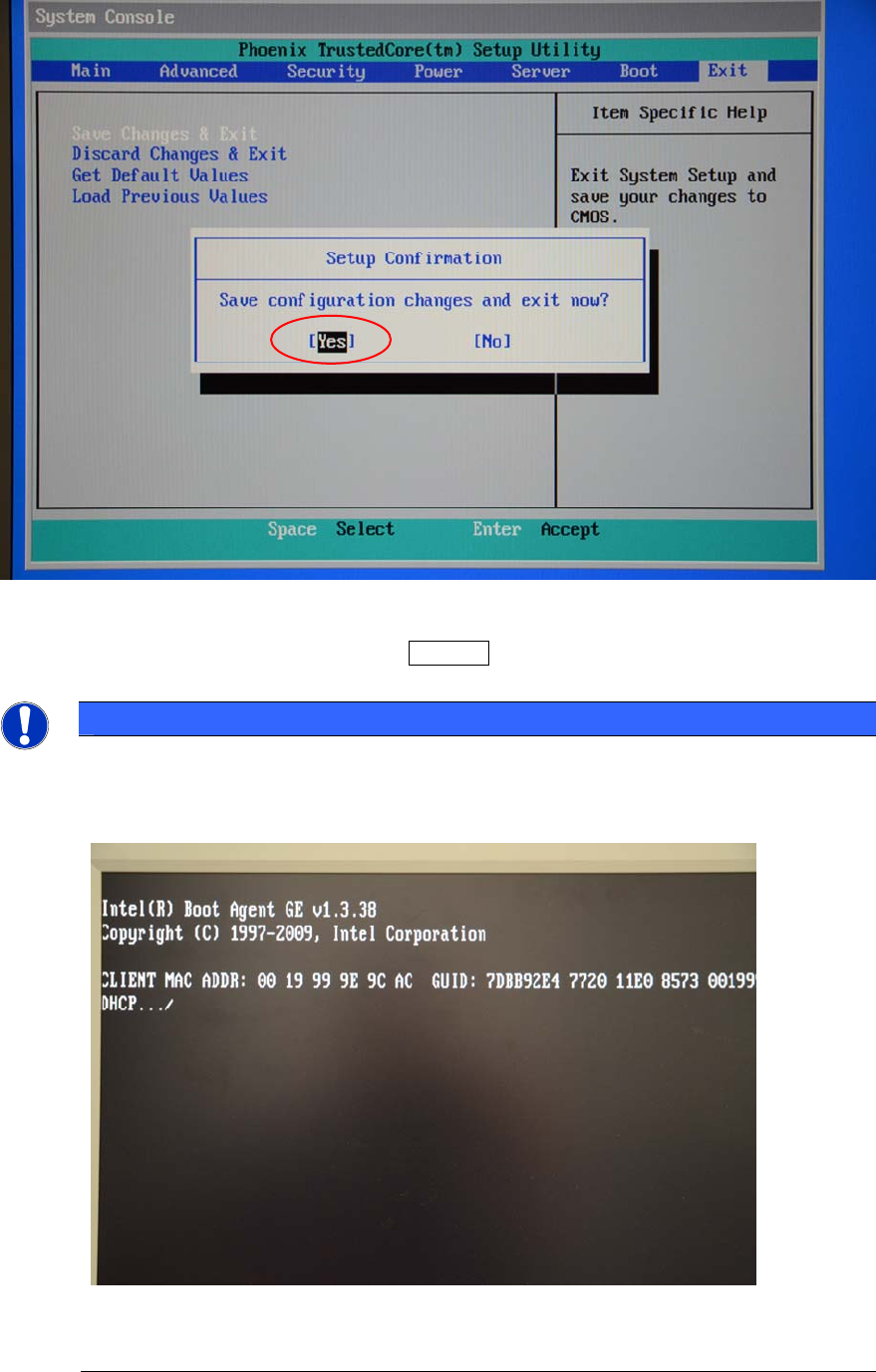
The following confirmation message will be displayed.
Figure 2-4: Save configuration changes confirmation message
► Ensure that Yes is selected and press the ENTER key to confirm.
Now you have disabled the LAN device from the boot order.
NOTICE
If you don’t remove the LAN device from the boot order
If you don’t remove the LAN device from boot order, every boot of the server takes about
20 seconds more and the following screen is displayed.
Figure 2-5: LAN device waiting for DHCP
9
Installing Primergy TX300S6 with Windows Server 2008R2 SP 1 07/2011 Edition
3 Installation of Windows Server 2008 R2 SP 1
The following chapter describes the whole installation process of Windows Server 2008 R2 SP1 on
the TX300S6 Server using the delivered media from Fujitsu.
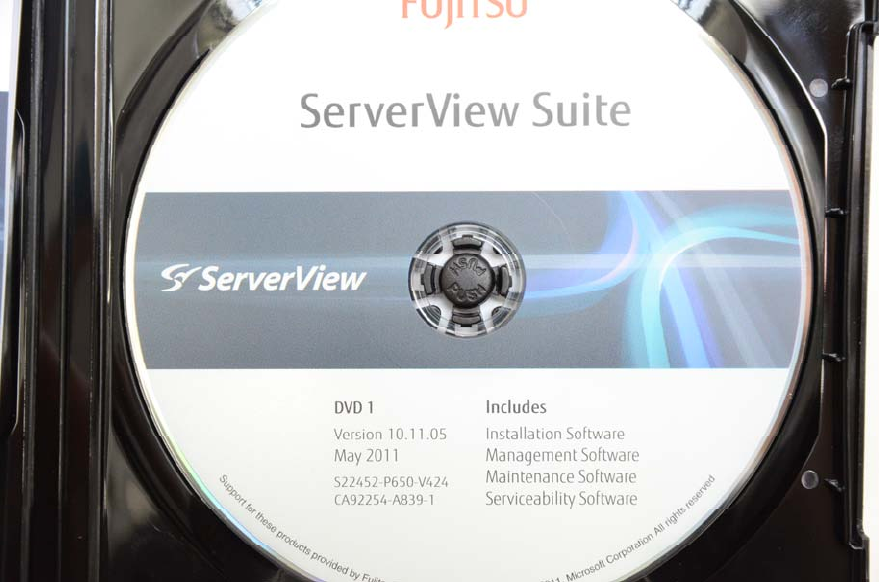
First, you will need the ServerView DVD that is displayed in the following figure.
Figure 3-1:Serverview DVD containing the guided installation
► Start the server and insert the ServerView DVD.
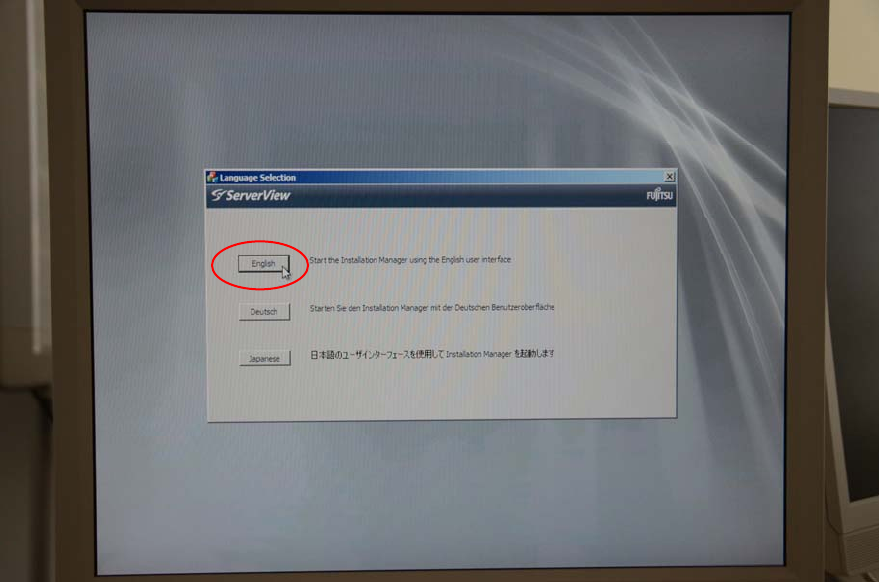
The boot process might take some time. After that, the language selection is displayed.
10
Installing Primergy TX300S6 with Windows Server 2008R2 SP 1 07/2011 Edition
Figure 3-2: ServerView language selection
► Select the language you understand by clicking on the appropriate language button.
This selection will only affect the language of the guided installation (not the language of the
Operating System to install). In this manual, English is used.
The Regional and Language Settings screen appears.
► In the keyboard layout field, select the language of your keyboard. In most cases, this will be
US-International, as displayed in the following figure.
11