00196841-01_IM_TX300S6_Win2008R2_SP1_EN.pdf - 第6页
Installing Primergy TX300S6 with Wind ows Server 2 008R2 SP 1 07/2011 Edition 2 Preparation Before installing the server, some preparation tasks have to be performed. 2.1 Used network connections ► Before you begin, plea…
Installing Primergy TX300S6 with Windows Server 2008R2 SP 1 07/2011 Edition
1 Purpose
This document describes the installation of the Primergy TX300S6 with Windows Server 2008R2
SP 1 using the installation media delivered from Fujitsu.
5
Installing Primergy TX300S6 with Windows Server 2008R2 SP 1 07/2011 Edition
2 Preparation
Before installing the server, some preparation tasks have to be performed.
2.1 Used network connections
► Before you begin, please ensure that you have connected the SIPLACE LAN network cable
(usually IP range 172.22.x.x) to the network adapter at the bottom and removed all other
network cable connections.
2.2 BIOS Settings
For a faster boot process, the LAN adapter should be removed from the boot order.
► Press the power button of the server.
After a couple of seconds, some boot information will be displayed.
► Immediately after the first text is displayed, press the F2 key multiple times to enter the BIOS.
At the bottom of the screen, an appropriate text informs that the computer will enter the BIOS after
the boot process has been completed.
► After the BIOS screen is displayed, press the → key (right arrow) multiple times to select the
Boot option.
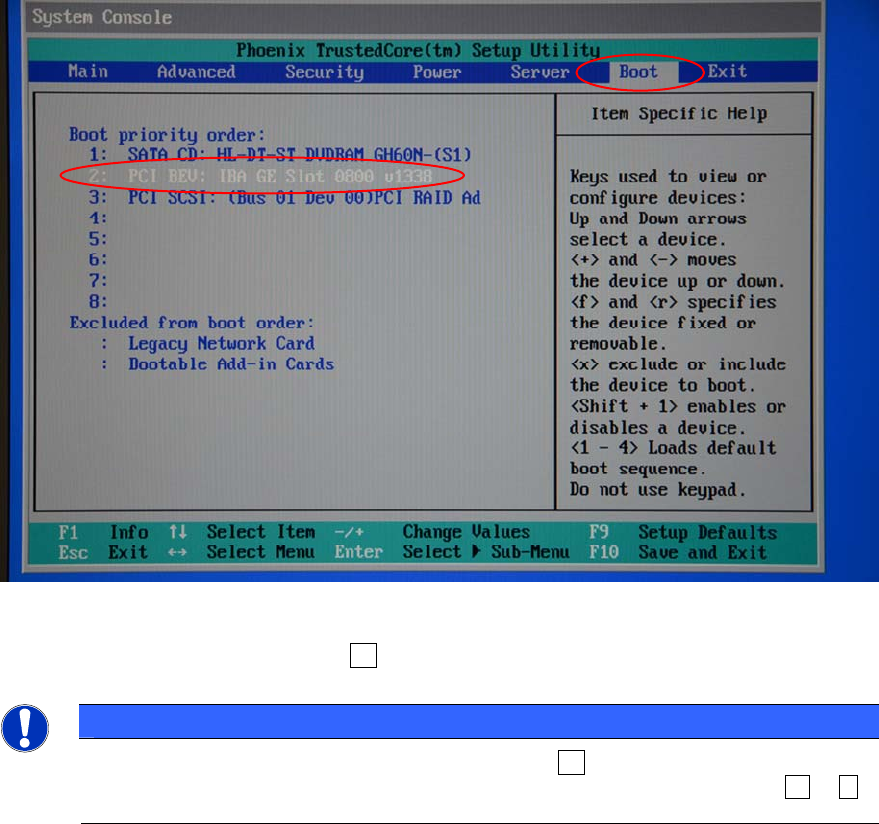
► On the Boot screen, select the PCI BEV: IBA GE Slot 0800 v1338 device by using the up and
down arrow keys.
6
Installing Primergy TX300S6 with Windows Server 2008R2 SP 1 07/2011 Edition
The screen should look like this:
Figure 2-1: Boot order in BIOS screen with LAN device selected
► With the device selected, press the X key to exclude the device from the boot order.
NOTICE
If you accidentally excluded the wrong device, press X again to include it. After that,
you may have to fix the boot order of the devices. You can do this by pressing + or -
with the appropriate device selected.
7