00196841-01_IM_TX300S6_Win2008R2_SP1_EN.pdf - 第28页
Installing Primergy TX300S6 with Wind ows Server 2 008R2 SP 1 07/2011 Edition 4 Additional finishing steps 4.1 Uninstalling Fujitsu Autom ated Immune System (AIS) Since the features of the Fujitsu Automated Immune System…
Installing Primergy TX300S6 with Windows Server 2008R2 SP 1 07/2011 Edition
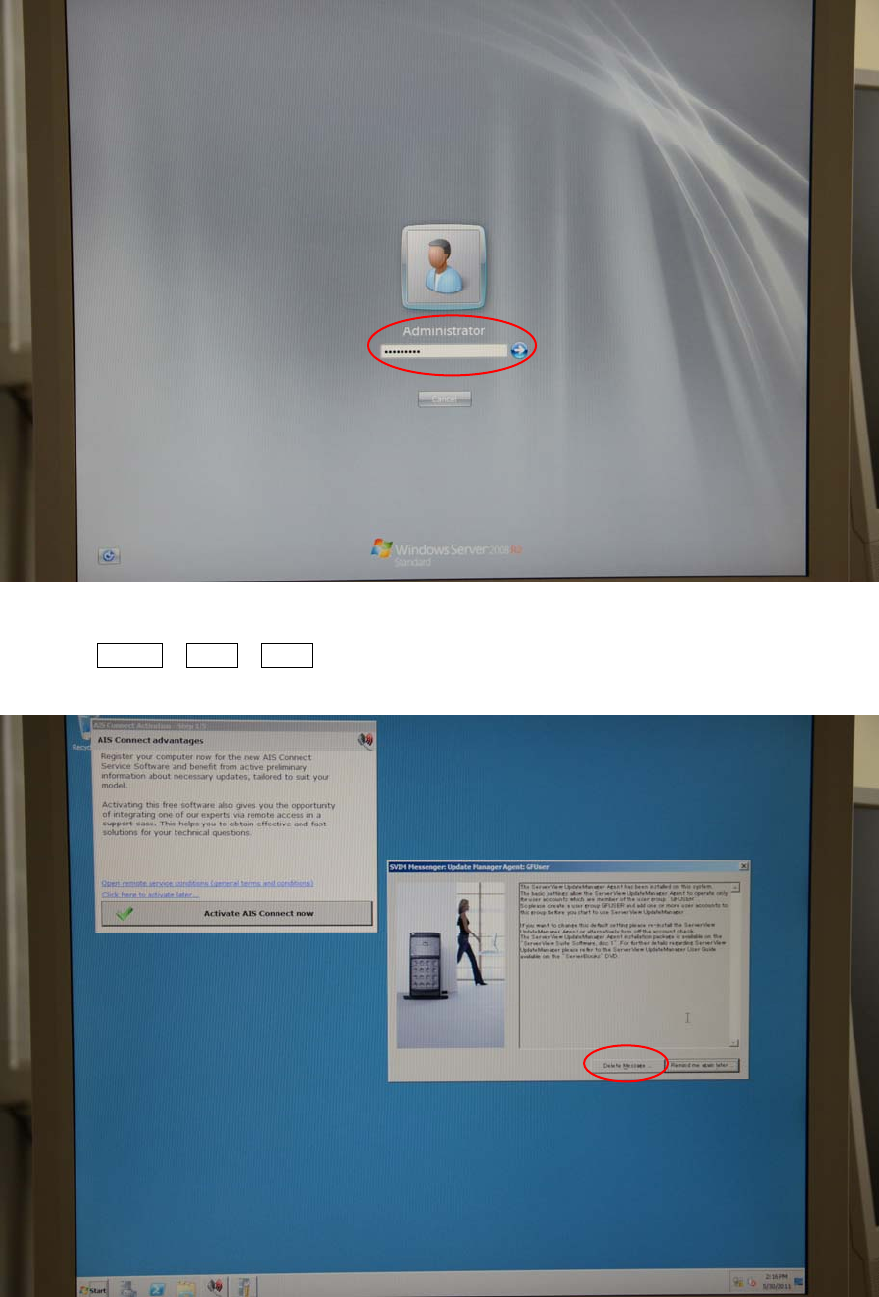
Figure 3-29: Logging in with Administrator account
► Press CTRL + ALT + DEL again and log in with the Administrator account.
The following screen appears.
Figure 3-30: Reminder messages
► Click the Delete Message button.
The basic installation steps are now completed. Continue with the following chapter.
27
Installing Primergy TX300S6 with Windows Server 2008R2 SP 1 07/2011 Edition
4 Additional finishing steps
4.1 Uninstalling Fujitsu Automated Immune System (AIS)
Since the features of the Fujitsu Automated Immune System (AIS) are not used, it should be
uninstalled.
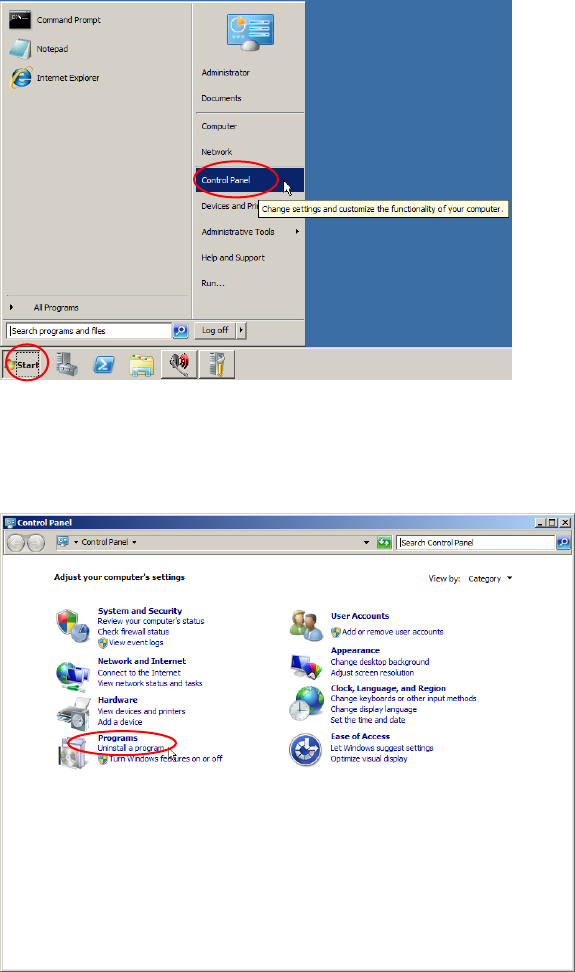
Figure 4-1: Opening Control Panel
► Click on Start – Control Panel.
The Control Panel appears.
Figure 4-2: Control Panel – clicking on “Uninstall a program”
► Click on Uninstall a program.
The Programs and Feature window opens. and Feature window opens.
28
Installing Primergy TX300S6 with Windows Server 2008R2 SP 1 07/2011 Edition
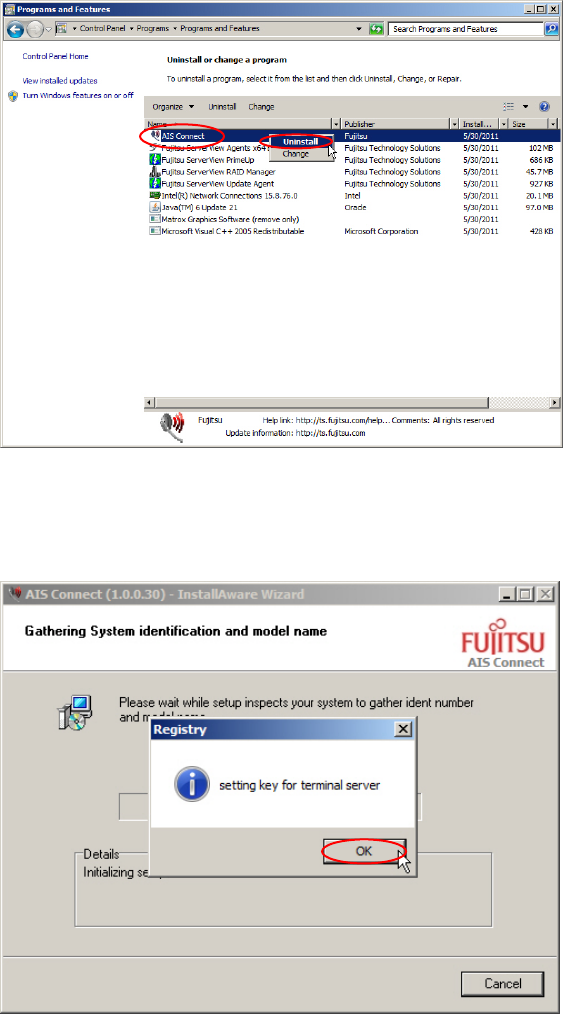
Figure 4-3: Uninstalling AIS – picture #1
► Right-click on the AIS Connect entry and select Uninstall.
The setup begins. After a while, the following window is displayed.
Figure 4-4: Uninstalling AIS – picture #2
► Click the OK button.
The following window appears. llowing window appears.
29