00196841-01_IM_TX300S6_Win2008R2_SP1_EN.pdf - 第38页
Installing Primergy TX300S6 with Wind ows Server 2 008R2 SP 1 07/2011 Edition Figure 4-22: Properties of SIPLACE LAN Network Connection ► Click the Internet Protocol Version 4 (TCP/IPv4) text (not the checkbox!) and se l…
Installing Primergy TX300S6 with Windows Server 2008R2 SP 1 07/2011 Edition
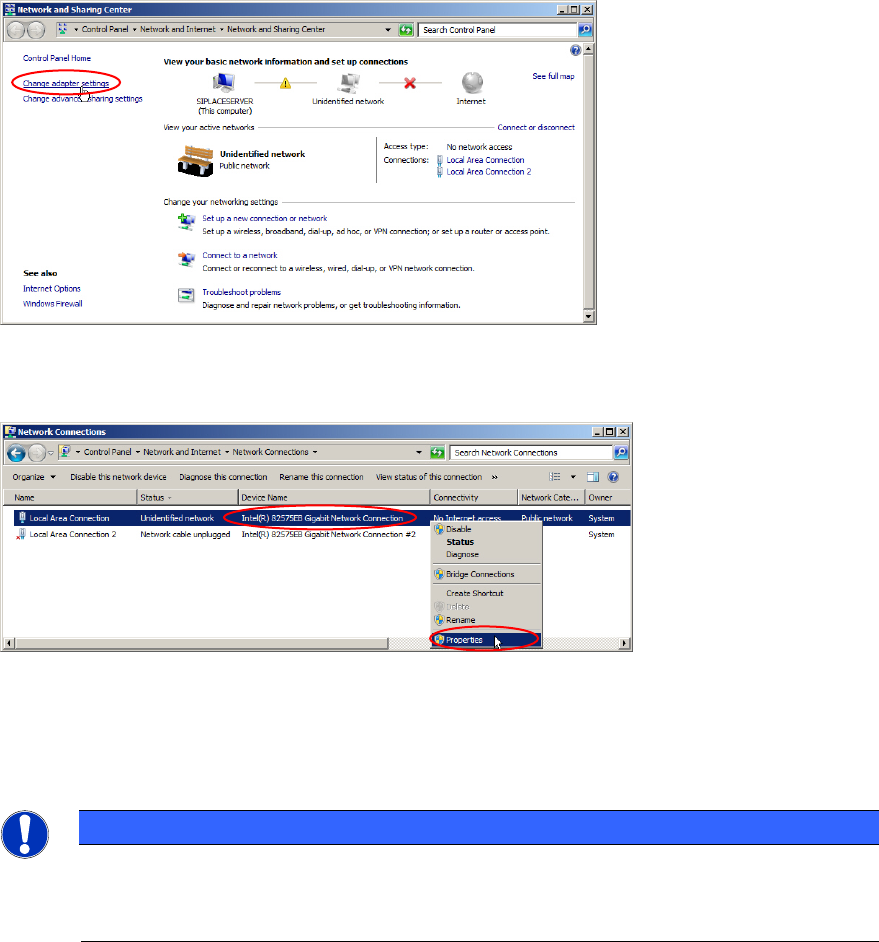
Figure 4-20: Network Sharing Center – clicking change adapter settings
► Click on Change adapter settings on the left side.
Figure 4-21: Selecting Properties of connected Network Card
► Right-click on the network card that is connected (Status is not Network cable unplugged)
► Select Properties.
NOTICE
Network Card identification
This procedure only works if you have disconnected all other network cables except the
SIPLACE connection, as mentioned in the first chapter.
37
Installing Primergy TX300S6 with Windows Server 2008R2 SP 1 07/2011 Edition
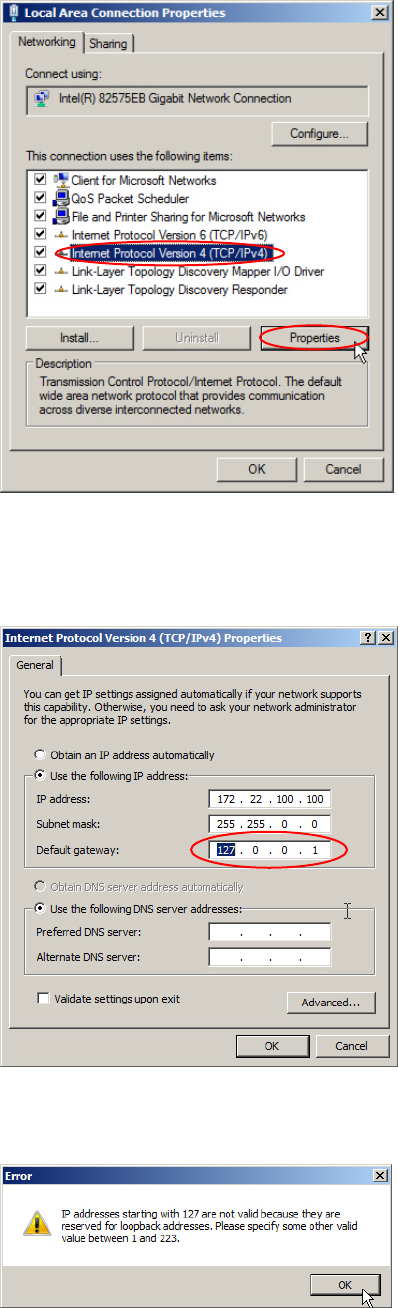
Figure 4-22: Properties of SIPLACE LAN Network Connection
► Click the Internet Protocol Version 4 (TCP/IPv4) text (not the checkbox!) and select Properties.
The TCP/IP Properties appear.
Figure 4-23: TCP/IP Properties with wrong gateway
If you would click OK, Windows checks the default gateway setting and displays an error message:
Figure 4-24: Windows detecting wrong gateway setting
38
Installing Primergy TX300S6 with Windows Server 2008R2 SP 1 07/2011 Edition
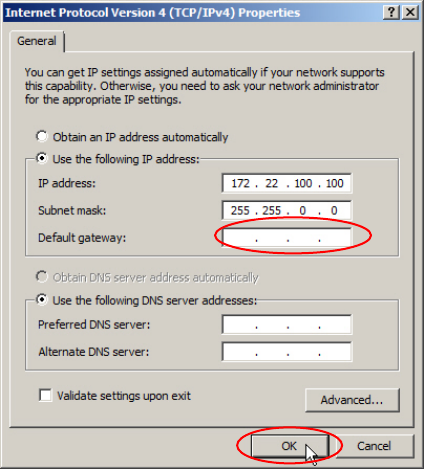
Figure 4-25: TCP/IP Properties with gateway removed
► Remove the wrong dummy gateway "127.0.0.1" and click the OK button.
39