00196841-01_IM_TX300S6_Win2008R2_SP1_EN.pdf - 第23页
Installing Primergy TX300S6 with Wind ows Server 2 008R2 SP 1 07/2011 Edition After preparation, the Installation Man a ger prompts you to remove the DVD. Figure 3-22: Installation Manager prompting to re move the Server…
Installing Primergy TX300S6 with Windows Server 2008R2 SP 1 07/2011 Edition
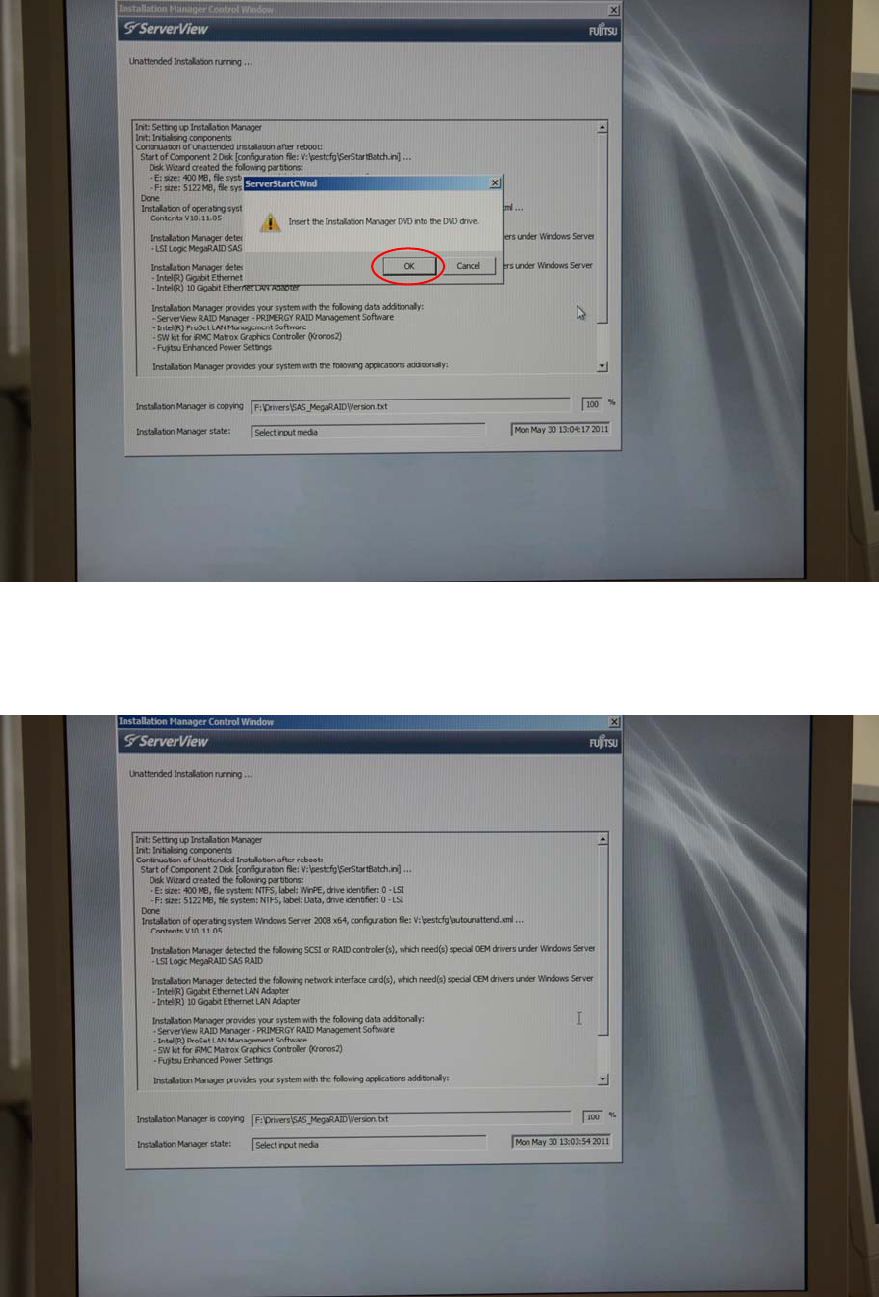
After a while, the Installation Manager asks for the ServerView DVD again.
Figure 3-20: Installation Manager asking for ServerView DVD
► Insert the ServerView DVD again and click the OK button.
The Installation Manager continues the preparation.
Figure 3-21: Installation Manager continuing preparation
22
Installing Primergy TX300S6 with Windows Server 2008R2 SP 1 07/2011 Edition
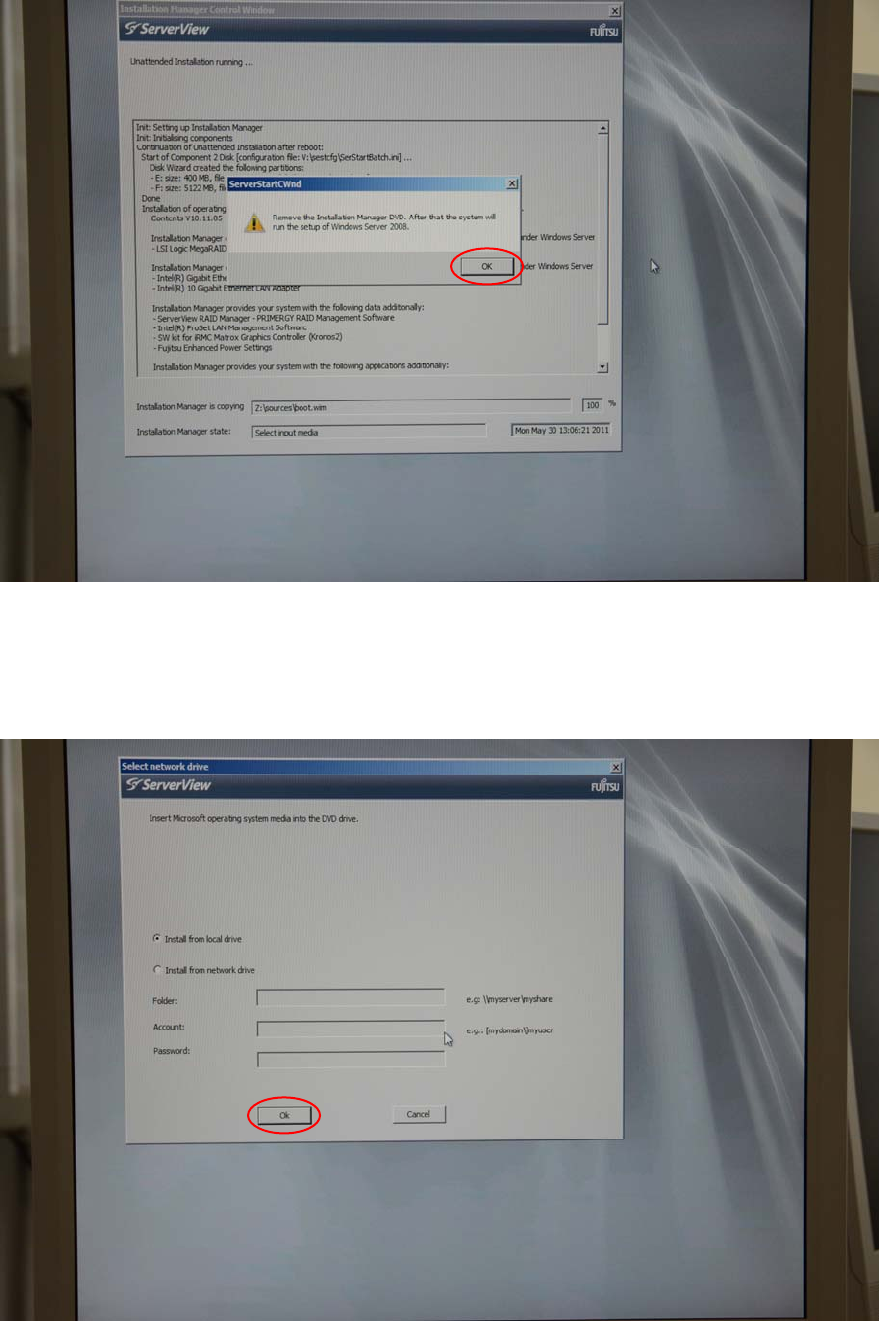
After preparation, the Installation Manager prompts you to remove the DVD.
Figure 3-22: Installation Manager prompting to remove the ServerView DVD
► Remove the DVD from the drive and click the OK button.
The system will be rebooted. After a while, the Installation Manager asks for the operating system
DVD again.
Figure 3-23: Installation Manager requesting Operating System DVD again
23
Installing Primergy TX300S6 with Windows Server 2008R2 SP 1 07/2011 Edition
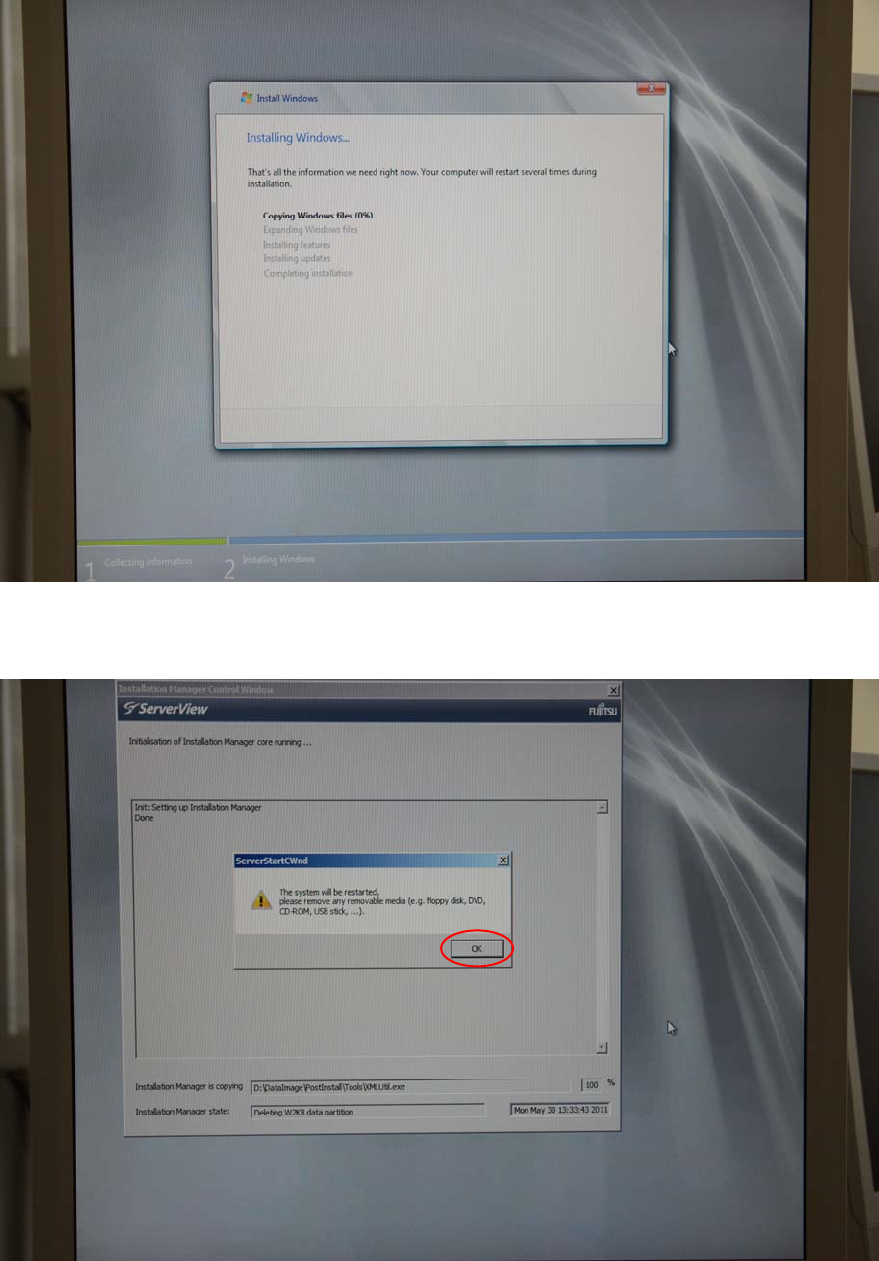
► Insert the Windows Server 2008 R2 SP 1 operating system DVD into the DVD drive again and
click the OK button.
The Installation Manager starts the Windows installation.
Figure 3-24: Installation Manager starting Windows Installation
After a while, the Installation Manager prompts you to remove the DVD again.
Figure 3-25: Installation Manager prompting to remove the DVD again.
► Remove the DVD from the drive and click the OK button.
24